



Razer Leviathan V2 X settings: Essential tweaks for gaming
Razer Leviathan V2 X settings: Step-by-step EQ, firmware, latency, and connection tweaks to boost clarity, bass balance, and positional audio for gaming. 🎧⚡

So, you’ve unboxed that sleek Razer Leviathan V2 X and plugged it in. Lekker! But if you’re still running it on factory defaults, you're leaving a massive audio advantage on the table. Getting the best Razer Leviathan V2 X settings isn't just about cranking the volume; it’s about customising the soundscape to hear every footstep, reload, and distant shot with pinpoint clarity. Let's get your new soundbar dialled in for a proper competitive edge.

Promate Wireless Bluetooth Karaoke Microphone, Handheld 5-in-1 Karaoke Microphone & Speaker, LED Lights, TWS Duet Mode, 10-Hour Play Time, 3.5mm AUX, Headphone Port, Kids, Adults / VOCALMIC.BLACK
R799.00In Stock
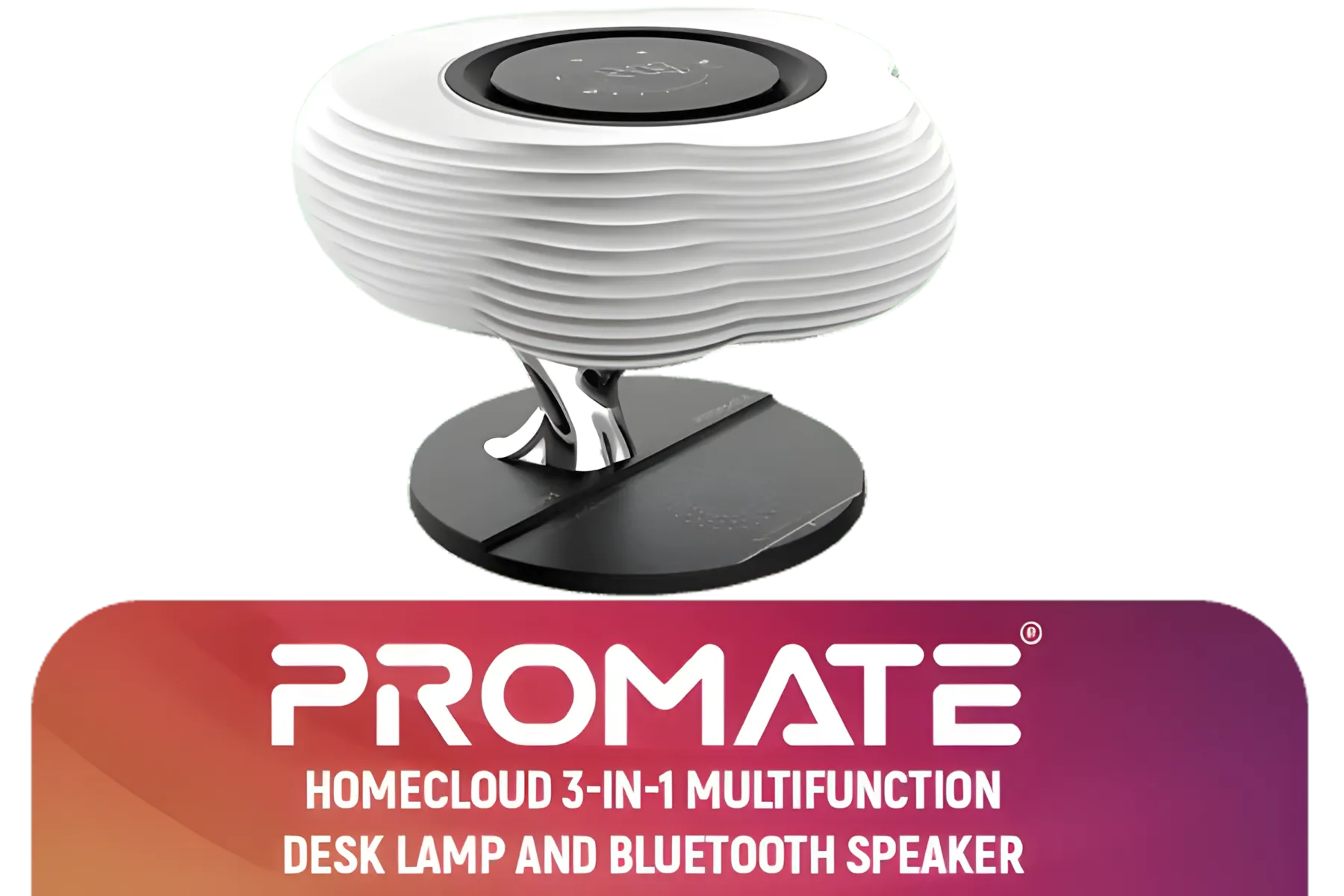
Promate 3-in-1 Cloud Design Bluetooth Speaker with LED Nightlight / Qi Charger / 10W Wireless Speaker / Auto-Time Sync / Touch Control Brightnes / HOMECLOUD.UNI
R999.00In Stock
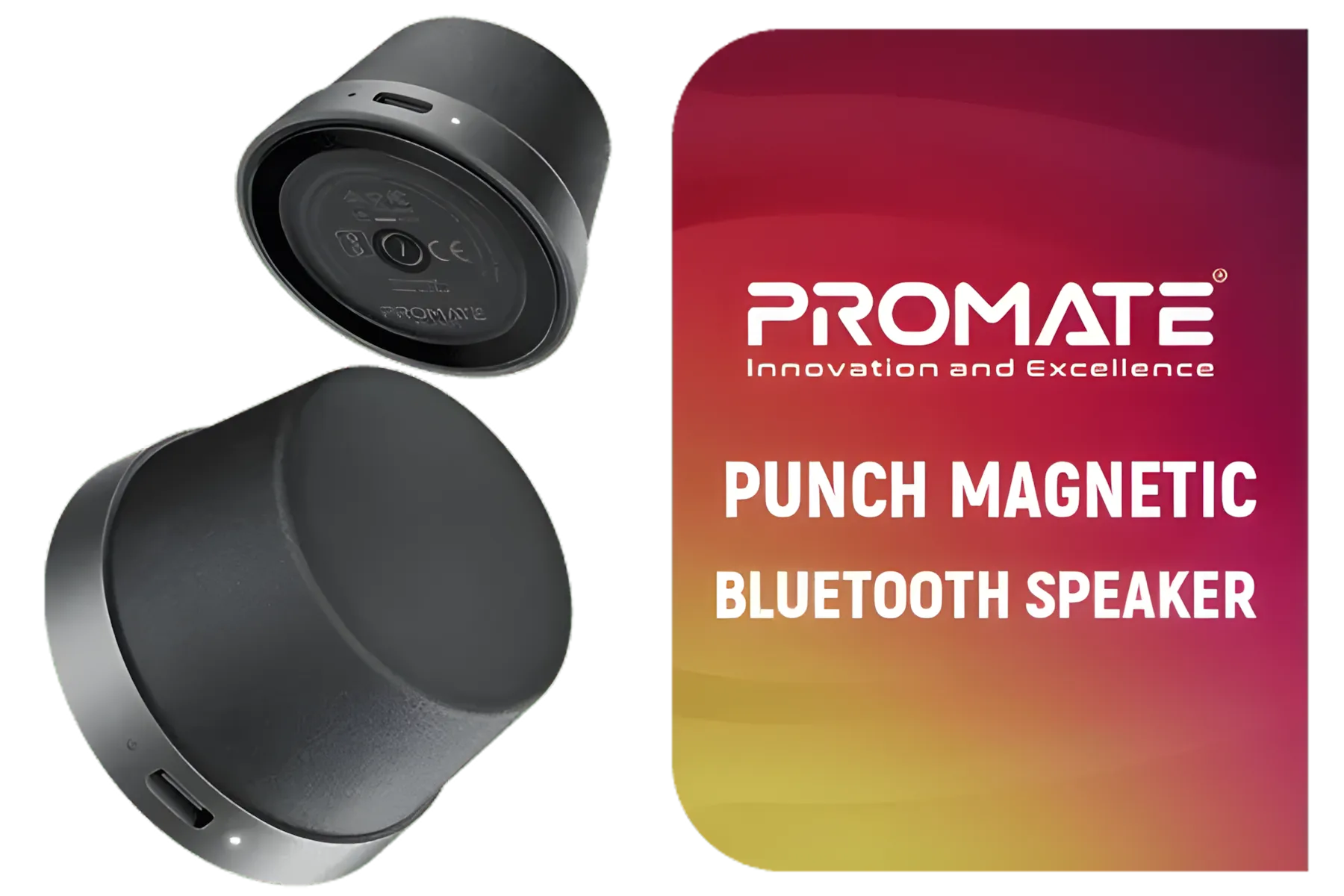
Promate Magnetic Bluetooth Speaker, 3W TWS Small Bluetooth Speaker with HD Sound, 40mm Dynamic Drivers, Long-Lasting 12H Playtime, and Bluetooth V5.3 for Magsafe Compatible Devices / PUNCH.BLACK
R199.00In Stock

MARVO SG-286 RGB Gaming Speakers / USB Bluetooth RGB Lighting Soundbar / Frequency Range: 60Hz-20KHz / Easily Accessible Volume Knob / SG-286
R299.00In Stock
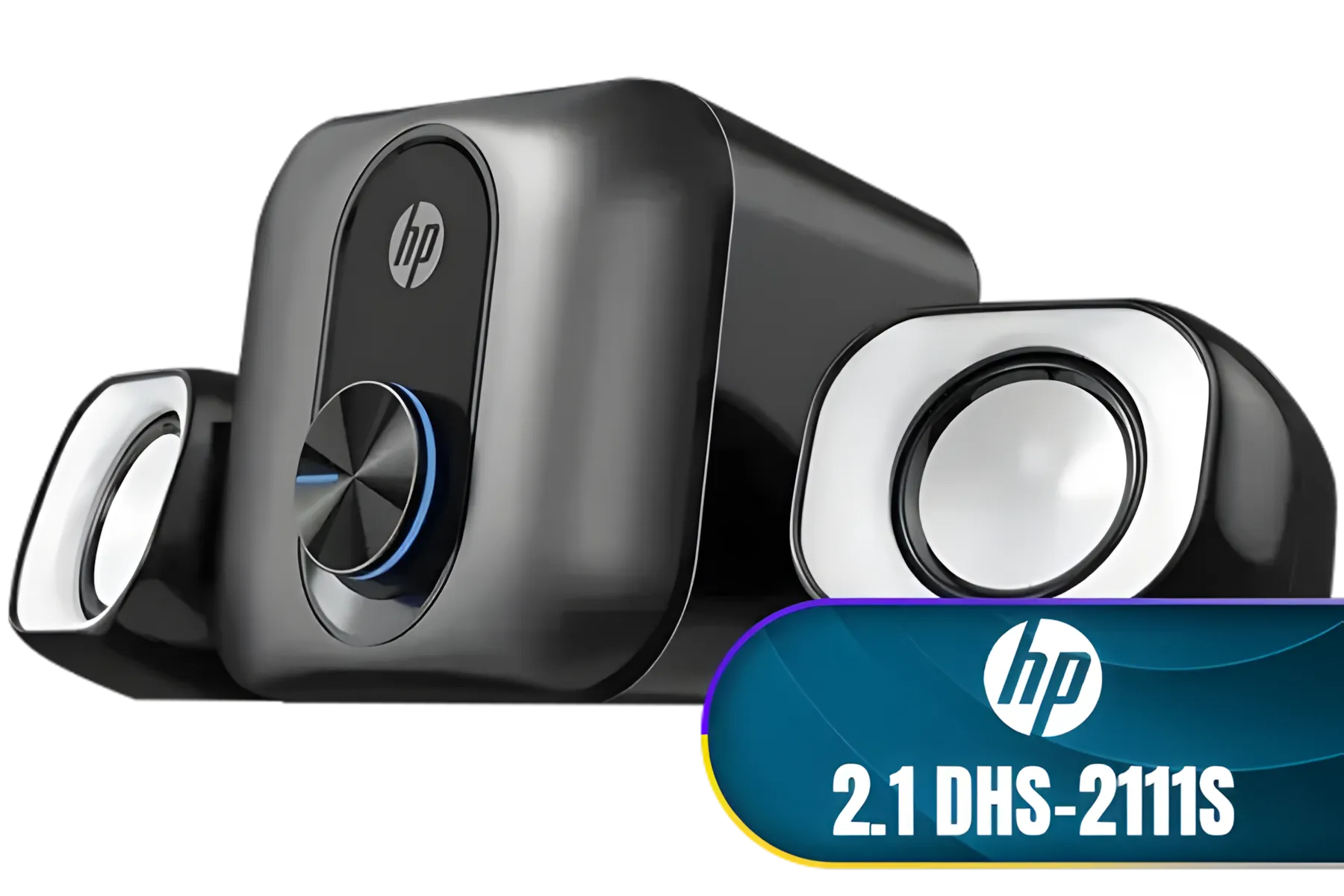
HP 2.1 DHS-2111S Black Speaker with USB Power and 3.5mm Connector Subwoofer Power 5W 2B285AA / DHS-2111S
R499.00In Stock

HP DHS-4200 Wired LED Computer Speaker, 2x 3W Rated Power, 3.5mm Jack Audio & USB Power Supply, 52mm Speaker Size, Bright LED, Black | DHS-4200
R499.00In Stock
Start with the Basics: Positioning Your Soundbar
Before you even touch any software, where you place your soundbar matters. The ideal setup is simple but crucial for optimising your audio.
Place the Leviathan V2 X directly under the centre of your monitor, angled slightly upwards toward your ears. Ensure there are no obstacles like mugs or controllers blocking the path of the sound. This central position ensures you get a balanced stereo image, which is the foundation for good positional audio. A clean desk isn't just for looks; it's a key part of your audio setup. For a full overview of what's out there, you can browse a wide variety of PC speakers.
Unlocking Power with Razer Synapse Settings
This is where the real magic happens. Razer’s Synapse software is the control centre for your soundbar, and a few tweaks here can transform your listening experience. If you haven't installed it, do that now.

MARVO SG-118 2.0 Stereo LED Gaming Speakers / 3.5mm Audio Jack / 14-Color Lighting With Rainbow Effects / Volume Control / 2x 3W Speakers / SG-118
R199.00In Stock

Logitech Multimedia Speakers Z150 with Stereo Sound for Multiple Devices, Black / 980-000814
R599.00In Stock
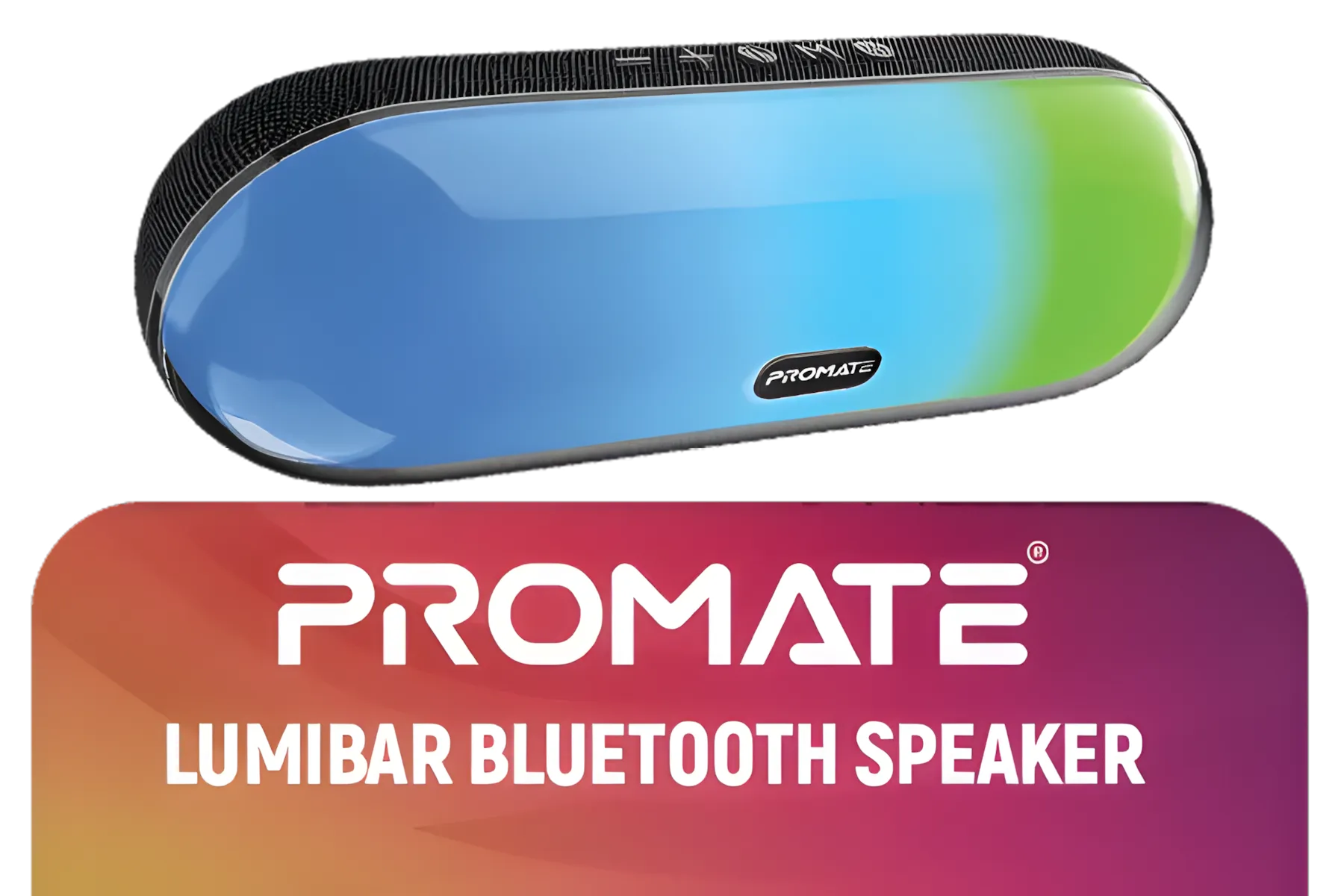
Promate Bluetooth Speaker, 10W True Wireless Portable HD Speaker with RGB Lights, Bluetooth v5.3, Long Playtime, Quick Music Navigation, Water-Resistance, USB Port and TF Card Slot for iPhone / LumiBar
R499.00In Stock
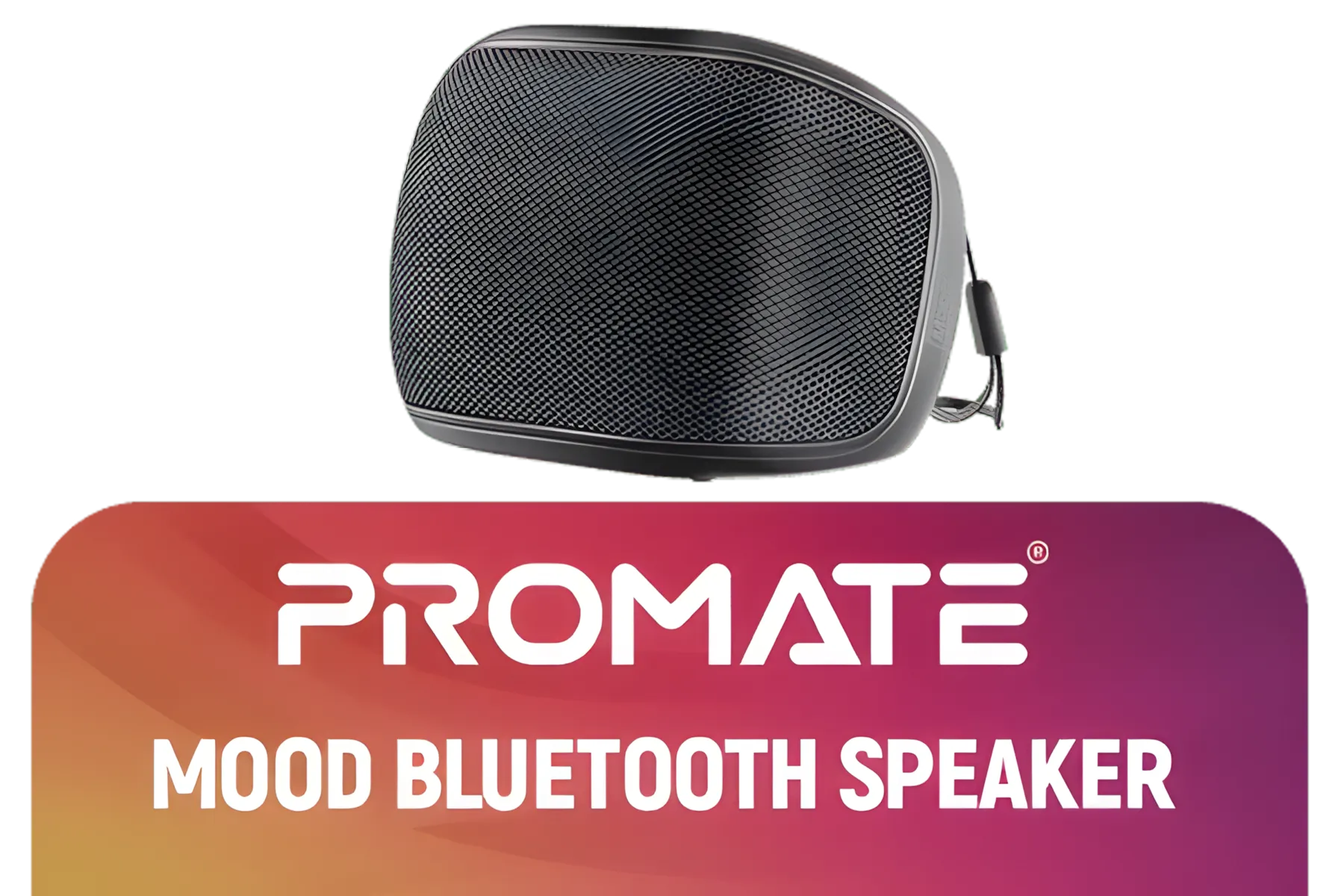
Promate Bluetooth Speaker, 5W True Wireless IPX4 Water Resistant Portable Speaker, HD Sound, Long 24H Playtime, USB Flash Port, AUX, TF Card Slot for iPhone 15, iPad Air, Galaxy S23 / MOOD.BLACK
R149.00In Stock

Monster Superstar S110 Wireless Bluetooth Speaker - Black / Portable Bluetooth Speakers 5.0 with TWS Pairing for 360° Louder Stereo Sound, Built-in Mic, Portable Wireless Speaker for Home or Indoor Use, IPX5 Water Resistance Wireless Speaker / MS11901
R499.00In Stock

MARVO SG-285 Havoc 20 Gaming Speakers - Grey / 3.5mm Audio Jack / RGB Lighting Effects / Volume Control Knob / 2x 3W Speakers / SG-285-GY
R349.00In Stock
The Equalizer (EQ): Your Sonic Fingerprint 🎧
The default EQ is okay, but "okay" doesn't win matches. Navigate to the ‘Audio’ > ‘Equalizer’ tab in Synapse. You’ll see presets like Gaming, Music, and Movie.
- Gaming Preset: This is a solid starting point. It typically boosts bass for explosions and treble for high-frequency sounds like shattering glass.
- Custom EQ: For FPS titles like Valorant or Warzone, create a custom profile. Slightly lower the bass frequencies (around 60-120 Hz) to reduce distracting rumble, and boost the mid-to-high frequencies (around 2-6 kHz) where footsteps and character callouts live. The Leviathan V2 X is a fantastic 2.0 speaker system, and a good EQ makes its two full-range drivers truly sing.
TIP FOR YOU
Pro Gamer EQ Tip ⚡
Create and save a custom EQ profile in Synapse specifically for your main competitive game. Name it 'Warzone' or 'Apex Legends'. Before you launch the game, just switch to that profile. This five-second habit ensures your audio is perfectly optimised every single time you play, giving you a consistent advantage.
Centre Focus and Other Enhancements
Another key Razer Leviathan V2 X setting to explore is "Center Focus" in Synapse. Toggling this on can enhance vocal clarity, which is brilliant for story-driven games or for hearing team comms more clearly over the chaos of battle. Test it out to see if you prefer it on or off for your favourite games. While this model focuses on a powerful stereo experience, gamers looking for that dedicated low-end rumble might explore 2.1 systems that include a separate subwoofer.
Fine-Tuning Your Connection and In-Game Audio
How your soundbar connects and how your game processes audio are the final pieces of the puzzle. The Leviathan V2 X offers a simple, high-fidelity wired setup via a single USB-C cable, which minimises latency.

Razer Leviathan V2 X: PC Soundbar with Full-Range Drivers / Compact Design / Chroma RGB / USB Type C Power and Audio Delivery / Bluetooth 5.0 / Supports PC, Laptop, Smartphones, Tablets & Nintendo Switch / RZ05-04280100-R3M1
R1999.00In Stock

Promate Portable Bluetooth Speaker, High-Definition True Wireless Speaker and Headphone Stand with USB-C and Dual USB-A Hub, Colorful RGB Lighting, Ergonomic Futuristic Design, Fast Charging / Alpha-X
R499.00In Stock
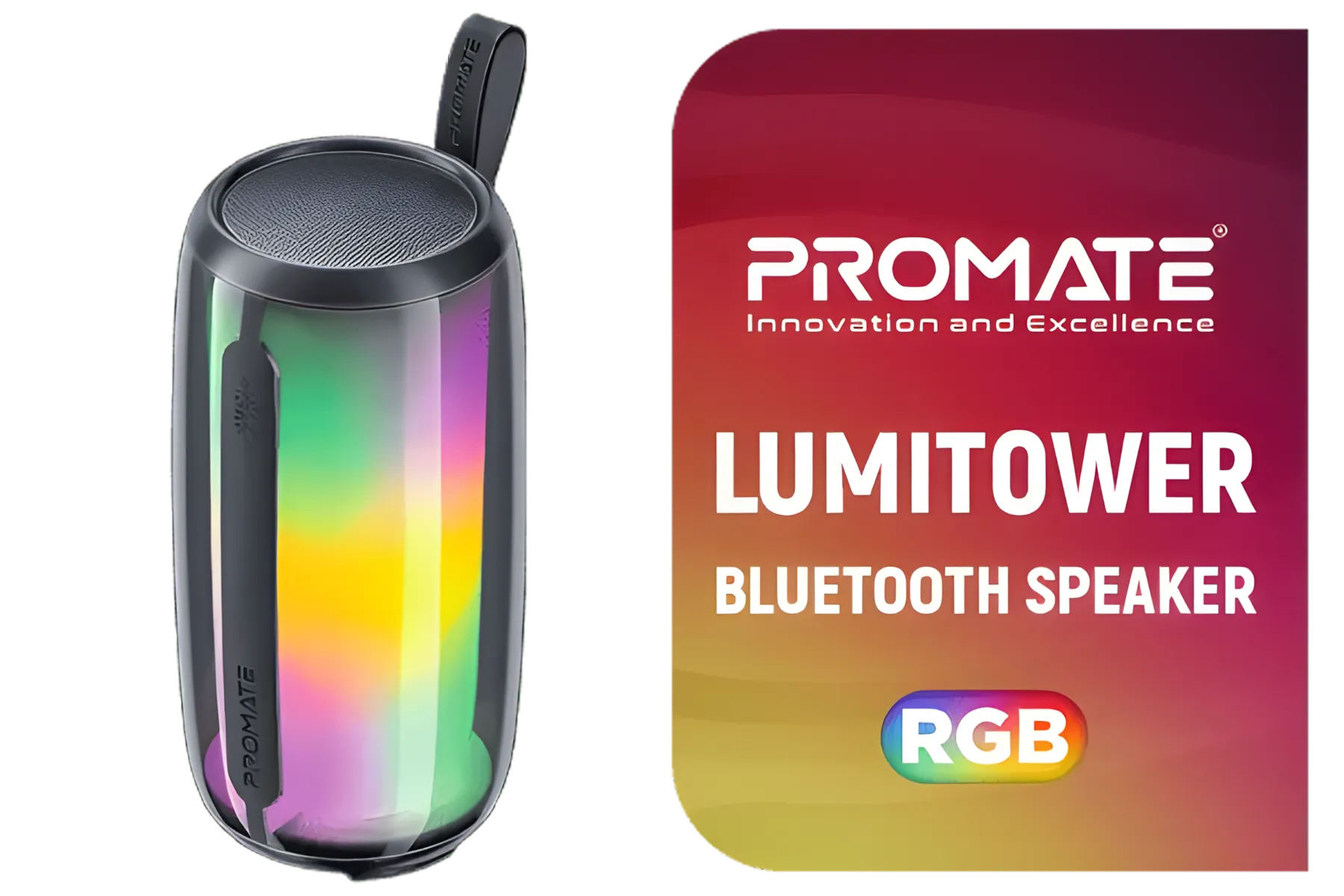
Promate Bluetooth Speaker, 8W True Wireless Portable HD Speaker with RGB Lights, Bluetooth v5.3, Long Playtime, Quick Music Navigation, Water-Resistance, USB Port and TF Card Slot for iPhone / LumiTower
R499.00In Stock

Monster Superstar S310 Wireless Bluetooth Speaker - Black / Portable Bluetooth Speakers 5.0 with TWS Pairing Deliver Rich Bass, Dynamic Stereo Sound, Built-in Mic, Wireless Speakers for Home or Outdoor Use, IPX5 Water Resistance Wireless speaker / MS11902
R799.00In Stock
Promate 3-in-1 Cloud Design Bluetooth Speaker with LED Nightlight / Qi Charger / 10W Wireless Speaker / Auto-Time Sync / Touch Control Brightnes / HOMECLOUD.UNI
R999.00In Stock
Promate Magnetic Bluetooth Speaker, 3W TWS Small Bluetooth Speaker with HD Sound, 40mm Dynamic Drivers, Long-Lasting 12H Playtime, and Bluetooth V5.3 for Magsafe Compatible Devices / PUNCH.BLACK
R199.00In Stock
While it also has Bluetooth for your phone, for serious gaming, always stick to the wired connection. Some gamers prefer the freedom of fully wireless speaker options, but the direct connection of the Leviathan ensures zero audio delay. If you're ever exploring other brands for a secondary setup, you might find interesting alternatives among Promate speakers.
Finally, check your in-game audio settings. For most games, setting the audio output profile to "Headphones" or "Stereo" will give you the most accurate positional audio from the soundbar. Avoid "7.1 Surround" settings, as they can muddy the stereo imaging the soundbar is designed to produce. Taking a few minutes to dial in your Razer Leviathan V2 X settings is one of the easiest performance upgrades you can make. ✨
Ready to Hear Every Detail? Optimising your sound is a huge part of the gaming experience. Whether you're upgrading your current setup or looking for the perfect first soundbar, we've got you covered. Explore our massive range of PC speakers and find the perfect audio solution to conquer your world.
Related Products
Promate Bluetooth Speaker, 8W True Wireless Portable HD Speaker with RGB Lights, Bluetooth v5.3, Long Playtime, Quick Music Navigation, Water-Resistance, USB Port and TF Card Slot for iPhone / LumiTower
R499.00In Stock
Monster Superstar S310 Wireless Bluetooth Speaker - Black / Portable Bluetooth Speakers 5.0 with TWS Pairing Deliver Rich Bass, Dynamic Stereo Sound, Built-in Mic, Wireless Speakers for Home or Outdoor Use, IPX5 Water Resistance Wireless speaker / MS11902
R799.00In Stock
MARVO SG-286 RGB Gaming Speakers / USB Bluetooth RGB Lighting Soundbar / Frequency Range: 60Hz-20KHz / Easily Accessible Volume Knob / SG-286
R299.00In Stock
Promate Portable Bluetooth Speaker, High-Definition True Wireless Speaker and Headphone Stand with USB-C and Dual USB-A Hub, Colorful RGB Lighting, Ergonomic Futuristic Design, Fast Charging / Alpha-X
R499.00In Stock
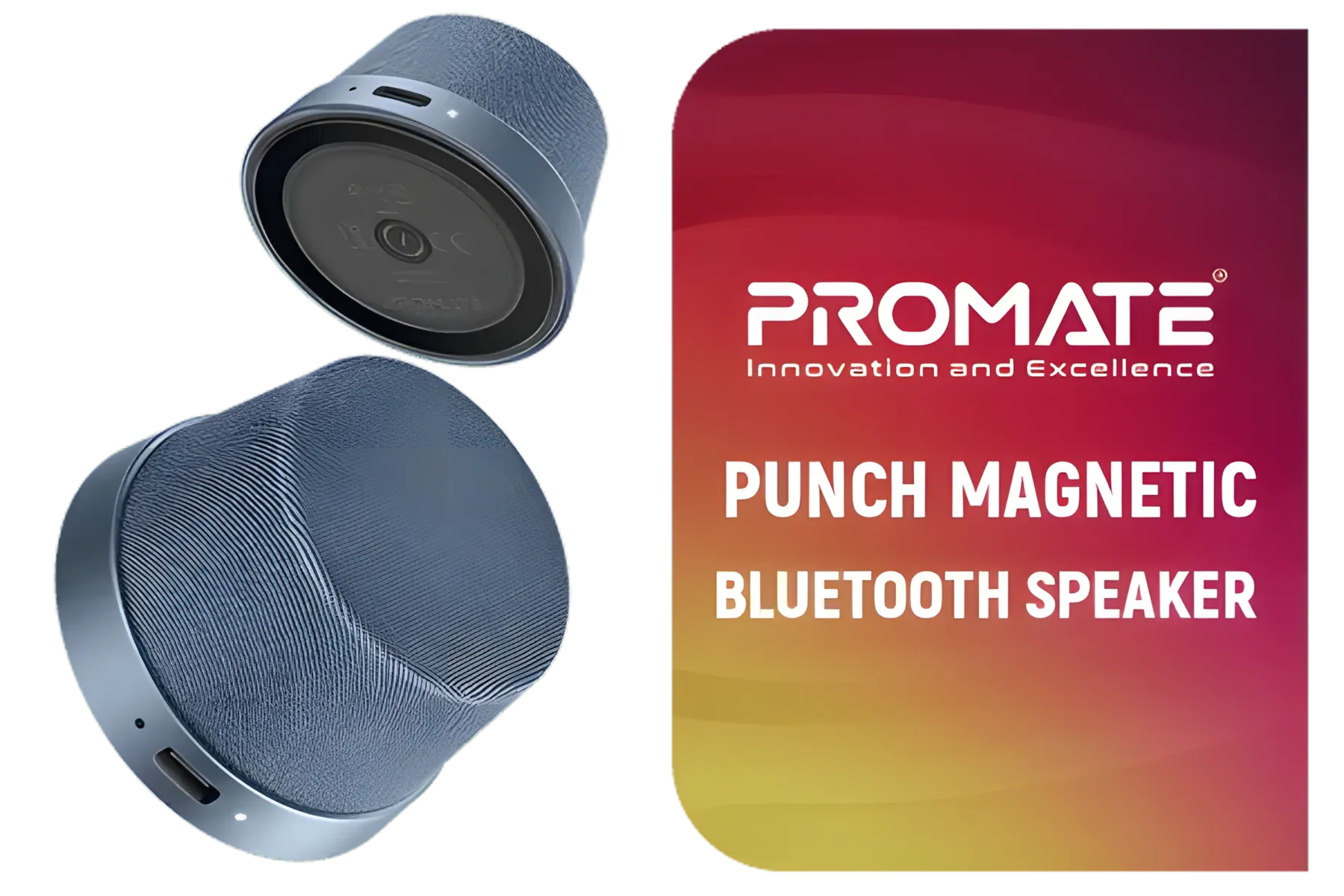
Promate Magnetic Bluetooth Speaker, 3W TWS Small Bluetooth Speaker with HD Sound, 40mm Dynamic Drivers, Long-Lasting 12H Playtime, and Bluetooth V5.3 for Magsafe Compatible Devices / PUNCH.NAVY
R299.00In Stock
MARVO SG-285 Havoc 20 Gaming Speakers - Grey / 3.5mm Audio Jack / RGB Lighting Effects / Volume Control Knob / 2x 3W Speakers / SG-285-GY
R349.00In Stock
Start with a gaming EQ prioritizing mids and highs, set low-latency wired mode, update firmware, and reduce excessive bass for clearer positional cues.
Open Razer Synapse, connect the Leviathan V2 X, follow the firmware update prompts, then restart the device to apply changes.
Use wired USB or optical for minimal latency in competitive gaming; Bluetooth is convenient but can introduce noticeable audio delay.
Boost upper mids slightly, tighten bass, and keep highs clear to enhance footsteps and directional cues while gaming.
Enable Dolby Atmos for enhanced spatial imaging, then retune EQ to prevent muddy bass and preserve clarity.
Choose wired connections, enable any low-latency or game mode in Synapse, and close background apps that process audio.
Reset EQ to default, update firmware, switch to wired mode, and enable a game audio profile to resolve clarity or latency problems.











