



Reduce Audio Lag on Wireless Headsets: Quick Fixes
Reduce audio lag: practical, step-by-step fixes to lower latency on wireless headsets. Learn codec choices, firmware updates, Bluetooth tweaks, and PC tips to resync audio for gaming and streaming. 🎧⚡

There's nothing more frustrating. You're in a tense final circle in Warzone, you hear the skoot of a sniper rifle... a split-second after the "eliminated" screen appears. Ja nee, that's not just bad luck; that's audio lag. This noticeable delay between what you see and what you hear can ruin competitive play. But before you toss your gear, let's look at how to reduce audio lag on your wireless headset with some quick fixes.

Logitech G733 Lightspeed Wireless RGB Gaming Headset - Black / Lightsync RGB lighting / Fully Customizable / Blue VO!CE Technology / 40mm PRO-G Audio Drivers / DTS Headphone:X 2.0 Surround Sound / USB-C Charging Port / 20m Wireless Range / 981-000864
R1799.00In Stock
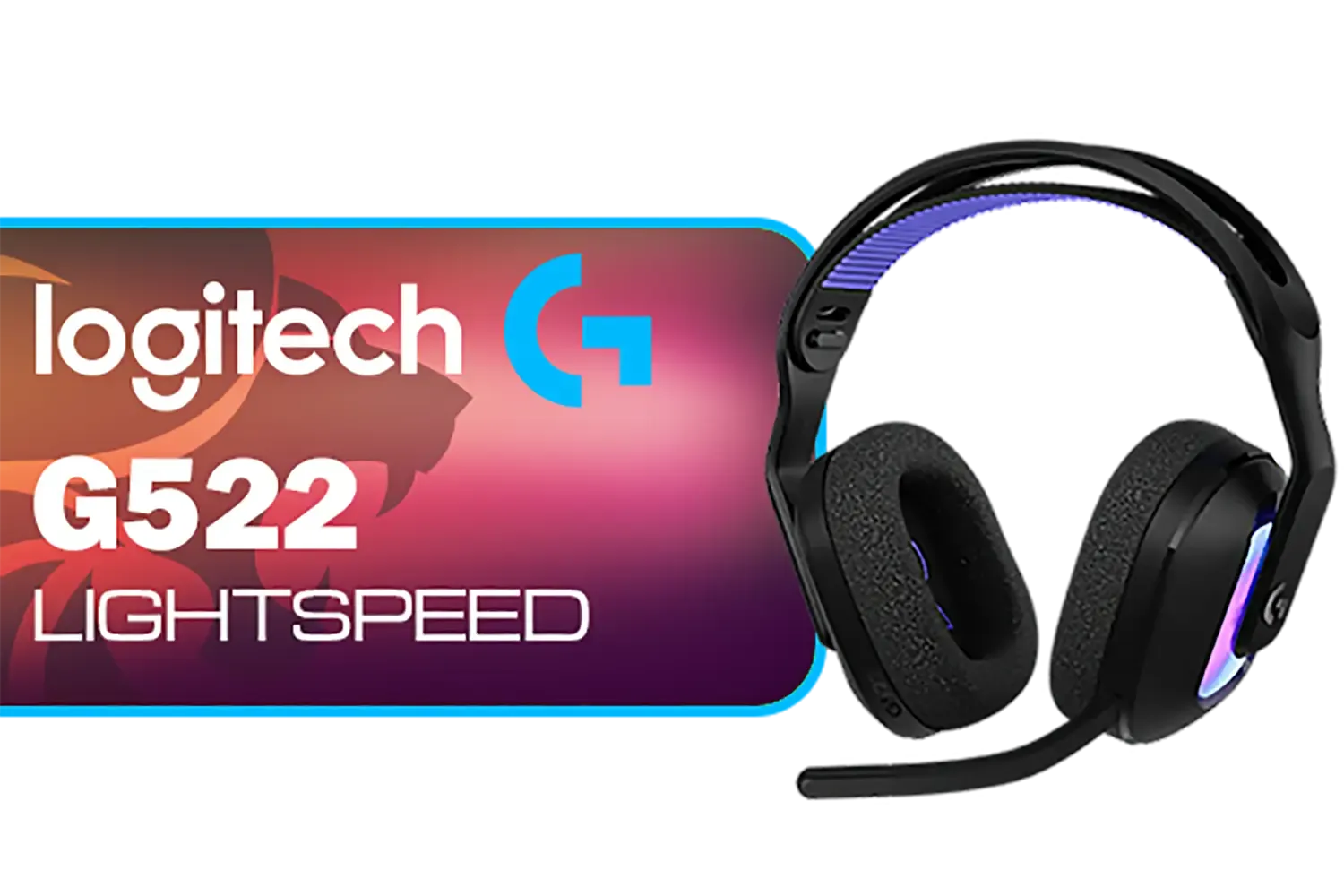
Logitech G522 Lightspeed Wireless RGB Gaming Headset - Black / RGB lighting with 16.8M colors / PRO-G drivers / Switch between wireless, Bluetooth, or wired / Up to 60-Hour Battery / Tune audio and voice with G HUB / 981-001544
R3339.00In Stock
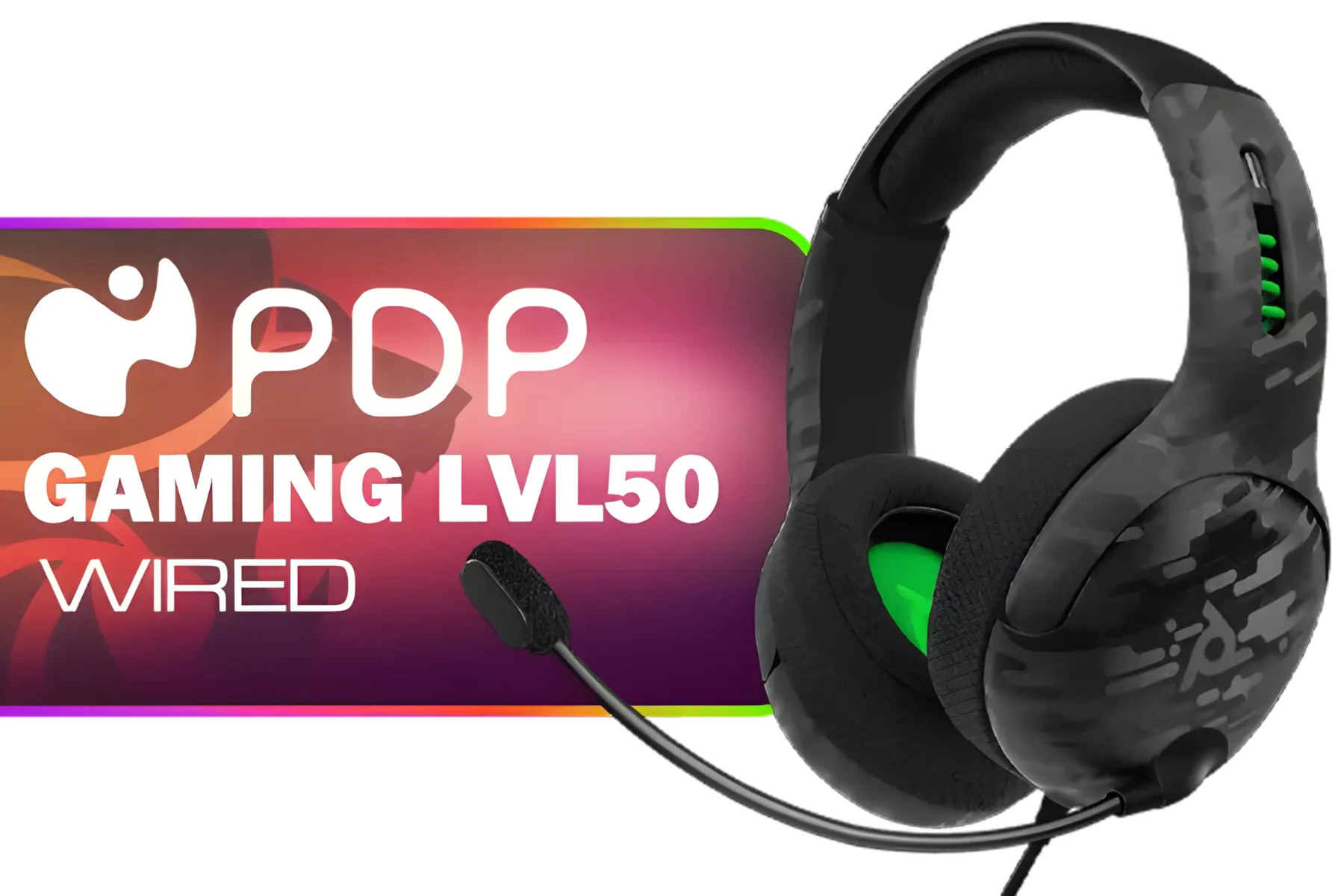
PDP Gaming LVL50 Wired Headset with Mic for Xbox One, Series X|S - PC, iPad, Mac, Laptop Compatible - Noise Cancelling Microphone, Bass Boost, Lightweight, Over Ear Headphones - Camo / Camoflauge / 048-124-AU-CAM
R1199.00In Stock
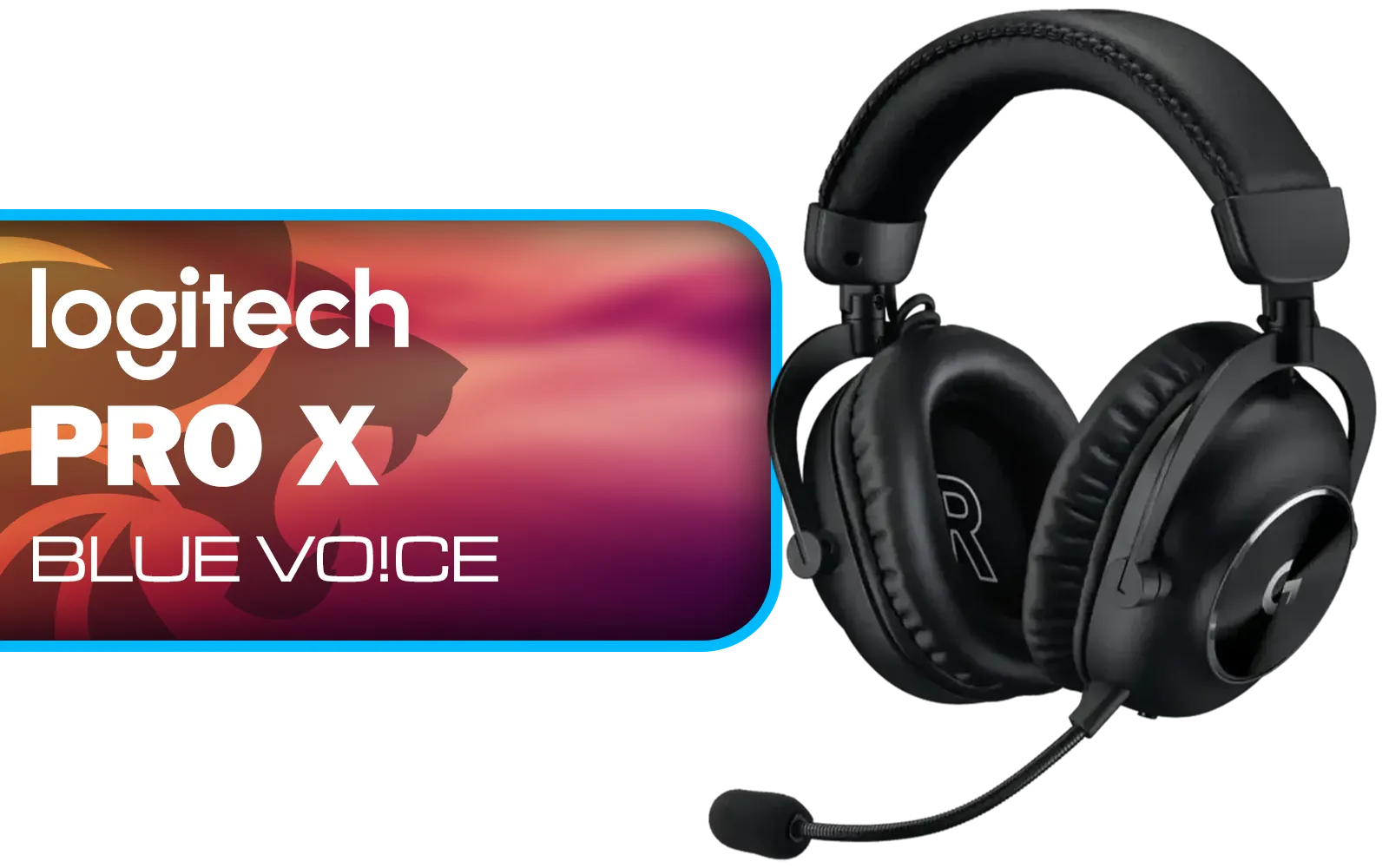
Logitech PRO X Gaming Headset With BLUE VO!CE Microphone Technology / USB External Sound Card / PRO-G 50 mm Audio Drivers / Detachable pro-grade Microphone / Comfortable Memory Foam Padding / Durable Steel and Aluminium Construction / 981-000818
R2299.00In Stock

Promate Jewel HD Stereo KidSafe Wired Headset - Bubblegum / Safe Audio Levels / Adjustable Headband / 3.5mm Aux Connector / Audio Sharing / JEWEL.BUBBLEGUM
R249.00In Stock

Marvo HP1001 Office Headset / 40mm Speakers / Stereo Sound / HP1001
R299.00In Stock
Understanding Wireless Audio Delay
That split-second delay you're experiencing is called latency. With wireless headsets, it's caused by the time it takes for audio data to be encoded, transmitted wirelessly, and then decoded by your headset. The main culprits are usually your connection type, signal interference, or even just software settings. Fixing this wireless audio delay is often simpler than you think.
Most gaming headsets use a dedicated 2.4GHz USB dongle, which is much faster than standard Bluetooth. If your headset relies on Bluetooth, especially an older version, you're more likely to notice lag.
Quick Fixes to Reduce Headset Audio Lag 🔧
Before considering an upgrade, let's run through some simple troubleshooting steps that can often solve the problem. These checks can help you optimise your current setup and get you back in the game with synchronised sound.
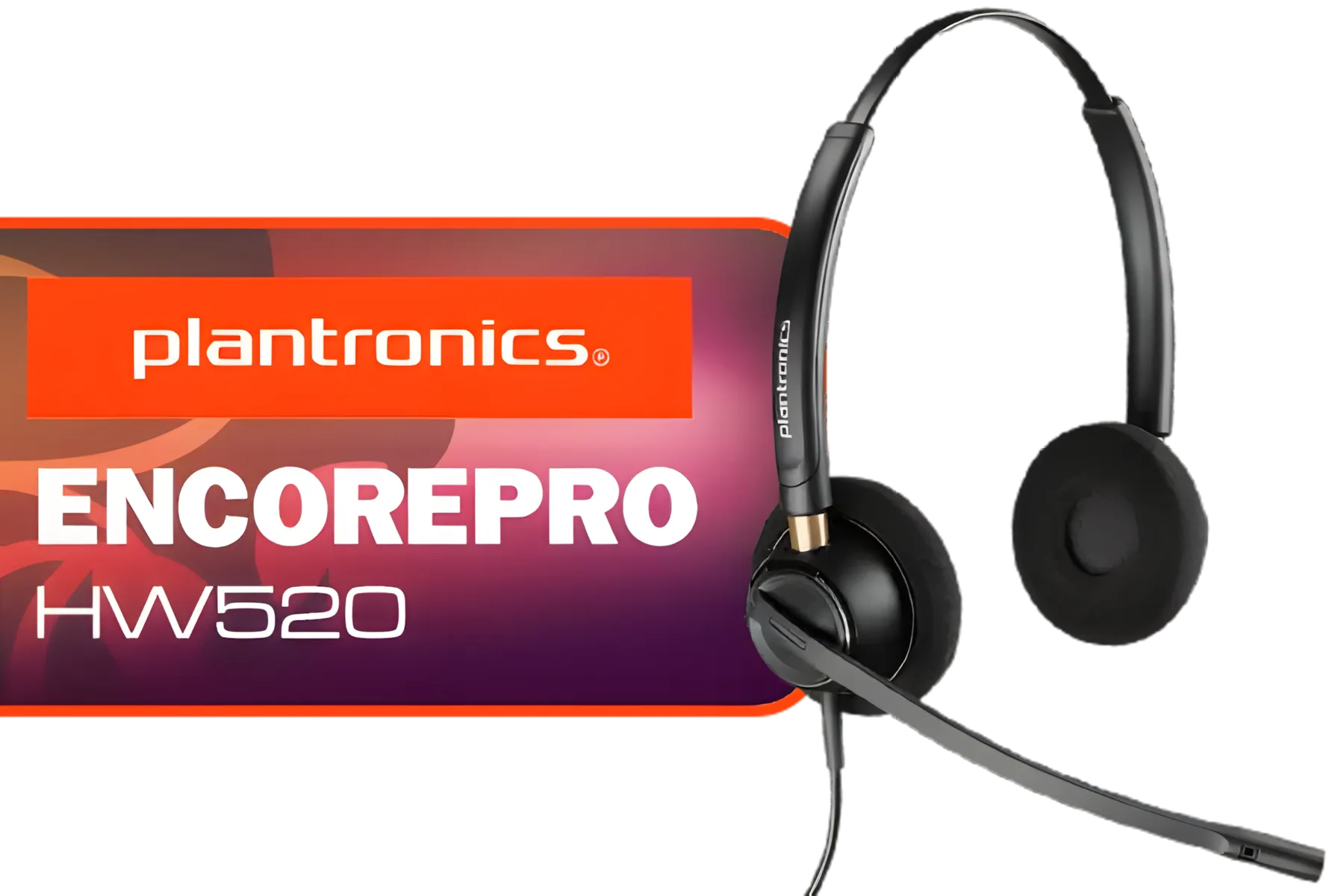
Plantronics HW520 EncorePro Binaural Headset / Noise canceling circuit / Flexible boom / PLT- HW520
R1699.00In Stock
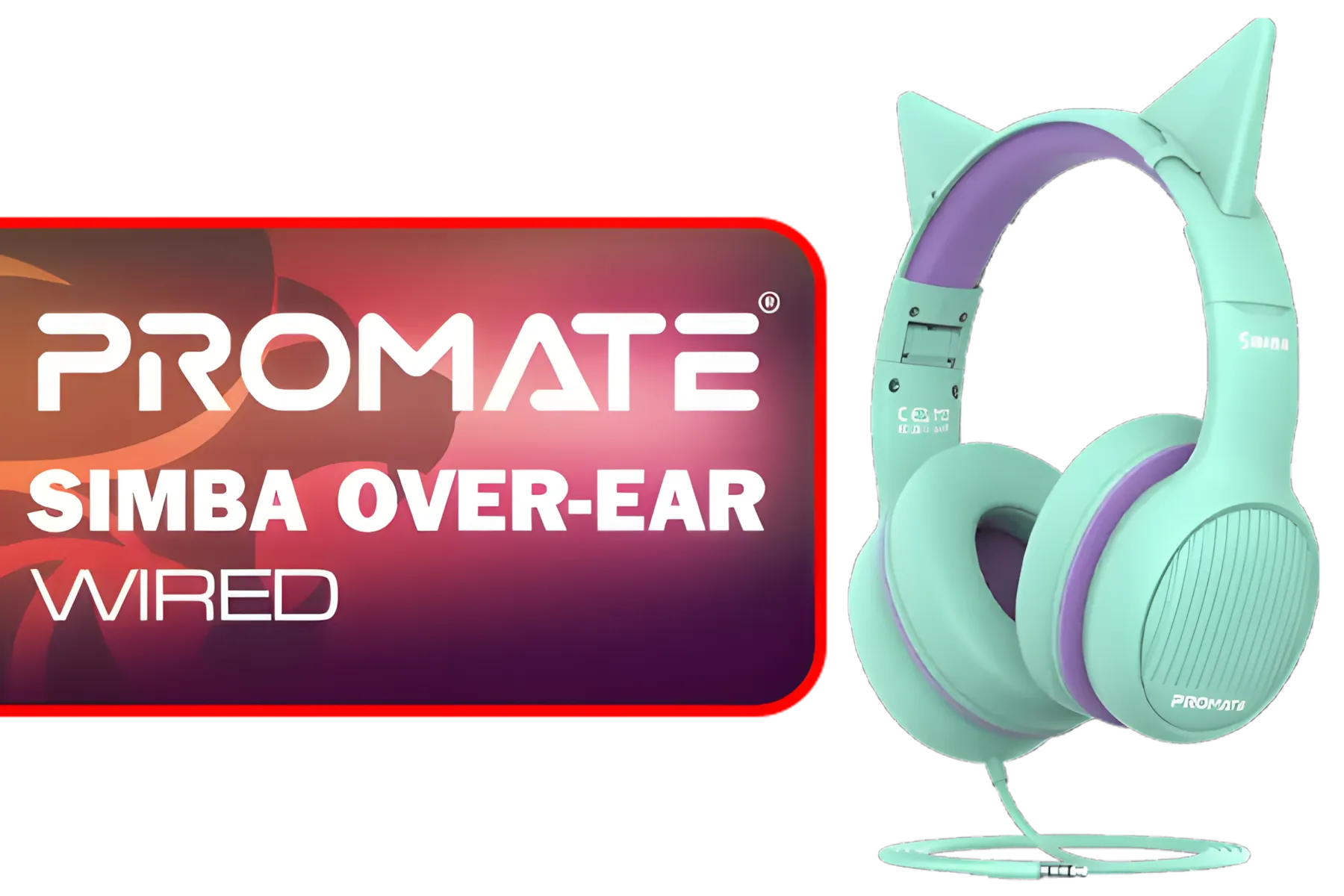
Promate Simba Over-Ear Hi-Definition SafeAudio™ Wired Headset - Emerald / 40mm Drivers / Adjustable Headband / 3.5mm Aux Connector / Audio Sharing / SIMBA.EMERALD
R299.00In Stock
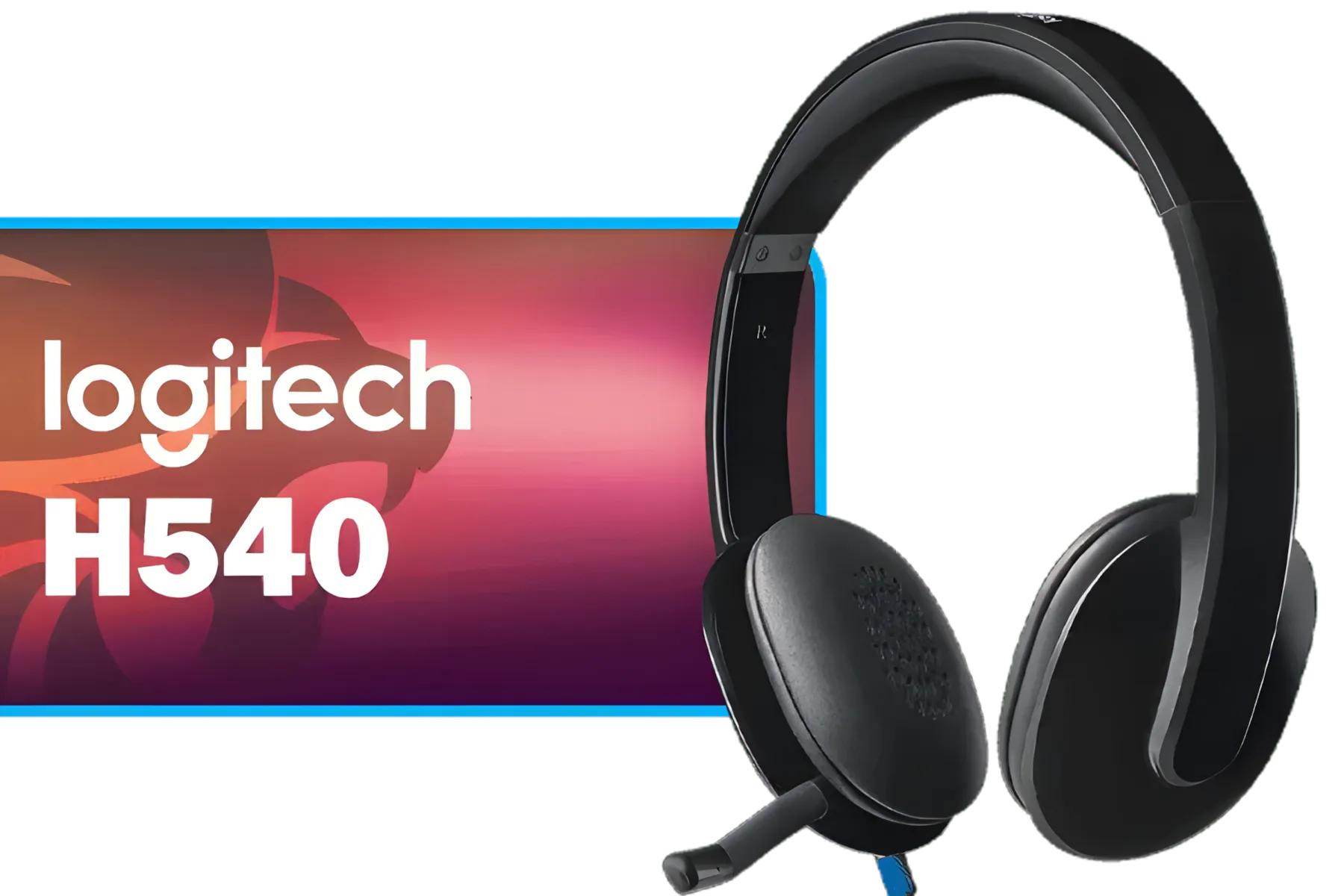
Logitech High-performance USB Headset H540 for Windows and Mac, Skype Certified / 981-000480
R729.00In Stock
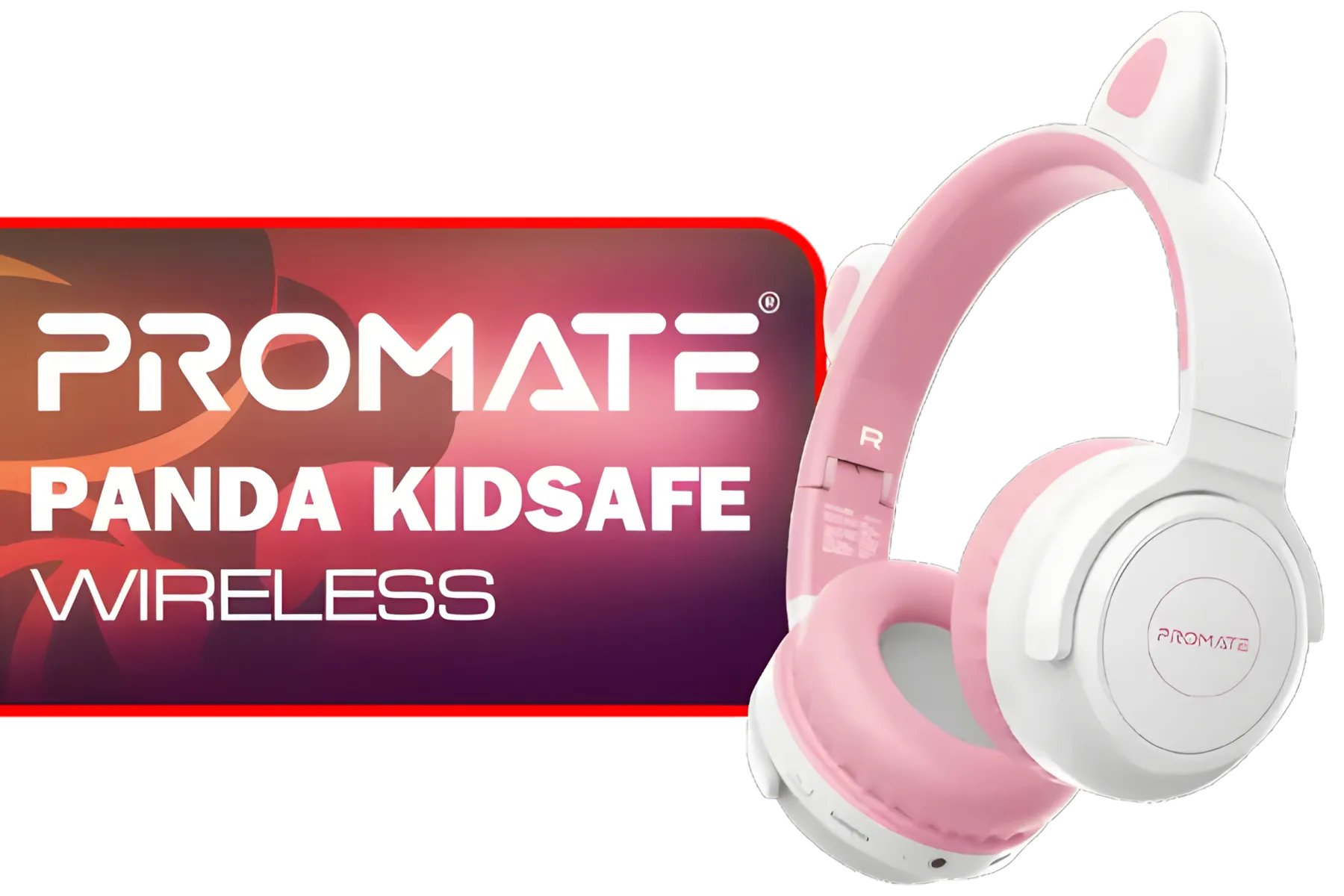
Promate Panda KidSafe Kawaii Style Wireless Kids Headset - Bubblegum / 1000mAh Battery / Up to 40 hours of Playtime / AUX Support / LED Illuminated Ears / PANDA.BUBBLEGUM
R399.00In Stock
Promate Jewel HD Stereo KidSafe Wired Headset - Bubblegum / Safe Audio Levels / Adjustable Headband / 3.5mm Aux Connector / Audio Sharing / JEWEL.BUBBLEGUM
R249.00In Stock
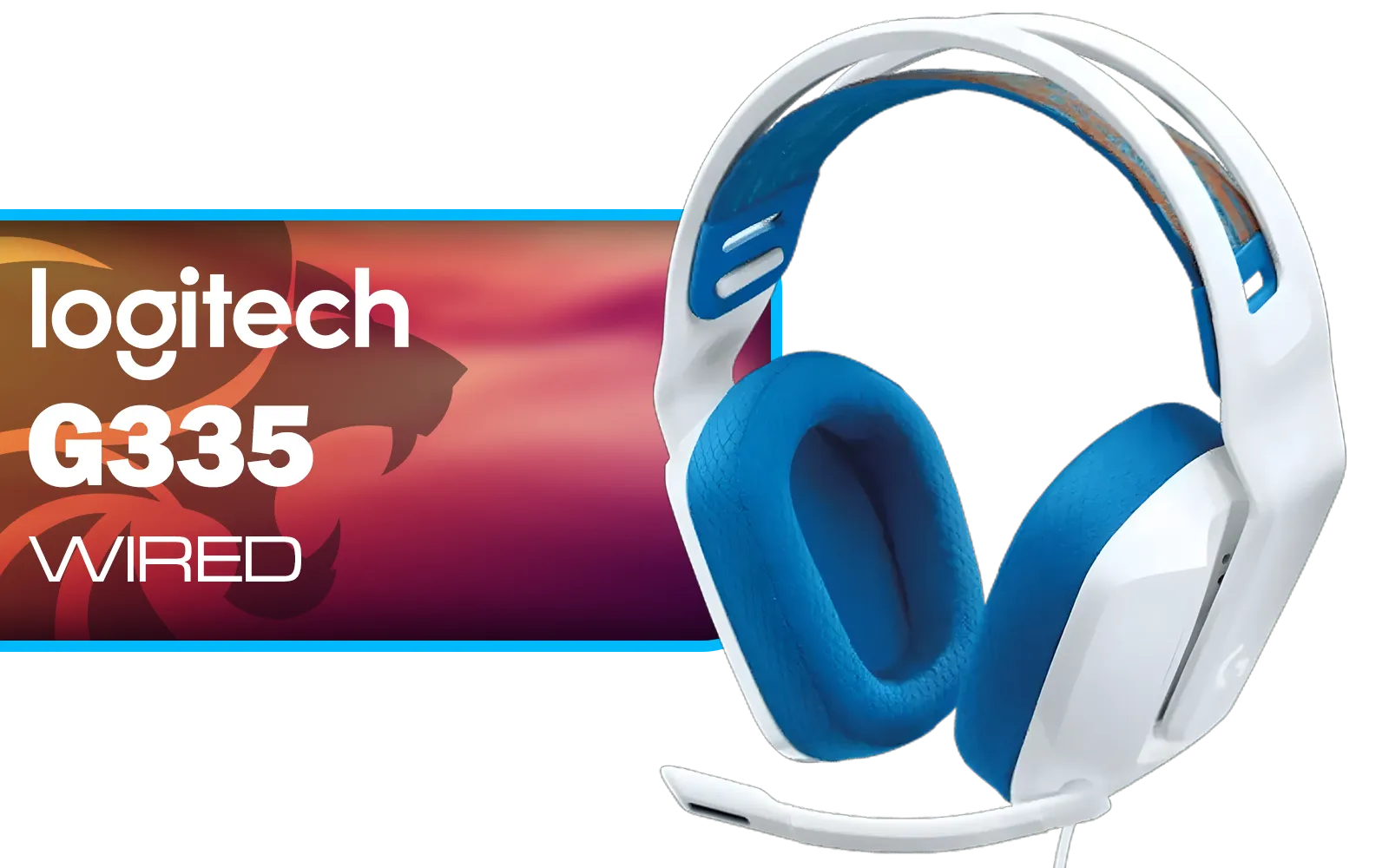
Logitech G335 Wired Gaming Headset - White / Multi-platform Compatibility / Unidirectional Microphone / 40mm Neodymium Drivers / Crystal Clear Communication / 240 Grams Light Weight / 981-001018
R999.00In Stock
Check Your Connection & Environment
The simplest solutions are often the most effective. Your physical setup plays a huge role in signal strength and stability.
- Get Closer: Move the wireless dongle to a USB port closer to you, with a clearer line of sight to your headset.
- Avoid Hubs: Plug the dongle directly into a USB port on your PC's motherboard (the ones at the back), not a USB hub or front-panel port, which can sometimes share bandwidth.
- Minimise Interference: Wi-Fi routers, microwaves, and even other wireless devices can interfere with the 2.4GHz signal. Try to keep your dongle and headset away from these signal hogs.
TIP FOR YOU
USB Port Pro Tip ⚡
Not all USB ports are equal. Always plug your 2.4GHz dongle into a USB 2.0 port if possible. USB 3.0 ports (usually blue) can sometimes cause radio frequency interference in the 2.4GHz band, which is exactly what your headset uses. This small switch can make a surprising difference to signal stability.
Update Your Software and Drivers
Outdated software is a common cause of performance issues, including audio lag. Keeping your drivers and firmware up-to-date ensures your hardware is running as the manufacturer intended. Most brands, like Razer, offer software suites that make managing your gear easy. Regularly checking for updates for specific Razer headphones and headsets through their Synapse software can resolve hidden bugs causing latency.

Dell WH3024 Wired Headset / Built-in AI-based noise cancellation microphone / In-line control / Leatherette memory foam ear cushions / 520-BBDH
R1299.00In Stock
Logitech G522 Lightspeed Wireless RGB Gaming Headset - Black / RGB lighting with 16.8M colors / PRO-G drivers / Switch between wireless, Bluetooth, or wired / Up to 60-Hour Battery / Tune audio and voice with G HUB / 981-001544
R3339.00In Stock
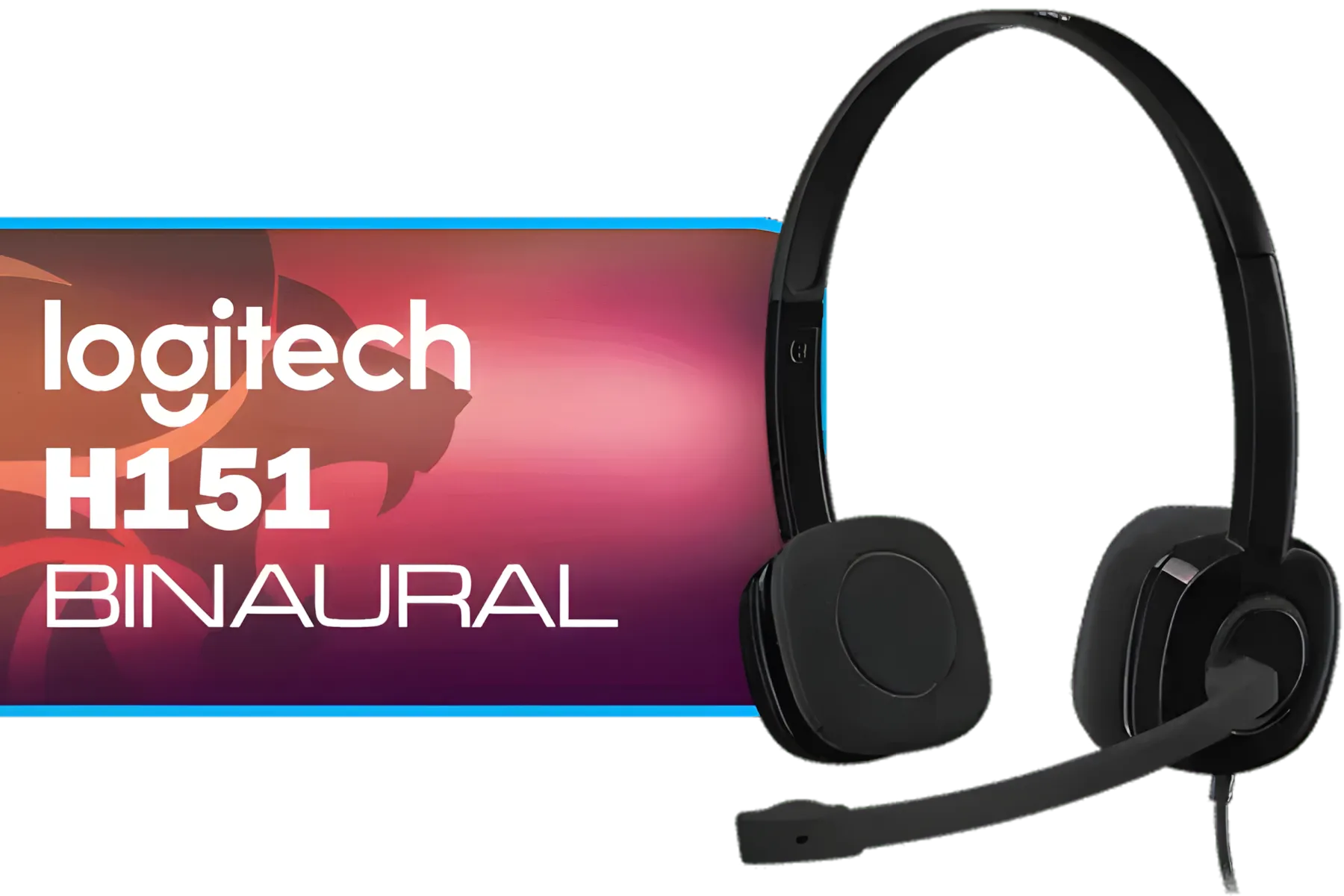
Logitech H151 Binaural Head-Band Headset, Black, (Headset, Black) / 981-000589
R429.00In Stock

Turtle Beach Recon 70P Gaming Headset - Black / Compatible with PS5, PS4, Xbox Series X, Xbox Series S, Xbox One, Nintendo Switch, Mobile, & PC with 3.5mm / Flip-to-Mute Mic / 40mm Speakers / On-Ear Volume Control / TBS-3001-05
R699.00In Stock
PDP Gaming LVL50 Wired Headset with Mic for Xbox One, Series X|S - PC, iPad, Mac, Laptop Compatible - Noise Cancelling Microphone, Bass Boost, Lightweight, Over Ear Headphones - Camo / Camoflauge / 048-124-AU-CAM
R1199.00In Stock

Logitech H390 Wired Headset - Black / Noise-Cancelling Microphone / USB / In-Line Controls, PC/Mac/Laptop / 981-000406
R549.00In Stock
When to Upgrade Your Wireless Headset 🚀
If you've tried all the fixes and still feel like you're hearing echoes from the past, your headset itself might be the bottleneck. Technology improves fast, and older wireless models simply can't compete with the low-latency performance of modern gaming headsets.
Newer models are specifically engineered to combat this problem. For instance, a headset like the Razer Barracuda X uses Razer's HyperSpeed Wireless tech via a USB-C dongle to deliver an ultra-low latency connection that's practically indistinguishable from a wired one. When you need to hear every footstep in real-time, this kind of technology is crucial. If your current gear is a few years old, exploring the latest headphone and headsets might be the most effective fix of all.
Ready for Lag-Free Audio? Don't let audio delay cost you another match. If these fixes don't cut it, your gear might be the culprit. Explore our massive range of gaming headsets and find the perfect low-latency model to hear every footstep, instantly.
Related Products
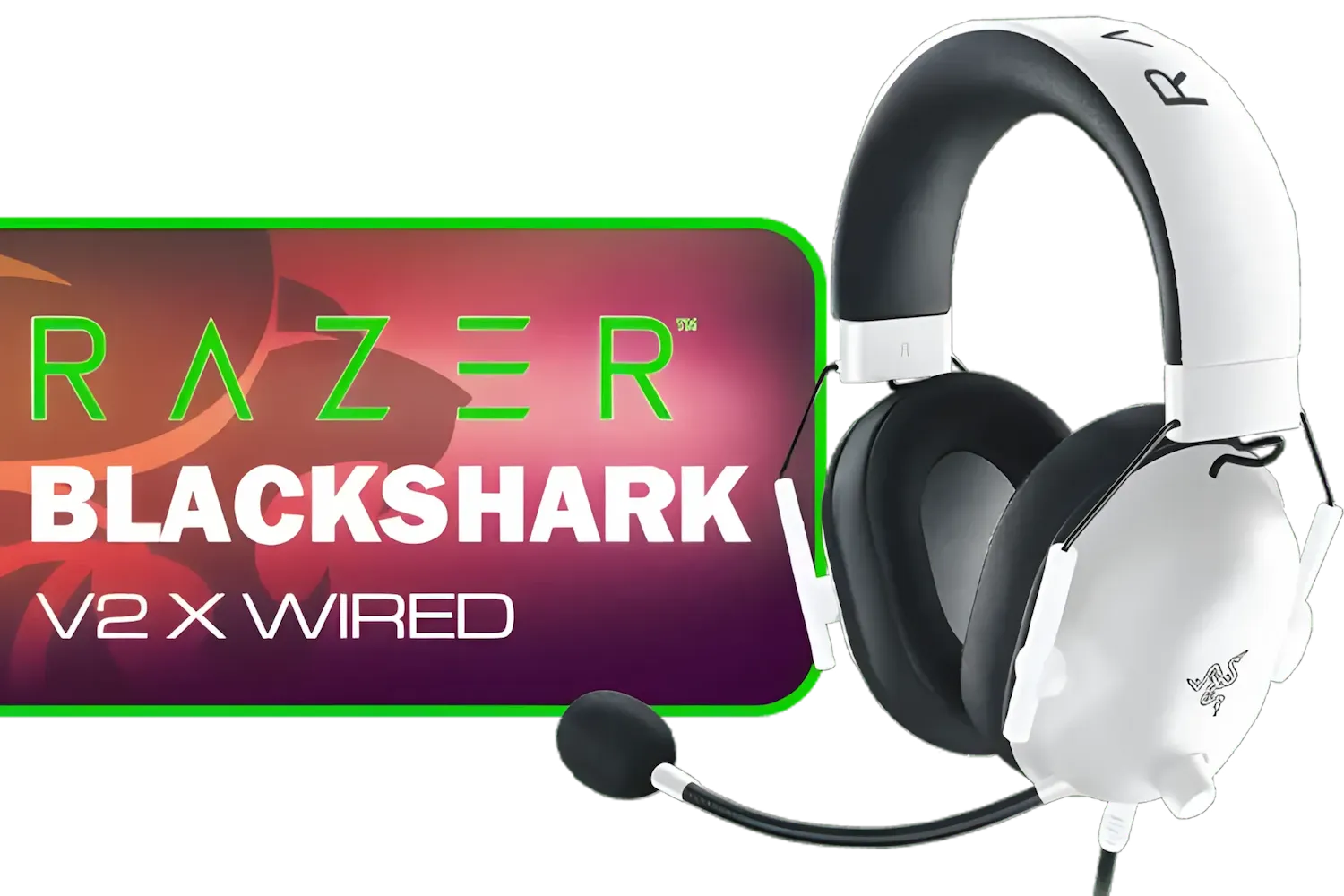
Razer BlackShark V2 X Gaming Headset: 7.1 Surround Sound - White / 50mm Drivers / Memory Foam Cushion / Compatible with PC, Mac, PS4, PS5, Switch, Xbox One, Xbox Series X|S, Mobile / 3.5mm Audio Jack / RZ04-03240700-R3M1
R999.00In Stock
Logitech PRO X Gaming Headset With BLUE VO!CE Microphone Technology / USB External Sound Card / PRO-G 50 mm Audio Drivers / Detachable pro-grade Microphone / Comfortable Memory Foam Padding / Durable Steel and Aluminium Construction / 981-000818
R2299.00In Stock
Promate Panda KidSafe Kawaii Style Wireless Kids Headset - Bubblegum / 1000mAh Battery / Up to 40 hours of Playtime / AUX Support / LED Illuminated Ears / PANDA.BUBBLEGUM
R399.00In Stock

Turtle Beach Stealth 500 PC Wireless Headset - Black / 2.4GHz Wireless & Bluetooth® 5.2 / 40mm Drivers / Flip-to-Mute Microphone / QuickSwitch Button / TBS-5104-05
R1899.00In Stock
Logitech G522 Lightspeed Wireless RGB Gaming Headset - Black / RGB lighting with 16.8M colors / PRO-G drivers / Switch between wireless, Bluetooth, or wired / Up to 60-Hour Battery / Tune audio and voice with G HUB / 981-001544
R3339.00In Stock

Razer BlackShark V2 X Gaming Headset: 7.1 Surround Sound - 50mm Drivers - Memory Foam Cushion - for PC, Mac, PS4, PS5, Switch, Xbox One, Xbox Series X|S, Mobile - 3.5mm Audio Jack - Green / RZ04-03240600-R3M1
R999.00In Stock
Audio lag often stems from Bluetooth latency, interference, weak signal, or unsupported codecs. Try moving closer, changing codecs, or updating firmware.
Use low-latency codecs (aptX LL or LC3), enable headset game mode, update drivers, or use a dedicated low-latency USB transmitter.
Yes. Firmware updates can add codec support and latency fixes. Check the manufacturer's app and install the latest update.
Yes. Using a wired cable or USB audio mode usually removes Bluetooth delay and provides immediate audio sync for critical use.
Absolutely. A USB Bluetooth adapter that supports aptX LL or Bluetooth 5.x can lower latency compared to older built-in radios.
Adjust audio buffer size, disable enhancements, select the correct output device, and update sound drivers to reduce latency on PC.
aptX Low Latency (aptX LL) and modern codecs like LC3 deliver the lowest delay, but both headset and transmitter must support them.











