



Ryzen 7000 Stability Settings: The Ultimate Guide for Long-Term Health
Unlock peak reliability with our expert Ryzen 7000 stability settings guide. 🛠️ Discover how BIOS tweaks, Eco Mode, and proper cooling ensure your AM5 build lasts for years. Perfect for gamers and creators seeking consistent performance without overheating. 🚀
|
Loading tags...

You've just unboxed your powerful new AMD Ryzen 7000 series CPU. The performance is exhilarating, but are you running it optimally for the long haul? Pushing your new silicon without the right know-how can lead to frustrating crashes or even shorten its lifespan. This guide will walk you through the essential Ryzen 7000 stability settings, ensuring your investment is protected and delivering peak performance for years to come. Let's get your rig running perfectly. 🚀
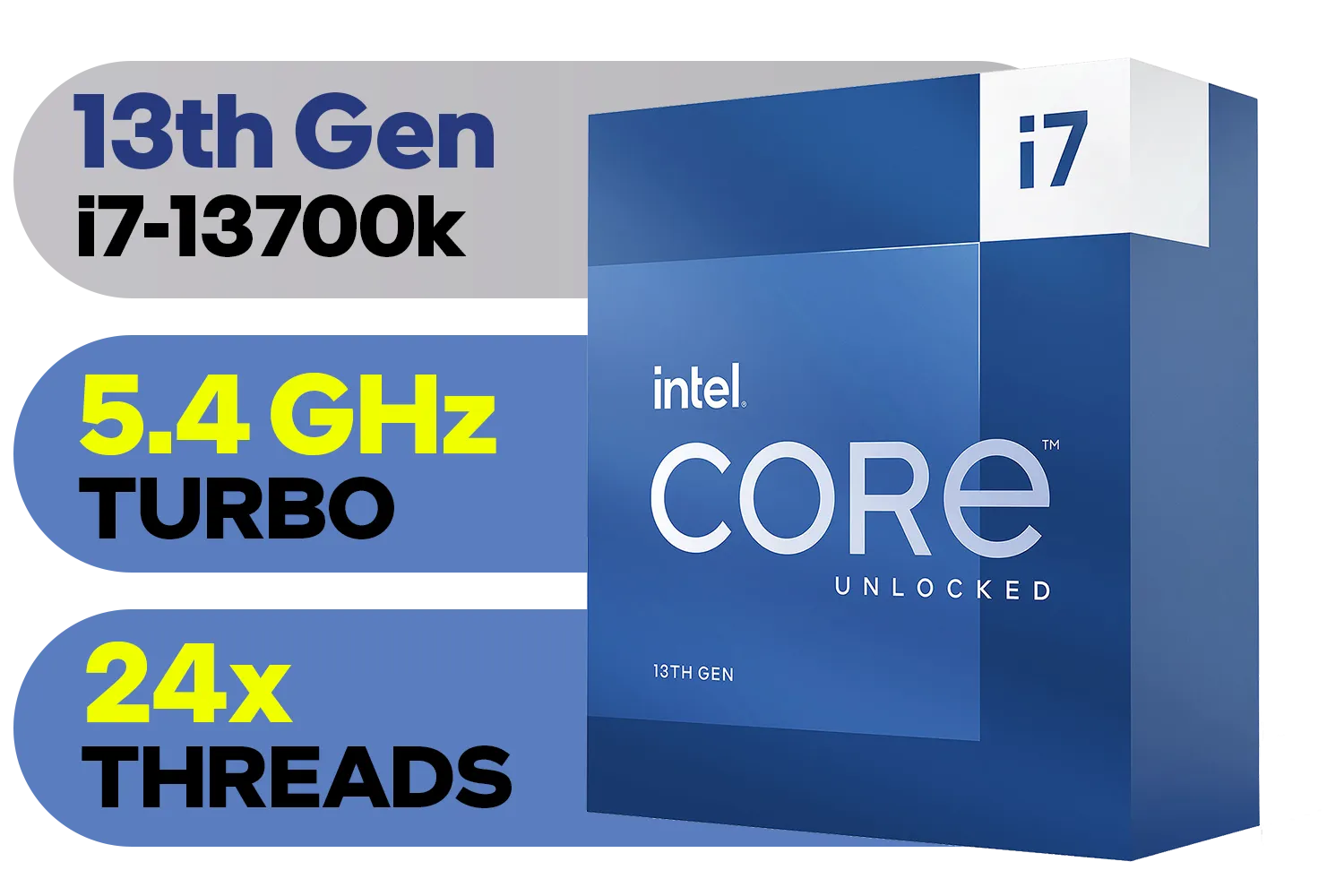
Intel 13th Gen Core i7 13700K Desktop Processor 16 (8P+8E) Cores up to 5.40 GHz Unlocked LGA1700 770 Series Chipset 125W / BX8071513700K
R9999.00In Stock

Intel 14th Gen Core i3-14100F Desktop Processor 4(4P+0E) Cores up to 4.70GHz LGA1700 Series Chipset 58W / Discrete Graphics Card Required / BX8071514100F
R2049.00In Stock

Intel Core Ultra 9 285K Desktop Processor / 24x (8P + 16E) Cores / 24x Threads / Up to 5.7GHz Turbo Boost / LGA 1851 Series Chipset 250W / Integrated Intel® Graphics / CPU Cooler Not Included / BX80768285K
R12699.00In Stock

AMD Ryzen 9 9900X 12-Core 24-Threads 4.4GHz (5.6GHz Max Boost) Socket AM5 120W Desktop Processor / Zen 5 Architecture / AMD Radeon™ Graphics / Cooler Not Included / 100-100000662WOF
R9299.00In Stock
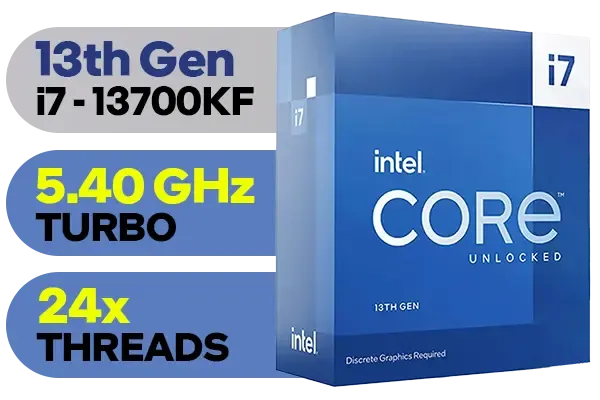
Intel 13th Gen Core i7 13700KF Desktop Processor 16 (8P+8E) Cores up to 5.40 GHz Unlocked LGA1700 Series Chipset 253W / <span style="color: red;" >Discrete Graphics Card Required</span> / BX8071513700KF
R9499.00In Stock

Intel Core Ultra 7 265K Processor / 20x (8P + 12E) Cores / 20x Threads / Up to 5.5GHz Turbo Boost / LGA 1851 Series Chipset 159W / Integrated Intel® Graphics / CPU Cooler Not Included / BX80768265K
R6999.00In Stock
Why Stock Settings Aren't Always Optimal
Out of the box, your Ryzen 7000 CPU runs on safe, universal settings designed to work with any combination of motherboard and RAM. It’s a reliable baseline, but it often leaves free performance on the table. AMD knows this, which is why they provide powerful tools right in the BIOS to help you safely push the limits.
The goal isn't a risky, all-out overclock. Instead, we're aiming for a smart, efficient tune-up. By using features like Precision Boost Overdrive (PBO) and Curve Optimizer, you can lower temperatures, reduce power consumption, and often increase clock speeds... all at the same time. These are the keys to unlocking your CPU's full potential and ensuring its long-term health.
Mastering Precision Boost Overdrive (PBO)
Think of PBO as an automated overclocking tool that respects the CPU's built-in safety limits. It allows the processor to boost higher and for longer, as long as thermal and power conditions are favourable. Getting the best Ryzen 7000 stability settings starts here.
For most users, simply enabling "PBO" in your motherboard's BIOS is a great first step. You'll typically find it under "Advanced" or "Overclocking" settings. This alone will give you a noticeable performance uplift.
However, for those who want to dive a bit deeper, you can manually adjust the PBO limits (PPT, TDC, EDC). A common strategy is to set these to your motherboard's maximums, effectively telling the CPU to use whatever power is available until it hits a thermal limit. A quality CPU is the heart of any powerful rig, and giving it the right settings is crucial. When you browse the wide range of CPU processors online, you'll see options for every need and budget.
The Secret Weapon: Curve Optimizer 🔧
This is where the real magic happens. Curve Optimizer is a powerful feature that lets you undervolt your CPU on a per-core basis. In simple terms, you're telling each core to use slightly less voltage to hit its target frequency. Less voltage means less heat and more thermal headroom for higher boosts.
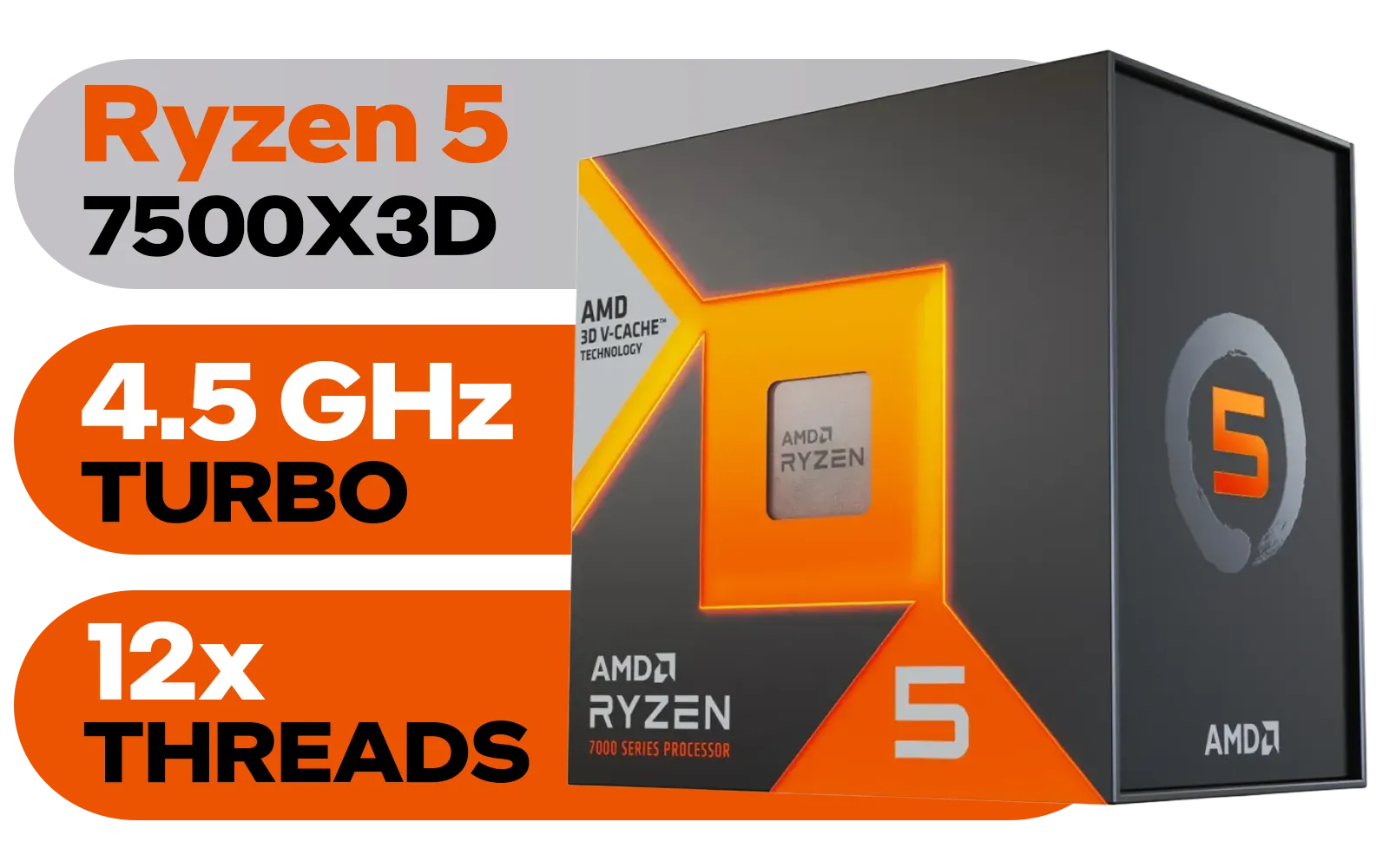
AMD Ryzen 5 7500X3D 6-Core 12-Threads 4.0GHz (4.5GHz Max Boost) Socket AM5 65W Desktop Processor / 102MB 3D V-Cache / AMD Ryzen 7000 Series Desktop Processor / No CPU Cooler Included / Integrated AMD Radeon Graphics / 100-100001904WOF
R6399.00In Stock

AMD Ryzen 5 9600X 6-Core 12-Threads 3.9GHz (5.4GHz Max Boost) Socket AM5 65W Desktop Processor / Zen 5 Architecture / AMD Radeon™ Graphics / Cooler Not Included / 100-100001405WOF
R5199.00In Stock
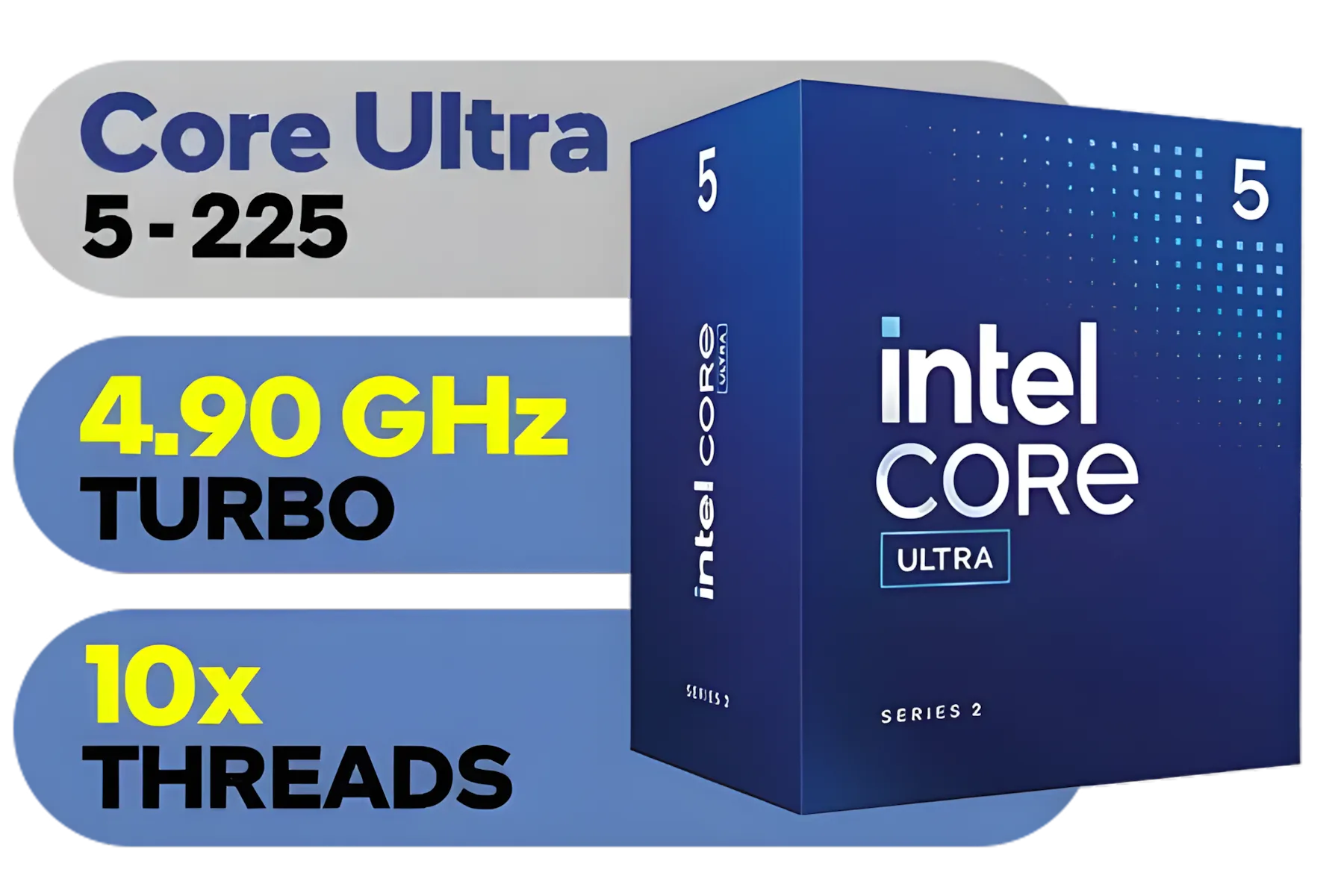
Intel Core Ultra 5 225 Processor / 10x (6P + 4E) Cores / 10x Threads / Up to 4.9GHz Turbo Boost / LGA 1851 Series Chipset 121W / AI Accelerator Technology / Integrated Graphics / BX80768225
R3999.00In Stock

AMD Ryzen 7 9800X3D 8-Core 16-Threads 4.7GHz (5.2GHz Max Boost) Socket AM5 120W Desktop Processor / Zen 5 Architecture / AMD Radeon™ Graphics / Cooler Not Included / 100-100001084WOF
R10499.00In Stock

Intel 11th Gen Core i7-11700K Rocket Lake up to 5.0GHz 16MB Cache LGA 1200 95W BX8070811700K Desktop Processor / Intel SpeedStep Technology / Intel Virtualization Technology (VT-x) / Intel® UHD Graphics 750 / Require 500 Series Chipset MB (Z590,B560,H570)
R7399.00In Stock

Intel Core Ultra 5 225F Processor / 10x (6P + 4E) Cores / 10x Threads / Up to 4.9GHz Turbo Boost / LGA 1851 Series Chipset 121W / AI Accelerator Technology / Discrete Graphics Required / BX80768225F
R3699.00In Stock
A Safe Starting Point for Curve Optimizer:
- Navigate to the PBO menu in your BIOS.
- Find "Curve Optimizer" and set it to "All Cores".
- Set the "All Core Curve Optimizer Sign" to "Negative".
- Start with a "Magnitude" of 15 or 20. This is a conservative starting point for most chips.
- Save and reboot, then run a stability test.
If your system is stable, you can try increasing the magnitude in steps of 5 (e.g., to -25, then -30). If it crashes, reduce the magnitude. The goal is to find the lowest stable voltage for your specific chip. This process, known as finding your optimal Ryzen 7000 stability settings, is unique to every single CPU due to the "silicon lottery."
TIP FOR YOU
Quick Stability Test ⚡
For a fast and effective way to test your Curve Optimizer settings, use Cinebench R23. Run the multi-core benchmark on a 10-minute loop. If it completes without crashing or producing errors, your settings are likely stable for everyday tasks and gaming. For absolute certainty, run a longer stress test like Prime95 or OCCT overnight.
Don't Forget Your RAM: EXPO and Memory Stability
An unstable system isn't always the CPU's fault. Your RAM plays a huge role. For Ryzen 7000, you should be using a DDR5 kit with AMD EXPO (Extended Profiles for Overclocking) technology. Enabling the EXPO profile in your BIOS is a one-click step that configures your memory to its advertised speed and timings.
This tight integration is a hallmark of the AM5 platform, making a new AMD CPU a fantastic choice for builders who love to tinker. While the blue team has its own memory profiles with XMP for their latest Intel CPU lineup, AMD's EXPO is specifically designed for Ryzen's architecture, often leading to better compatibility and stability. ✨
Always ensure your BIOS is updated to the latest version, as manufacturers frequently release updates that improve memory compatibility and overall system stability.

AMD Ryzen 5 3400G Processor with Radeon Vega 11 Graphics / 4x Cores - 8x Threads / 3.7GHz Base Clock - Up to 4.2GHz Max. Boost Clock / 6MB Game Cache / Wraith Spire Cooler Included / Socket AM4 / 65W / YD3400C5FHBOX
R1499.00In Stock
Intel 11th Gen Core i7-11700K Rocket Lake up to 5.0GHz 16MB Cache LGA 1200 95W BX8070811700K Desktop Processor / Intel SpeedStep Technology / Intel Virtualization Technology (VT-x) / Intel® UHD Graphics 750 / Require 500 Series Chipset MB (Z590,B560,H570)
R7399.00In Stock

AMD Ryzen 9 9950X3D 16-Core 32-Threads 4.3GHz (5.7GHz Max Boost) Socket AM5 170W Desktop Processor / Zen 5 Architecture / AMD Radeon™ Graphics / Cooler Not Included / 100-100000719WOF
R15499.00In Stock
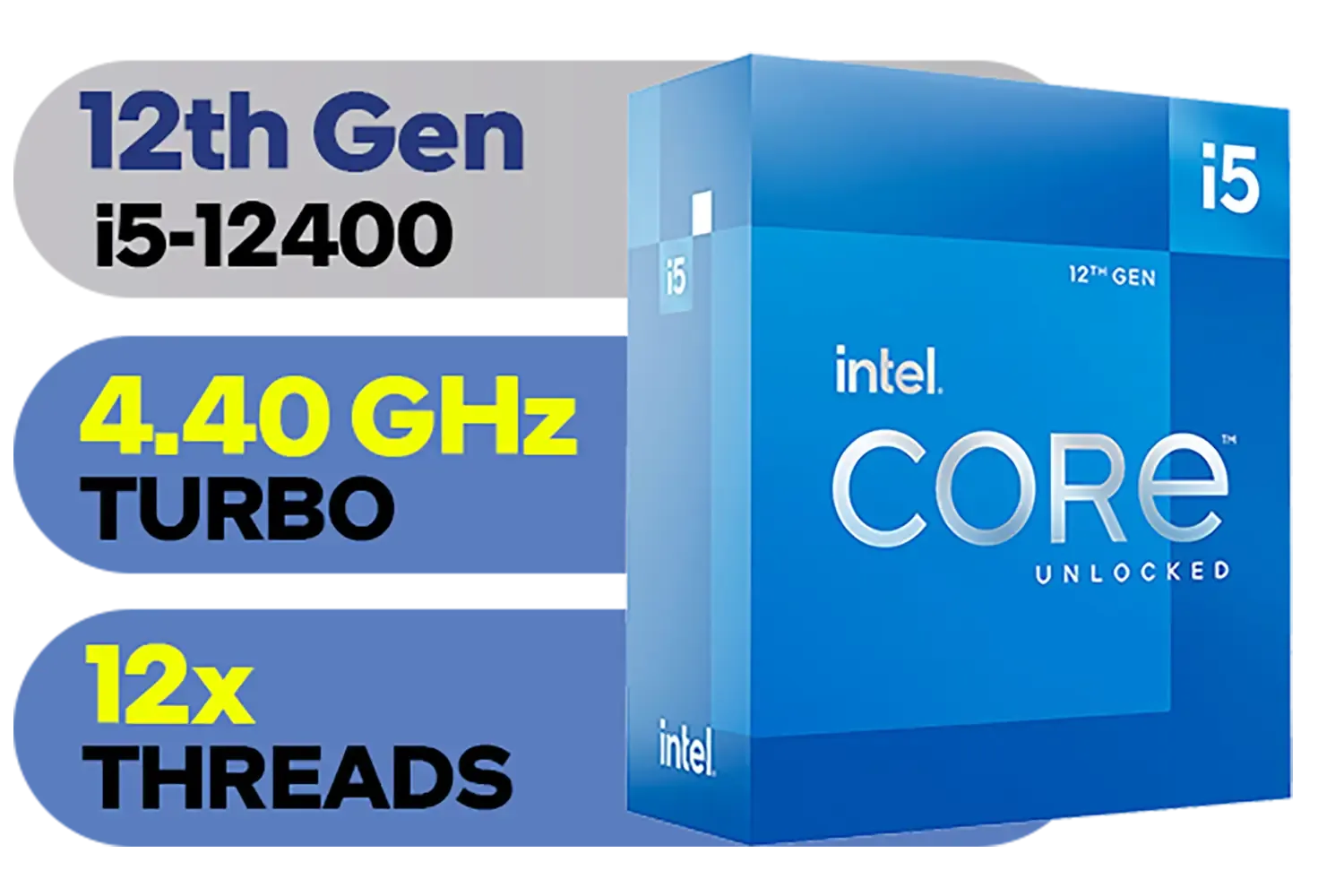
Intel 12th Gen Core i5-12400 up to 4.40 GHz Unlocked 18MB Cache LGA 1700 65W Desktop Processor / Intel® UHD Graphics 730 / Compatible With 600 Series Chipset / BX8071512400
R3999.00In Stock
Intel Core Ultra 5 225F Processor / 10x (6P + 4E) Cores / 10x Threads / Up to 4.9GHz Turbo Boost / LGA 1851 Series Chipset 121W / AI Accelerator Technology / Discrete Graphics Required / BX80768225F
R3699.00In Stock
AMD Ryzen 7 9800X3D 8-Core 16-Threads 4.7GHz (5.2GHz Max Boost) Socket AM5 120W Desktop Processor / Zen 5 Architecture / AMD Radeon™ Graphics / Cooler Not Included / 100-100001084WOF
R10499.00In Stock
A Final Check for Long-Term Health
Once you've dialled in your PBO and Curve Optimizer settings and enabled EXPO, the final step is to monitor your temperatures. A good air cooler or AIO liquid cooler is essential. During a stress test, your CPU temperature should ideally stay below 90°C for sustained long-term health, even though the Ryzen 7000 series is designed to safely operate up to 95°C.
The great news is that these principles apply across the entire product stack. From the flagship X3D chips down to more budget-friendly CPUs under R7000, taking a few minutes to optimise your settings will pay dividends in performance and longevity.
Ready to Build or Upgrade? A stable, high-performance PC starts with the right processor. Whether you're building a new rig from scratch or giving your current one a boost, we've got the heart of your machine covered. Explore our massive range of AMD and Intel CPUs and find the perfect chip to power your passion.
Related Products
Intel 13th Gen Core i7 13700K Desktop Processor 16 (8P+8E) Cores up to 5.40 GHz Unlocked LGA1700 770 Series Chipset 125W / BX8071513700K
R9999.00In Stock
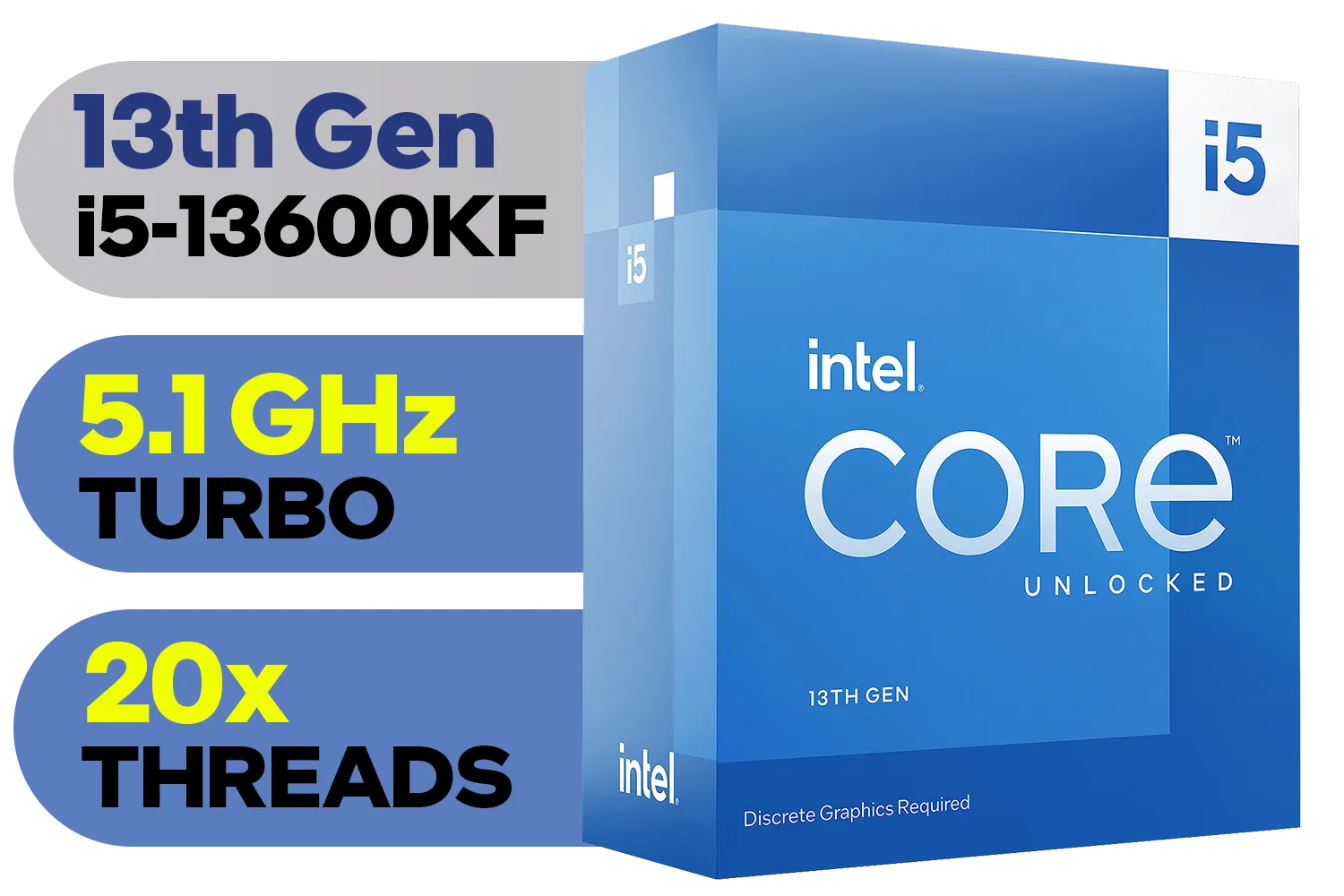
Intel 13th Gen Core i5-13600KF Desktop Processor 14 (6P+8E) Cores up to 5.10 GHz Unlocked LGA1700 Series Chipset 125W / <span style="color: red;" >Discrete Graphics Card Required</span> / BX8071513600KF
R6999.00In Stock
AMD Ryzen 5 7500X3D 6-Core 12-Threads 4.0GHz (4.5GHz Max Boost) Socket AM5 65W Desktop Processor / 102MB 3D V-Cache / AMD Ryzen 7000 Series Desktop Processor / No CPU Cooler Included / Integrated AMD Radeon Graphics / 100-100001904WOF
R6399.00In Stock

AMD Ryzen 9 9900X3D Processor / 12-Core 24-Threads / 4.4GHz Base Clock (Up to 5.5GHz) / Socket AM5 / Zen 5 Architecture / 140MB Cache / Integrated AMD Radeon™ Graphics / 100-100001368WOF
R12999.00In Stock
Intel 12th Gen Core i5-12400 up to 4.40 GHz Unlocked 18MB Cache LGA 1700 65W Desktop Processor / Intel® UHD Graphics 730 / Compatible With 600 Series Chipset / BX8071512400
R3999.00In Stock

AMD Ryzen 9 9950X 16-Core 32-Threads 4.3GHz (5.7GHz Max Boost) Socket AM5 170W Desktop Processor / Zen 5 Architecture / AMD Radeon™ Graphics / Cooler Not Included / 100-100001277WOF
R12899.00In Stock
Update your BIOS to the latest AGESA version, enable Eco Mode to reduce thermal stress, and use Curve Optimizer for stable undervolting.
Yes, 95°C is the designed operating target (TJMax), but using better cooling or Eco Mode can lower temps for better long-term peace of mind.
Eco Mode limits power draw (TDP), significantly lowering temperatures and power consumption without a major loss in gaming performance.
Early BIOS versions had issues, but recent updates have fixed most DDR5 EXPO instability. Always update your motherboard firmware for memory compatibility.
AMD has committed to supporting the AM5 socket through 2025 and likely beyond, ensuring excellent long-term upgrade paths for your system.
Yes, using PBO2 and Curve Optimizer can effectively reduce heat output and maintain higher boost clocks, enhancing overall system stability.











