



Ryzen BIOS Settings: Unlock Your PC's Hidden Performance
Unlock the full potential of your AMD CPU with our guide to Ryzen BIOS settings. We reveal the secrets to optimizing performance, from enabling PBO to tweaking RAM timings, ensuring you get maximum power and stability. Ready to transform your PC? 💻🚀 Let's dive in!
|
Loading tags...
So, you’ve just built your shiny new AMD Ryzen PC. The parts are in, the cables are managed, and Windows is installed. You fire up your favourite game... and it’s good, but is it everything it could be? Probably not. Deep inside your PC’s firmware lies a control panel that holds the key to more performance. Getting your Ryzen BIOS settings just right is the secret to unlocking the power you already paid for. 🚀
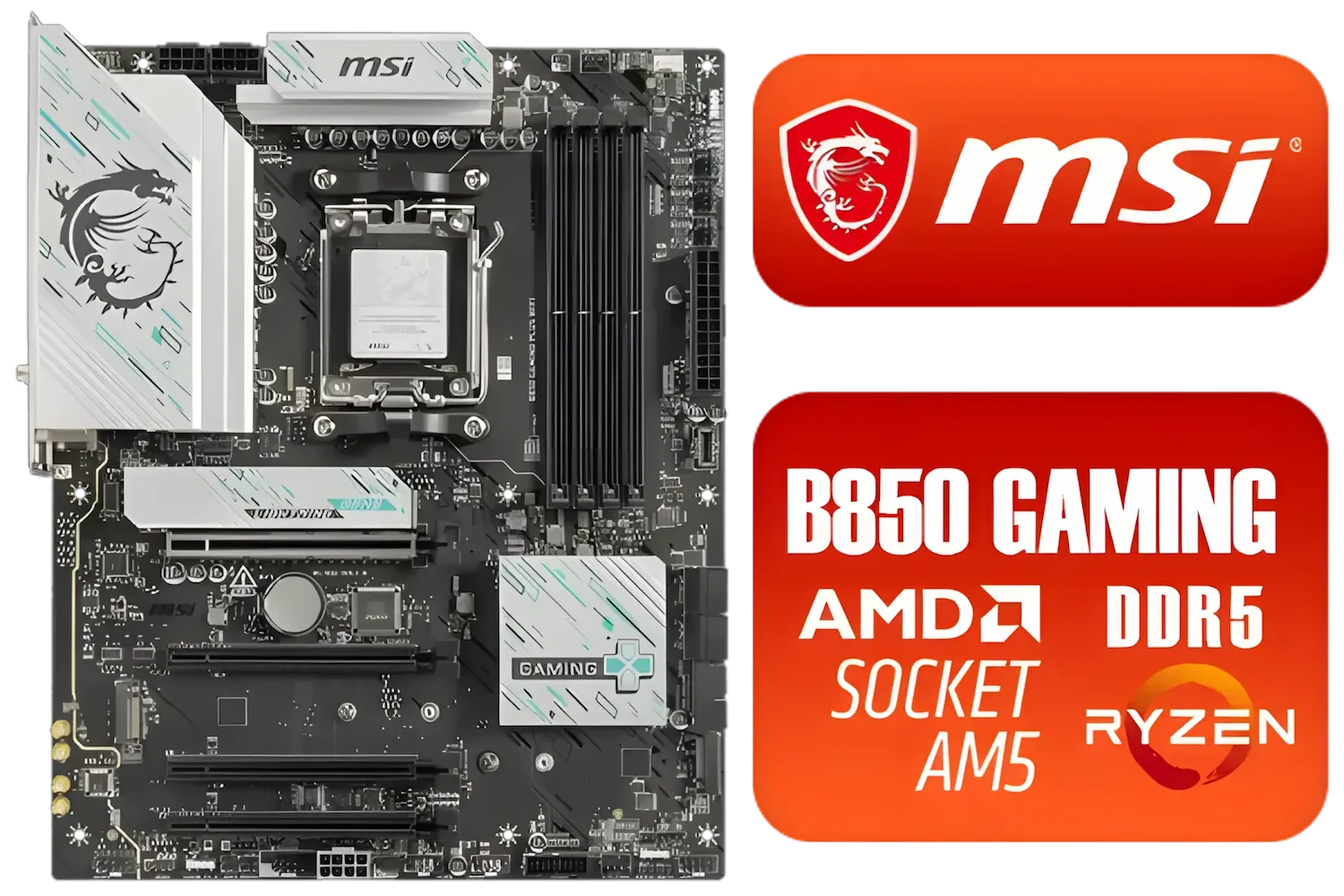
MSI B850 Gaming Plus WIFI AMD Motherboard - AM5 Socket - Supports AMD Ryzen™ 9000/ 8000/ 7000 Series Desktop Processors - 4x DDR5 UDIMM - ATX Form Factor / 911-7E56-001
R4999.00In Stock

ASRock Phantom Gaming X870E Nova WIFI AMD Ryzen Motherboard / Supports AMD Socket AM5 Ryzen™ 9000, 8000 and 7000 Series Processors / AMD X870 Chipset / USB4 Type-C (40Gbps) Connectivity / 90-MXBPX0-A0UAYZ
R8599.00In Stock
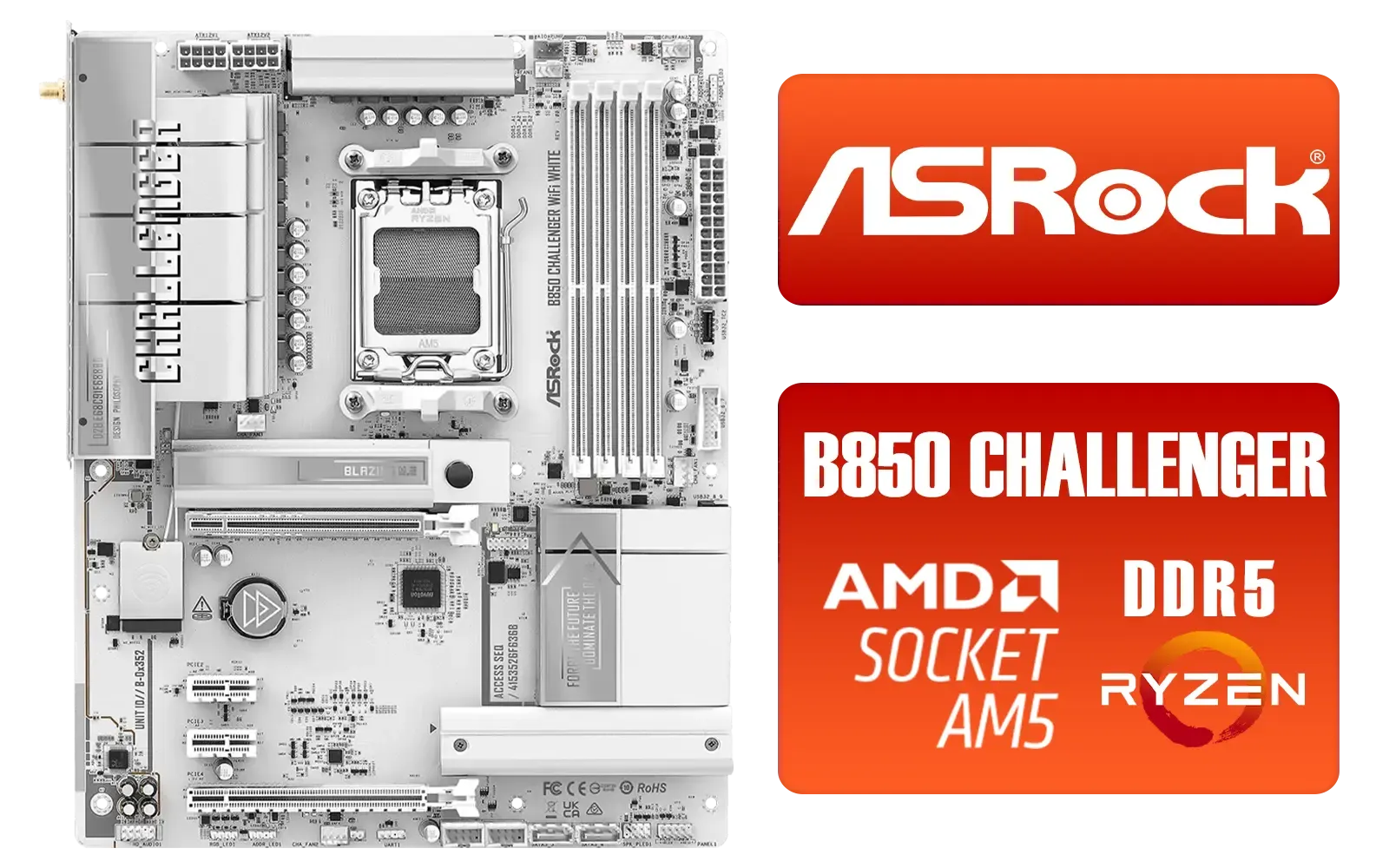
ASRock B850 Challenger WiFi AMD Motherboard - White / Supports AMD Socket AM5 Ryzen™ 9000, 8000 and 7000 Series Processors / AMD B850 Chipset / PCIe Gen5 (Graphics, M.2) / Dual Channel DDR5 / 90-MXBTF0-A0UAYZ
R4199.00In Stock
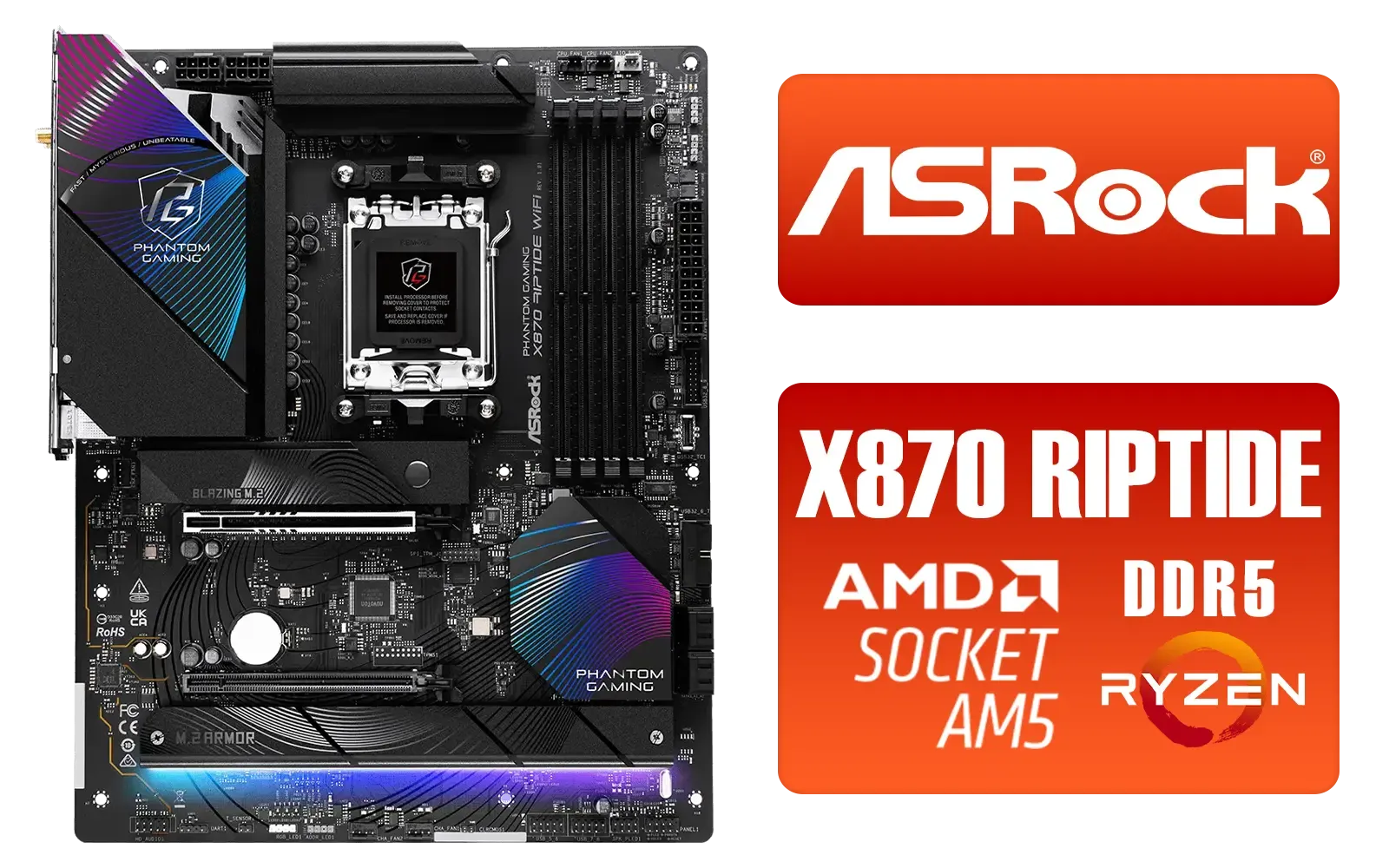
ASRock Phantom Gaming X870 Riptide WiFi AMD Motherboard / Supports AMD Socket AM5 Ryzen™ 9000, 8000 and 7000 Series Processors / AMD B850 Chipset / PCIe Gen5 (Graphics, M.2) / Dual Channel DDR5 / USB4 Type-C Ports (40 Gb/s) / Killer 2.5G LAN & 802.11be Wi-Fi 7 / 90-MXBPP0-A0UAYZ
R6399.00In Stock
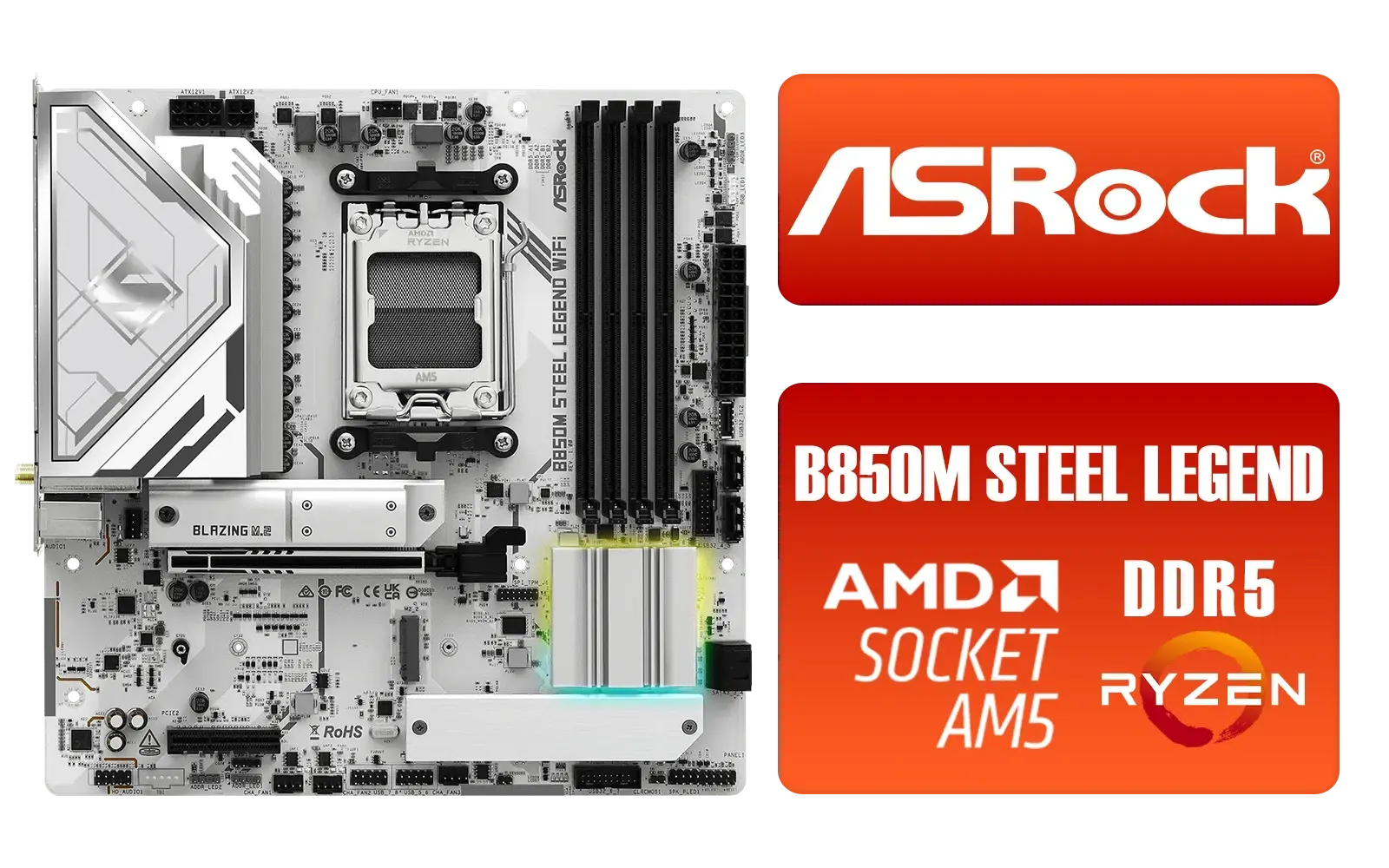
ASRock B850M Steel Legend WiFi AMD Motherboard / Supports AMD Socket AM5 Ryzen™ 9000, 8000 and 7000 Series Processors / AMD B850 Chipset / PCIe Gen5 (Graphics, M.2) / Dual Channel DDR5 / 2.5G LAN & Wi-Fi 7 / BIOS Flashback Button / 90-MXBS20-A0UAYZ
R3899.00In Stock
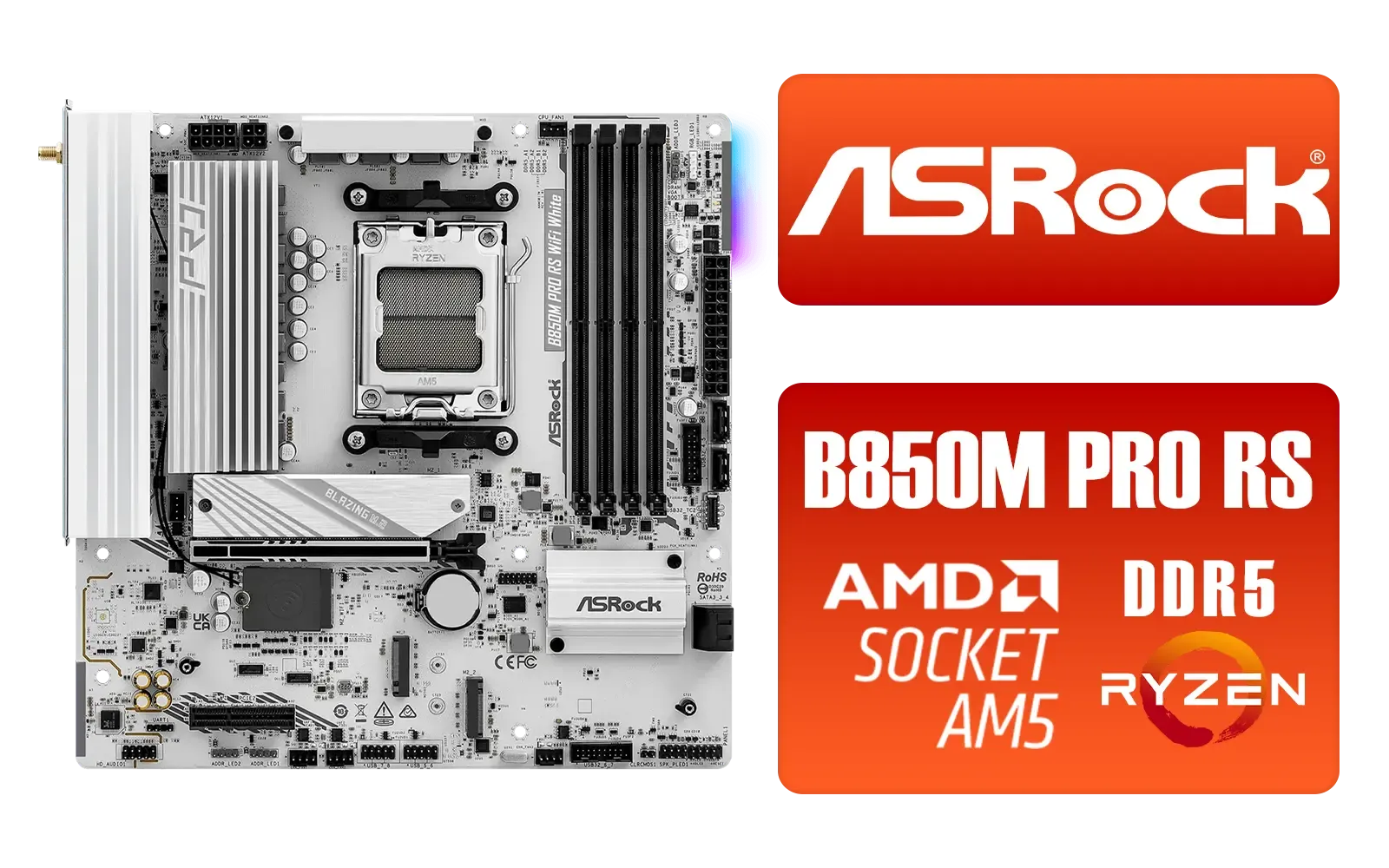
ASRock B850M Pro RS WiFi AMD Motherboard - White / Supports AMD Socket AM5 Ryzen™ 9000, 8000 and 7000 Series Processors / AMD B850 Chipset / PCIe Gen5 (Graphics, M.2) / Dual Channel DDR5 / 8+2+1 Power Phase Dr.MOS for VCore+SOC+MISC / 2.5G LAN & Wi-Fi 6E / 90-MXBT30-A0UAYZ
R3499.00In Stock
The 'Out-of-the-Box' Experience: What You're Missing
Motherboard manufacturers play it safe. They ship their boards with default BIOS settings designed for maximum compatibility, not maximum performance. This means your expensive, high-speed RAM might be running at a snail's pace, and your CPU is likely leaving performance on the table.
Think of it like a sports car stuck in eco-mode. It works, but you're not getting the thrill you signed up for. A few careful adjustments to your Ryzen BIOS settings can switch that car into sport mode, often delivering a noticeable boost in games and applications without spending an extra Rand.
Your First Three BIOS Tweaks for Instant Gains
Diving into the BIOS can feel intimidating, but you don't need to be an engineering boffin to make a big difference. For most gamers, focusing on three key settings provides the best bang-for-your-buck performance uplift. Let's break them down.
1. Enable EXPO or XMP for Full RAM Speed
This is the most important tweak you can make. Your RAM has a rated speed (e.g., 6000MHz), but it won't run that fast by default. You need to enable its performance profile.
- EXPO (Extended Profiles for Overclocking): This is AMD's own standard, optimised for Ryzen 7000 series and newer CPUs.
- XMP (Extreme Memory Profile): Originally an Intel standard, but most AMD boards support it too.
Enabling either one is usually a one-click affair in the BIOS. It tells your RAM to run at its advertised speed and timings. The performance difference between default RAM speeds and an enabled EXPO profile can be massive in CPU-bound games. Of course, ensuring you have the right AMD motherboard is the first step to accessing these features.
2. Activate Precision Boost Overdrive (PBO)
Forget complicated manual overclocking. Precision Boost Overdrive is AMD’s intelligent, automated performance-maximising technology. When enabled, it allows your Ryzen CPU to boost its clock speeds higher and for longer periods, as long as your cooling can handle it. It dynamically analyses temperature and power to squeeze out extra performance safely. For most users, simply enabling PBO in the BIOS is enough to see a solid multi-core performance lift. This feature works beautifully on modern AMD B850 motherboards designed with robust power delivery. ✨
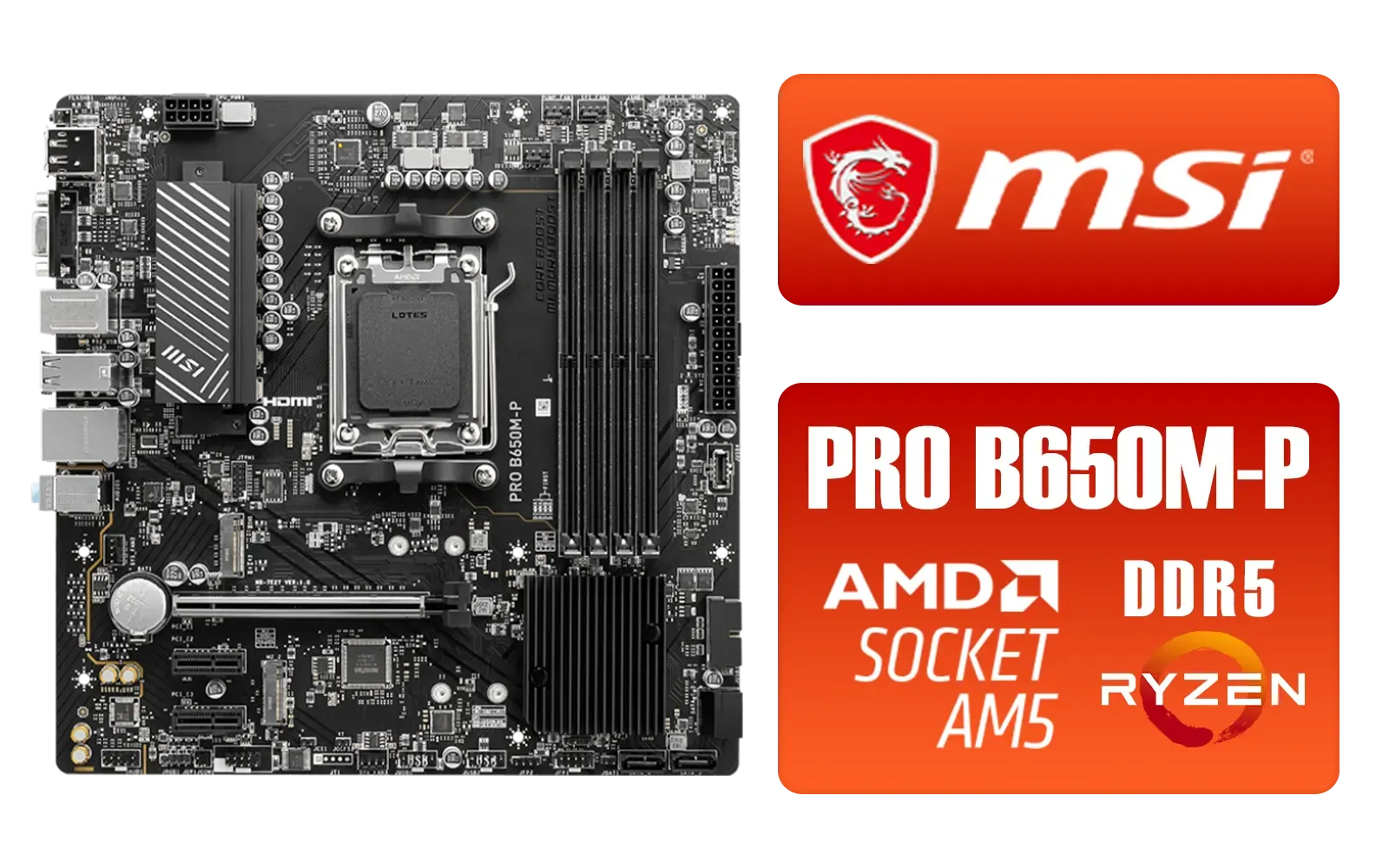
MSI PRO B650M-P PRO Series Motherboard (AMD AM5, mATX, DDR5, PCIe 4.0, M.2, SATA 6Gb/s, USB 3.2 Gen 2, HDMI/DP, AMD Ryzen 7000 Series Desktop Processors) - 911-7E27-001
R2499.00In Stock
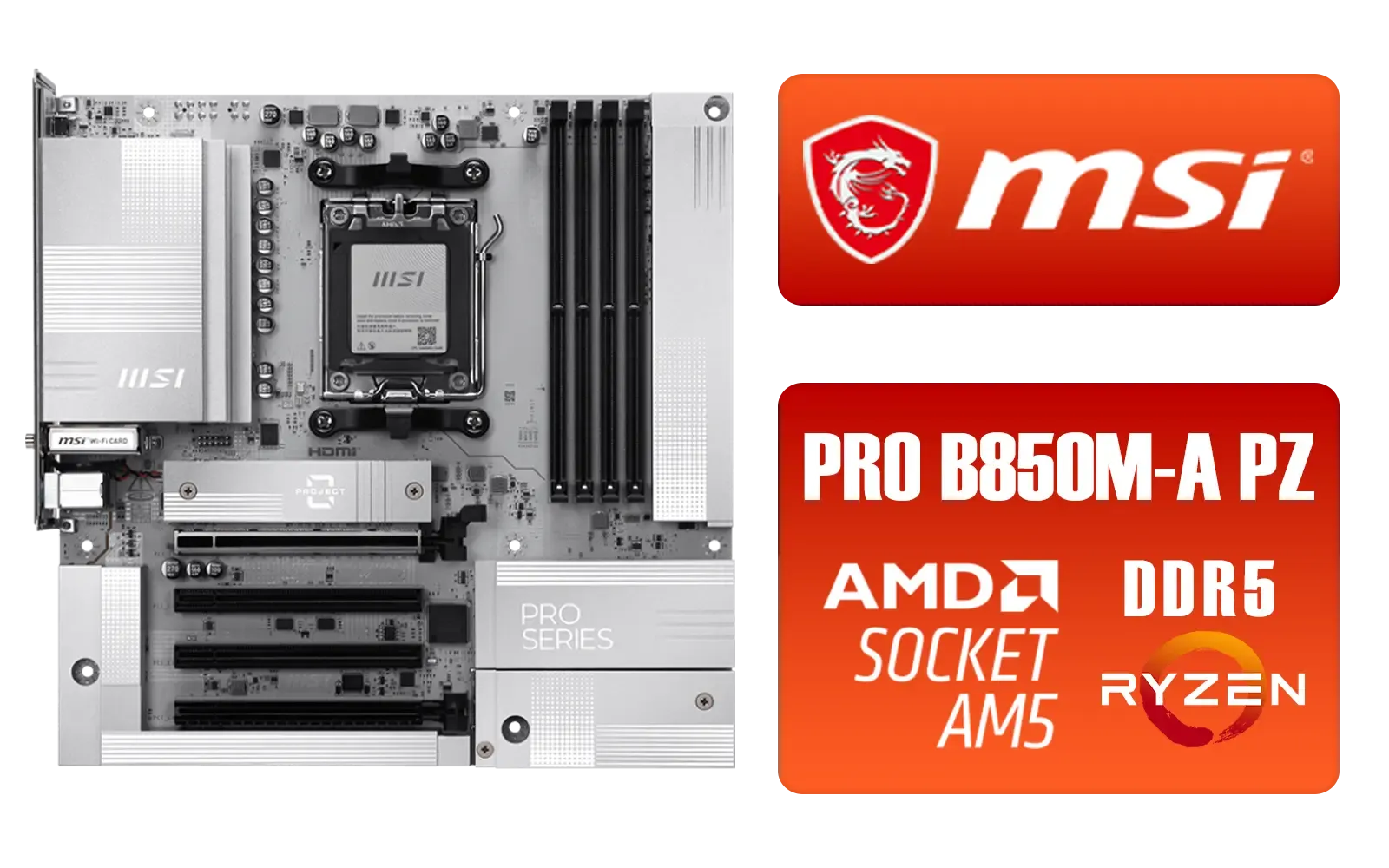
MSI PRO B850M-A WIFI PZ AMD Motherboard / Supports AMD Ryzen™ 9000 / 8000 / 7000 Series / Dual Channel DDR5-8200+ (OC) / Direct 8+2+1 Power System (60A SPS) / Lightning Gen 5 x4 M.2 / 5G LAN & Wi-Fi 7 / 911-7E78-001
R4999.00In Stock
ASRock B850M Pro RS WiFi AMD Motherboard - White / Supports AMD Socket AM5 Ryzen™ 9000, 8000 and 7000 Series Processors / AMD B850 Chipset / PCIe Gen5 (Graphics, M.2) / Dual Channel DDR5 / 8+2+1 Power Phase Dr.MOS for VCore+SOC+MISC / 2.5G LAN & Wi-Fi 6E / 90-MXBT30-A0UAYZ
R3499.00In Stock
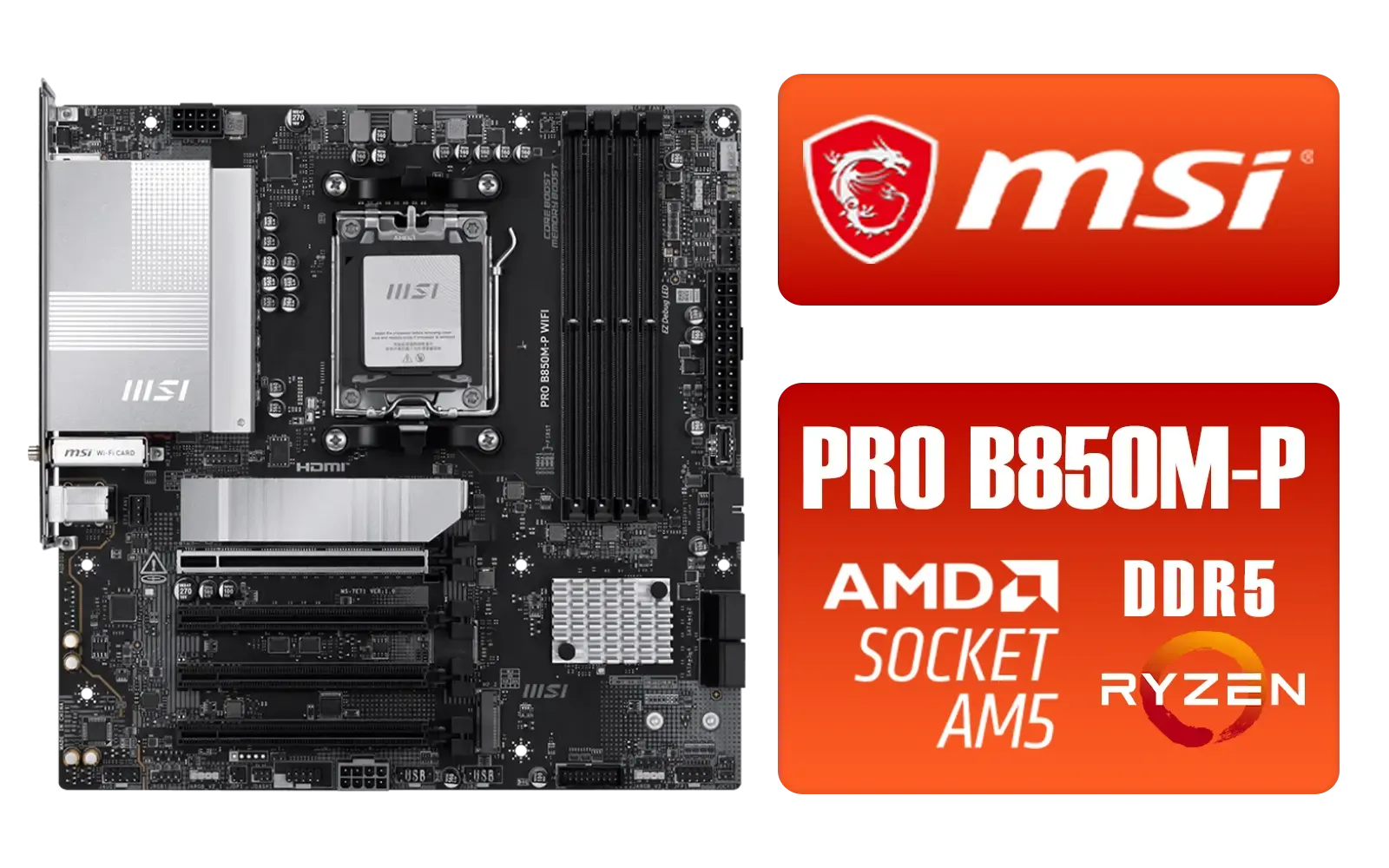
MSI PRO B850M-P WIFI AMD Motherboard / Supports AMD Ryzen™ 9000 / 8000 / 7000 Series / Dual Channel DDR5-8200+ (OC) / Direct 7+2+1 Power System (P-PAK) / 8-pin CPU Power Connector / PCIe 5.0 Slot & Lightning Gen 5 x4 M.2 / 5G LAN & Wi-Fi 7 / 911-7E71-001
R4199.00In Stock
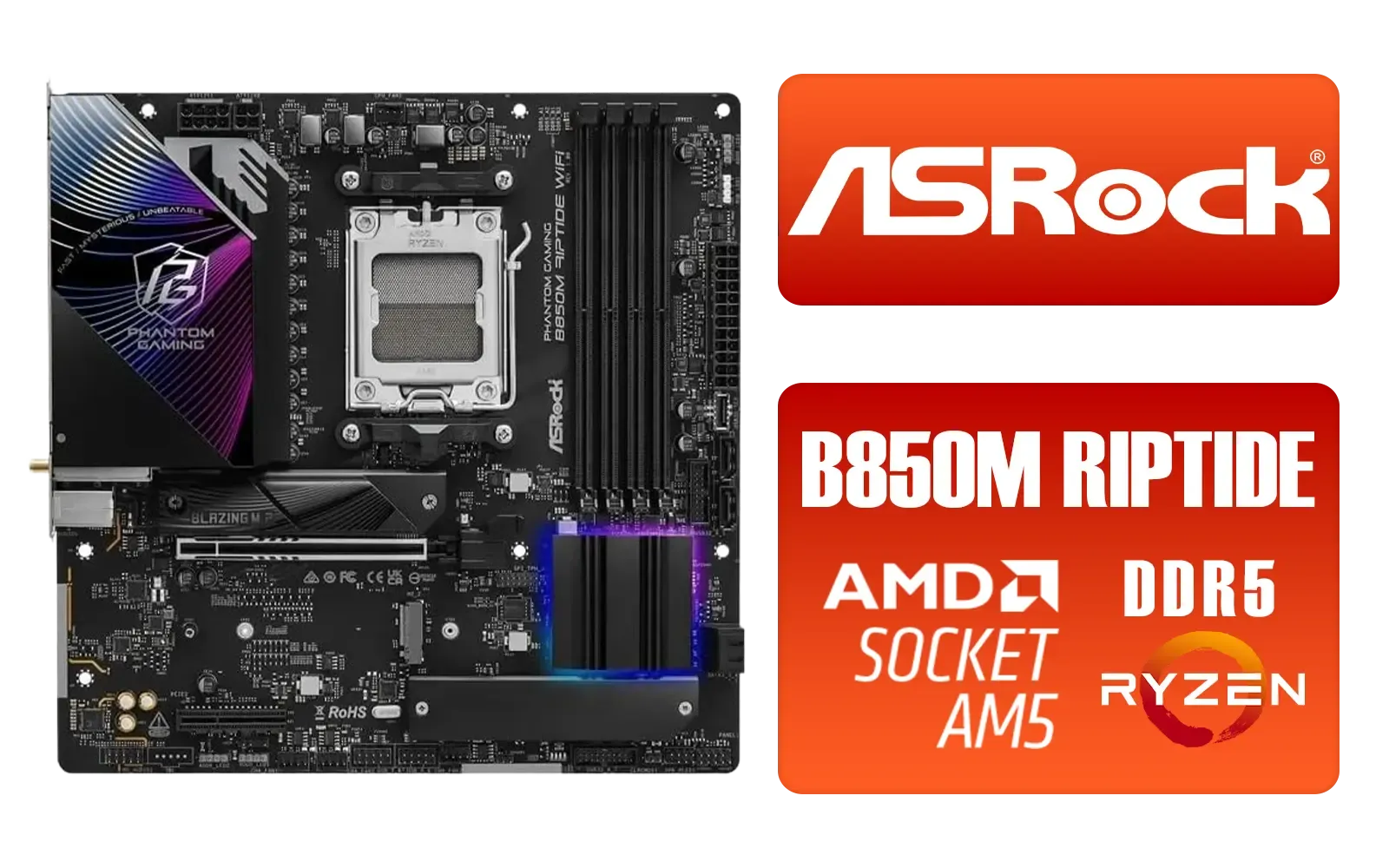
ASRock Phantom Gaming B850M Riptide WiFi AMD Motherboard / Supports AMD Socket AM5 Ryzen™ 9000, 8000 and 7000 Series Processors / AMD B850 Chipset / PCIe Gen5 (Graphics, M.2) / Dual Channel DDR5 / 90-MXBS30-A0UAYZ
R3999.00In Stock
ASRock B850 Challenger WiFi AMD Motherboard - White / Supports AMD Socket AM5 Ryzen™ 9000, 8000 and 7000 Series Processors / AMD B850 Chipset / PCIe Gen5 (Graphics, M.2) / Dual Channel DDR5 / 90-MXBTF0-A0UAYZ
R4199.00In Stock
TIP FOR YOU
Check Your Cooling First! 🔧
PBO's effectiveness is directly tied to your CPU temperature. Before enabling it, make sure you have a decent aftermarket air cooler or an AIO liquid cooler. A better cooler means lower temps, which gives PBO more headroom to boost your clock speeds for longer. It's a simple cause-and-effect that pays off in performance.
3. Switch On Resizable BAR
Resizable BAR (or Re-Size BAR) is a feature that allows your CPU to access your graphics card's entire video memory (VRAM) at once, rather than in small, 256MB chunks. This removes a bottleneck and can provide a free performance boost of a few percent in many modern games. It's a simple on/off toggle in the BIOS, and there's no reason not to enable it if your hardware supports it. This is a must-have feature on high-end AMD X870 boards paired with a modern GPU.
Finding the Sweet Spot: Stability is Key
While these three Ryzen BIOS settings are generally very safe, it's always smart to test for stability. After making your changes, save and exit the BIOS, then boot into Windows. Run a demanding game or a benchmark like Cinebench for about 30 minutes. If your system is stable and doesn't crash, you're good to go! If you experience issues, you can always go back and disable the last setting you changed.

MSI MEG X870E GODLIKE AMD Motherboard / AM5 Socket / E-ATX Form Factor / 4x DDR5 DIMM Slots / Supports AMD Ryzen™ 9000/ 8000/ 7000 Series Desktop Processors / 911-7E48-001
R33999.00In Stock
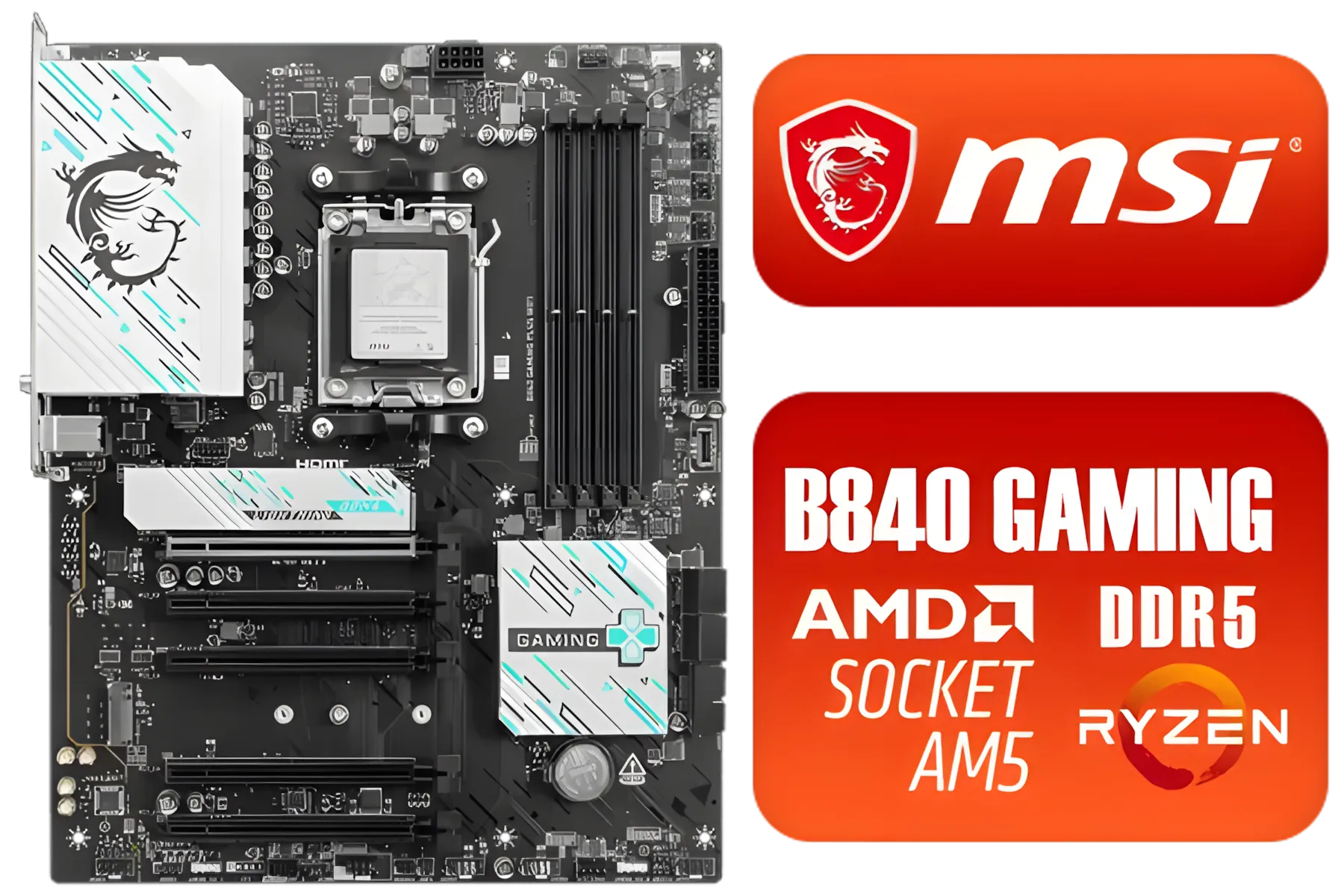
MSI B840 GAMING PLUS WIFI AMD Motherboard / AM5 Socket / ATX For Factor / 4x DDR5 DIMM Slots / Supports AMD Ryzen™ 9000/ 8000/ 7000 Series Desktop Processors / 911-7E57-002
R4899.00In Stock

MSI PRO B840-P WIFI Motherboard, ATX - Supports AMD Ryzen 9000/8000 / 7000 Processors, AM5 - DDR5 Memory Boost (8000+ MT/s OC), PCIe 4.0 x16, M.2 Gen4, Wi-Fi 7, 2.5G LAN / 911-7E57-001
R4199.00In Stock
ASRock Phantom Gaming X870 Riptide WiFi AMD Motherboard / Supports AMD Socket AM5 Ryzen™ 9000, 8000 and 7000 Series Processors / AMD B850 Chipset / PCIe Gen5 (Graphics, M.2) / Dual Channel DDR5 / USB4 Type-C Ports (40 Gb/s) / Killer 2.5G LAN & 802.11be Wi-Fi 7 / 90-MXBPP0-A0UAYZ
R6399.00In Stock

ASRock X870 Steel Legend WIFI AMD Ryzen Motherboard / Supports AMD Socket AM5 Ryzen™ 9000, 8000 and 7000 Series Processors / AMD X870 Chipset / USB4 Type-C (10Gbps) Connectivity / 90-MXBPJ0-A0UAYZ
R5999.00In Stock
MSI PRO B650M-P PRO Series Motherboard (AMD AM5, mATX, DDR5, PCIe 4.0, M.2, SATA 6Gb/s, USB 3.2 Gen 2, HDMI/DP, AMD Ryzen 7000 Series Desktop Processors) - 911-7E27-001
R2499.00In Stock
These optimisations are reliable across many platforms, including proven platforms like AMD B550 motherboards which remain a fantastic value choice for many South African builders. Optimising your BIOS settings is all about getting the most from your hardware, and a stable, well-configured system is a happy one.
Ready to Build a Beast? Unlocking your CPU's potential starts with a solid foundation. Whether you're building a new rig or upgrading an old one, the right motherboard makes all the difference. Explore our massive range of AMD motherboards and find the perfect board to power your performance.
Related Products

MSI MPG Z890 Carbon Wi-Fi Intel Motherboard / ATX Form Factor / Supports Intel® Core™ Ultra Processors (Series 2) / LGA 1851 CPU Socket / 4x DDR5 UDIMM Supporting up to 256GB / 911-7E17-001
R11999.00In Stock

MSI PRO B760M-E DDR4 mATX Motherboard (Supports 12th/13th Gen Intel Processors, LGA 1700, DDR4, 4.0, M.2, Gigabit LAN, USB 3.2 Gen1, mATX) - 911-7D48-013
R2199.00In Stock
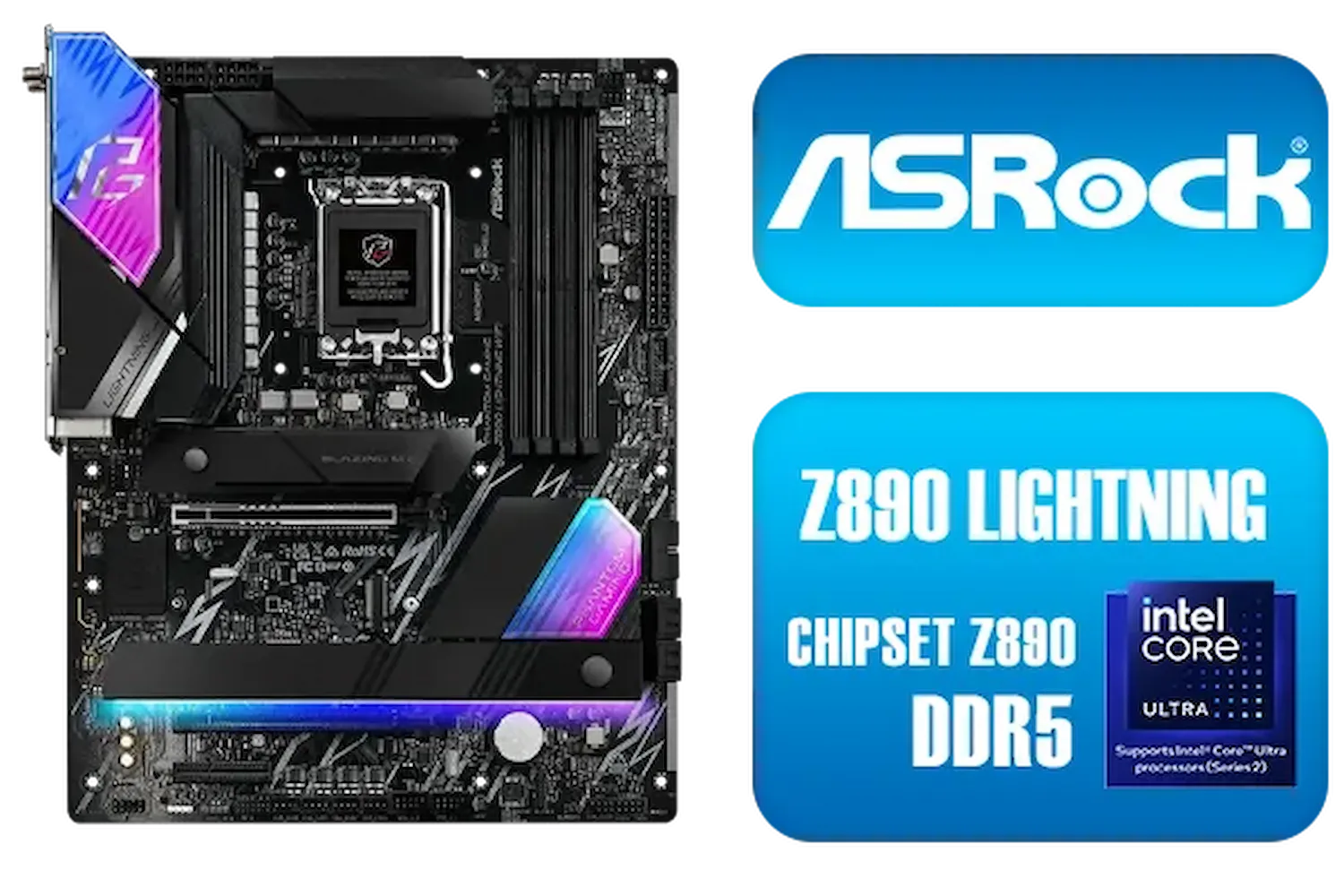
ASRock Phantom Gaming Z890 Lightning WiFi Intel Motherboard / ATX Form Factor / Supports Intel® Core™ Ultra Processors (Series 2) / LGA 1851 CPU Socket / 4x DDR5 DIMM Supporting up to 256GB / 90-MXBPG0-A0UAYZ
R6999.00In Stock

MSI PRO Z890-S Wi-Fi Intel Motherboard / ATX Motherboard / Supports Intel® Core™ Ultra Processors (Series 2) / LGA 1851 Socket / 4x DDR5 UDIMM Up to 256GB / Intel® Wi-Fi 7 / 911-7E54-001
R5999.00In Stock

MSI Pro X870-P Wi-Fi AMD Motherboard / AM5 Socket / Supports AMD Ryzen™ 9000/ 8000/ 7000 Series Desktop Processors / 4x DDR5 UDIMM / ATX Form Factor / 911-7E47-001
R5799.00In Stock

MSI MEG Z890 UNIFY-X Intel Motherboard / LGA 1851 Socket / Supports Intel® Core™ Ultra Processors (Series 2) / 2x DDR5 UDIMM Slots / ATX Form Factor / 911-7E20-001
R16299.00In Stock
Key Ryzen BIOS settings include enabling the XMP/DOCP profile for RAM speed, configuring Precision Boost Overdrive (PBO) for CPU boosting, and setting a proper fan curve.
Yes, enabling Precision Boost Overdrive (PBO) is generally recommended. It allows your Ryzen CPU to intelligently boost its clock speeds for better performance in demanding tasks.
To access the BIOS, restart your computer and repeatedly press the 'Delete' or 'F2' key as it boots up. The exact key can vary depending on your motherboard manufacturer.
XMP (Extreme Memory Profile) or DOCP (Direct Overclock Profile) is a one-click setting in the BIOS that applies the advertised speed and timings for your installed RAM kit.
Changing basic settings like XMP/DOCP and PBO is generally safe. However, manually adjusting voltages and frequencies can be risky and should only be done with proper research.
The Ryzen virtualization BIOS setting (SVM Mode) doesn't boost gaming performance but is essential for running virtual machines or emulators like BlueStacks efficiently on your PC.
Selecting 'Load Optimized Defaults' resets your BIOS configuration to a factory-recommended baseline, which is a safe starting point for system stability and general performance.











