



Thermal Throttling Gaming: How Heat Affects Frame Rates
Checklist: 1) Analyze thermal throttling gaming impact; 2) Recommend cooling and power fixes; 3) Provide tuning tips. Thermal throttling gaming explains how heat causes FPS drops and offers fixes to keep frame rates stable 🎮❄️
|
Loading tags...

You’re in the final squad stand-off in Apex Legends. Your aim is on point, victory is seconds away… and then it happens. A sudden, jarring stutter. Your frame rate tanks, your screen freezes for a split second, and you’re staring at the squad elimination screen. It wasn’t lag. It was your PC’s silent performance killer: heat. This is thermal throttling in gaming, and it’s the reason your high-end rig sometimes feels like a potato.
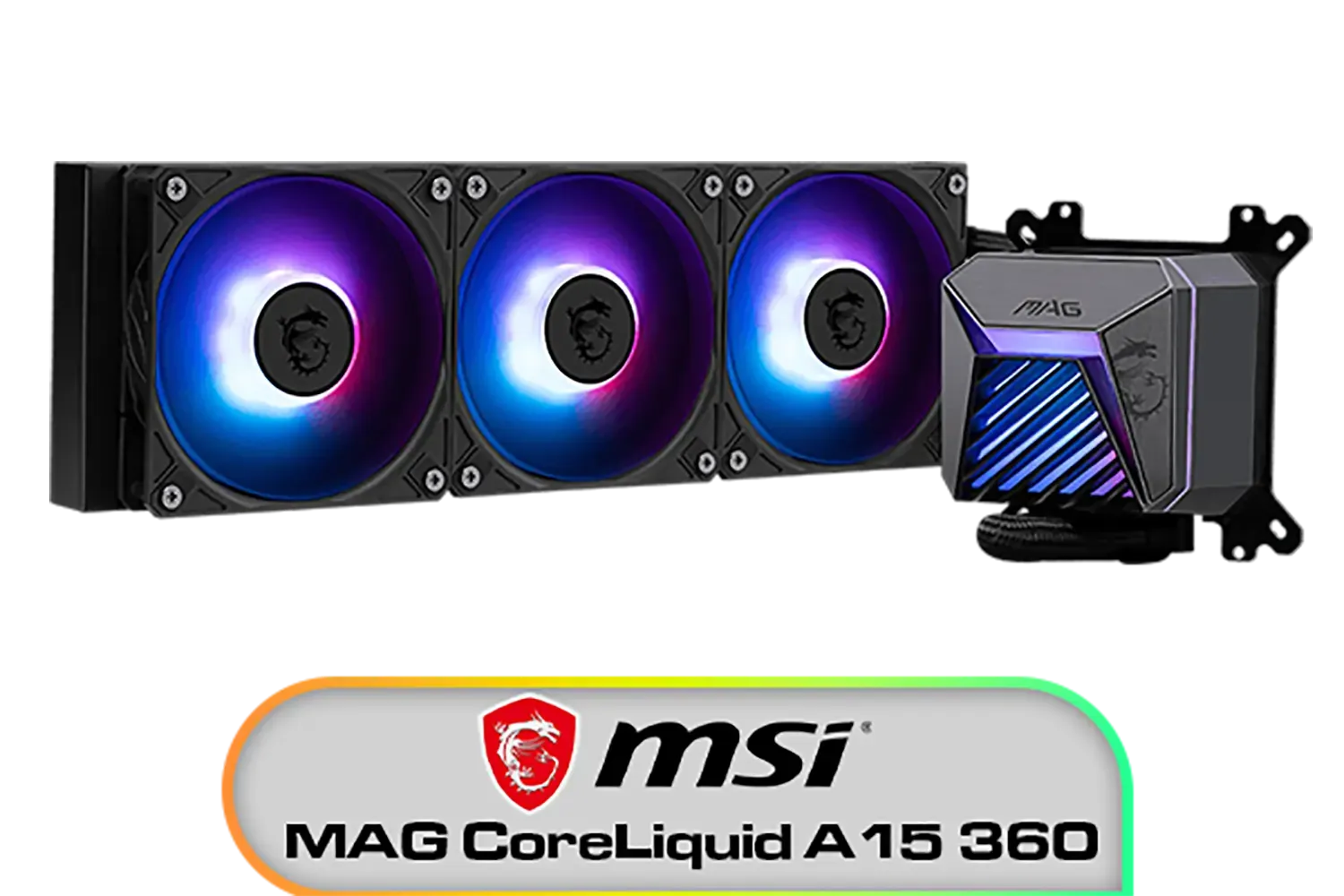
MSI MAG CoreLiquid A15 360 Liquid Cooler / CycloBlade Design / AI-Optimized Cooling / ARGB GEN2 Lighting / Easy UNI Bracket Installation / 306-7ZW9A11-L80
R1999.00In Stock

EK 280mm AIO D-RGB All-in-One CPU Liquid Cooler / Water Cooling Computer Parts / 140mm Fan / EK-Vardar High-Performance PMW Fans / Outstanding Thermal Conductivity / Support - Intel 115X/1200/2066, AMD AM4 / EK-AIO-280-D-RGB
R2699.00In Stock

Cooler Master MasterLiquid 240 Atmos ARGB Close-Loop AIO Liquid Cooler, Customize Pump, Sickleflow Edge PWM Fans, 360mm Radiator, CryoFuze, AMD Ryzen AM5/AM4, Intel LGA1700/1200 - MLX-D24M-A25PZ-R1
R2699.00In Stock
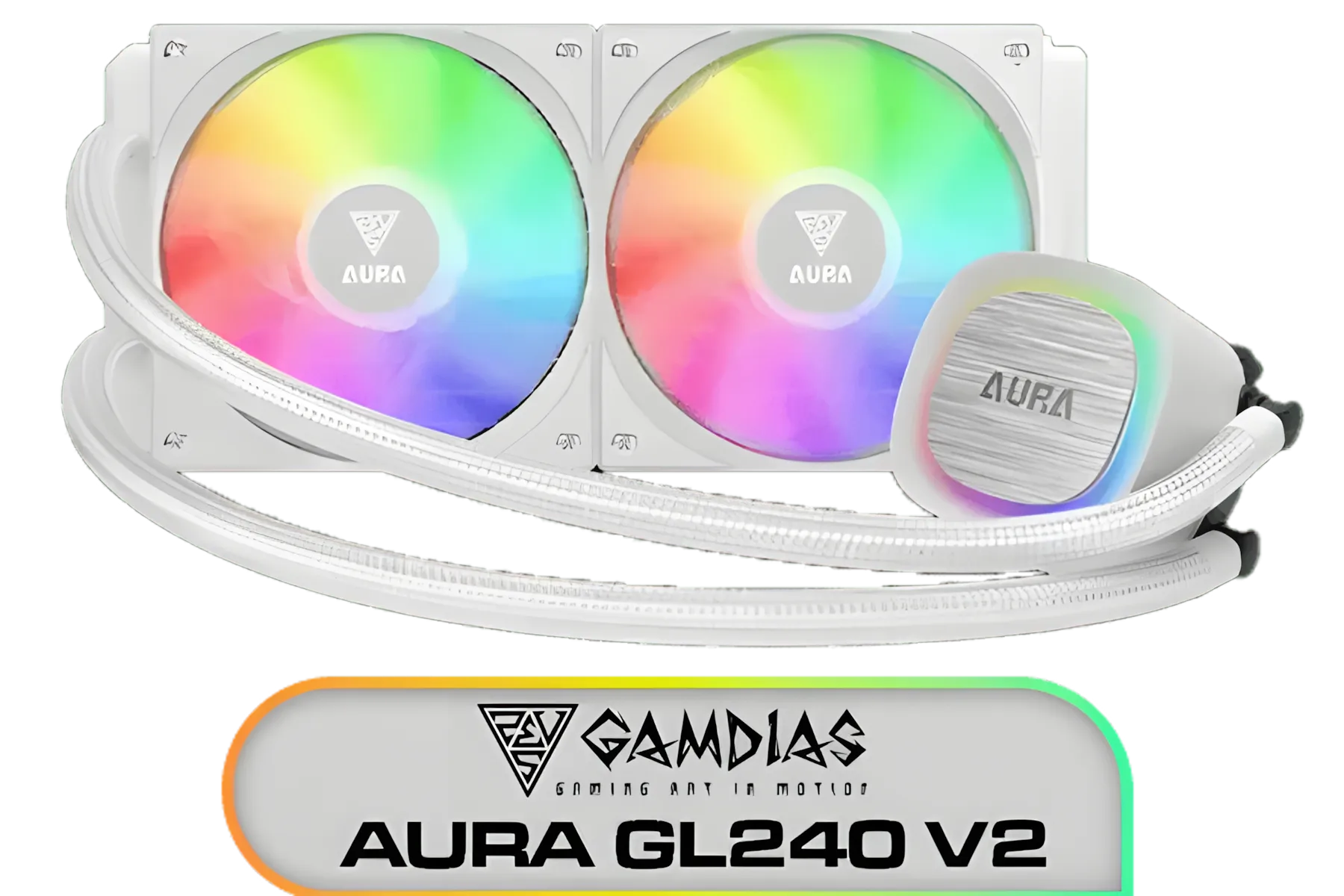
Gamdias AURA GL240 V2 White Liquid Cooler / New Fluid Running System for Better Thermal Dissipation / Hydraulic PWM Fans / AURA-GL240-V2
R1499.00In Stock

Corsair iCUE LINK TITAN 240 RX LCD Liquid CPU Cooler – 240mm AIO – Low-Noise – FlowDrive Cooling Engine – Intel LGA 1851/1700, AMD AM5/AM4 – 2x RX120 RGB Fans – iCUE LINK System Hub Included – White / CW-9061025-WW
R4499.00In Stock

Fractal Design Celsius+ S36 Prisma PWM ARGB 360mm Silent Performance Slim Radiator AIO CPU Liquid/Water Cooler / FD-W-2-S3602
R2699.00In Stock
What Exactly is Thermal Throttling?
Think of your CPU or GPU as a high-performance engine. When you’re gaming, you’re pushing that engine hard, and just like a car engine, it generates a massive amount of heat. To prevent catastrophic damage from overheating, your components have a built-in safety feature. Once they hit a certain temperature threshold (often around 90-100°C), they automatically reduce their speed and power to cool down.
This self-preservation mechanism is thermal throttling. It’s your hardware protecting itself, but the side effect is a direct hit to your performance. The very moment you need maximum power, your PC deliberately slows down. Understanding how heat affects frame rates is the first step to reclaiming your PC's full potential.
The Real Impact of Heat on Your Frame Rates 📉
When your processor throttles, its clock speed drops significantly. This means it can't process information as quickly, which directly translates to lower Frames Per Second (FPS). The result isn't always a dramatic slideshow; more often, it's a frustratingly inconsistent experience.
You might notice:
- Sudden Stuttering: Your game runs smoothly most of the time but hitches during intense firefights or graphically demanding scenes.
- Inconsistent FPS: Your frame rate fluctuates wildly, making smooth aiming impossible.
- Lower Average FPS: Over a long gaming session, your performance slowly degrades as heat builds up inside your case.
Essentially, poor cooling puts a ceiling on your hardware's capabilities. You could have the best graphics card in Mzansi, but if it's constantly throttling, you're not getting the performance you paid for.
How to Diagnose and Combat Thermal Throttling 🔧
Ready to fight back against the heat? The good news is that you have plenty of options, from free tweaks to powerful hardware upgrades.

Fractal Design Lumen S36 RGB Aspect 12 RGB x3 AIO CPU Liquid/Water Cooler / FD-W-L1-S3612
R2499.00In Stock

DeepCool LS520S Zero Dark All In One Liquid CPU Cooler, 240mm Radiator, 2 x 120mm Deepcool Fans, Intel/AMD / LS520S-Zero-Dark
R1599.00In Stock
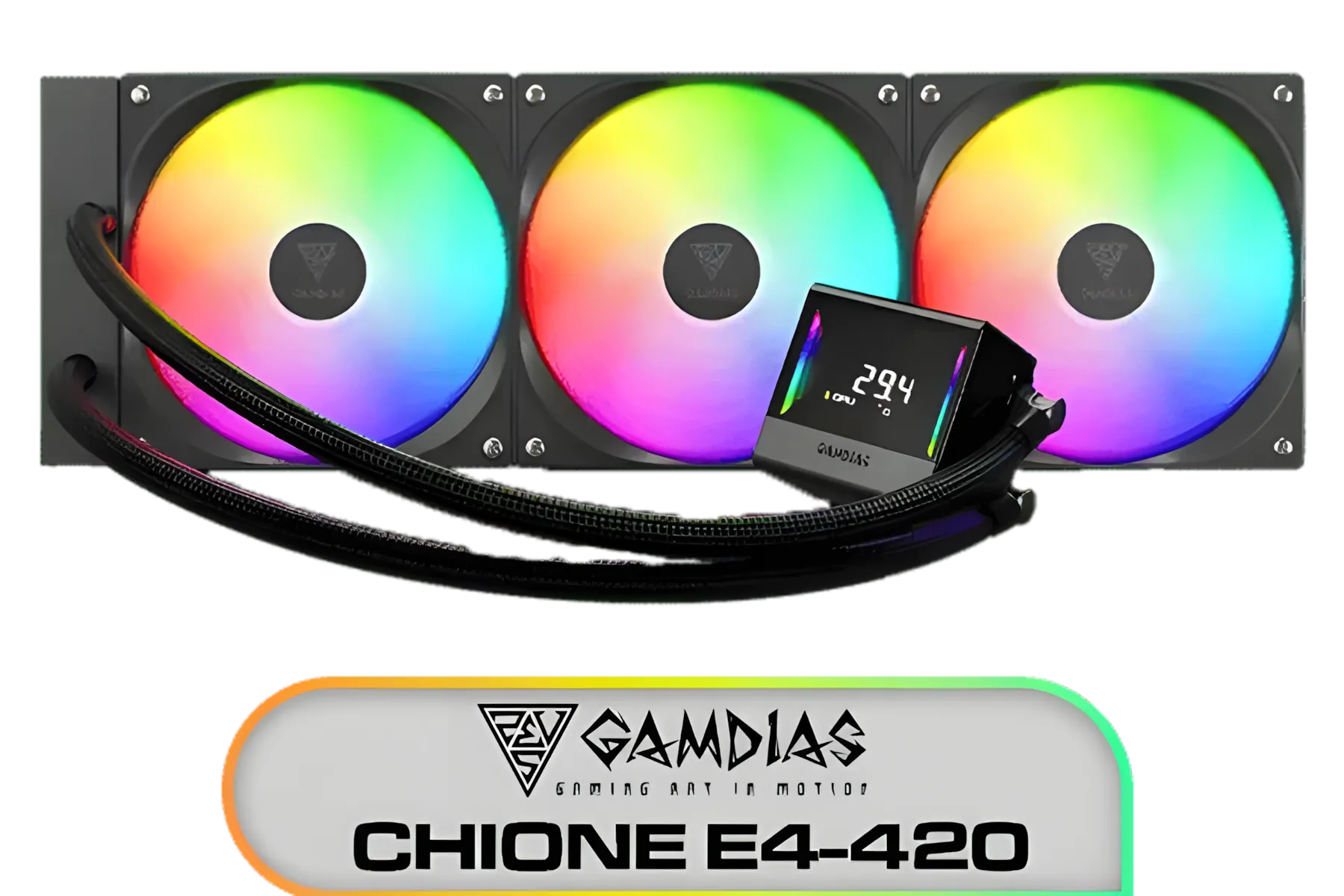
Gamdias Chione E4-420 Liquid Cooler - Black / Hydraulic PWM Fans / Dual Infinite Mirror / Real-time Digital Display / Patented PWM Pump / Motherboard Sync ARGB / CHIONE E4-420
R2599.00In Stock
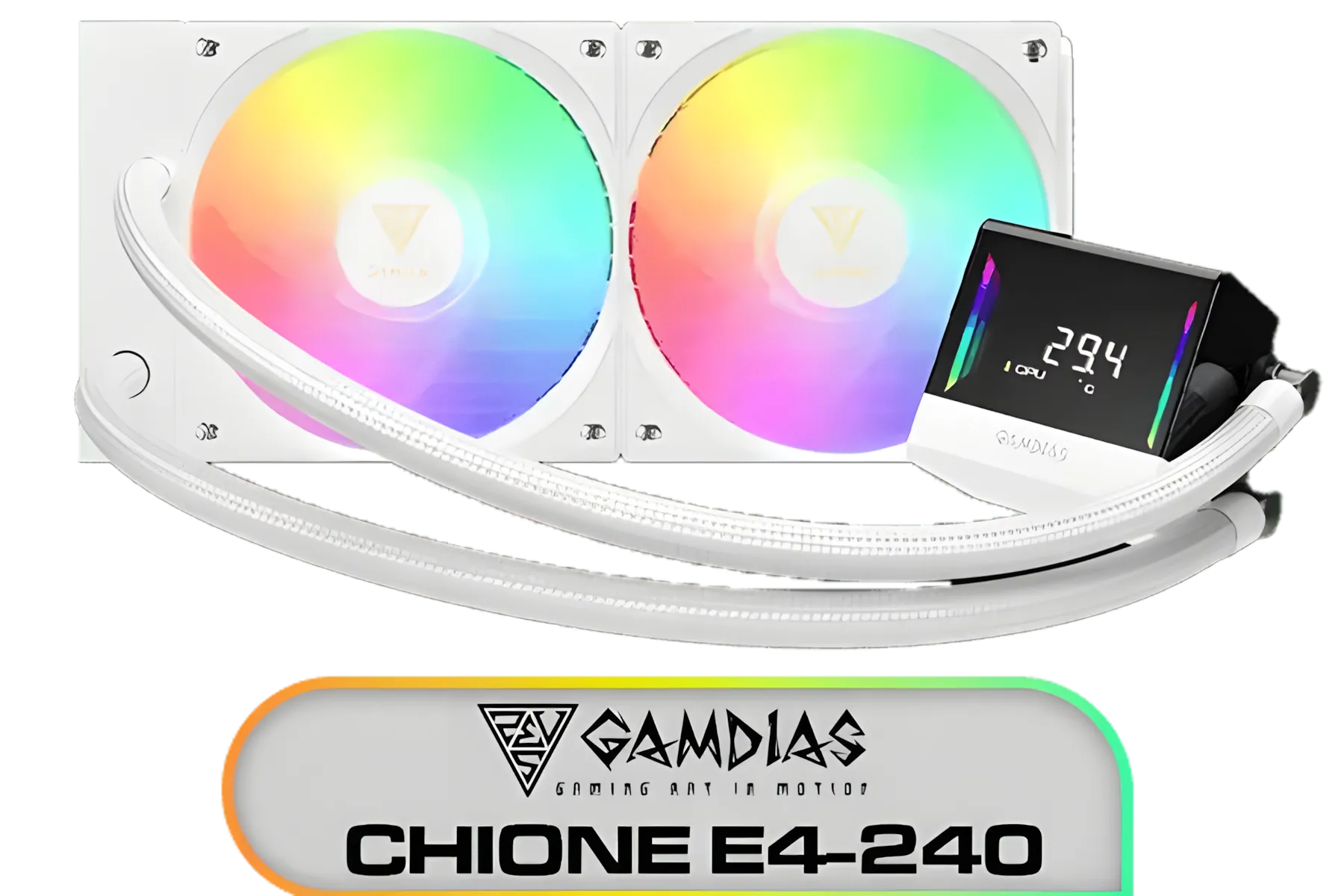
Gamdias Chione E4-240 Liquid Cooler - White / Hydraulic PWM Fans / Dual Infinite Mirror / Real-time Digital Display / Patented PWM Pump / Motherboard Sync ARGB / CHIONE-E4-240-WH
R899.00In Stock

Gamdias Chione E4-240 Liquid Cooler / Hydraulic PWM Fans / Dual Infinite Mirror / Real-time Digital Display / Patented PWM Pump / Motherboard Sync ARGB / CHIONE-E4-240
R1599.00In Stock
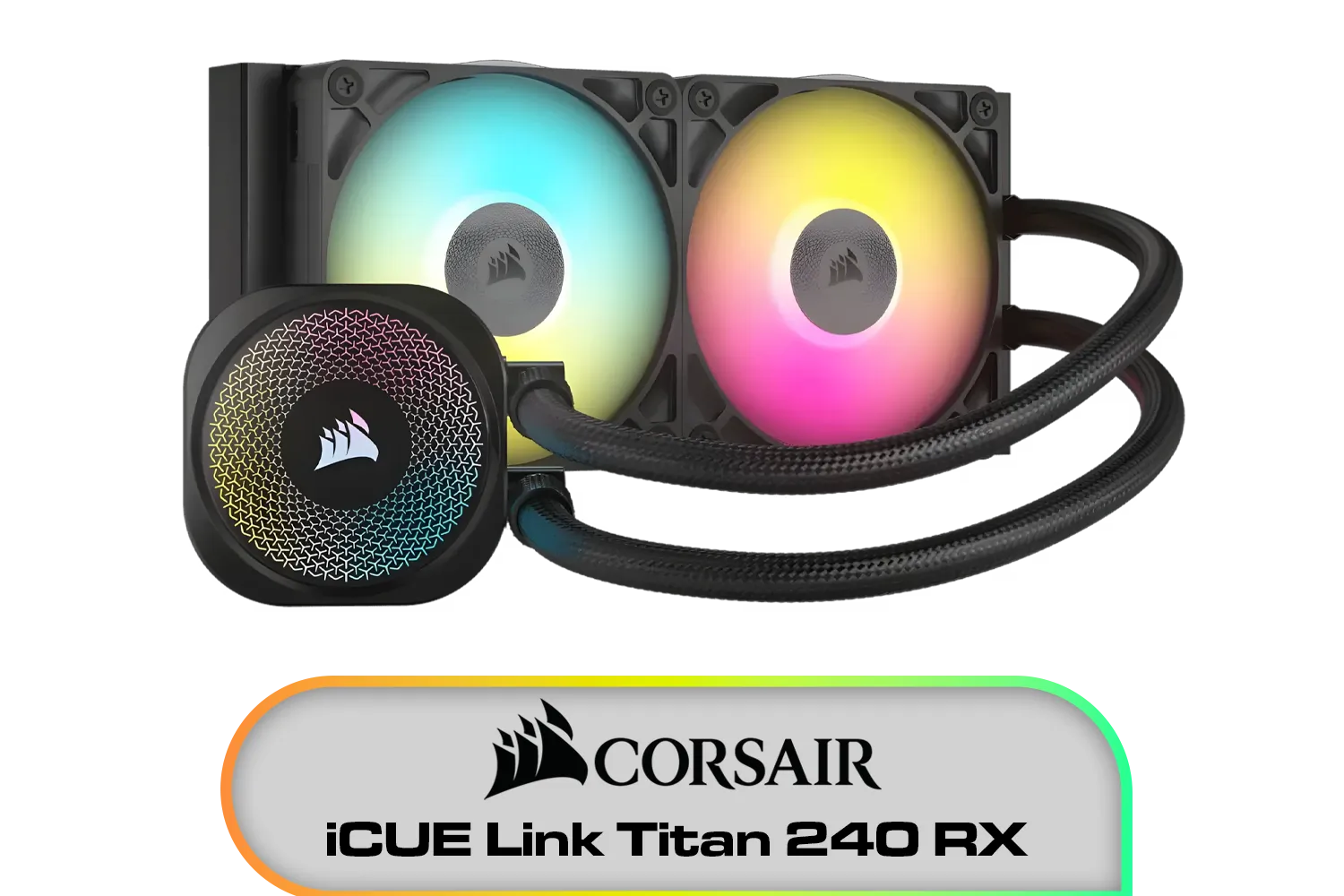
Corsair iCUE Link Titan 240 RX RGB AIO Liquid CPU Cooler / 2x High-Performance RX120 RGB fans / iCUE LINK connectivity / Intel® LGA 1851/1700 and AMD® AM5/AM4 / CW-9061016-WW
R3199.00In Stock
Step 1: Monitor Your Temperatures
You can't fix a problem you can't see. Download a free monitoring tool like MSI Afterburner or HWMonitor. Play your favourite game for about 20-30 minutes and then check the maximum temperatures your CPU and GPU reached. If your CPU is pushing past 85°C or your GPU is consistently over 80°C under load, you're likely experiencing thermal throttling.
TIP FOR YOU
Case Airflow is King 💨
Make sure your case fans are configured for optimal airflow. A common setup is to have front fans pulling cool air in (intake) and rear top fans pushing hot air out (exhaust). Even one fan facing the wrong way can create hot spots and ruin your PC's cooling potential. A clear path for air is a free performance boost!
Step 2: Simple Fixes You Can Do Today
Before you spend a Rand, try these simple maintenance steps:
- Clean Your PC: Dust is a notorious insulator. Open your case and give your fans, heatsinks, and dust filters a thorough cleaning with compressed air.
- Check Your Fan Curves: Using your motherboard's BIOS or software, you can set your fans to spin faster at lower temperatures, helping to dissipate heat more aggressively.
- Improve Room Ventilation: Gaming in a hot, stuffy room on a summer's day in Durban doesn't help. Ensure your room has decent airflow to give your PC access to cooler ambient air.

Corsair iCUE Link Titan 280 RX RGB All-In-One 280mm Liquid CPU Cooler / Three high-performance RX120 RGB fans / Extreme cooling performance / Three high-performance RX120 RGB fans / CW-9061017-WW
R3199.00In Stock

DeepCool Liquid Cooler LT720 WH 360mm 4th Gen Dual-Chamber Pump 3100RPM Multidimensional Infinity Mirror ARGB Block 300w TDP AIO Cooler Anti-Leak Tech CPU Water Cooler for AMD AM4/AM5 LGA 1700/1200 / LT720-WH
R2499.00In Stock

DeepCool MYSTIQUE 240 ARGB Liquid Cooler 240mm 5th Gen Pump 3400RPM AIO 2.8" for AMD AM4/AM5 LGA LGA1700/1200/1151/1150/1155 / MYSTIQUE-240-ARGB
R2799.00In Stock

DeepCool LT240 White Edition ARGB CPU Liquid Cooler, 280W TDP 5th Gen Dual-Chamber Pump Multidimensional Infinity Mirror ARGB Block AIO Cooler for LGA1700/1200/1151/1150/1155,AMD AM4/AM5 / LT240-WH-ARGB
R2299.00In Stock

Corsair iCUE ELITE CPU Cooler LCD Display Upgrade Kit / Brilliant IPS LCD Display / Easy Installation On Corsair ELITE Capellix / CW-9060056-WW
R2299.00In Stock
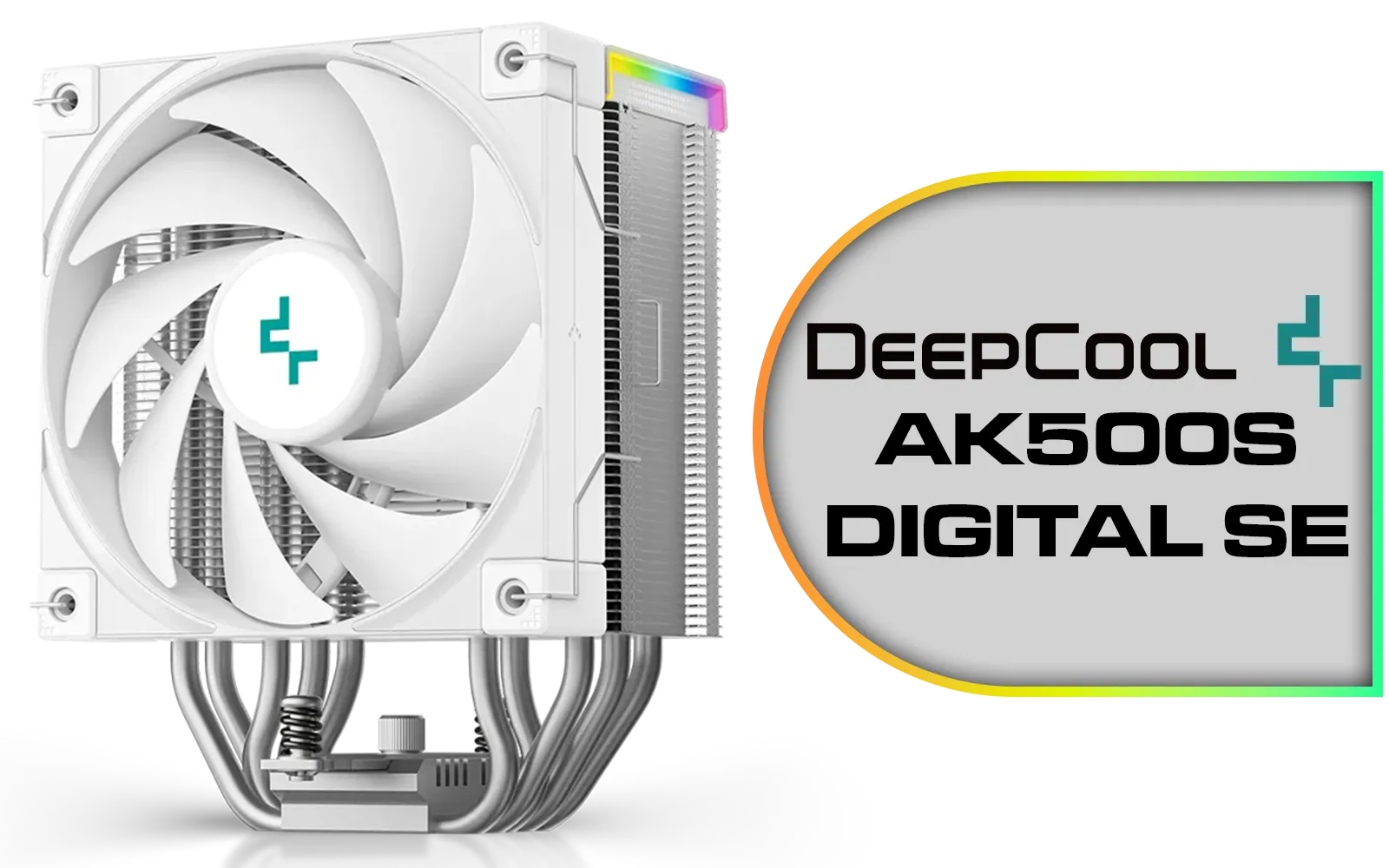
Deepcool AK500S DIGITAL SE WH CPU Cooler - White / Digital Air Cooler / Low-Profile Status Display / Slimmer Fin Stack Design / Addressable RGB LED / AK500S-DIGITAL-SE-WH
R899.00In Stock
Step 3: Upgrade Your Cooling Solution
If the simple fixes aren't enough, it's time to upgrade your hardware. The stock cooler that came with your CPU is often just the bare minimum. Moving to a dedicated aftermarket solution is one of the most effective ways to stop thermal throttling in gaming for good.
There's a massive world of powerful and quiet aftermarket CPU coolers out there. For top-tier performance and reliability, premium air and liquid cooling brands like Corsair are trusted by enthusiasts worldwide.
For those seeking excellent performance without breaking the bank, brands like GAMDIAS offer fantastic value across their air and liquid cooling lineups. In fact, for many gamers looking to make a serious impact on temperatures, a liquid All-in-One (AIO) is the ultimate solution. A popular and effective choice is a 240mm AIO liquid cooler, which offers superior heat dissipation and fits in most modern gaming cases. If you're ready to dip your toes into liquid cooling, the latest GAMDIAS AIO coolers provide a brilliant entry point with great aesthetics and performance.
Ready to Crush the Heat? Don't let thermal throttling rob you of the performance you deserve. A cooler PC is a faster, more reliable gaming machine. Explore our full range of CPU coolers and unlock your hardware's true potential.
Related Products
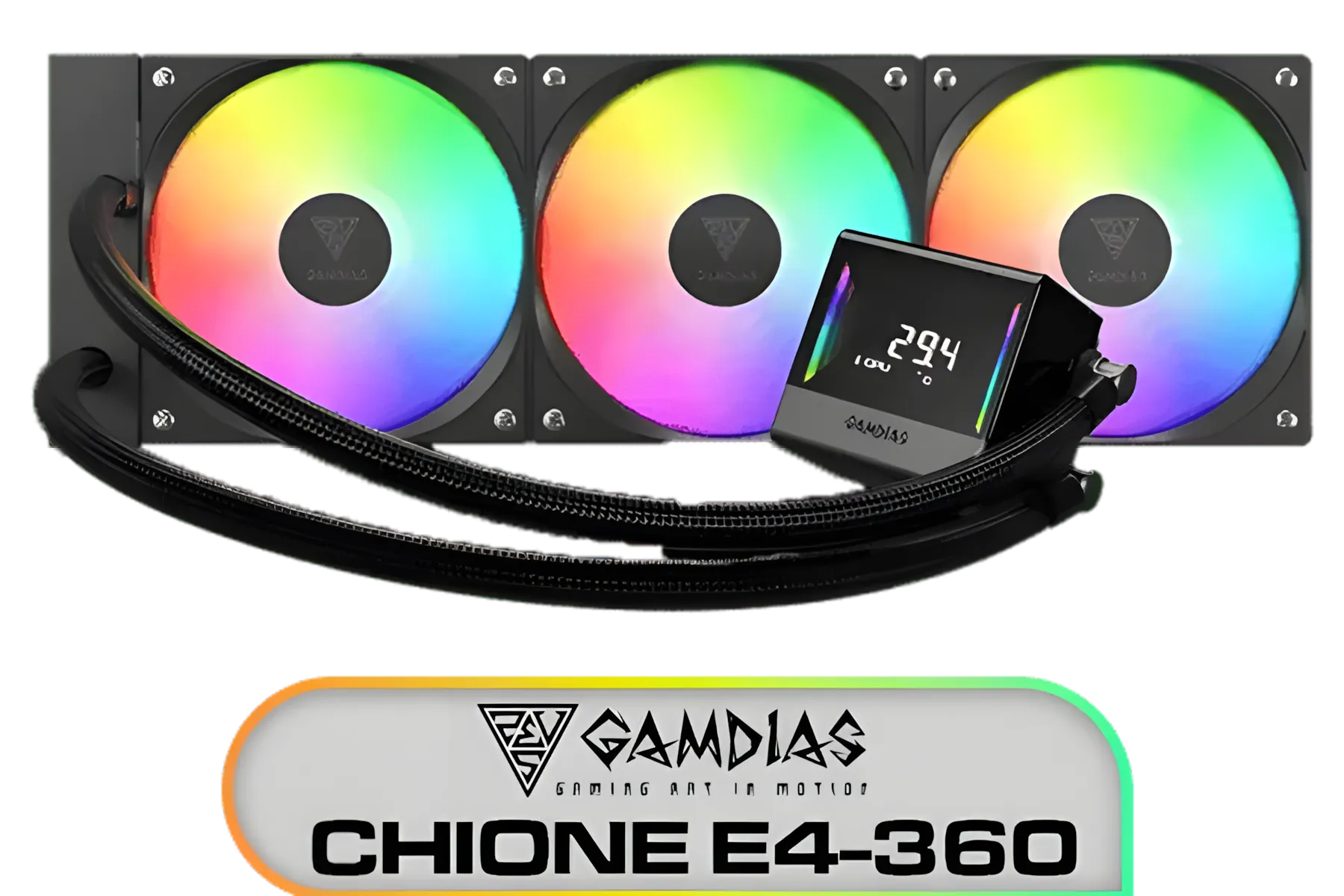
Gamdias Chione E4-360 Liquid Cooler / Hydraulic PWM Fans / Dual Infinite Mirror / Real-time Digital Display / Patented PWM Pump / Motherboard Sync ARGB / CHIONE-E4-360
R1899.00In Stock

Corsair NAUTILUS 240 RS ARGB Liquid CPU Cooler – 240mm AIO – Low-Noise – Direct Motherboard Connection – Daisy-Chain – Intel LGA 1851/1700, AMD AM5/AM4 – 2x RS120 ARGB Fans Included – White / CW-9060094-WW
R1999.00In Stock

DeepCool LD240 Liquid Cooler - Black / 240mm Radiator / LED Digital Display / 2x ARGB Fans Included / Compatible with AMD & Intel / LD240
R1799.00In Stock

Corsair iCUE LINK TITAN 240 RX LCD Liquid CPU Cooler – 240mm AIO – Low-Noise – FlowDrive Cooling Engine – Intel LGA 1851/1700, AMD AM5/AM4 – 2x RX120 RGB Fans – iCUE LINK System Hub Included – Black / CW-9061022-WW
R4299.00In Stock
Corsair iCUE LINK TITAN 240 RX LCD Liquid CPU Cooler – 240mm AIO – Low-Noise – FlowDrive Cooling Engine – Intel LGA 1851/1700, AMD AM5/AM4 – 2x RX120 RGB Fans – iCUE LINK System Hub Included – White / CW-9061025-WW
R4499.00In Stock

DeepCool Liquid Cooler LT520 240mm 4th Gen Dual-Chamber Pump 3100RPM Multidimensional Infinity Mirror ARGB Block 280w TDP AIO Cooler Anti-Leak Tech CPU Water Cooler for AMD AM4/AM5 LGA 1700/1200 / LT520
R1749.00In Stock
Thermal throttling reduces CPU/GPU clocks when hot, causing FPS drops; see the impact of heat on FPS and cooling fixes.
Improve airflow, upgrade CPU/GPU cooling, adjust fan curves and power limits to prevent thermal throttling in PC.
Yes. GPU temperature FPS drops occur when the GPU throttles; better cooling or power tuning can restore sustained FPS.
Yes. Thermal management gaming laptops is tougher due to compact design; external cooling and power profiles help.
Often yes. Cooling solutions for gaming PCs reduce throttling and allow higher sustained clocks for stable frame rates.
Power limits and sustained FPS are linked: raising safe power limits can prevent drops, but monitor temps closely.
Undervolting can reduce heat and stabilize FPS as part of optimize power and cooling for gaming strategy.











