

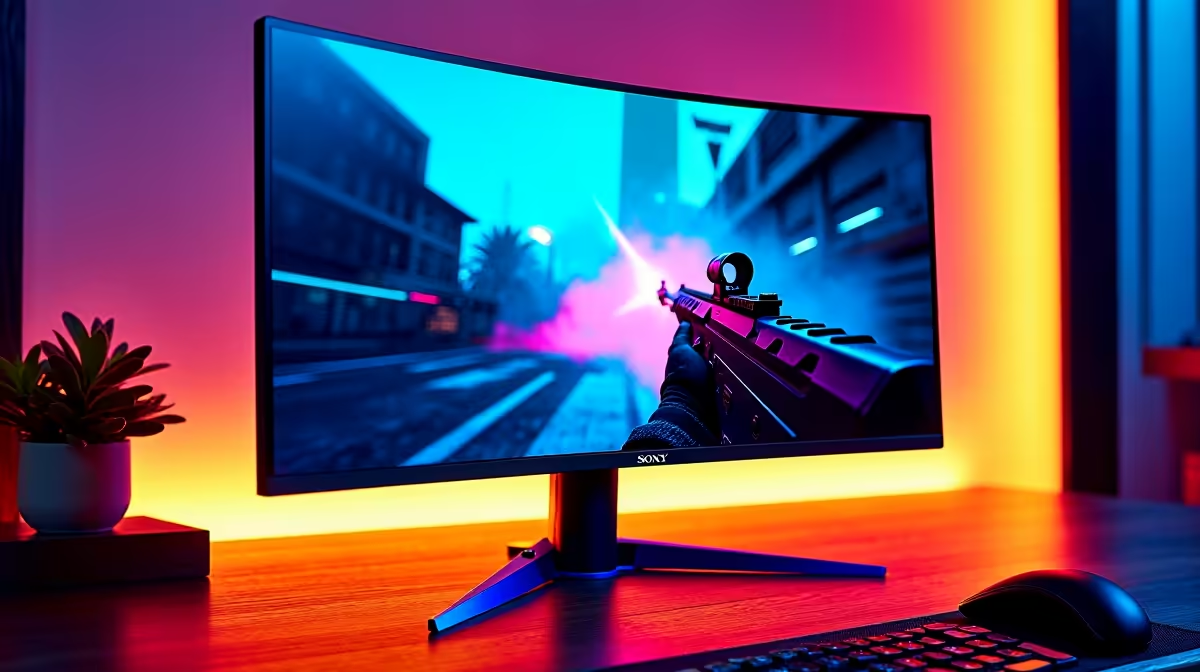
Competitive FPS gaming in South Africa has grown significantly, with local players competing in Valorant, CS2, Apex Legends, and Rainbow Six Siege at increasingly high levels. Your monitor settings can mean the difference between winning a duel and losing it - and many players leave significant performance on the table by running default or visually-appealing settings rather than competitive-optimised ones.
Quick Answer
For competitive FPS gaming in 2026, prioritise a resolution of 1920x1080 at your monitor's maximum refresh rate, set brightness to 80–100 nits above your room lighting, disable HDR and any dynamic contrast, and ensure Overdrive/Response Time is set to Fast (not Fastest to avoid ghosting). Low Input Lag mode should always be enabled.
🎯 Resolution and Refresh Rate: The Foundation
In competitive FPS, frame rate and input latency beat visual fidelity every time. The majority of professional CS2 and Valorant players use 1920x1080 (1080p) even on 1440p monitors, because the lower render load allows the GPU to push higher frame rates - and more frames means more up-to-date information on screen every second.
Target settings:
- Resolution: 1920x1080 for maximum frame rates; 2560x1440 if your GPU handles 240+ FPS at 1440p consistently
- Refresh Rate: Always set to the monitor's maximum (240Hz, 280Hz, 360Hz) - never leave it at 60Hz default
- G-Sync / FreeSync: Disable for competitive play if you're consistently above the monitor's max refresh; enable if you dip below
- VRR Range: Some monitors allow adjusting the FreeSync range - keep minimum as low as possible
Pair these settings with a monitor that has a certified low-latency panel for the best results.
💡 OSD Settings That Directly Impact Performance
The On-Screen Display (OSD) menu of your monitor controls several settings that have real competitive impact:
Response Time / Overdrive: Set to "Fast" or the second-highest option. The highest setting ("Fastest" or "Extreme") typically introduces inverse ghosting - dark halos behind moving objects that are visually distracting in fast games.
Low Input Lag Mode: Enable this on every monitor that offers it. It disables internal image processing that adds 5–30ms of display latency. On some monitors this is labelled "Gaming Mode" or "Aim Stabilizer."
Black Equalizer / Shadow Boost: Raise this to 8–12 (on a 0–20 scale). This brightens shadow areas without blowing out highlights, making enemies hiding in dark corners clearly visible. This is one of the highest-impact OSD settings for SA competitive players.
Brightness: Set between 80–120 nits for indoor SA environments during the day. Very high brightness (250+ nits) causes eye fatigue during long sessions. At night, drop to 60–80 nits.
Colour Temperature: 6500K (warm) for most displays. Cooler temperatures (7500K+) can cause eye strain over long sessions. Avoid custom RGB channel tweaking unless you've colour-calibrated your specific panel.
🖥️ In-Game Settings That Work With Your Monitor
Your monitor settings are only half the picture - in-game settings must align:
- V-Sync: Off in CS2, Valorant, Apex Legends. V-Sync adds input lag and limits frame rate - always off in competitive titles
- Frame Rate Cap: Cap 10–20 FPS above your monitor's refresh rate (e.g., 270 FPS cap for a 240Hz panel) to keep the GPU rendering ahead without overheating unnecessarily
- Motion Blur: Off - adds visual noise to fast movement, offers zero competitive benefit
- Depth of Field: Off in any game that allows disabling it
- Texture Quality: Medium - high enough that enemy models render clearly at range, low enough to keep frame rates stable
Your GPU should be powerful enough to sustain your target frame rate consistently - a GPU that drops below the monitor's refresh rate mid-game creates judder that no monitor setting can compensate for.
🧪 Calibration and Testing Your Settings
After applying competitive settings, test them before your ranked session:
- Run a motion blur test (testufo.com equivalent, or in-game training mode)
- Verify no inverse ghosting by watching a white object move across a dark background
- Check that Black Equalizer hasn't introduced banding in gradient-heavy skyboxes
- Confirm your frame rate is displaying at the expected cap using an overlay like MSI Afterburner
For SA players competing in weekly online tournaments, consistent settings across sessions matter as much as the settings themselves - once you find what works, save your OSD profile and don't change it before an event.
❓ FAQ
Should I use 1080p or 1440p for competitive FPS in 2026? It depends entirely on your GPU. If your card can sustain 240+ FPS at 1440p in your main game, use 1440p - more pixels means more detail on distant targets. If your GPU struggles to reach high frame rates at 1440p, drop to 1080p. Frame rate consistency beats resolution in competitive play.
Does monitor response time actually matter for FPS gaming? Yes. Panels with 1ms GtG (grey-to-grey) response times produce cleaner motion on fast-moving objects compared to 5ms IPS panels at equivalent refresh rates. However, the difference is most noticeable above 144Hz. At 60Hz, the distinction is minimal.
What is Black Equalizer and should I use it? Black Equalizer (or Shadow Boost on some brands) lifts the brightness of dark areas in-game without affecting bright areas. It makes enemies hiding in shadows easier to see. Yes, enable it - typically 8–12 on a 20-point scale is the competitive sweet spot.
Is G-Sync worth it for competitive FPS gaming? G-Sync/FreeSync is valuable when your frame rate fluctuates below your monitor's max refresh rate. If your GPU consistently delivers frames above 240 FPS on a 240Hz monitor, disable VRR - it adds a tiny amount of latency. Enable it if your frame rate is variable between 100–240 FPS.
Evetech stocks All Monitors and Graphics Card Deals — browse current SA pricing and availability online.
Ready to Find Your Perfect Match? Upgrade your competitive gaming setup - browse Evetech's gaming PC deals built for high frame rate FPS performance.











