

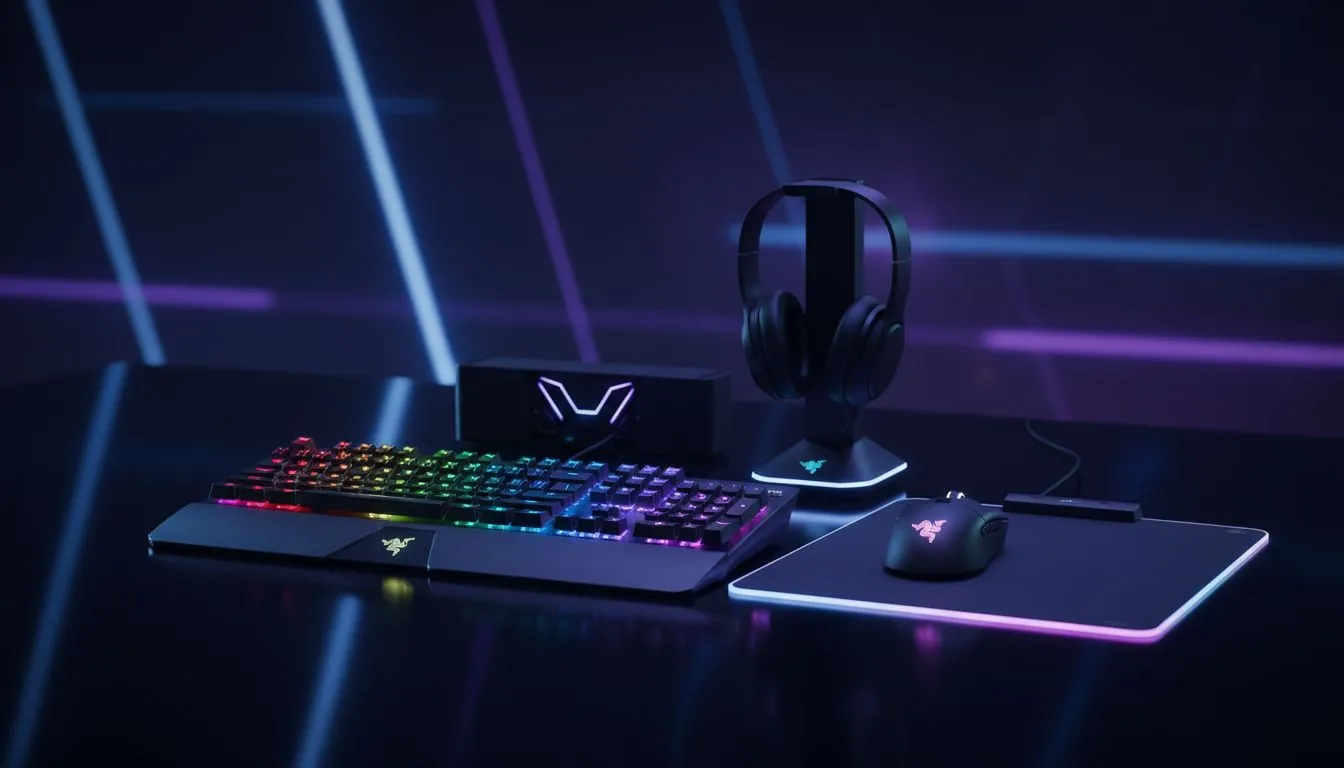
Elevating Your Battlestation with Razer Chroma Sync
There is nothing quite like a late-night gaming session in a dimly lit room. Your screen glows... but your desk remains dark... or worse, a messy mix of clashing colours. That is where a proper Razer Chroma Sync setup comes in. It turns your room into a reactive environment. Every explosion or health drop reflects in your lighting. Let us get your gear synced up perfectly. ✨
Step-by-Step Razer Chroma Sync Setup Guide
First, you need Razer Synapse 3. This software is the brain of your lighting ecosystem. Download the latest version from the official Razer website. Once installed, plug in your gaming peripherals. The software should detect them immediately. If it does not, try a different USB port. Make sure your firmware is up to date for the best stability.
Open the "Lighting" tab in Synapse. You will see an option for "Quick Effects". This is great for a fast start. However, the real magic happens in "Chroma Studio". Here, you can layer effects. Imagine a static deep blue with a reactive white ripple every time you press a key. It adds a premium feel to your setup without costing extra ZAR.
Beyond the Keyboard: Expanding Your Ecosystem
Razer Chroma is not just for mice and keyboards. Many modern PC components now support Chroma Connect. This includes motherboards, case fans, and LED strips. By enabling the Chroma Connect module, your entire case can match your peripherals. You can find many gaming accessories deals that support this ecosystem. This creates a seamless flow of colour across your entire desk.
Immersive Game Sync ⚡
Many modern titles like Overwatch 2 or Cyberpunk 2077 have native Chroma integration. Enable 'Apps' in the Chroma workshop. Your keyboard will flash red when your health is low or pulse when your ultimate ability is ready. It is a subtle way to gain a competitive edge while looking incredible.
Optimising Performance and Visuals
Sometimes your lighting might feel out of sync. This usually happens when multiple RGB controllers compete for priority. Ensure you have the latest modules installed within Synapse. You can find a massive range of gaming accessories that are fully compatible with this standard. If a device stays static while others pulse, check the "Chroma Connect" settings. Ensure no other lighting software is overriding Synapse. Apps like MSI Mystic Light or ASUS Aura can sometimes conflict. Set Synapse as the priority. 🔧
Finalising Your Immersive Lighting Environment
A complete Razer Chroma Sync: Setup Guide for Immersive Gaming Lighting would not be complete without mentioning ambient lighting. Razer’s hardware can sync with Philips Hue or Govee lights. This extends the colours of your screen onto the walls behind your monitor. It reduces eye strain during long sessions. It also makes your gaming space feel significantly larger. 🚀
Always remember to save your profiles to the cloud. This allows you to bring your custom lighting to any PC. Whether you are at a local LAN or upgrading your rig, your style stays with you.
Ready to Find Your Perfect Match? Creating the ultimate Razer Chroma Sync setup starts with the right hardware. For the best selection and value in South Africa, our collection is hard to beat. Explore our massive range of gaming accessories and find the perfect gear to light up your victory.











