

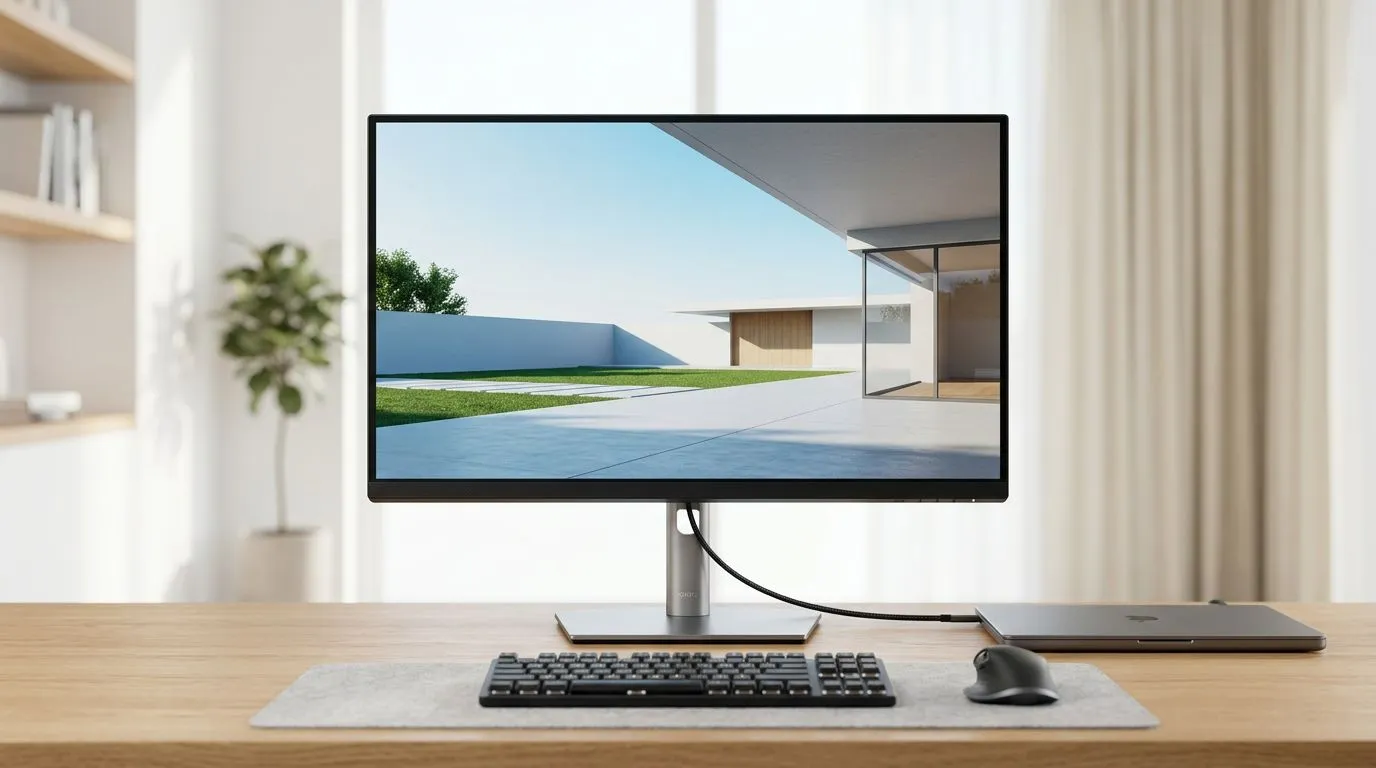
USB-C Monitor Setup: Create a Clean Desk with One Cable (That Actually Works) 🔧
If your desk looks like a spaghetti factory, you’re not alone… especially when you’re juggling a gaming PC, a console, and maybe a streaming rig. The good news? A USB-C Monitor Setup: Create a Clean Desk with One Cable can make your whole setup feel calmer in minutes. ✨
In South Africa, where space is often tight and budgets matter, simplifying your cabling is more than looks. It can also reduce connection issues and make your monitor easier to switch between devices.
Why “One Cable” Changes Everything in a South African Game Desk ⚡
A single-cable setup usually means less cable clutter, fewer ports fighting for attention, and a cleaner desk for mouse space and controller charging. But the real win is consistency: one connection path, one routine, fewer “why won’t it display?” moments.
That said, USB-C only behaves like “one cable does it all” when your monitor supports the right features. Most commonly, you’re looking for:
- Video over USB-C (DisplayPort Alt Mode)
- Power delivery (optional, depends on your laptop)
- Reliable USB data (for built-in hub features, if supported)
If any of those are missing, you may still need a separate power or HDMI/DisplayPort cable. So before you buy, confirm the monitor’s capabilities on the spec page.
Check Compatibility Before You Commit
Before you run a single cable from your laptop to your monitor, ask yourself:
- What device are you connecting? (laptop model matters)
- Does your monitor support USB-C video in the first place?
- Do you want charging over USB-C, or just display?
This saves money. And it saves you from buying adaptors you’ll never use.
Cable-First Productivity Pro Tip 🔧
On setup day, label your cables with a small tag (USB-C in, power out, any console input). Then take a 20-second photo of the back of your monitor and PC. When you move things later for LAN days or cleaning, you’ll reconnect everything in minutes without guessing.
Build Your USB-C Monitor Setup: Create a Clean Desk with One Cable (Step-by-Step) 🚀
Let’s do this practically. You want a clean desk, fast swaps, and minimal cable chaos.
1) Pick the right monitor for your “one cable” goal
Start with your monitor type based on your gaming style and space.
- If you want a wide, immersive field of view, browse all gaming monitors to compare sizes and port layouts.
- If your desk depth is limited, a portable monitor might be the most realistic path to a cleaner setup.
Here are Evetech options to explore:
- https://www.evetech.co.za/all-gaming-monitors/x/1587.aspx
- https://www.evetech.co.za/buy-portable-monitors/x/1590.aspx
- https://www.evetech.co.za/PC-Components/buy-monitor-accessories-368.aspx
2) Choose a monitor that helps your desk stay uncluttered
If your priority is simplicity and easier placement, consider a monitor that suits your space and your viewing distance. If you’re upgrading, it’s also worth checking curated deals and bundles that often include useful extras.
Shop through:
- https://www.evetech.co.za/best-pc-monitor-deals/x/047.aspx
- https://www.evetech.co.za/PC-Components/pc-monitors-89.aspx
3) Decide your “clean cable route”
A USB-C run stays neat when you plan the route:
- Place the monitor close enough that your USB-C cable doesn’t need to stretch.
- Use a cable channel or under-desk clip so it drops straight down instead of looping.
- If you’re using a curved monitor, account for back curvature and port access.
If you’re leaning curved, check:
4) Set your display inputs once, then automate the routine
Once connected:
- Set your USB-C input name in the monitor menu (if supported).
- Use consistent ordering so switching devices feels instant.
- If you game on one machine and work on another, consider a simple habit: USB-C laptop first, then PC input when you sit down.
5) If you’re going high-res, confirm USB-C bandwidth realities
Higher resolutions can raise the bar. If you’re targeting 4K or 5K workflows, you’ll want a monitor that can actually handle the signal quality you expect over USB-C.
Explore 4K/5K focused options:
Common USB-C Monitor Setup Problems (And Quick Fixes) ✅
Here’s the stuff that usually trips South African gamers up when they chase “one cable” simplicity:
No signal when using USB-C
Common reasons:
- The monitor’s USB-C port doesn’t support video input (some are charging only).
- Cable quality is poor; some USB-C cables aren’t designed for video.
- Wrong input selected on the monitor.
Fix: try a known-good USB-C cable that explicitly supports video (not just charging), then select the correct USB-C input on-screen.
Laptop doesn’t charge through the monitor
That’s normal when power delivery isn’t supported or is limited. Many setups require separate laptop charging for best results. Check monitor specs before expecting charging.
Screen looks sharp but refresh rate isn’t what you thought
For smooth gameplay, confirm what the monitor supports at your target resolution. If you care about competitive response times, verify refresh rate expectations in the monitor’s product info.
For monitor shopping, Evetech listings make it easier to compare models side-by-side:
Turn Your Setup Into a “Grab-and-Go” Game Desk ✨
The goal isn’t just a clean desk. It’s a desk that stays clean after you game, work, or stream. When you remove extra cables, you reduce friction. And when friction drops, you actually maintain the setup.
So build your routine:
- Connect USB-C
- Confirm input
- Start gaming or editing
- Only add extra cables when you truly need them
That’s how you get the benefits of a USB-C monitor setup without the “why is this cable even here?” regret later.
Ready to Find Your Perfect Match? The Mac vs Windows debate is complex, but for maximum power, choice, and value in South Africa, Windows is hard to beat. Explore our massive range of laptop specials and find the perfect machine to conquer your world.








