Staring at a stuttering timeline in Adobe Premiere Pro? We’ve all been there. For South African video editors, every second counts. The good news? The bottleneck probably isn't your CPU or RAM. It’s your storage. Specifically, it’s where you’ve set your scratch disk. Let's fix that and get you editing smoothly again.
So, What Exactly is a Premiere Pro Scratch Disk?
Think of a scratch disk as a dedicated, high-speed workspace for your editing software. When you’re scrubbing through 4K footage, adding effects, or rendering a sequence, Premiere Pro creates a mountain of temporary files… previews, audio conforms, and cache files.
If these temporary files have to compete for space and speed on the same drive as your operating system and source footage, your entire system grinds to a halt. The solution is giving Premiere its own separate, lightning-fast drive to work on. This is the single biggest performance boost you can give your editing rig.
Why Your Single Drive Setup is a Bottleneck
Imagine trying to cook a massive potjiekos in a tiny kitchenette where you also store all your ingredients and wash your dishes. It’s chaotic and slow. That’s what Premiere Pro is doing on a single-drive PC.
Your main drive is constantly juggling tasks: running Windows, loading your source clips, and trying to write temporary cache files all at once. This creates a massive traffic jam of data. By offloading the scratch disk function to a separate drive, you create a dedicated super-highway for all those temporary files, freeing up your main drive to do its job. If budget is a concern, you can often find great SSD deals that make this affordable.
Choosing the Best Scratch Disks for Premiere Pro
Not all drives are created equal. When it comes to selecting the best scratch disk for Premiere Pro, speed is everything. Here’s a quick breakdown of your options, from good to absolutely epic.
The Sweet Spot: SATA SSDs
For years, SATA SSDs have been the go-to upgrade for PC users, and for good reason. They are worlds faster than traditional mechanical hard drives and offer a fantastic performance-per-Rand value. A dedicated SATA SSD as a scratch disk will deliver a massive improvement over a single-drive setup, dramatically reducing lag and improving timeline responsiveness. They are an excellent, budget-friendly starting point. Take a look at our range of SATA Solid State Drives to see how accessible this upgrade can be.
The Ultimate Weapon: NVMe SSDs 🚀
If you want zero compromises and the absolute smoothest editing experience possible, you need an NVMe M.2 SSD. These drives plug directly into the motherboard and use the PCIe interface, leaving SATA speeds in the dust. The difference is staggering. Previews generate almost instantly, 4K and 6K timelines are buttery smooth, and export times are slashed. For serious editors, a dedicated NVMe is the best scratch disk for Premiere Pro, period. You can explore our top-tier NVMe SSDs to find the ultimate performance upgrade.
What About Laptops or External Setups?
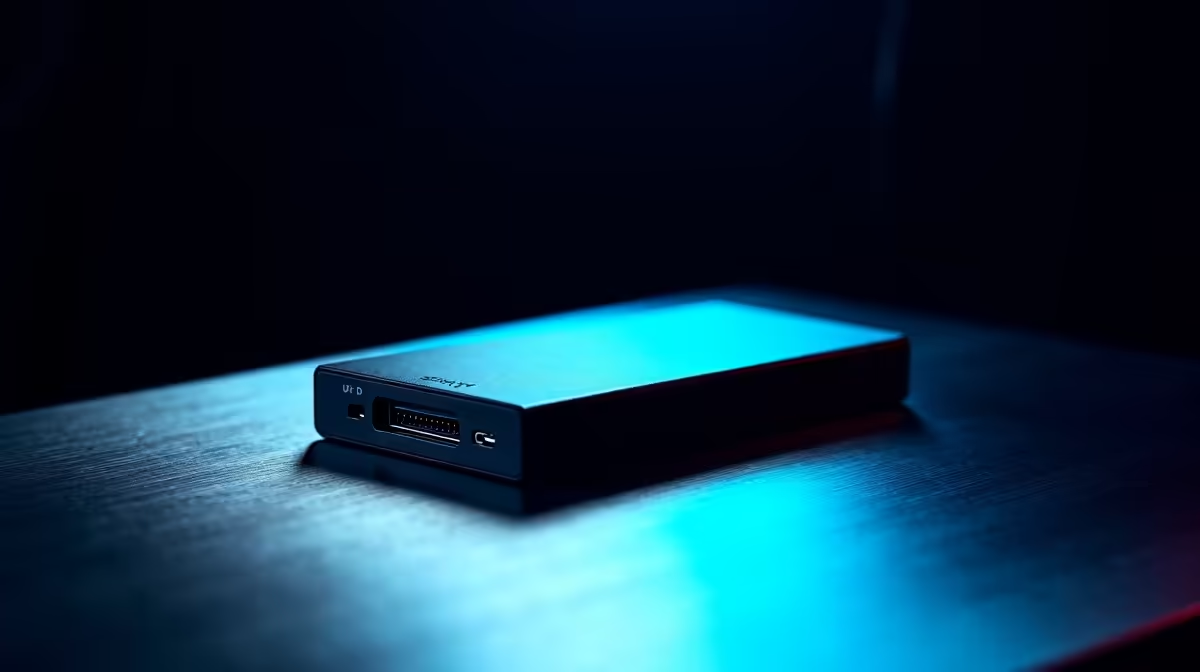
Working on the go? A modern high-speed external SSD connected via USB-C or Thunderbolt can also serve as a very effective scratch disk, giving you a huge performance lift over using your internal laptop drive alone.
Optimise Your Workflow ⚡
For maximum performance, dedicate one fast NVMe SSD for your OS and Programs, a second large SSD for your current project's source files, and a third, smaller NVMe SSD exclusively for your Media Cache and Scratch Disks. This isolates each data stream, eliminating bottlenecks entirely and giving you a truly professional-grade editing experience.
How to Set Up Your New Scratch Disk
Once you’ve installed your new drive, telling Premiere Pro to use it is simple.
- Open Premiere Pro and go to Edit > Preferences > Media Cache.
- Click the "Browse" button next to "Media Cache Files" and select a folder on your new, dedicated SSD.
- Do the same for the "Media Cache Database".
- Click OK, and you're done! Premiere will now use your super-fast drive as its workspace.
This simple change will transform your editing workflow from a frustrating crawl into a creative sprint. To see all the options available, you can browse our complete collection of SSDs and find the perfect fit for your budget and needs.
Ready to Banish Lag for Good?
A dedicated scratch disk isn't a luxury... it's a necessity for serious Premiere Pro editors in South Africa. Stop waiting and start creating. Explore our massive range of PC Components and find the perfect drive to unleash your workflow.