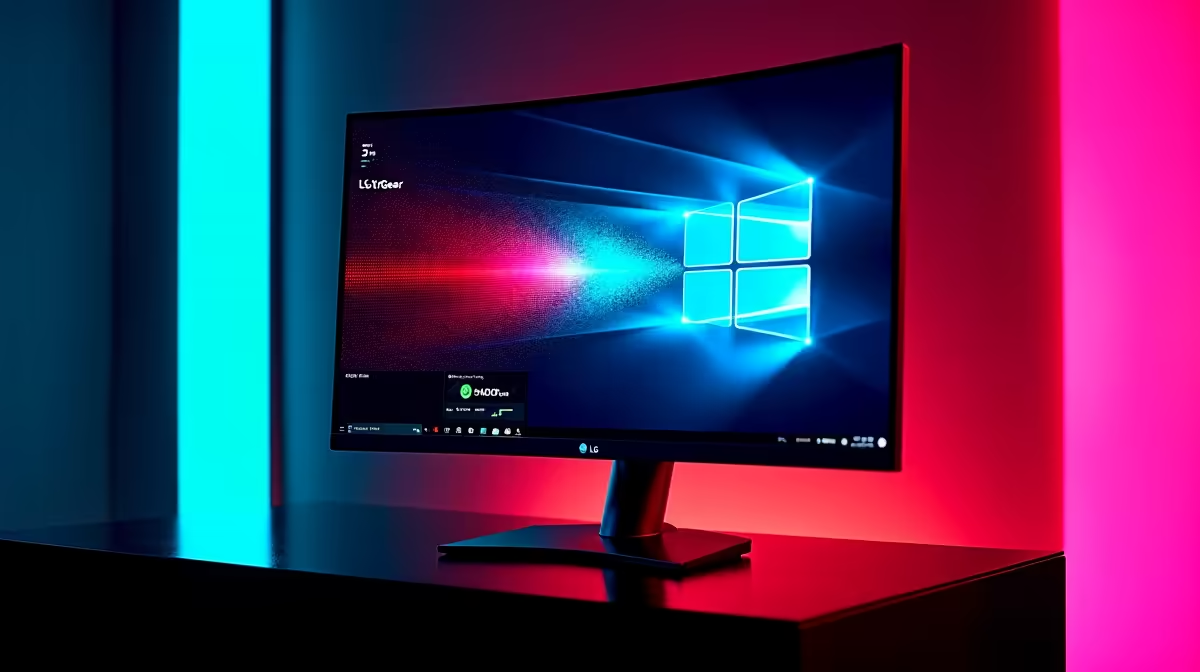
So, you’ve just unboxed your shiny new LG UltraGear monitor. The colours pop, the refresh rate is buttery smooth, and your games have never looked better. But are you getting everything you paid for? Many South African gamers plug in their new screen and stop there, missing out on the powerful toolkit that unlocks its true potential. We're talking about the LG UltraGear software, the command centre for your new display. Let's dive in and see what you're missing.
What is the LG UltraGear Software Suite?
Simply put, the LG UltraGear software, officially known as OnScreen Control, is an application that moves your monitor’s settings from the clunky joystick on the back to a clean interface on your desktop. Instead of fumbling with physical buttons to change brightness or switch inputs, you can do it all with your mouse. It’s the brain behind the brawn of your display, especially if you've snagged one of the best PC monitor deals in Mzansi.
A Hands-On Walk-Through of Key Features
After a quick installation, the software immediately scans for your compatible monitor. Here’s a practical breakdown of what you can actually do with it.
Screen Split & Application Layouts
For multitaskers, this is huge. The software lets you partition your screen into various layouts. Imagine having your game on one side, Discord on another, and a guide open in a third panel... all perfectly snapped into place. This is especially powerful on the immersive real estate offered by modern curved monitors, turning one screen into a multi-monitor command centre.
Game Mode Control
This is the core for gamers. The LG UltraGear software allows you to switch between preset modes (Gamer 1, Gamer 2, FPS, RTS) without ever touching the monitor. You can also create and save your own custom profiles. Fine-tuning these settings to perfection is critical on high-resolution 4K and 5K monitors where every pixel counts towards victory. 🚀
Pro Tip: Custom Profiles for the Win 🏆
Use the 'My Game Mode' feature to create a profile for your main game. For a title like 'Valorant' or 'Apex Legends', you might want to increase the Black Stabilizer to see enemies in shadows and set the response time to 'Faster'. Give the profile a name, and you can activate it with a single click before you launch the game. This is next-level optimisation.
Essential Display & Firmware Updates
Beyond gaming, you get easy access to basic settings like brightness, contrast, and colour temperature. More importantly, the software handles firmware updates. These updates can fix bugs, improve performance, and even add new features, ensuring all your PC monitors stay current.
The Verdict: Is the LG UltraGear Software Worth It?
Absolutely. While the interface isn't always the most beautiful thing in the world, its utility is undeniable. The convenience of tweaking settings on the fly without interrupting your game is fantastic. It transforms your display from a simple output device into an integrated part of your setup, much like how the right monitor accessories can perfect your physical workspace.
The software is designed for LG's main lineup of gaming monitors, and its feature set reinforces why an integrated hardware-software ecosystem matters. While the core principles of control are useful across any setup, even one incorporating secondary portable monitors for chat, this software truly shines when paired with its intended hardware. ✨
Final Thoughts
The LG UltraGear software is a powerful, if sometimes unpolished, tool that every owner of a compatible monitor should be using. It bridges the gap between incredible hardware and user-friendly control, ensuring you squeeze every drop of performance out of your screen. If you're investing in a top-tier monitor, skipping the software is like buying a sports car and never taking it out of first gear.
Ready to Experience Total Control? The LG UltraGear software proves that the monitor is just the beginning. Having the right tools to control your hardware makes all the difference. Explore our complete range of LG monitors and gear and find the perfect centrepiece for your setup.