

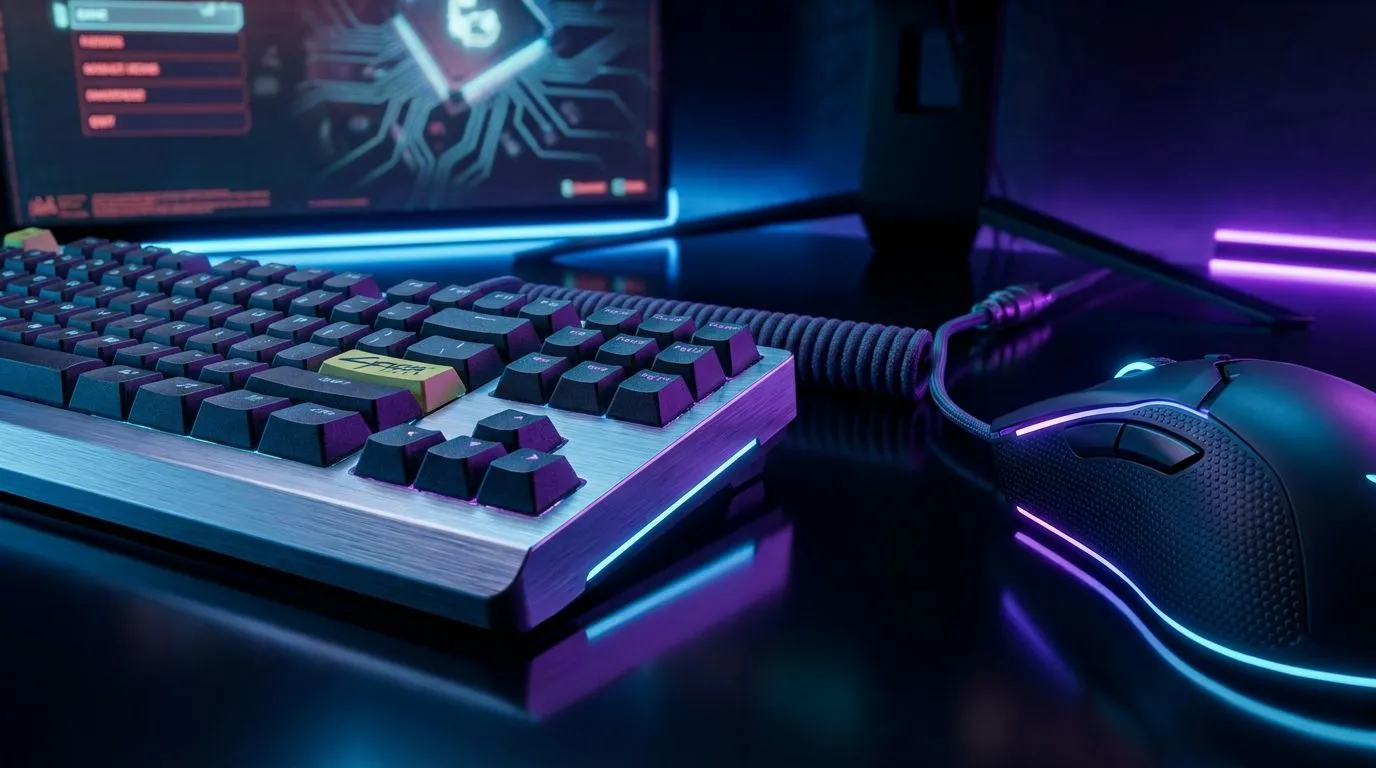
Why You Should Disable Cyberpunk Launcher & Intro for Faster Startup
Waiting for Cyberpunk 2077 to load can feel like a long commute through Night City traffic. Between the mandatory REDlauncher and those unskippable intro logos... your gaming time is being wasted. If you want to jump straight into the action... disabling these hurdles is the first step. Let's look at how you can disable Cyberpunk launcher and intro for faster startup to get you playing sooner. 🔧
Even on more affordable budget gaming PCs, reducing software overhead matters. Every second saved is a second spent exploring Dogtown or completing a high-stakes gig.
Steps to Bypass the REDlauncher on Steam and GOG
The REDlauncher is the first obstacle. While it provides news and cross-progression... most players just want to click "Play" and actually play. If you are hunting for the best gaming PC deals, you likely want a system that respects your time.
To bypass this on Steam... right-click Cyberpunk 2077 in your library. Select Properties, then find the Launch Options box under the General tab. Type in --launcher-skip and close the window. The next time you hit play... the game will bypass the launcher entirely. GOG users can do something similar by editing the executable shortcut... but the Steam method is by far the most common for South African gamers.
Removing Intro Videos for an Instant Night City Experience
Once the launcher is gone... you still have to sit through the logos. Many players who buy PCs under R20k find that background processes and long intro sequences eat up precious gaming time. ⚡
To skip these... navigate to your game's installation folder. Go to archive\pc\content. Inside... you will find a file named intro-videos.archive. Simply rename this to intro-videos.archive.bak. When the game looks for the intro files... it will fail to find them and skip straight to the main menu. It is a simple trick that makes the boot process feel significantly more modern.
Optimisation Pro Tip ⚡
Always ensure your game is installed on an NVMe SSD rather than a traditional hard drive. Cyberpunk 2077 relies heavily on fast asset streaming... and an SSD is the single most effective way to eliminate stuttering while driving through dense areas like Watson or City Centre.
Optimising Your Hardware for Seamless Loading
Software tweaks are excellent... but hardware is the foundation. When you buy PCs above R20k, you expect instant performance and high frame rates at 1440p or 4K. Cyberpunk 2077 is a demanding title... especially with Ray Reconstruction and Path Tracing enabled. 🚀
Our latest pre-built PC deals are designed to handle Night City with ease. By combining software skips with high-speed DDR5 memory and modern GPUs... you can go from your desktop to the Afterlife bar in under twenty seconds. ✨
Ready to Find Your Perfect Match? The Cyberpunk experience is best enjoyed on hardware that can keep up with your pace. For maximum power, choice, and value in South Africa, our gaming rigs are hard to beat. Explore our massive range of laptop specials and find the perfect machine to conquer Night City.











