

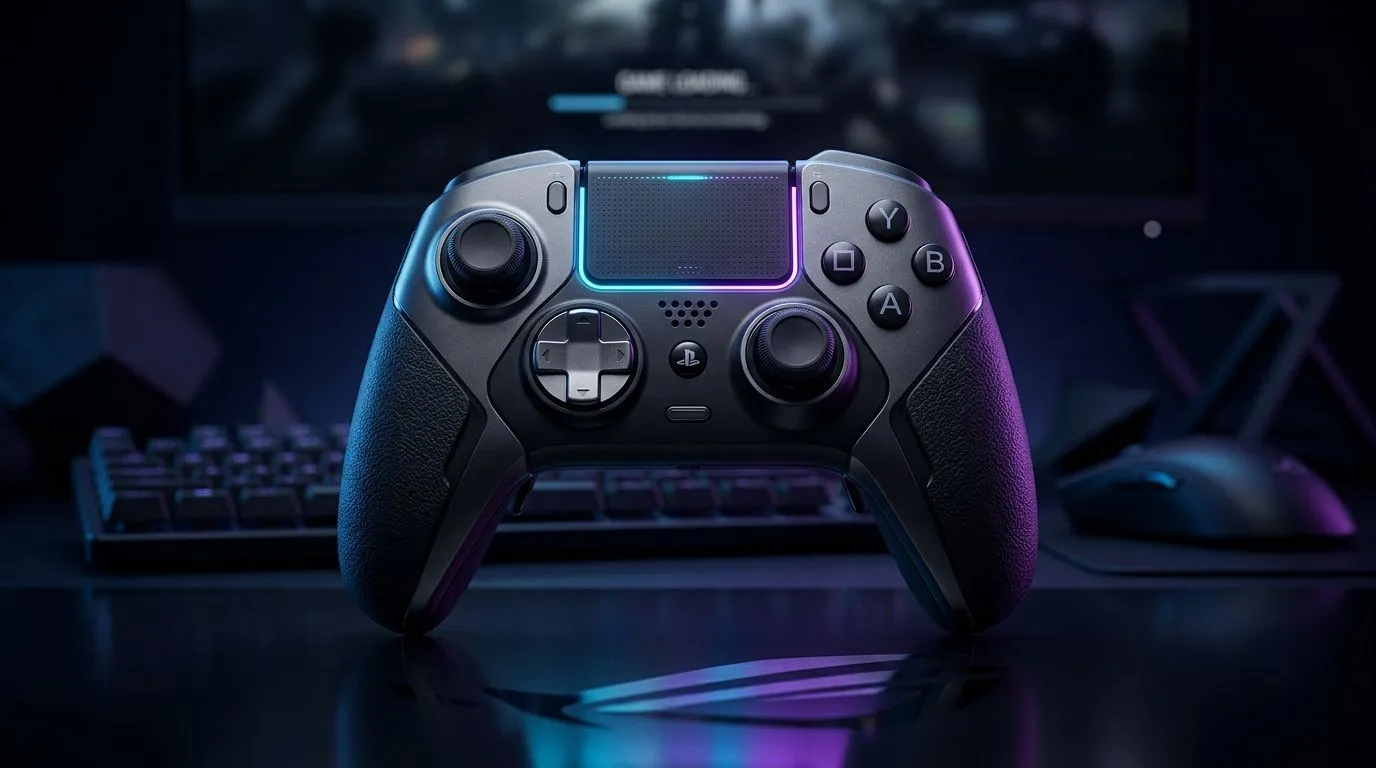
Native Touch Panel Gamepad Control on Windows: Works or Not? (Let’s Test Reality) ⚡
South Africans love options… and gamers love responsiveness. So when people ask whether native touch panel gamepad control on Windows works or not, it’s not just curiosity. It’s about whether your controller feels like a console, or like a compromise. 🎮
In this guide, we’ll break down what Windows can and cannot do with touch-style controller features, what “native” really means, and the practical steps to get the best results on your setup… the one you actually pay for in ZAR.
What “Native Touch Panel Control” Means on Windows (And Why It Varies) 🔧
“Native” usually refers to whether Windows detects and exposes the touch inputs through built-in drivers and input APIs, instead of relying on a controller’s custom software.
On Windows, touch-enabled controllers can behave in three broad ways:
- Touch registers as standard controller inputs (works best).
- Touch registers, but only in specific apps/games (partial).
- Touch doesn’t map correctly (common with generic drivers or unsupported features).
The big reason for inconsistency? Windows updates input subsystems over time, but gamepad firmware and game support also matter. In other words… even if the hardware is capable, software support decides whether you feel it in-game.
Quick expectations check (before you waste time)
- If your gamepad has a dedicated touch feature, it may require its own mapping profile.
- Some games only read touch as “mouse-like” input, not real touch gestures.
- Calibration and deadzones can make touch feel broken even when it isn’t.
Getting It Working: Windows Settings + Game Mapping That Actually Help 🚀
Start with the basics. These steps often fix “it doesn’t work” reports faster than reinstalling drivers 10 times.
Step 1: Confirm Windows sees the controller correctly
Open Game Controllers and verify the controller appears. If it doesn’t, touch won’t be usable either.
Step 2: Check Controller calibration and deadzones
Even slight miscalibration can distort touch input. If your touch gestures move too far or not at all, adjust sensitivity in your controller software or game settings.
Step 3: Map touch to something the game supports
Many titles won’t “understand touch panels” as touch. They treat them like additional controls. So map touch to camera, cursor, or gesture-like shortcuts depending on the game.
Controller Setup Pro Tip 🔧
On Windows, test the touch input in a simple environment first (like the Windows game controller panel) before launching your main game. If touch behaves there, your issue is likely in-game mapping rather than drivers, saving you time and frustration.
South African Buyer’s Angle: Choose the Right Controller for Windows Support
If you’re buying specifically for touch-panel style controls, don’t just judge by specs. Look for:
- Windows compatibility in the product description
- A solid companion app or firmware support
- Clear mapping options (so you can adapt to games)
If you’re shopping for a Windows-friendly controller right now, consider starting with Evetech’s controller range:
And if you already lean toward Razer, browsing brand options can help narrow down models that have the best Windows experience for your style:
For value-focused buyers watching deals in ZAR, here’s a high-interest option to consider:
Troubleshooting Checklist (When Touch Still Feels “Broken”) ✨
If touch input still fails in your game, try this sequence:
- Update controller firmware (only if the vendor tool supports it).
- Rebind controls inside the game. Default presets sometimes ignore touch.
- Disable conflicting overlays (some FPS overlays can interfere with input capture).
- Test in another game. If it works elsewhere, your title’s support is the issue, not your controller.
One more honest note… if a game never reads that input channel, no amount of Windows tinkering will magic it into existence. The goal is to align touch features with what your game actually listens to.
Ready to Find Your Perfect Match? The Mac vs Windows debate is complex, but for maximum power, choice, and value in South Africa, Windows is hard to beat. Explore our massive range of laptop specials and find the perfect machine to conquer your world.











