


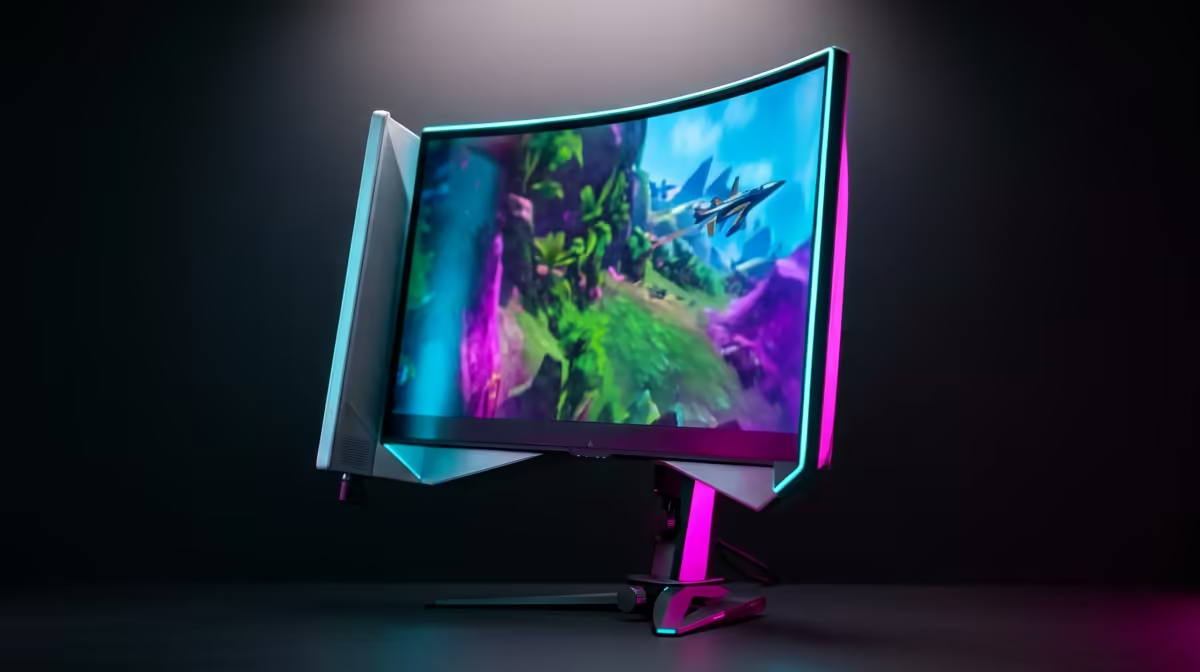
You’ve spent your hard-earned ZAR on a beastly 240Hz monitor, ready to dominate in Apex Legends or Valorant. But something’s off. The gameplay isn't as buttery-smooth as you expected. A quick check reveals the nightmare: your 240Hz monitor is only running at 120Hz.
Don't panic! This is a super common issue for South African gamers, and the fix is often just a few clicks away. Let's get you back to the high-refresh-rate glory you paid for. 🚀
Why Your 240Hz Monitor Might Be Stuck at 120Hz
Before we dive into the fixes, it helps to know the usual suspects. Often, when you find your 240Hz monitor showing 120Hz, it’s not a hardware fault. The problem typically lies in one of four areas: your Windows settings, the cable you're using, your graphics card drivers, or specific in-game settings. The good news is that each of these is easily corrected.
Your Step-by-Step Fixes for Enabling 240Hz
Work through these simple checks. Chances are, one of them will unlock that silky-smooth performance you've been missing.
1. Check Your Windows Display Settings 🔧
This is the number one reason a new monitor doesn't run at its advertised speed. Windows often defaults to a lower refresh rate, like 60Hz or 120Hz, to ensure compatibility. You just need to tell it to go faster.
- Right-click on your desktop and select Display settings.
- Scroll down and click on Advanced display settings.
- Look for the "Choose a refresh rate" dropdown menu.
- Select 240Hz (or the highest available option) from the list.
Your screen will flicker for a moment, and you should immediately feel the difference in how smooth your cursor moves. If 240Hz isn't an option, move on to the next step.
2. Use the Right Cable (It Really Matters!)
Not all cables are created equal. An older HDMI cable might be the very thing holding you back, as many versions can't handle the bandwidth required for 240Hz at 1080p or 1440p.
- DisplayPort is King: For high refresh rates, always use a DisplayPort 1.4 cable if possible. It's the industry standard for a reason and guarantees the best performance.
- Check Your HDMI Version: If you must use HDMI, ensure it's at least version 2.0, but even then, DisplayPort is the more reliable choice.
Many of the latest PC monitors from Evetech come with the correct DisplayPort cable right in the box.
Pro Tip: Clean Driver Install
If you suspect driver issues are causing problems, use Display Driver Uninstaller (DDU) in Safe Mode to completely wipe your old drivers. Then, install a fresh set from the NVIDIA or AMD website for a clean slate and optimal performance.
3. Update Your Graphics Card Drivers
Outdated GPU drivers can cause all sorts of weird issues, including incorrect refresh rate detection. A quick update can often resolve the problem of your monitor being stuck at 120Hz.
- NVIDIA: Open the GeForce Experience app and check the "Drivers" tab.
- AMD: Open the Adrenalin Software and check for updates.
A fresh driver install ensures your PC can communicate properly with your new screen. It's a simple step that optimises your entire system. If you're considering an upgrade, remember that a powerful GPU is needed to push those high frame rates on all our premium gaming monitors.
4. Configure Your In-Game Settings ✨
Sometimes, Windows is set up perfectly, but the game itself has its own limits. Many competitive titles have a video settings menu where you can cap the frame rate or set a specific refresh rate. Dive into the settings of your favourite game and make sure the "Frame Rate Limit" is set to unlimited or 240 FPS, and the display refresh rate is on its highest setting.
If you've tried everything and are still stuck, it might be a sign that your hardware is due for a refresh. You can find some fantastic monitor deals right here in South Africa that won't break the bank.
Ready for Silky-Smooth Gameplay? Don't let settings hold you back from the performance you paid for. If these fixes have you hungry for an even bigger upgrade, explore our incredible range of immersive curved monitors for performance that leaves lag in the dust.











