

RTX 5050 Avowed FPS: Performance Benchmark & Best Settings
RTX 5050 Avowed FPS: Performance Benchmark. Real-world benchmark data, FPS numbers & performance analysis. What SA gamers can actually expect.
Read moreIs adaptive sync stutter a real problem or just a myth? We put G-Sync and FreeSync to the test to uncover the truth behind micro-stutters and screen tearing. Discover our findings and learn how to optimize your settings for perfectly smooth gameplay. 🖥️⚡
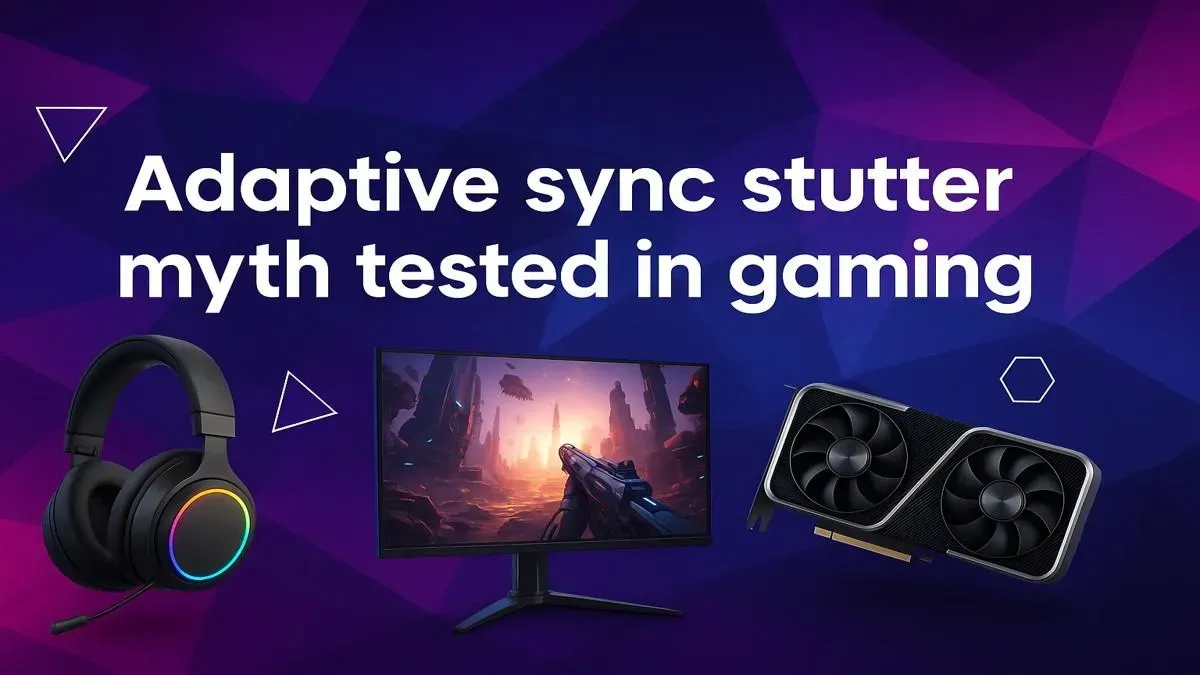
You’ve done everything right. You saved up, bought a beast of a GPU, and paired it with a shiny new FreeSync or G-Sync display. You enable the magic setting, fire up Warzone, and expect buttery-smooth gameplay. Instead, you get this tiny, infuriating hiccup... a micro-stutter. It’s the dreaded adaptive sync stutter, a ghost in the machine that many South African gamers swear is real. But is it a myth, or a fixable problem? We went to the lab to find out.
First, let's clear the air. Adaptive sync technology (like AMD's FreeSync and NVIDIA's G-Sync) is brilliant. It works by allowing your monitor to adjust its refresh rate in real-time to match the frame rate (FPS) your graphics card is producing. This eliminates screen tearing, a nasty visual artefact where the screen looks like it's split in two.
So, if the tech is sound, why do some people experience adaptive sync stutter? The issue isn't with the technology itself, but usually with how it's configured or when your PC is pushed beyond its limits. The most common culprits are:
In the Evetech workshop, we set up a typical high-performance rig and tested a few popular displays. We found that a properly configured system showed no signs of adaptive sync stutter. The "myth" became a reality only when we intentionally created bottlenecks or misconfigured the software.
The biggest breakthrough came from how we limited the frame rate. Using a game's built-in FPS limiter often introduced inconsistent frame times, which felt like a stutter. However, when we used the GPU's driver-level frame rate limiter (like NVIDIA's "Max Frame Rate" setting), the experience was flawless. This one change made the biggest difference, proving that the problem is almost always in the setup, not the hardware. For maximum immersion during our tests, we found that curved monitors really pull you into the action, making any performance flaw more noticeable.
For the smoothest adaptive sync experience, open your NVIDIA or AMD control panel and set a global "Max Frame Rate" cap 3 FPS below your monitor's maximum refresh rate. For a 144Hz monitor, set it to 141 FPS. This prevents the game from ever hitting the absolute limit, giving adaptive sync the perfect headroom to work its magic without introducing extra latency from V-Sync.
Ready to get the smooth gameplay you paid for? Here’s your checklist.
This is non-negotiable.
That old HDMI cable in your drawer might not cut it. To get the full refresh rate and feature set from modern PC monitors, you need a certified DisplayPort 1.4 cable. It’s a small investment that makes a massive difference. Don’t forget to check out other essential monitor accessories to complete your setup.
The quality of the adaptive sync implementation varies. A "G-Sync Ultimate" or "FreeSync Premium Pro" certified monitor has undergone stricter testing than a basic "G-Sync Compatible" one. If you're a competitive gamer, investing in a display known for its excellent performance is key. This is true even for secondary displays, like the increasingly popular portable monitors for LANs or travel setups.
Ultimately, the phenomenon of adaptive sync stutter is less of a myth and more of a symptom of a misconfigured system. By aligning your software settings and ensuring your hardware is balanced, you can achieve the perfectly smooth, tear-free gaming experience you were promised. Take a look at all our gaming monitors to find a panel that's perfectly suited for your rig. ✨
Ready to Eliminate Stutter for Good? The right monitor makes all the difference between frustrating stutters and flawless victory. Stop fighting your settings and find a display that just works. Explore the best PC monitor deals in South Africa and get the smooth performance you deserve.
Sometimes. While designed to prevent stutter, misconfigured settings, driver issues, or frame rates near the edge of the VRR range can cause micro-stutters to appear.
For most gamers, keeping it on provides the smoothest, tear-free experience. However, if you experience issues, testing with it off can help diagnose the problem.
Fundamentally, the stutter is similar. The cause can differ due to hardware (G-Sync module vs. DisplayPort standard for FreeSync) and specific driver implementations.
To fix freesync stuttering issues, ensure your frame rate is capped just below your monitor's max refresh rate, update GPU drivers, and enable it in both your monitor and GPU control panel.
Technically, yes, but the amount is negligible (typically <1ms) and far less than V-Sync. For most players, the tear-free benefits far outweigh this tiny delay.
Yes, variable refresh rate (VRR) is the generic term for the technology. G-Sync (NVIDIA) and FreeSync (AMD) are the most popular branded implementations of VRR.
RTX 5050 Avowed FPS: Performance Benchmark. Real-world benchmark data, FPS numbers & performance analysis. What SA gamers can actually expect.
Read more
RTX 5050 Fable at 1440p: FPS Benchmark & Optimal. Real-world benchmark data, FPS numbers & performance analysis. What SA gamers can actually expect.
Read more
RX 7600 Black Myth Wukong 2 at 1080p: FPS. Real-world benchmark data, FPS numbers & performance analysis. What SA gamers can actually expect.
Read more
Head-to-head comparison of RTX 5060 vs RX 9070: Ray Tracing Performance for SA gamers. Performance benchmarks, Rand pricing & which delivers better value.
Read more
Head-to-head comparison of RX 7800 XT Mining vs Gaming: Does It Affect for SA gamers. Performance benchmarks, Rand pricing & which delivers better value.
Read more
RTX 4060 Ti Hogwarts Legacy FPS: Performance. Real-world benchmark data, FPS numbers & performance analysis. What SA gamers can actually expect.
Read more
Top Valorant Settings for RTX 5070: FPS Optimisation picks evaluated on performance, value & SA availability with current Rand pricing from Evetech.

RDNA 3.5 Graphics in Ryzen AI 400? Can You Game. Plain-English explanation of what it means, why it matters & how it affects your buying decisions in SA.

GPU Price Index : December Report. Current stock data & price tracking for SA buyers. See what is available and where prices are heading.
RX 9070 XT Elden Ring Nightreign at 4K: FPS. Real-world benchmark data, FPS numbers & performance analysis. What SA gamers can actually expect.

Core i5-14600K + B760 + RTX 5060 Build Under. Full parts list, Rand pricing & expected performance. Build confidently with SA-available components.

RX 7600 Apex Legends at 4K: FPS Benchmark. Real-world benchmark data, FPS numbers & performance analysis. What SA gamers can actually expect.

RX 7900 XTX GTA 6 at 4K: FPS Benchmark & Optimal. Real-world benchmark data, FPS numbers & performance analysis. What SA gamers can actually expect.

Head-to-head comparison of RTX 5070 vs RX 9070 XT: Gaming Performance for SA gamers. Performance benchmarks, Rand pricing & which delivers better value.
Top RTX 5070 Under R25,000 picks evaluated on performance, value & SA availability with current Rand pricing from Evetech.
Core i5-14600K + B760 + RTX 5060 Build Under. Full parts list, Rand pricing & expected performance. Build confidently with SA-available components.
Top Monitor for RX 9070: Resolution & Refresh Rate picks evaluated on performance, value & SA availability with current Rand pricing from Evetech.
Valorant Settings on RX 9060 XT: Performance. Real-world benchmark data, FPS numbers & performance analysis. What SA gamers can actually expect.