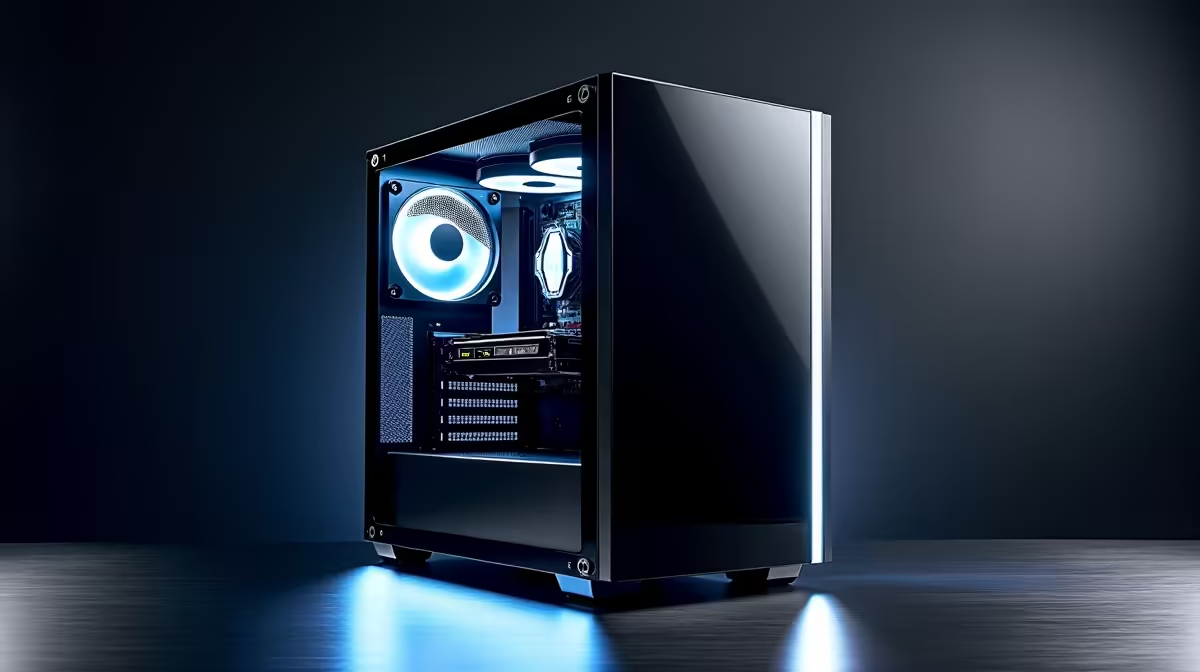
You've invested in a beast of an AI workstation, a machine built for complex datasets and heavy rendering. So why does it take an age to boot up? Nothing kills your creative flow faster than staring at a loading screen when you have deadlines to hit. That frustrating delay isn't something you have to live with. This guide provides a practical AI workstation slow boot fix, helping you get from power-on to productivity in record time. 🚀
Unpacking the Causes of a Slow AI Workstation Startup
Before we dive into the fixes, let's quickly diagnose the problem. An AI workstation slow boot issue usually boils down to a few common culprits. It could be a software traffic jam, with too many applications trying to launch at once. Sometimes, outdated drivers or system files are to blame, creating conflicts that delay startup. Or, the bottleneck could be your storage drive itself. Understanding the 'why' makes the 'how' much more effective.
Your Step-by-Step AI Workstation Slow Boot Fix Guide
Ready to get your hands dirty? These professional tips are designed to systematically tackle the most common causes of a sluggish startup, helping you speed up your machine's boot time.
Tame Your Startup Programs
One of the biggest culprits for a slow startup is the sheer number of programs trying to launch alongside Windows. Many applications set themselves to run on startup by default, creating a massive bottleneck.
Here’s how to take back control:
- Press Ctrl + Shift + Esc to open the Task Manager.
- Click on the "Startup apps" tab (it might be under "More details" if you have the simple view).
- Look at the "Startup impact" column. Anything marked "High" is a prime suspect.
- Right-click on any non-essential application (e.g., game launchers, update checkers) and select "Disable".
Be ruthless here. You can always open these programs manually when you need them. Disabling them from startup only stops them from auto-launching, it doesn't uninstall them.
Quick Access Pro Tip ⚡
You can also get to the Startup Apps list directly in Windows 11 by going to Settings > Apps > Startup. This interface gives you a simple toggle for each application, making it easy to see what's enabled at a glance.
Update Everything: Drivers & BIOS
Outdated drivers, especially for your graphics card, can cause unforeseen hangs and delays during the boot process. Your GPU is one of the first major components to be initialised, and a driver conflict can slow everything down. Ensure you have the latest drivers directly from the manufacturer. This is crucial whether your rig is powered by one of the latest powerful NVIDIA GeForce GPUs or a competing card.
Similarly, an outdated BIOS/UEFI can lead to compatibility issues with modern hardware and operating systems. Check your motherboard manufacturer's website for updates, but proceed with caution and follow the instructions perfectly, as a failed BIOS update can be a serious problem.
Optimise Your Storage Drive 🔧
The type of drive your operating system is on makes a world of difference. If your OS is still on a traditional Hard Disk Drive (HDD), that's almost certainly your main bottleneck. Upgrading to a Solid-State Drive (SSD), specifically an NVMe M.2 SSD, is the single most effective hardware upgrade for improving boot times. Modern machines, like the latest AMD Radeon systems, rely on these super-fast drives for instant responsiveness.
If you already have an SSD, ensure TRIM is enabled (it usually is by default) by running Windows' "Defragment and Optimise Drives" tool. Just search for it in the Start Menu, select your C: drive, and click "Optimise".
Is It Time for a Hardware Upgrade?
If you’ve tried all the software tweaks and your machine still feels sluggish, the problem might be hardware-deep. An effective AI workstation slow boot fix sometimes means acknowledging that your components are no longer up to the task. If your boot drive is old, your RAM is constantly maxed out, or your CPU is a few generations behind, no amount of software optimisation can fully bridge that gap. Your workflow deserves hardware that can keep up. ✨
Ready for Uncompromising Speed?
A slow boot is often the first sign your hardware can't keep up with your ambition. If you've tried the fixes and still feel the lag, it might be time for an upgrade. Explore our range of purpose-built workstation PCs and give your AI projects the instant-on power they deserve.