

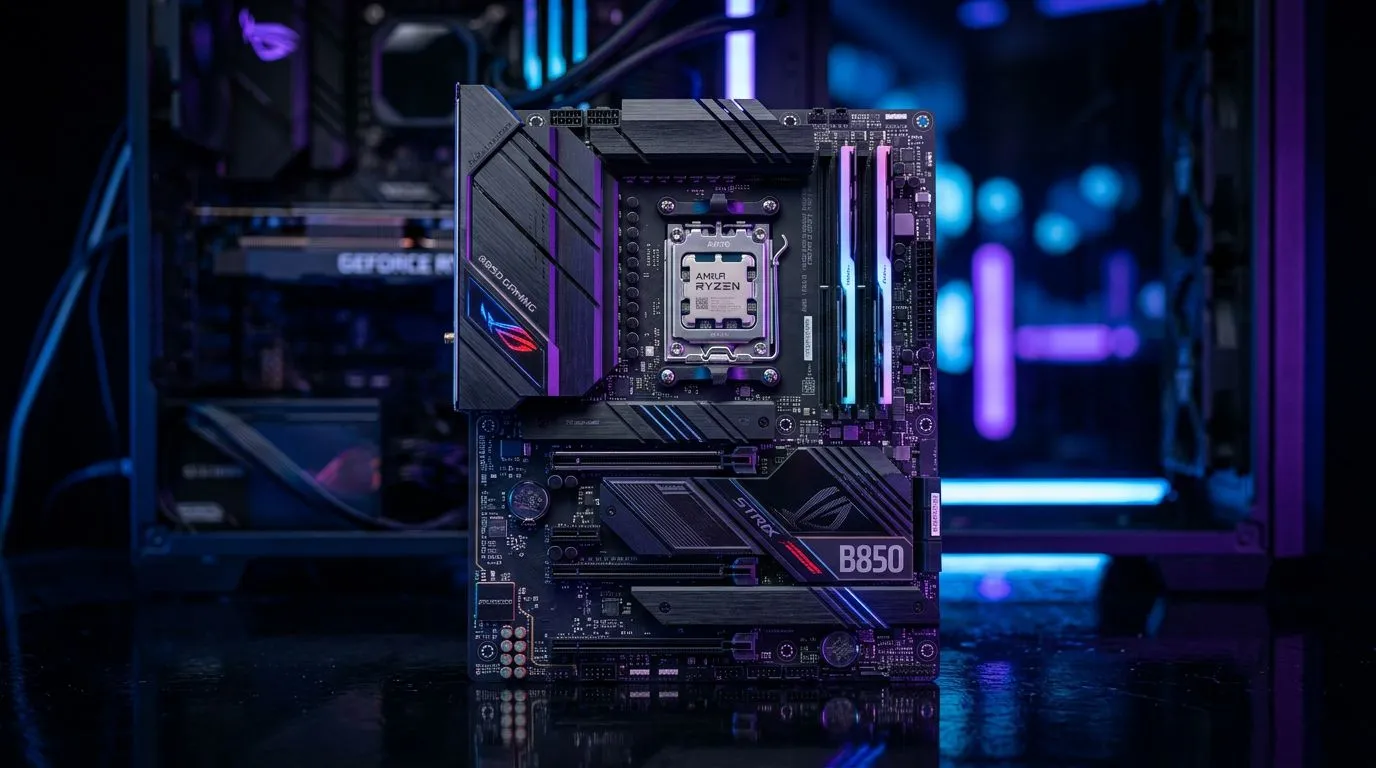
AMD B850 Motherboard BIOS Settings Guide: Boost Your Gaming Performance (South Africa Edition)
If you’ve ever launched a game on your PC and thought, “Why isn’t this smoother?”, it might not be your GPU… it could be your BIOS settings. In South Africa, where load shedding, unstable power, and budget upgrades are reality, small tweaks can help your system feel more responsive. 🔧
This guide walks you through practical, safe BIOS changes to boost gaming performance using an AMD B850 motherboard. You’ll learn what to adjust, what to leave alone, and how to verify results like a proper gamer-boy mechanic. 🚀
Get the basics right before touching AMD B850 Motherboard BIOS settings
Before you change anything, do three quick things. It prevents 90% of “why won’t my PC boot?” moments.
Update BIOS (but do it properly)
- Download the correct BIOS for your exact motherboard model from the manufacturer (not “close enough”).
- Follow the BIOS update steps in the manual.
- If you’re on unstable power, consider using a UPS first. ⚡
Set a stable baseline
- Load “Optimised Defaults” once.
- Re-check your RAM speed profile later (you’ll likely change it after other settings).
- Keep notes. You’ll thank yourself after the third restart.
Confirm your RAM and cooling
Gaming performance is only as good as your stability. Make sure:
- Your RAM is seated firmly.
- Your CPU cooler is mounted correctly.
- Fan curves are reasonable (don’t let temps creep up under load).
AMD B850 Motherboard BIOS Settings Guide: Boost Your Gaming Performance with proven tweaks
Now the fun part... these settings target responsiveness and stability, not magic numbers.
Enable the right memory profile (DOCP/XMP equivalent)
Look for a setting like “Memory Profile” (the naming varies by board).
- If you bought DDR5 kits rated for 6000MT/s (for example), enable the kit’s supported profile.
- If the system becomes unstable (random restarts, game crashes), drop one step (for instance from 6000 to a slightly lower rated profile).
Use your board’s supported memory speeds and profiles from the manufacturer documentation (don’t guess).
Set CPU power behaviour for gaming
Find settings related to:
- CPPC / CPPC Preferred Cores
- Power Mode (often “Balanced” or “AMD Ryzen Balanced”)
- Global C-state Control (avoid disabling everything)
In most gaming setups, you want low latency and consistent boost behaviour, not constant max clocks.
Turn on PCIe settings that keep your GPU happy
Check for:
- PCIe link speed (ensure it’s at the highest supported mode for your GPU slot, where applicable)
- Above 4G Decoding (usually recommended for modern GPUs and memory mapping)
These are common “it just works” settings for gaming machines.
Fan curves for steadier boost (not louder for the sake of it)
Steady cooling helps boost clocks hold longer during big fights.
- Use a curve that ramps up smoothly.
- Avoid a flat curve until 70–80°C. That often causes sudden thermal spikes.
Why it matters: CPU boost can be limited by temperature. If your fans react late, you feel it as stutter… especially in newer titles.
Productivity Pro Tip 🔧
On Windows, use the PowerToys FancyZones utility to create custom snap layouts for your windows. It's a lifesaver for managing multiple apps on an ultrawide monitor, letting you organise your timeline, preview window, and asset folders perfectly for video editing.
Sanity checks: how to verify changes actually boost gaming
Changing BIOS settings is only useful if you can measure the result.
Stability test first, then performance
Do:
- Boot into Windows.
- Run a short memory stability check.
- Launch the same game and observe frametime consistency.
If performance is “better” but stability is worse, you’ll actually get worse results over time (and more crashes).
Watch temps and clocks during the same scene
Pick one in-game benchmark or replayable scene and run it twice:
- Once before changes
- Once after changes
Compare:
- CPU temps
- GPU temps
- Any stutters or sudden drops
If you don’t track this, you’re basically gambling… and nobody wants that.
Compatible choices: matching boards and expectations (Evetech picks)
If you’re planning a motherboard upgrade alongside your BIOS tweaks, start with the right board class and platform support. For AMD options, browse the current range here:
If you’re considering Intel instead (sometimes it’s about budget and availability in SA), you can compare options here:
And if you’re trying to squeeze value (for example, when your GPU upgrade must happen first), this guide helps you think through budget board choices:
Common BIOS mistakes that ruin gaming performance (and how to avoid them)
- Overclocking everything at once: change one thing, test, then move on.
- Forgetting RAM training issues: if it takes longer to boot after changes, it may be re-training stability.
- Disabling power-saving features blindly: it can increase idle temps and reduce efficiency.
- Ignoring BIOS version notes: updates sometimes include memory compatibility improvements, so you should read the release notes before flashing.
If you’re unsure, leave advanced settings alone and focus on the basics: memory profile, PCIe basics, and sensible power and fan behaviour.
Ready to Find Your Perfect Match?
Ready to Find Your Perfect Match? The Mac vs Windows debate is complex, but for maximum power, choice, and value in South Africa, Windows is hard to beat. Explore our massive range of laptop specials and find the perfect machine to conquer your world.











