

You're in the final circle, lining up the perfect shot... and then it happens. Stutter. Lag. Your frames drop off a cliff while your PC sounds like a jet engine at OR Tambo. That, my friend, is the sound of thermal throttling. Your overheating gaming PC is crying for help, choked by dust.
Before you panic-buy a new rig, let’s get our hands dirty. This guide will show you how to clean an overheating gaming PC for peak performance. ✨
Why Cleaning Your Overheating Gaming PC is Crucial
Think of dust as a thick winter blanket suffocating your PC's most important components—the CPU and GPU. These parts generate a lot of heat, and they rely on fans and heatsinks to breathe. When dust clogs these airways, heat gets trapped.
Your PC, being smart, protects itself by slowing down. This is called thermal throttling. The result? Lower frame rates, stuttering, and a generally frustrating gaming experience. Regular cleaning isn't just about aesthetics; it's essential maintenance to restore performance and extend the life of your hardware. This is true for all machines, from entry-level builds to even the best gaming PCs. A simple clean can make a world of difference.
Your Toolkit: What You'll Need for the Job
You don’t need a fancy workshop to get this done. Here’s a basic checklist:
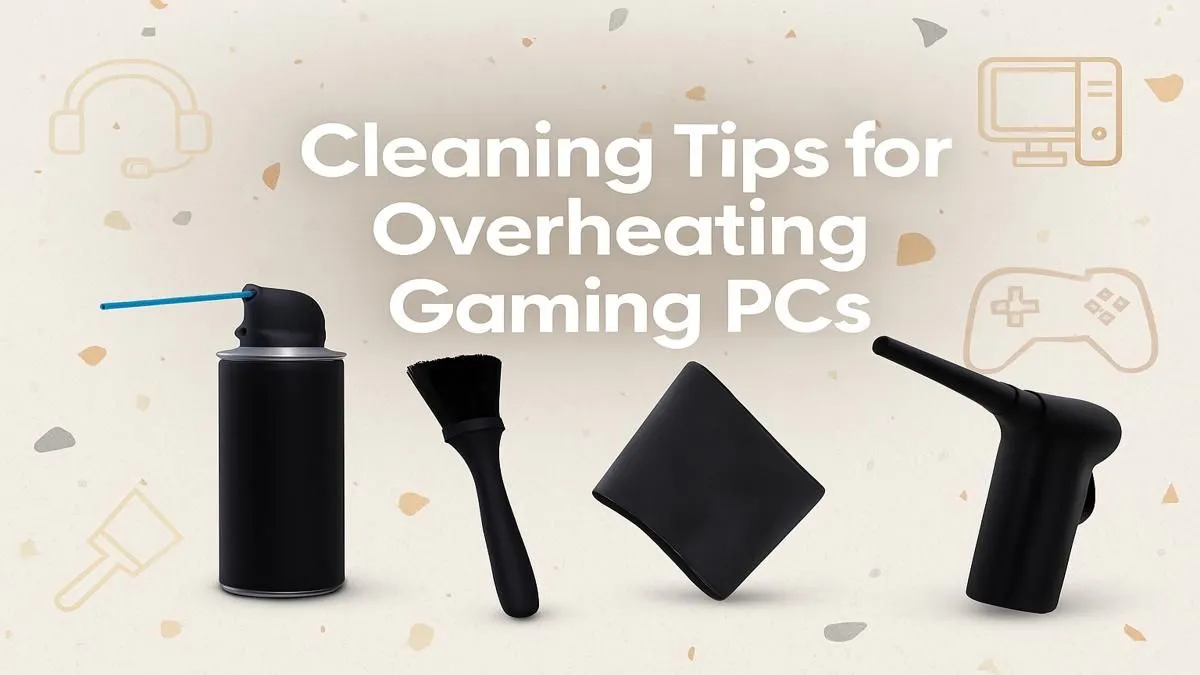
- Can of Compressed Air: Your main weapon against dust.
- Isopropyl Alcohol (90%+): For cleaning thermal paste or stubborn grime.
- Microfibre Cloths & Cotton Swabs: For wiping surfaces and getting into tight spots.
- Screwdriver Set: You'll need a Philips head screwdriver for the case panels and possibly other components.
- Small Brush (Optional): An old, soft-bristled toothbrush can help dislodge stubborn dust.
A Step-by-Step Guide to Cleaning Your PC 🔧
Ready to restore your PC's performance? Let's dive in. The whole process should take less than an hour.
Step 1: Safety First! Power Down and Prepare
This is non-negotiable. Shut down your PC completely. Switch off the power supply unit (PSU) using the switch at the back, and then unplug the power cable from the wall. Press the power button on your case a few times to discharge any remaining electricity. Move your PC to a well-ventilated area—you're about to unleash a dust storm.
Step 2: Open the Case and Assess the Scene
Unscrew and remove the side panels of your PC case. Take a moment to see where the dust has settled. The biggest culprits are usually:
- Case intake and exhaust fans
- CPU cooler heatsink
- GPU fans and heatsink
- PSU fan
- Dust filters (if your case has them)
Knowing where to focus your efforts makes the job quicker. While custom builds vary, most professionally assembled pre-built PCs have a logical airflow path that makes spotting dust build-up easy.
Pro Cleaning Tip ⚡
When using compressed air on your case fans or GPU fans, gently hold the blades with your finger. Letting them spin freely can generate a small electrical charge and potentially damage the fan motor bearings over time. Safety first!
Step 3: The Great Dust-Off
Using your can of compressed air, blow the dust out of the case. Always use short, controlled bursts. Start from the top of the case and work your way down.
- Fans & Heatsinks: Aim the compressed air at your CPU cooler, GPU fans, and case fans to clear the fins and blades. Remember to hold the blades still!
- Dust Filters: Most modern cases have removable filters at the front, top, or bottom. Slide them out, give them a good clean with a brush or cloth, and let them dry completely before putting them back.
- General Interior: Blow out any remaining dust from the case floor, cables, and other nooks and crannies.
For any stubborn grime, you can use a cotton swab lightly dampened with isopropyl alcohol.
Keeping it Cool: A Simple Maintenance Schedule
To prevent your gaming PC from overheating again, a little routine maintenance goes a long way.
- Every 3-4 Months: A quick clean. Power down and use compressed air to clear your dust filters and blow out any visible dust from the fans without opening the case fully.
- Every 6-12 Months: A deep clean. Follow the full step-by-step guide above. The dustier your environment, the more often you should do this. This simple habit is important for all systems, even for budget gaming PCs, as it keeps them running smoothly for longer.
When Cleaning Isn't Enough to Stop Overheating
You've cleaned every speck of dust, but your PC still runs hot and your frames are dropping. What gives? Sometimes, cleaning an overheating gaming PC reveals a different problem: the hardware is simply showing its age. If your components are several years old, they may struggle to keep up with modern games, no matter how clean they are.
If your rig is still struggling after a thorough clean, it might be time to consider an upgrade. You'd be surprised how much performance you can get from modern PCs under R20k, which often outperform high-end systems from just a few years ago. And for those seeking ultimate power, today's high-performance rigs above R20k offer a level of performance that was once unimaginable. 🚀
Ready for an Unstoppable Rig? A clean PC is a fast PC. But if dust isn't the only thing holding you back, it might be time for an upgrade. Explore our unbeatable range of custom and pre-built gaming PCs and find the perfect machine to dominate the leaderboard.











