

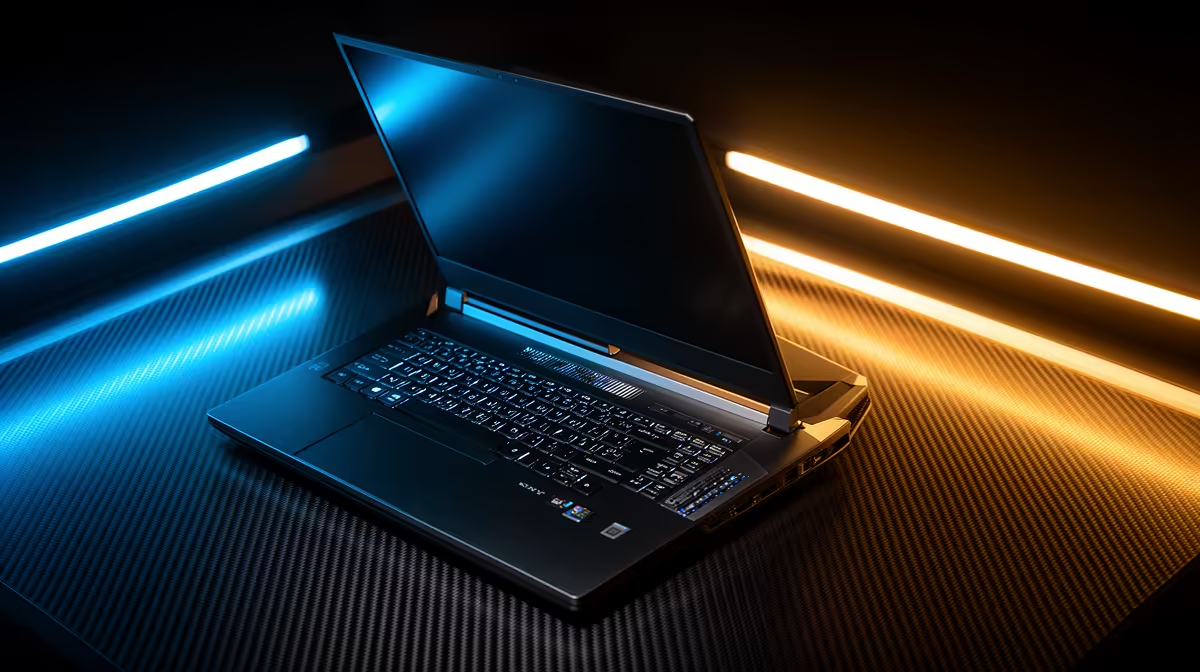
Just unboxed your new Copilot+ PC? These AI-powered machines are incredible, but all that brainpower can make them run hotter than a Durban summer. Before you stress about your laptop sounding like a jet engine, don't panic. This guide is your ultimate Copilot+ laptop overheating fix, packed with simple, effective tips to keep your new rig cool, quiet, and running at peak performance right here in South Africa. Let's get that temperature down. 💻
Understanding the Heat: Why Your AI PC is Warming Up
First off, a warm laptop isn't necessarily a broken one. The new Snapdragon X Elite and other AI-focused chips are constantly processing complex tasks, from Windows' new Recall feature to real-time creative effects. This hard work generates heat. The challenge arises when that heat isn't managed effectively, leading to thermal throttling—where your PC slows itself down to cool off. Understanding the power and thermal demands of these new AI laptops is the first step to keeping them cool.
The ultra-slim designs that make these devices so portable can also pose a challenge for airflow. So, a key part of any Copilot+ laptop overheating fix involves working with your device's design, not against it.
Your Step-by-Step Guide to a Cool-Running PC
Ready to tackle the heat? These practical, easy-to-follow steps will solve most common overheating issues without needing any technical wizardry.
1. Check Your Airflow (The Obvious, But Crucial Step)
This sounds basic, but it's the most common culprit. Your laptop breathes through its vents. Blocking them is like forcing a marathon runner to breathe through a straw.
- Work on a Hard, Flat Surface: Never use your laptop on a bed, couch, or your lap for intense tasks. Soft surfaces block vents and trap heat.
- Keep Vents Clear: Give your machine space. Don't push it right up against a wall or stack books next to it.
- Consider a Laptop Stand: Elevating your laptop allows air to circulate freely underneath, providing a significant cooling boost.
When you're browsing for a new machine, always look at the design and cooling system. You can check out the latest laptop specials to compare different models and their vent placements.
2. Optimise Your Windows 11 Settings
Windows gives you powerful tools to manage performance and heat. A few clicks can make a huge difference.
- Adjust Your Power Mode: Click the battery icon in your taskbar and select "Power mode". For everyday tasks, "Balanced" or even "Best power efficiency" is perfect. Save "Best performance" for when you're gaming or exporting a video and have good airflow.
- Manage Startup Apps: Too many programs launching at startup can bog down your system and generate heat from the get-go. Go to
Settings > Apps > Startupand disable anything you don't need immediately.
Pro Tip: Tame Background Apps 🔧
Press Ctrl+Shift+Esc to open the Task Manager. Click on the "CPU" column to see which processes are using the most power. If you see an app you're not using hogging resources, you can right-click and "End task". This is a great way to quickly cool things down.
3. Update Your Drivers and BIOS ✨
Manufacturers are constantly refining how their hardware operates. For brand-new tech like Copilot+ PCs, these updates are essential. They often include crucial performance optimisations and improved thermal management profiles.
- Run Windows Update: This is your first stop for a lot of driver updates.
- Visit the Manufacturer's Website: For the most important updates, like BIOS/UEFI firmware, always go directly to the support page for your specific laptop model. This can directly address and fix overheating behaviour.
Advanced Cooling & Hardware Considerations
If you've tried the software fixes and still find your Copilot+ PC overheating during heavy gaming or content creation, it might be time to look at hardware. A quality laptop cooling pad with active fans can dramatically lower temperatures.
Furthermore, different processor families have unique thermal characteristics. For instance, many of the latest AMD laptops on special are praised for their efficiency, offering a great balance of power and thermal performance. When your workload is consistently demanding, having a machine built with a robust cooling system from the ground up is the best long-term solution.
Ready for a Cool-Running Powerhouse? Taming your new AI PC's thermals is key to unlocking its full potential. If you're looking for a machine designed for peak performance without the heat, we've got you covered. Explore our massive range of laptop specials and find the perfect rig to conquer your world.











