Crimson Desert’s visuals are a feast for the eyes, but for South African gamers on budget rigs, the stuttering is real. Combat encounters often turn into a slideshow when magic spells fly across the screen. If your frame rate is tanking, the Crimson Desert Effect Opacity Fix is your best bet to reclaim smooth gameplay without sacrificing the core aesthetic of Pywel. Let’s dive into the settings and boost your FPS. 🔧
Understanding the Crimson Desert Effect Opacity Fix
The massive open world of Pywel is filled with dense foliage and heavy atmospheric effects. When you engage in combat, the engine generates complex particle systems for every sword swing and spell cast. For those hunting for the best PC monitor deals to pair with a mid-range GPU, these effects can be the primary bottleneck.
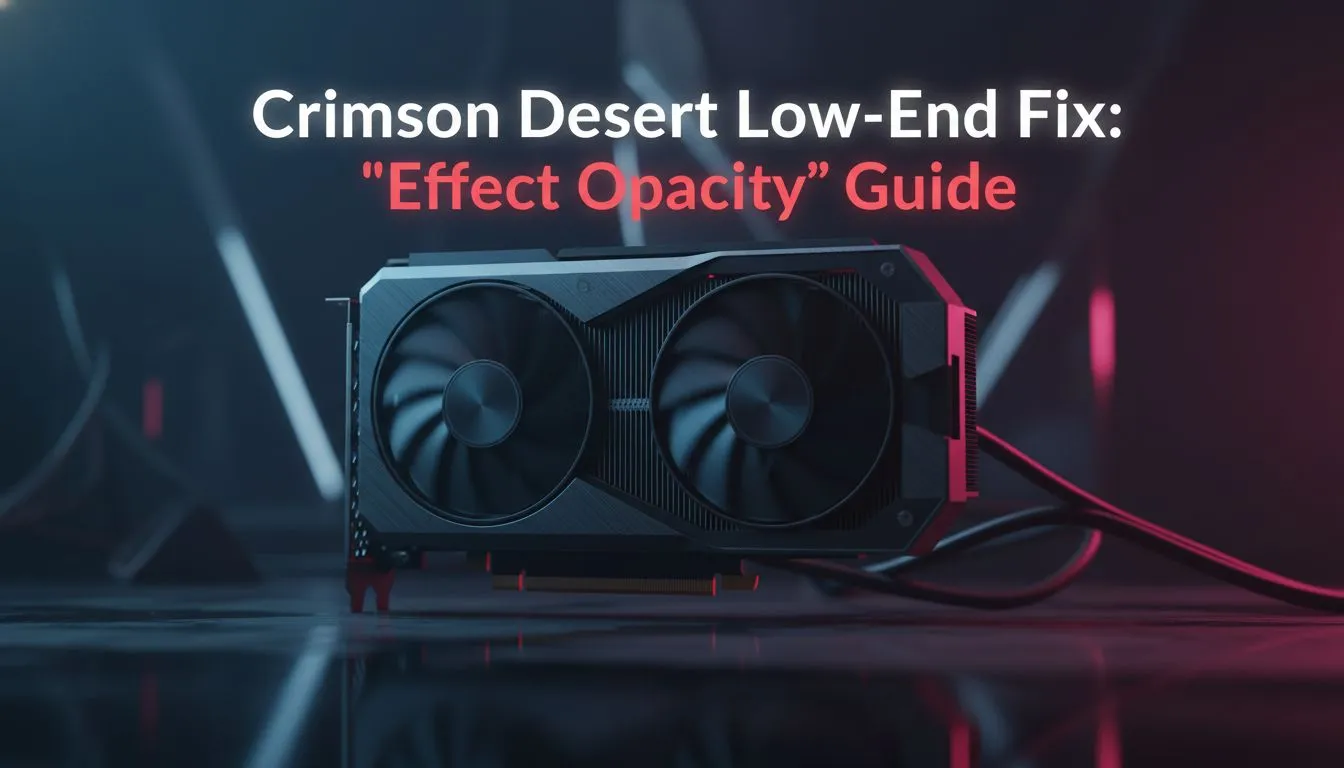
The Crimson Desert Effect Opacity Fix involves navigating to the advanced graphics menu and lowering the transparency intensity of these particles. By reducing the opacity, the GPU spends less time calculating "overdraw"... the process of rendering multiple transparent layers on top of each other. This simple tweak can stabilise your frame rate during chaotic boss fights where performance usually dips.
How to Optimise Performance on Low-End Hardware
Even the most premium PC monitors cannot hide the jitter of a struggling graphics card. To get the most out of your hardware, you should combine the opacity fix with aggressive upscaling. While browsing through all gaming monitors, you might notice that higher resolutions demand more from your system. If you are playing at 1080p or 1440p, setting your Effect Opacity to around 30% to 50% provides the best balance between visual feedback and raw speed.
Combat Clarity Tip ⚡
If you find it difficult to time your parries after applying the opacity fix, try increasing the 'Enemy Highlight' setting. This ensures that even with thinner spell effects, you can still clearly see the enemy's silhouette and attack animations against the environment.
Improving Visual Clarity for Pywel
Many players prefer the immersion of curved monitors to feel truly lost in the world. However, lower effect settings can sometimes make the world feel "thin". To counter this, ensure your texture filtering is set to at least 8x. This keeps the ground and character details sharp while the Crimson Desert Effect Opacity Fix handles the heavy lifting of clearing up your frame times. ⚡
For gamers on the move using portable monitors, power management is just as important as heat. Reducing the opacity of effects lowers the total power draw of your GPU... which means longer gaming sessions on a charge and less thermal throttling.
If you are lucky enough to be running one of the latest 5K and 4K monitors, you might think this fix isn't for you. Yet, even high-end cards can benefit from reduced opacity to maintain a locked 120 FPS in 4K. Finally, don't forget to check your monitor accessories like high-quality DisplayPort cables to ensure you aren't experiencing signal flicker during high-action sequences. 🚀
Ready to Elevate Your Gaming Experience? Finding the right balance between performance and beauty is easier with the right gear. Whether you need a high-refresh panel or a budget-friendly upgrade in South Africa, we have you covered. Explore our massive range of monitor specials and find the perfect display to bring Pywel to life.