

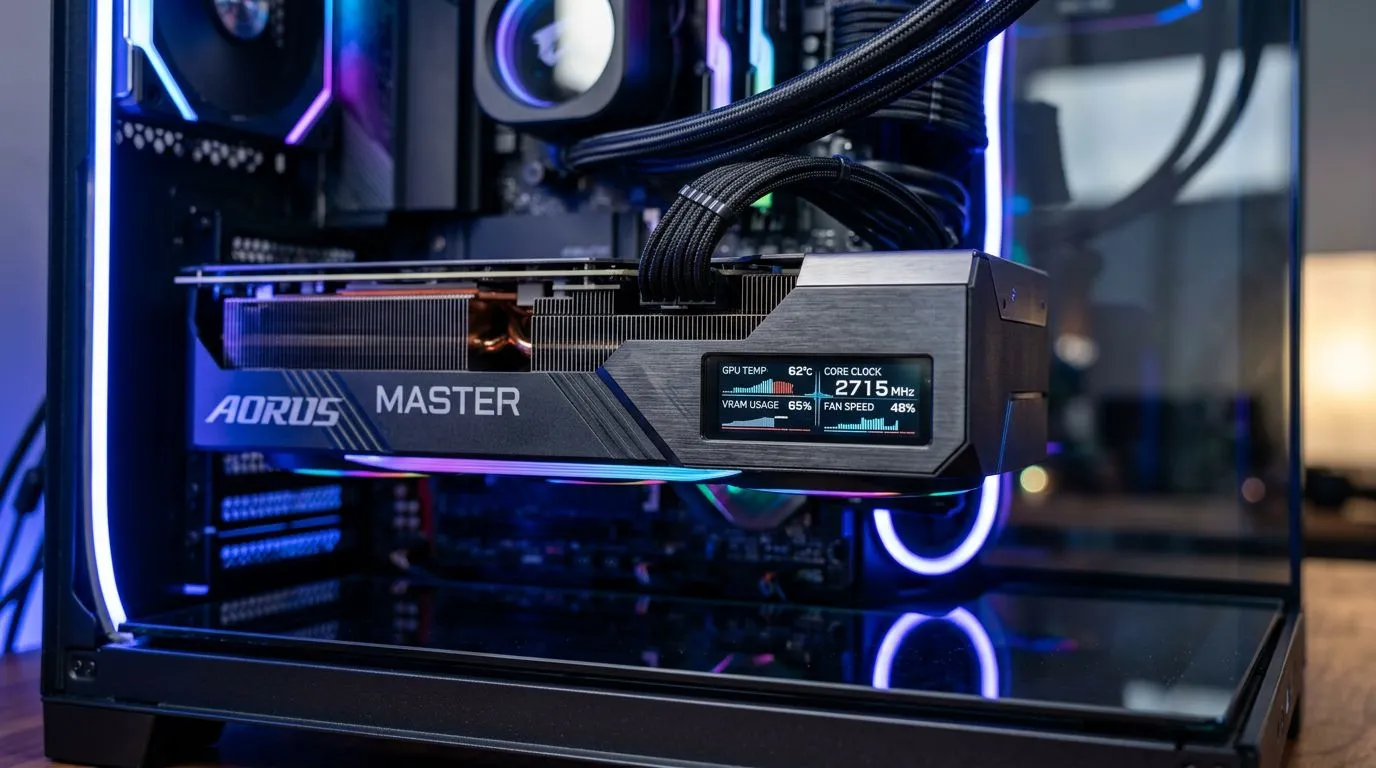
How to Customize Your GPU LCD Display for Real-Time Performance Stats: First Impressions in the Local Grind ⚡
So you’ve spent your hard-earned ZAR on a capable GPU… and now you want it to talk back while you game. An LCD display on your GPU is one of those upgrades that feels nerdy in the best way. It can show temperatures, FPS, clocks, and even per-game stats in real time. 🚀
But the secret isn’t just buying the display… it’s setting it up to stay accurate, readable, and stable during the chaos of ranked matches.
In this guide, you’ll learn how to customise your GPU LCD display for real-time performance stats, step-by-step. 🔧
How to Customize Your GPU LCD Display for Real-Time Performance Stats: Pick the Right Hardware First 🔧
Not every GPU supports every LCD solution. Before you install anything, confirm compatibility with the card model and the LCD ecosystem you’re using.
If you’re browsing for the right card, Evetech makes it easy to narrow down by brand, category, or full range. Start here:
- MSI NVIDIA/ATI graphics cards at Evetech
- Radeon Graphics Cards at Evetech
- All NVIDIA/ATI graphics cards at Evetech
And if your build is leaning green for gaming performance:
What “Real-Time Stats” should actually mean
Real-time usually means the overlay updates frequently (often once per second or faster), but “perfect accuracy” depends on how the software reads sensors and how often it refreshes the screen. Expect small timing differences between what the GPU reports and what an app displays. That’s normal.
How to Customize Your GPU LCD Display for Real-Time Performance Stats: Software Setup That Won’t Drift ⚙️
Most GPU LCD setups rely on a companion app or supported monitoring tool. Your goal is simple:
- Connect the LCD software to your GPU sensor data.
- Choose the metrics that matter for gaming.
- Test update speed and stability.
Choose metrics that help you win, not just watch
For FPS gaming, you usually care about:
- GPU temperature: thermal behaviour during heavy scenes.
- GPU clock speed: whether the card is boosting.
- GPU usage: whether the game is GPU-bound.
- Fan behaviour (if available): helps you predict noise and heat.
Then keep it readable. LCD screens are small, so don’t cram five graphs into a space meant for two or three lines.
Calibrate layout and refresh rate
If your LCD supports “pages” (multiple screens), create a 2 to 4 page cycle:
- Page 1: Temperature + Fan speed
- Page 2: FPS + GPU usage
- Page 3: Clock speed (optional) This way you can glance during gameplay without losing focus.
Productivity Pro Tip ⚡
On Windows, set your LCD monitoring tool to run at startup, then open it alongside your game and keep one consistent window size. It helps the refresh cadence feel steady, so your stats don’t jump around when you alt-tab. That’s especially useful on ultrawide monitors where overlays can shift between sessions.
How to Customize Your GPU LCD Display for Real-Time Performance Stats: Reliable Readings During Real Gameplay 🎮
Here’s the micro-story most people don’t mention… your LCD can look perfect in the desktop… then during a match it goes weird. Why? Games change load patterns, and some monitoring apps prioritise different sensors when DirectX or Vulkan ramps up.
Quick test routine (10 minutes, worth it)
Run a short test cycle:
- Launch a game.
- Start at the same settings each run.
- Check whether your temperature trend looks plausible.
- Look for obvious mismatches, like FPS stuck while clocks change.
If something looks off, try:
- restarting the monitoring app,
- confirming the correct GPU is selected (especially in dual-GPU systems),
- ensuring the game is using your intended graphics card.
Avoid “stat anxiety”
Your LCD is guidance, not a judge. A one-off spike is often fine. What matters is trend and stability, especially temperatures during sustained play.
How to Customize Your GPU LCD Display for Real-Time Performance Stats: When to Upgrade, When to Tweak 🚀
Once your display is working, you’ll naturally start noticing patterns:
- If temperatures climb quickly, you may need better airflow.
- If clocks fluctuate, power settings and fan curves can be the difference.
- If GPU usage stays low but you expect it high, your game might be CPU-bound.
Evetech can help you pair the right GPU to the rest of your rig. If you’re still choosing parts, browse the NVIDIA/ATI and Radeon/GeForce options above, then match them to your monitor resolution and target FPS.
How to Customize Your GPU LCD Display for Real-Time Performance Stats: Ready for the Next Step ✨
Once you’ve dialled in your LCD pages, you’ll start spotting performance bottlenecks instantly. And that turns your PC from “it feels fast” into “I can actually measure what’s happening.”
Want the hardware to match your stats, plus a shop that understands builds for South African gamers? That’s where Evetech comes in.
Ready to Find Your Perfect Match? The Mac vs Windows debate is complex, but for maximum power, choice, and value in South Africa, Windows is hard to beat. Explore our massive range of laptop specials and find the perfect machine to conquer your world.








