

RTX 5050 Avowed FPS: Performance Benchmark & Best Settings
RTX 5050 Avowed FPS: Performance Benchmark. Real-world benchmark data, FPS numbers & performance analysis. What SA gamers can actually expect.
Read moreUnlock peak efficiency with our guide on DeepSeek performance monitoring. Learn how to track your GPU, CPU, and VRAM usage in real-time to prevent bottlenecks and overheating. Keep your rig running smoothly for any AI task. 💻⚙️
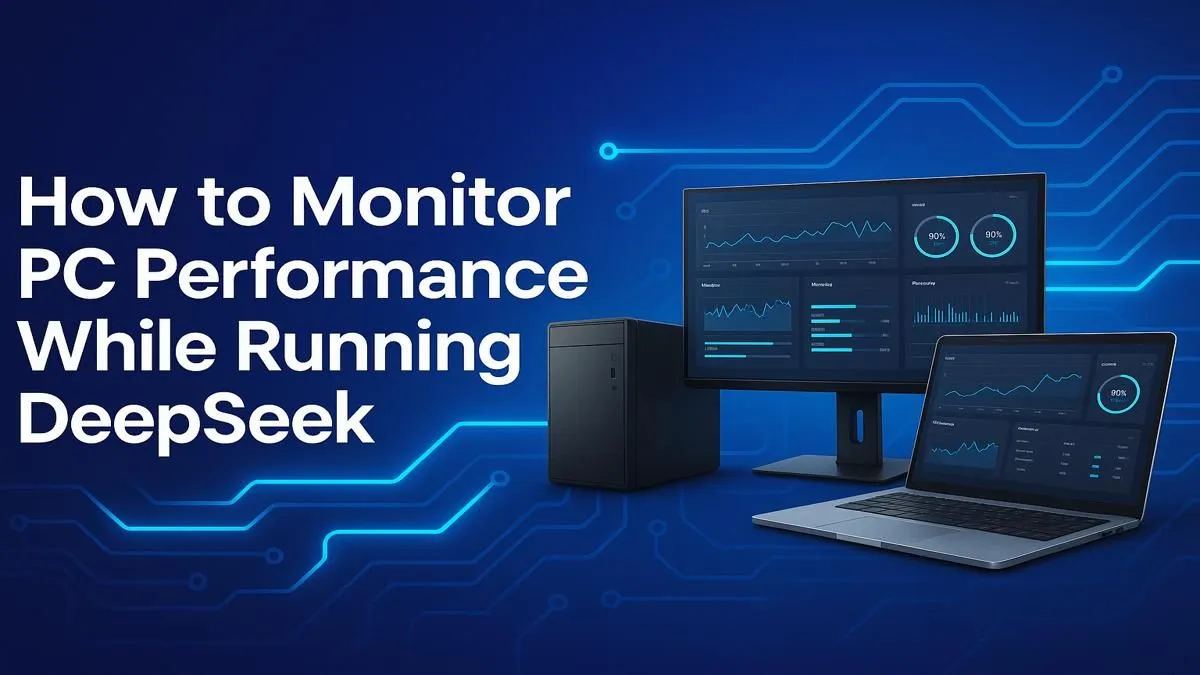
Is your PC sounding more like a jet engine during a heated Warzone match? Are you dropping frames at the worst possible moment? You're not alone. Many South African gamers battle stuttering and overheating, often blaming the game itself. But the real culprit might be hiding in plain sight. Effective DeepSeek performance monitoring is the key to unlocking your PC's true potential, helping you diagnose issues before they cost you the win. Let's dive in. 🚀
Think of performance monitoring as a real-time diagnostic tool for your rig. It’s a way to look under the hood while the engine is running, giving you live data on your most critical components. Without it, you’re essentially flying blind.
Properly monitoring your PC's performance helps you:
Ultimately, DeepSeek performance monitoring transforms you from a casual user into an informed power user.
When you first fire up a monitoring tool, the wall of numbers can be intimidating. Don't stress! You only need to focus on a few key metrics to get a clear picture of your PC's health and speed.
Your Central Processing Unit (CPU) is your PC's brain. High usage is normal during intense tasks, but consistently hitting 100% can cause stuttering. More importantly, watch the temperature. Anything consistently above 90°C under load is a red flag, indicating you might need better cooling or to re-apply thermal paste. This is especially critical for demanding creative tasks on powerful custom-built workstation PCs.
This is the big one for gamers. Your Graphics Processing Unit (GPU) does the heavy lifting for visuals. Like the CPU, its temperature is vital. Most modern GPUs are designed to "thermal throttle," meaning they automatically reduce their speed to prevent overheating. If you see your clock speeds dropping mid-game while temps are high, you're losing performance. A well-cooled system, like those found in top-tier NVIDIA GeForce gaming PCs, is designed to maintain boost clocks for longer.
A simple but effective way to improve temps is to clean your PC! Dust buildup on fans and heatsinks acts like a blanket, trapping heat. A can of compressed air and a few minutes of cleaning every few months can lower your temperatures by several degrees, keeping your performance consistent.
RAM (Random Access Memory) holds the data your PC needs right now. If you run out of RAM, your system has to pull data from your much slower storage drive, causing hitches and long loading times. For gaming, 16GB is the sweet spot, but 32GB is becoming the new standard. Finally, FPS is your ultimate report card—it tells you how many frames your system is drawing per second. A stable, high FPS is the goal for a smooth experience.
Getting started with DeepSeek performance monitoring is easier than you think, and you don't need to spend a cent. Powerful, free software gives you all the data you need.
MSI Afterburner is the undisputed champion. Despite the name, it works with almost any GPU, not just MSI cards. Paired with the RivaTuner Statistics Server that comes with it, you can set up a clean on-screen display (OSD) to see your vitals in real-time while you game. Whether you're running Team Green or you've opted for one of the powerful AMD Radeon gaming PCs, this tool is essential.
Setting it up is simple:
By actively monitoring your hardware, you gain the knowledge to keep your PC cool, fast, and ready for anything you throw at it.
Ready to Crush Bottlenecks? DeepSeek performance monitoring gives you the power to see exactly what's holding your system back. When you've found the culprit, Evetech has the cure. Design your dream rig with our PC builder and leave lag in the dust.
Focus on GPU utilization (%), VRAM usage (GB), CPU utilization (%), and component temperatures (Celsius). These key metrics reveal potential hardware bottlenecks and thermal throttling.
Yes, Task Manager provides a basic overview of CPU, memory, and GPU usage. For detailed stats like VRAM temperature, dedicated tools like HWMonitor or MSI Afterburner are better.
Use tools like NVIDIA's nvidia-smi command, MSI Afterburner, or the Performance tab in Windows Task Manager (select your GPU) for real-time GPU utilization data.
Most CPUs operate safely up to 95°C, but for sustained AI tasks, aim to keep temperatures below 85°C to prevent thermal throttling and ensure longevity and peak performance.
DeepSeek loads models into VRAM. If it exceeds your GPU's capacity, performance will drop dramatically. Monitoring helps you choose the right model size for your hardware.
For comprehensive monitoring, consider MSI Afterburner for overlays, HWiNFO64 for detailed sensor data, and the built-in Windows Task Manager for a quick look at system vitals.
RTX 5050 Avowed FPS: Performance Benchmark. Real-world benchmark data, FPS numbers & performance analysis. What SA gamers can actually expect.
Read more
RTX 5050 Fable at 1440p: FPS Benchmark & Optimal. Real-world benchmark data, FPS numbers & performance analysis. What SA gamers can actually expect.
Read more
RX 7600 Black Myth Wukong 2 at 1080p: FPS. Real-world benchmark data, FPS numbers & performance analysis. What SA gamers can actually expect.
Read more
Head-to-head comparison of RTX 5060 vs RX 9070: Ray Tracing Performance for SA gamers. Performance benchmarks, Rand pricing & which delivers better value.
Read more
Head-to-head comparison of RX 7800 XT Mining vs Gaming: Does It Affect for SA gamers. Performance benchmarks, Rand pricing & which delivers better value.
Read more
RTX 4060 Ti Hogwarts Legacy FPS: Performance. Real-world benchmark data, FPS numbers & performance analysis. What SA gamers can actually expect.
Read more
Top Valorant Settings for RTX 5070: FPS Optimisation picks evaluated on performance, value & SA availability with current Rand pricing from Evetech.

RDNA 3.5 Graphics in Ryzen AI 400? Can You Game. Plain-English explanation of what it means, why it matters & how it affects your buying decisions in SA.

GPU Price Index : December Report. Current stock data & price tracking for SA buyers. See what is available and where prices are heading.
RX 9070 XT Elden Ring Nightreign at 4K: FPS. Real-world benchmark data, FPS numbers & performance analysis. What SA gamers can actually expect.

Core i5-14600K + B760 + RTX 5060 Build Under. Full parts list, Rand pricing & expected performance. Build confidently with SA-available components.

RX 7600 Apex Legends at 4K: FPS Benchmark. Real-world benchmark data, FPS numbers & performance analysis. What SA gamers can actually expect.

RX 7900 XTX GTA 6 at 4K: FPS Benchmark & Optimal. Real-world benchmark data, FPS numbers & performance analysis. What SA gamers can actually expect.

Head-to-head comparison of RTX 5070 vs RX 9070 XT: Gaming Performance for SA gamers. Performance benchmarks, Rand pricing & which delivers better value.
Top RTX 5070 Under R25,000 picks evaluated on performance, value & SA availability with current Rand pricing from Evetech.
Core i5-14600K + B760 + RTX 5060 Build Under. Full parts list, Rand pricing & expected performance. Build confidently with SA-available components.
Top Monitor for RX 9070: Resolution & Refresh Rate picks evaluated on performance, value & SA availability with current Rand pricing from Evetech.
Valorant Settings on RX 9060 XT: Performance. Real-world benchmark data, FPS numbers & performance analysis. What SA gamers can actually expect.