

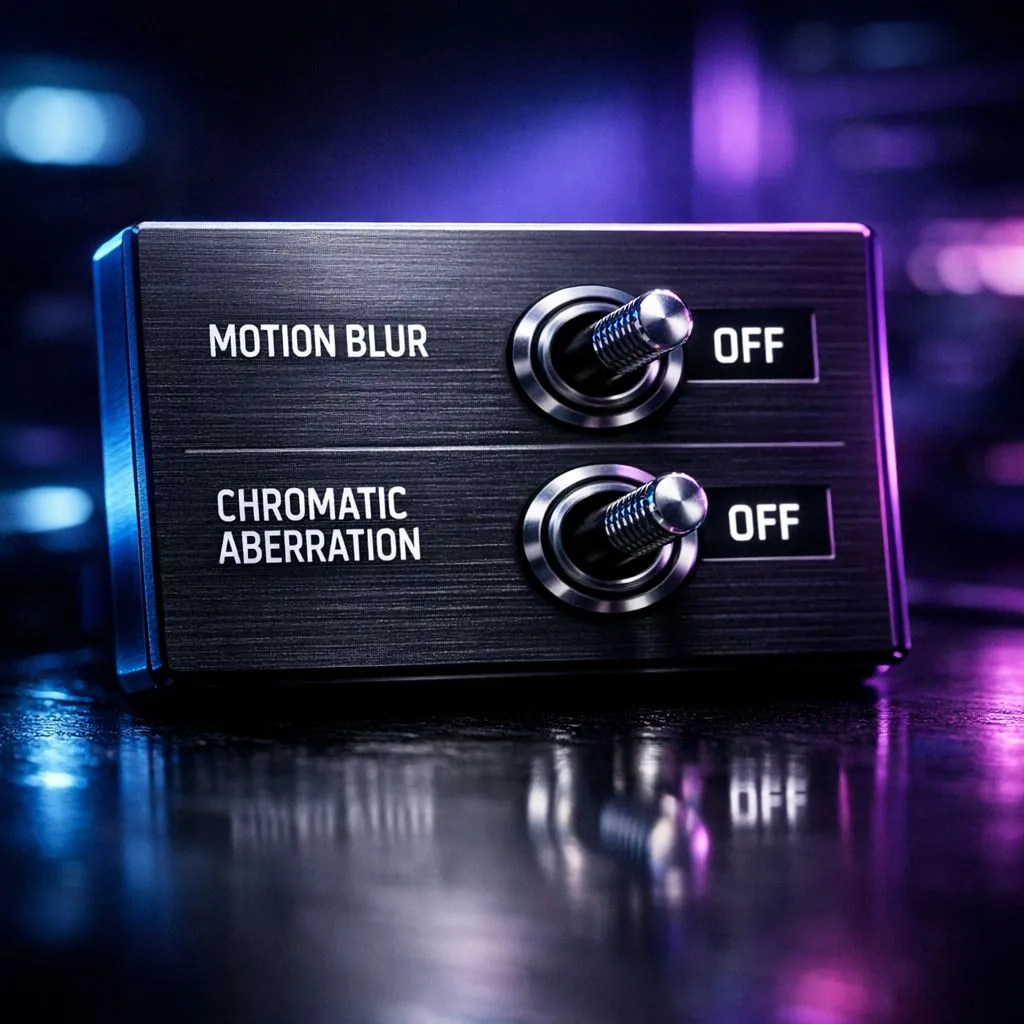
Ever felt like your high-end PC is struggling with a smeary mess during fast movements? You spent thousands on a rig, yet the screen looks like a smudge of oil paint. It is frustrating. Most modern titles enable post-processing effects by default that actually hinder your visibility. If you want a competitive edge, you need to disable motion blur and remove chromatic aberration for a clearer view immediately.
Why You Should Disable Motion Blur for Better Performance
Motion blur is designed to mimic the way a camera shutter works. While it looks cinematic in a movie, it often feels sluggish and unresponsive in a fast-paced shooter. When you turn your character quickly, the environment becomes a streak of colours. This makes it incredibly difficult to spot enemies hiding in corners.
If you are running one of the latest NVIDIA or ATI graphics cards, you want every frame to be as crisp as possible. Turning this setting off reduces perceived input lag and ensures that your hardware is actually showing you what is happening in real-time. It is one of the easiest ways to improve your K/D ratio in competitive games.
How to Remove Chromatic Aberration for a Sharper Image
Chromatic aberration is a digital effect that simulates a cheap or flawed camera lens. It creates a purple or green "fringe" around the edges of objects, especially in high-contrast areas. While developers use it to add a "gritty" feel to games, it often just makes the image look out of focus.
When using high-performance MSI graphics cards, you deserve pixel-perfect clarity rather than artificial distortion. Similarly, those rocking AMD Radeon graphics cards will notice a massive jump in sharpness once this setting is toggled off. Eliminating this effect cleans up the UI and makes text much easier to read during intense sessions.
Visual Clarity Pro Tip ⚡
Check your 'Film Grain' settings alongside motion blur. Film grain adds digital noise to the image, which can make high-quality textures look muddy. Disabling both ensures your 1440p or 4K resolution actually looks as sharp as the manufacturer intended.
Hardware vs Software Post-Processing
Not all hardware handles these post-processing effects the same way. Newer entries to the market like Intel Arc graphics cards offer great driver-level sharpening tools that can counteract some of the softness caused by TAA (Temporal Anti-Aliasing).
If you are using specialised workstation graphics cards for rendering or architectural visualisation, these effects are often disabled by default. This is because accuracy is more important than "vibe". For gamers, the same logic applies... if you want to see the world exactly as it was rendered, you need to strip away the filters. 🔧 ⚡
Ready to Find Your Perfect Match? Achieving the perfect visual balance requires the right hardware to back it up. For maximum power, choice, and value in South Africa, our range of GPUs is hard to beat. Explore our massive range of graphics cards and find the perfect machine to conquer your world.











