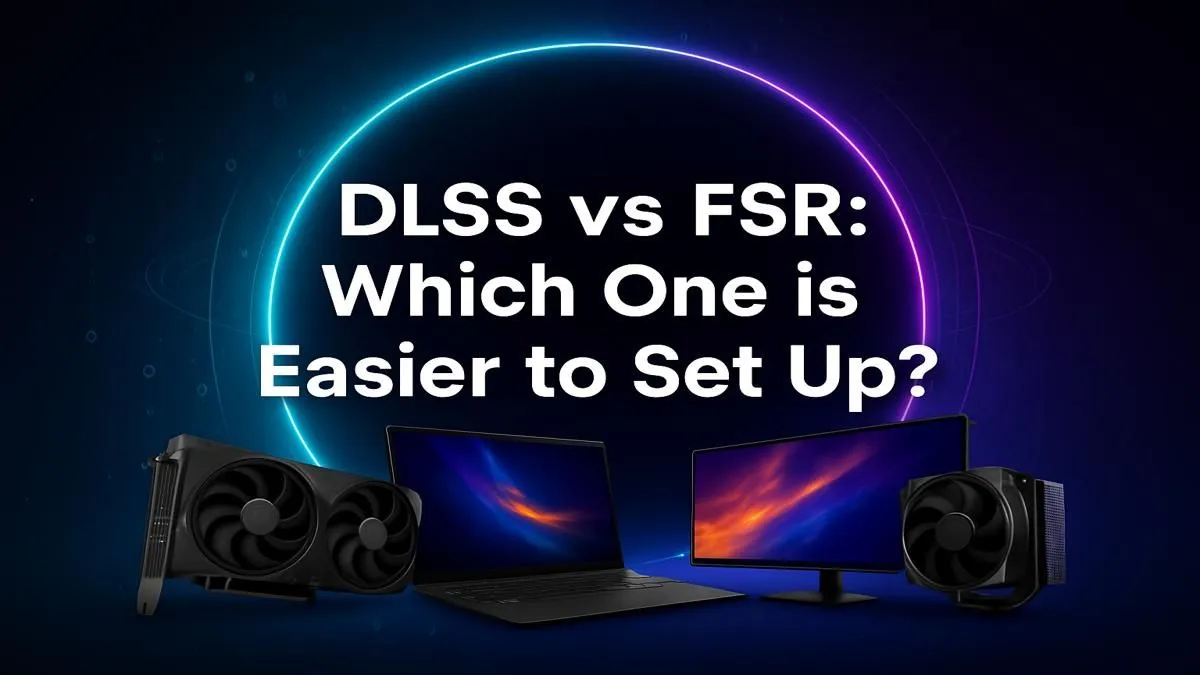
You’ve heard the buzz: free frames-per-second are waiting for you. Both NVIDIA’s DLSS and AMD’s FSR promise to boost your game’s performance with clever upscaling tech. But when you just want to jump into a game, the last thing you need is a complicated setup. So, in the great DLSS vs FSR setup debate, which upscaler gets you from settings menu to silky-smooth gameplay the fastest? Let’s break it down, Mzansi-style.
Understanding the Core Difference 🔧
Before we dive into menus, the biggest factor in the DLSS vs FSR setup comparison is your hardware.
NVIDIA’s Deep Learning Super Sampling (DLSS) is the more specialised of the two. It relies on AI and dedicated Tensor Core hardware found only in NVIDIA GeForce RTX graphics cards. If you don't have an RTX card (20-series or newer), the DLSS option will simply be greyed out or won't appear at all.
On the other hand, AMD’s FidelityFX Super Resolution (FSR) is an open-source spatial upscaler. This means it’s designed to work on a massive range of GPUs, including all modern AMD Radeon graphics cards, and even older NVIDIA cards. This flexibility is FSR’s biggest strength.
The DLSS Setup: An NVIDIA RTX Walkthrough
Got a shiny new RTX card? Enabling DLSS is incredibly straightforward. The actual process takes less than 30 seconds once you're in a supported game.
Here’s the typical process:
- Update Your Drivers: Make sure you have the latest Game Ready Driver from NVIDIA, usually installed via the GeForce Experience app. This ensures maximum compatibility and performance.
- Launch Your Game: Fire up a title that supports DLSS, like Cyberpunk 2077, Alan Wake 2, or Call of Duty.
- Head to Settings: Navigate to the game’s Graphics or Display settings menu.
- Find and Enable DLSS: Look for an option labelled "NVIDIA DLSS" or simply "Upscaling." Turn it on.
- Choose Your Mode: You’ll see several options like Quality, Balanced, Performance, or Ultra Performance. "Quality" offers the best visuals with a solid performance boost, while "Ultra Performance" gives you the highest FPS increase at the cost of some image clarity.
And that’s it! The DLSS setup is complete.
RTX 40-Series Superpower ✨
If you have an RTX 40-series card, you'll often see an extra toggle for "DLSS Frame Generation." Enabling this uses AI to generate entirely new frames, providing a massive performance uplift. It's a separate option from DLSS Super Resolution (the upscaling part) and is just as easy to turn on.
The FSR Setup: AMD's Universal Approach
The beauty of FSR is its accessibility. The in-game FSR setup process is almost identical to DLSS, making it just as simple for gamers.
Here’s how it works:
- Update Your Drivers: Whether you’re on Team Red or Team Green, having up-to-date graphics drivers is always a good first step.
- Launch Your Game: Pick a game that supports FSR, like Starfield, Baldur's Gate 3, or Hogwarts Legacy.
- Head to Settings: Open the Graphics or Display options menu.
- Find and Enable FSR: Look for the upscaling option, often labelled "AMD FidelityFX Super Resolution" or just "FSR."
- Choose Your Mode: Like DLSS, FSR offers several presets: Ultra Quality, Quality, Balanced, and Performance. Pick the one that best suits your needs.
As you can see, the steps are virtually the same. The key difference isn't in the software, but the hardware it runs on.
So, Which Upscaler Setup is Easier? The Verdict 🚀
When it comes to the in-game process, the DLSS vs FSR setup is a dead heat. Both are incredibly easy to enable, usually requiring just a few clicks in the graphics menu. Neither requires you to edit config files or download separate software.
The real difference lies in the prerequisites.
- DLSS setup is easy... if you have a compatible NVIDIA RTX card.
- FSR setup is easy... for almost everyone.
The question isn't about which one is harder to turn on. It’s about which one your hardware allows you to use. This makes it a crucial factor when you're looking at the best graphics card deals available. Are you investing in the powerful, but exclusive, NVIDIA ecosystem, or do you prefer the wide-open compatibility of AMD's approach?
Ultimately, both technologies are fantastic wins for PC gamers, giving us more performance for the hardware we already own.
Ready to Boost Your FPS? Whether you're siding with Team Green's DLSS or Team Red's FSR, the key to unlocking next-gen performance is the right GPU. Explore our huge range of graphics cards and find the perfect engine for your gaming rig today.