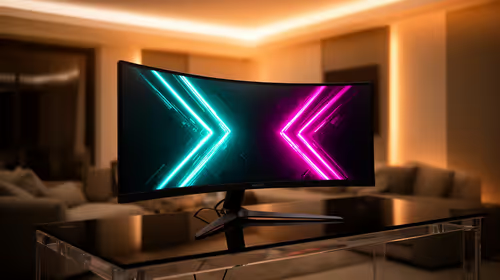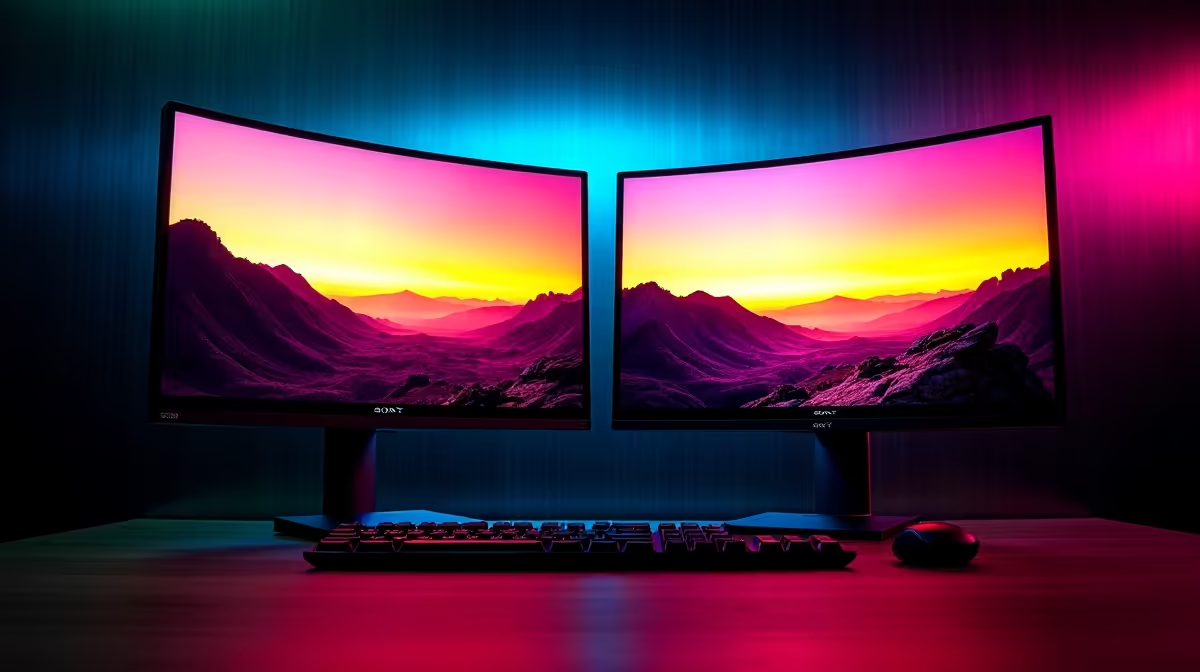
You've finally got your dual monitor setup sorted. Sweet! But hang on... why does that brilliant red in your game look like a faded tomato on the second screen? It’s a classic, frustrating problem. A perfect dual monitor color match calibration isn't just for pro designers; it's for anyone who craves a seamless, immersive experience. Getting your displays in sync is easier than you think, and it will completely transform your workflow and gaming sessions. Let's fix it.
Why Your Dual Monitors Don't Match Out of the Box
Ever wondered why two screens, even from the same brand, can look so different? It's rarely a fault. It comes down to tiny manufacturing variances in the panels, different display technologies (like IPS vs. VA), and even how long each monitor has been used. This colour difference can mess with everything from editing photos to spotting enemies in the shadows. ✨
Achieving a good dual monitor colour match ensures that when you drag a window from one screen to the other, the colours remain consistent. For gamers, this means uninterrupted immersion. For creators, it means your work looks the same for you as it will for your clients. A quick browse through the latest PC monitors shows a huge variety of panel types, each with its own colour profile.
How to Calibrate Your Dual Monitors for a Perfect Colour Match
You don't need a Hollywood budget to get this right. There are a few solid methods for calibrating dual monitors, ranging from a quick visual check to a professional hardware-assisted approach.
The "Eyeball" Method: Good Enough for Most
This is the fastest way to get your monitors looking more alike. It's not scientifically perfect, but it makes a massive difference.
- Choose Your "Master" Monitor: Pick the monitor that you feel has the best colour accuracy to begin with. This will be your reference screen.
- Find a Good Reference Image: Use a high-resolution image with a wide range of colours, including skin tones, bright whites, and deep blacks. Display this image across both screens.
- Dive into the OSD: Use the physical buttons on your second monitor to open its On-Screen Display (OSD) menu.
- Tweak, Tweak, Tweak: Adjust the Brightness, Contrast, and RGB (Red, Green, Blue) colour settings on the second monitor until it visually matches your master monitor as closely as possible. Many modern gaming monitors also have pre-set modes like "sRGB" or "Standard" which can be a great starting point.
Pro Tip: Start with a Neutral Base
Before you start tweaking colours, set both monitors to the same colour temperature in their OSD menus. Choosing '6500K' or 'sRGB' mode is usually the best starting point for neutral, accurate whites.
For Ultimate Accuracy: Use a Hardware Calibrator 🔧
If your work depends on perfect colour accuracy, then a hardware calibrator (also called a colorimeter) is a must-have. This small device hangs over your screen, reads the exact colours being displayed, and works with software to create a custom International Color Consortium (ICC) profile for your monitor.
It automatically corrects any colour inaccuracies, giving you a professional-grade dual monitor color match calibration. You simply run the process on your first monitor, then your second, and the software ensures they are perfectly synced. You can find these essential tools in our monitor accessories section.
When Mismatched Monitors Are the Real Problem
Sometimes, no amount of calibration can perfectly match two vastly different displays. An old 1080p panel will simply never look the same as one of today's crisp 4K monitors. The same goes for mixing flat screens with immersive curved monitors, or a primary desktop display with one of the new handy portable monitors.
If you're struggling to get a match, it might be a sign that an upgrade is due. Investing in two monitors of the same model is the surest way to get a near-perfect colour match right out of the box. 🚀
Ready for a Seamless View? Stop fighting with mismatched colours and unlock a truly unified desktop experience. Check out the latest monitor deals for a setup that’s perfectly in sync. Shop now at Evetech for displays that bring your content to life.