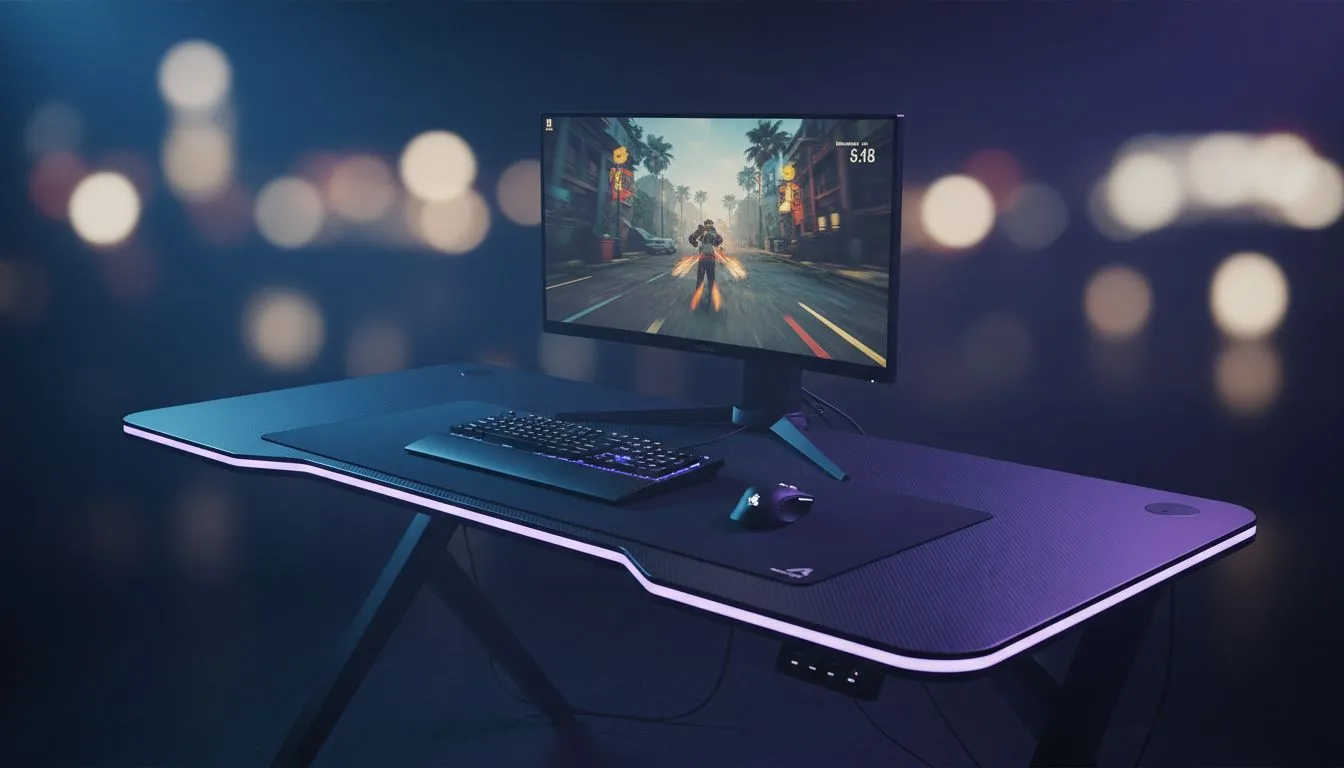
Tired of screen tearing ruining your clutch moments in Apex or Warzone? If you have picked up an Arozzi Nova monitor, you are halfway to buttery-smooth gameplay. But there is a catch. You need to actually turn on the tech that stops those jagged lines. Let's look at how to enable Adaptive Sync on Arozzi Nova monitors so you can finally play without distractions. 🇿🇦
Why You Should Enable Adaptive Sync on Arozzi Nova
Screen tearing happens when your graphics card sends frames faster than your screen can display them. It creates a messy, horizontal split in your image. Standard PC monitors without sync technology often struggle with this mismatch. By learning to enable Adaptive Sync on Arozzi Nova, you allow the display to communicate directly with your GPU. This ensures every frame is delivered perfectly... no matter how chaotic the action gets.
The Hardware Connection
Before diving into the software, check your cables. Most modern gaming monitors require a DisplayPort connection to utilise the full range of sync features. Using a cheap HDMI cable might limit your refresh rate or disable sync options entirely. Investing in high-quality monitor accessories like a certified DisplayPort 1.4 cable is the best way to avoid signal dropouts during intense South African gaming sessions. ⚡
Performance Pro Tip ⚡
Always ensure your GPU drivers are up to date before enabling sync features. NVIDIA and AMD frequently release "Game Ready" drivers that optimise how Adaptive Sync handles new titles, preventing flickering or black screens that can occur with outdated software.
Step-by-Step Guide to Activating Sync
To enable Adaptive Sync on Arozzi Nova, you first need to toggle the setting within the monitor's On-Screen Display (OSD) menu. Use the buttons on the back or bottom of the panel to navigate to the "Gaming" or "Image" settings. Look for the "Adaptive Sync" or "FreeSync" toggle and switch it to "On".
Once the monitor is ready, you need to tell Windows to play along. Even on high-end 5K & 4K monitors, the feature isn't always active by default.
- Right-click your desktop and select Display Settings.
- Scroll down to Advanced Display.
- Ensure your refresh rate is set to the maximum available (e.g., 144Hz or 165Hz).
- Open your GPU control panel (NVIDIA Control Panel or AMD Radeon Software).
- Locate the "Set up G-SYNC" or "FreeSync" tab and tick the box to enable it.
Enhancing Your Visual Experience
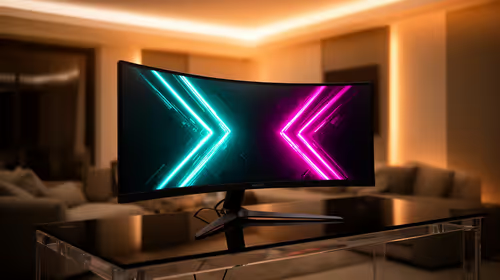
If you prefer curved monitors for that extra wrap-around immersion, Adaptive Sync is even more vital. The slight distortion of a curve makes tearing more noticeable to the human eye. By smoothing out the frame delivery, you keep the immersion intact.
While some users look for portable monitors for gaming on the go, the Arozzi Nova is a desktop powerhouse that rewards proper calibration. You have spent your hard-earned ZAR on a high-performance panel... it only makes sense to use every feature available. 🚀
If you are still scouting for the right hardware, keep an eye on the best pc monitor deals to find panels that support these features without breaking the bank. Once configured, you will notice a massive difference in how fluid your movement feels... especially in fast-paced competitive shooters. ✨
Ready to Upgrade Your View? Getting your settings right is the first step, but having the right hardware is where the magic happens. For the best prices and latest tech in South Africa, we have you covered. Explore our massive range of gaming monitors and find the perfect display to dominate your next match.