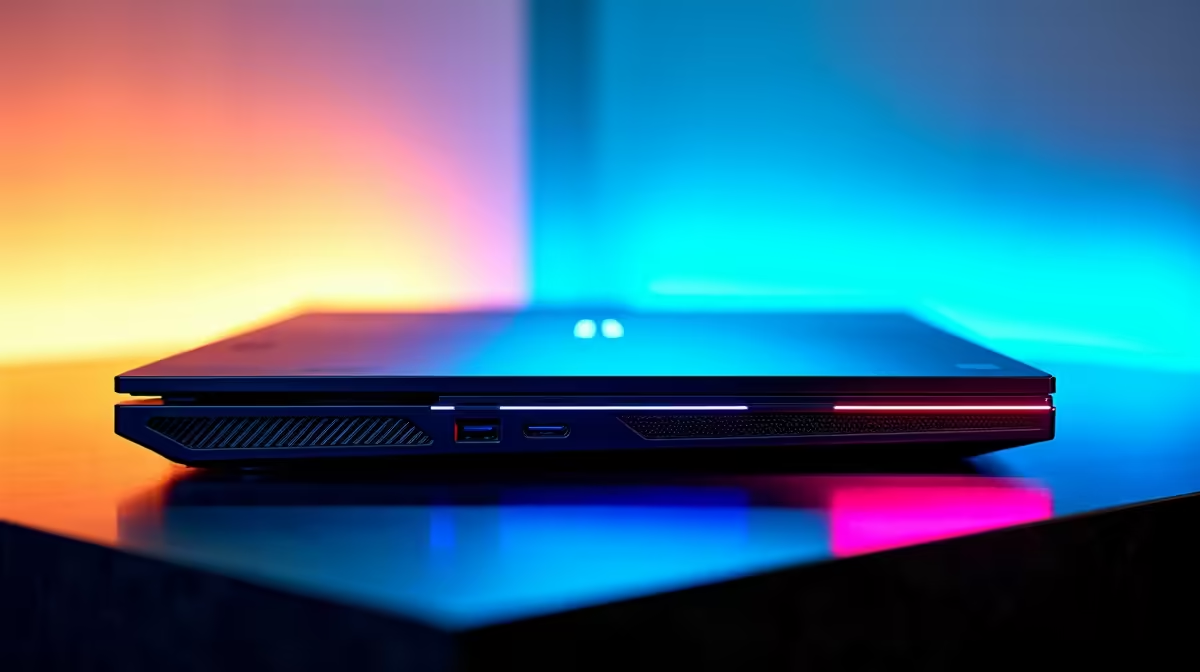
Ah, the familiar hum of your gaming laptop... Suddenly, that glowing battery icon is a ticking clock. In South Africa, knowing how to extend gaming laptop battery life isn't just a convenience; it's a critical gaming skill. Whether you're trying to finish a match during a power cut or just want to game on the couch without being tethered to a plug, we've got the pro tips you need. ⚡
Tweak Your System for Longer Play
Before you even launch a game, the quickest wins for battery life are right inside your operating system. These small adjustments can collectively make a massive difference, helping you extend your gaming laptop's battery life without sacrificing too much performance.
Optimise Your Windows Power Plan
Windows gives you direct control over power consumption. Don't just leave it on "Best Performance" when you're unplugged.
- Click the battery icon in your taskbar.
- Slide the power mode to "Better battery" or "Best battery life".
This simple action tells Windows to throttle background processes and reduce power to components that aren't in active use. It's the first and most effective step for everyday battery saving, especially on modern Intel gaming laptops that have sophisticated power management features.
Dim the Lights & Slow it Down
Your screen is one of the most power-hungry components.
- Lower the Brightness: You probably don't need it at 100% unless you're sitting in direct sunlight. Dropping it to 50-60% is often enough and saves significant power.
- Reduce the Refresh Rate: A 144Hz or 240Hz screen is silky smooth, but it drinks battery. In Windows Display Settings, temporarily switch it down to 60Hz when you're off the plug. The difference in battery longevity can be staggering.
Manage Your Hardware for Peak Efficiency
Your laptop's powerful components are what make it a gaming beast, but they're also what drain the battery. Taming them is key.
The GPU: Your Biggest Power Culprit
Your dedicated graphics card (dGPU) from NVIDIA or AMD is a powerhouse, but it consumes far more energy than the integrated graphics (iGPU) on your CPU. For tasks like browsing or watching videos, your laptop should automatically use the iGPU.
For gaming on battery, you have a few options:
- NVIDIA Control Panel / AMD Software: You can often manually assign which GPU an application uses. For less demanding games, forcing them to use the iGPU can dramatically extend your gaming laptop battery life.
- MUX Switch: Many premium laptops, often found in the above R20k price range, feature a MUX switch. This physical switch lets you disable the iGPU entirely for maximum performance when plugged in, or disable the dGPU to maximise battery life when on the go.
NVIDIA Battery Boost 🔋
If you have a GeForce-powered machine, dive into the GeForce Experience software. Under "General" settings, find "Battery Boost". This feature is a fantastic tool to extend gaming laptop battery life by letting you set a maximum frame rate (e.g., 30 or 45 FPS) that only activates when you're unplugged. It's a smart, set-and-forget solution.
Disconnect Everything
Every USB device—your mouse, headset, external keyboard—draws a small amount of power from your laptop. When every minute counts, unplug what you don't absolutely need. Using the laptop's trackpad and built-in speakers might feel strange, but it's a guaranteed way to claw back some precious battery percentage. Even more affordable gaming laptops under R20k benefit hugely from this simple trick.
In-Game Optimisation for Battery Savings
Finally, let's get into the game itself. Running Cyberpunk 2077 with maxed-out ray tracing on battery is a recipe for a 45-minute session. Be smarter.
Lower Your Graphics Settings
This seems obvious, but it's the most impactful in-game tweak. Prioritise turning down or off these specific settings:
- Shadow Quality
- Anti-Aliasing
- Texture Quality
- Ambient Occlusion
You'll be surprised how much longer you can play by dropping from "Ultra" to "Medium" or "Low". The goal is survival, not just eye candy! Many modern Intel Core i7 gaming laptops have enough processing power to still deliver a smooth experience on lower settings.
Cap Your Frame Rate (FPS)
If your game is running at 120 FPS, your GPU is working twice as hard as it needs to for a smooth 60 FPS experience. Use the in-game settings or your GPU's control panel (NVIDIA Control Panel or AMD Radeon Chill) to lock the frame rate to 30 or 60 FPS. This prevents your hardware from rendering unnecessary frames, providing one of the biggest boosts to battery life during a gaming session. It's a non-negotiable step to make your gaming laptop last longer. This applies to all modern machines, including the highly efficient AMD Ryzen gaming laptops.
Ultimately, while these tips will help you squeeze every last drop of power from your machine, remember that battery technology and component efficiency are always improving. A newer laptop with a more power-efficient CPU and a bigger battery will always have an edge. Many of the latest GeForce RTX gaming laptops on special pack impressive batteries alongside their powerful graphics.
Ready for a Power Upgrade? While these tips will help you master your current machine, nothing beats the efficiency and larger battery of a modern gaming laptop. Explore our massive range of gaming laptop specials and find a rig that can outlast any power outage.