You're in the final circle, the tension is electric... and suddenly your game stutters. Your frames plummet, your aim goes wild, and you’re sent back to the lobby. Sound familiar, South Africa? That sudden, infuriating lag is often a classic case of CPU throttling. It’s your PC’s self-defence mechanism kicking in, but it’s costing you victories.
Don't worry, we’re here to show you exactly how to fix CPU throttling and reclaim your smooth gaming experience.
First, What is CPU Throttling?
Think of your CPU as the engine of your PC. When you're gaming, that engine works hard and generates a lot of heat. If it gets too hot, it automatically slows itself down to prevent damage. This safety feature is called thermal throttling.
While it protects your hardware, it's terrible for your gameplay, causing those random FPS drops and stutters. Another type, power limit throttling, happens when your CPU hits its designated power consumption limit. Both result in the same frustrating outcome: reduced performance when you need it most. 🌡️
How to Spot and Confirm CPU Throttling
Before you start tinkering, you need to be sure throttling is the culprit. The symptoms are often obvious:
- Your game runs smoothly for a few minutes, then starts to lag badly.
- Your PC fans sound like a jet engine taking off.
- The entire system feels sluggish, even after you close the game.
To get a proper diagnosis, you'll need a monitoring tool. Free utilities like HWMonitor or MSI Afterburner are perfect. Run your game and keep an eye on your CPU temperatures and clock speeds. If you see temperatures consistently hitting 90-100°C and your clock speeds dropping significantly during those lag spikes, you've found your problem. You've confirmed your processor is throttling.
Your Action Plan to Fix CPU Throttling 🔧
Ready to get your hands dirty? These steps range from simple to slightly more advanced, but they are the most effective ways to stop CPU throttling.
1. Clean Your PC and Improve Airflow
This is the easiest and often most effective fix. Dust is the ultimate enemy of cooling.
- Shut down and unplug your PC.
- Open the case and use compressed air to blow dust out of your CPU cooler's heatsink, case fans, and filters.
- Check your cable management. Messy cables can block airflow. Tidy them up to create a clear path for air to move from your intake fans to your exhaust fans.
2. Re-apply Your Thermal Paste
The thermal paste between your CPU and its cooler is crucial for heat transfer. Over time, it can dry out and become less effective. If your PC is more than a couple of years old, applying a fresh layer of quality thermal paste can dramatically lower your temperatures. It's a cheap and incredibly effective way to improve your CPU's cooling.
Quick Windows Power Tip ⚡
In Windows 11, search for 'Edit Power Plan' in the Start Menu. From there, click 'Change advanced power settings'. Make sure your 'Processor power management' settings for 'Minimum' and 'Maximum processor state' are both set to 100% when plugged in. This ensures your CPU isn't being held back by a power-saving profile.
3. Optimise Your Cooling Solution
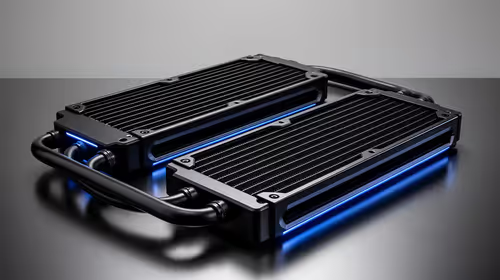
Your stock CPU cooler might not be up to the task, especially in our warm South African climate. Upgrading to a more powerful tower air cooler or an All-in-One (AIO) liquid cooler can provide the thermal headroom your CPU needs to maintain its boost clocks without throttling. It's a direct investment in sustained performance.
When is it Time for a CPU Upgrade?
Sometimes, you can do everything right and still face performance issues. If your processor is a few generations old, it might simply be the bottleneck in your system. No amount of cooling can fix a CPU that is struggling to keep up with modern games.
In this case, exploring the latest CPU processors online can be a real eye-opener. The efficiency and performance gains in recent years have been massive. Today's top-tier Intel CPUs offer incredible single-core speeds perfect for high-refresh-rate gaming. Meanwhile, the latest lineup of AMD CPUs provides amazing multi-core performance for those who want to stream and game simultaneously without compromise. An upgrade is the ultimate fix for CPU throttling. ✨
Ready to Stop Throttling for Good? 🚀 Fixing CPU throttling can bring an old system back to life, but sometimes the best fix is a fresh start. A modern processor runs cooler, faster, and smarter. Explore our massive range of CPUs and find the perfect core for your gaming rig today.