

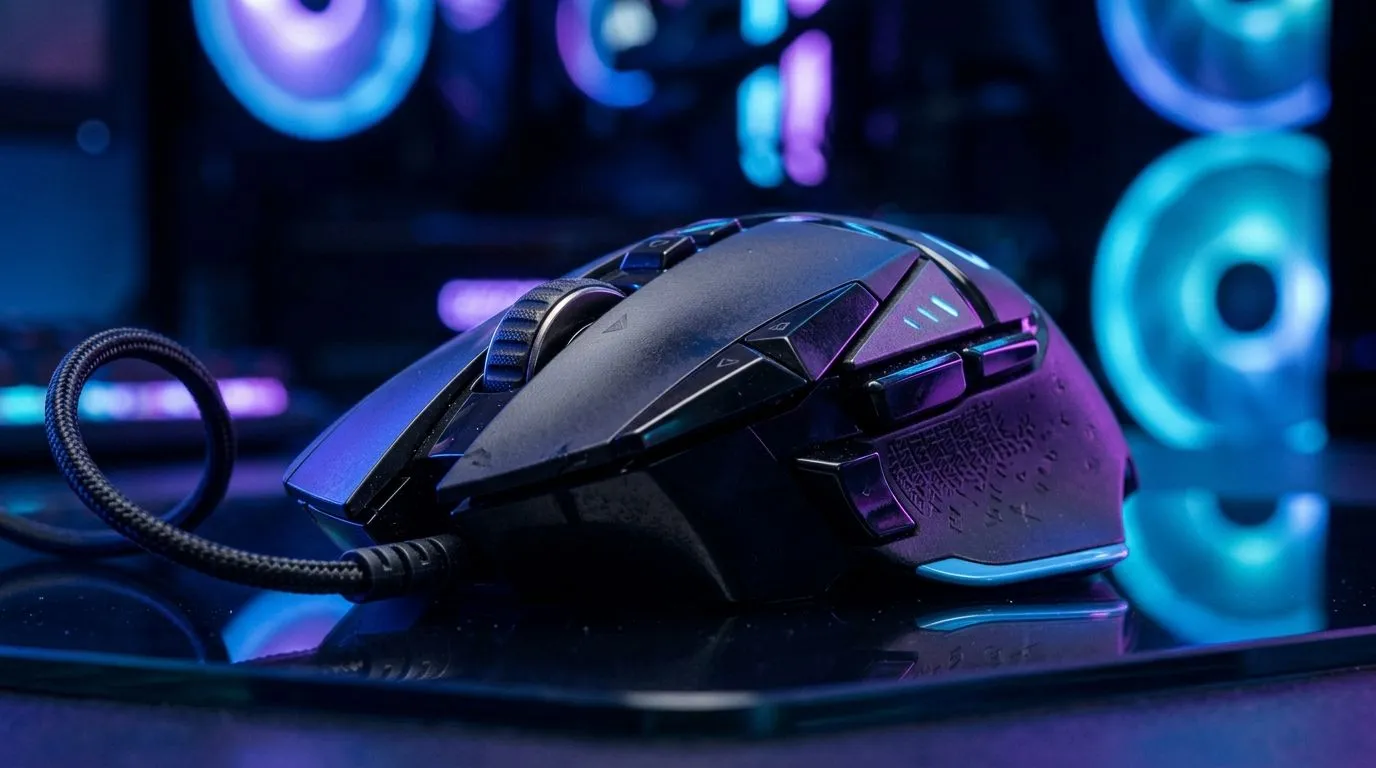
Fix Cursor Jitter on a High-DPI Optical Gaming Mouse: the problem behind the twitch 🔧
If your aim feels “off” even when your sensitivity is locked in, cursor jitter is usually the culprit. It shows up on desktop, then gets worse in-game… especially on high-DPI optical mice. In South Africa, where you might switch between loads of setups (coffee-shop desks, at-home mats, different monitors), this is more common than people think.
Let’s fix it step by step and get your tracking smooth again. ⚡
Fix Cursor Jitter on a High-DPI Optical Gaming Mouse: quick checks that solve most cases ✨
Start with the easiest wins. Most jitter comes from surface mismatch, sensor interference, or a bad tracking mode.
- Clean the sensor and the sensor window Dust can disrupt the optical path. Use a soft, dry cloth. Avoid harsh cleaners.
- Test on a known-good surface Mouse mats are designed for consistent tracking. Try a clean cloth mat versus a glossy surface (like some desk tops). If jitter disappears, you’ve found the problem.
- Confirm you’re on the right DPI and polling feels stable High-DPI doesn’t automatically mean better aim. If you’re on a mat that isn’t compatible, the mouse will “hunt” more.
- Update mouse drivers and firmware Manufacturers and Windows updates can tweak behaviour. If you use a dedicated software suite, check for updates.
Fix Cursor Jitter on a High-DPI Optical Gaming Mouse: Windows settings that can amplify jitter 🖱️
Windows pointer precision settings can sometimes fight what you want in games. If you notice cursor drift when you barely move, try this:
- Turn off Enhance pointer precision (it can create inconsistent movement).
- If you use mouse software, ensure “raw input” or “raw mode” is enabled for the game.
Productivity Pro Tip ⚡
Try lowering DPI temporarily to isolate the issue. If jitter reduces at lower DPI on the same surface, your tracking surface or sensor calibration is the likely cause. Then increase DPI gradually once you confirm the mat and surface are consistent.
Fix Cursor Jitter on a High-DPI Optical Gaming Mouse: surface, cable, and interference realities ⚙️
Optical sensors depend on the surface texture. That’s why a good mouse mat matters more than people admit. Also, high-DPI gaming is still sensitive to electrical noise and power stability.
If you’re using a wired mouse, try a different USB port (preferably directly on the back of your PC). If you’re using a wireless mouse, check battery health and reduce interference by moving the dongle receiver away from USB hubs.
For more options based on how you play, browse:
- Mouse accessories that include mats and relevant add-ons: https://www.evetech.co.za/buy-mouse-accessories/x/1595.aspx
- Wired gaming mice for consistent signal: https://www.evetech.co.za/buy-wired-mouse/x/1596.aspx
And if you’re on a wireless setup:
Fix Cursor Jitter on a High-DPI Optical Gaming Mouse: upgrade choices and deal timing in ZAR 🚀
If you’ve tried the basics and the jitter still happens, it might be the mouse sensor’s tracking behaviour with your setup. The easiest way to improve aim stability is to pair the right mouse with a mat and a connection type that matches your routine.
When you’re shopping, compare models by:
- Sensor type and surface compatibility (mats usually win)
- Consistent tracking claims from reputable reviews or manufacturer specs
- Whether you prefer wired stability or wireless freedom
Looking for something you can buy today? Check:
- Best gaming mouse deals in ZAR: https://www.evetech.co.za/best-gaming-mouse-deals/x/054.aspx
- Or explore the wider gaming mouse category for options: https://www.evetech.co.za/components/gaming-mouse-117.aspx
You don’t need a complete setup overhaul. Most players just need one stable pairing: mouse + surface + the right pointer settings.
Fix Cursor Jitter on a High-DPI Optical Gaming Mouse: what to do next 🔍
Before you blame your aim, confirm:
- Clean sensor
- Correct mat surface
- Windows pointer precision settings
- Cable/port or wireless stability
Then test in-game at a lower DPI and work upward. If jitter returns only on certain surfaces, switching the mat will likely fix it faster than any software tweak.
Ready to Find Your Perfect Match? The Mac vs Windows debate is complex, but for maximum power, choice, and value in South Africa, Windows is hard to beat. Explore our massive range of laptop specials and find the perfect machine to conquer your world.





