

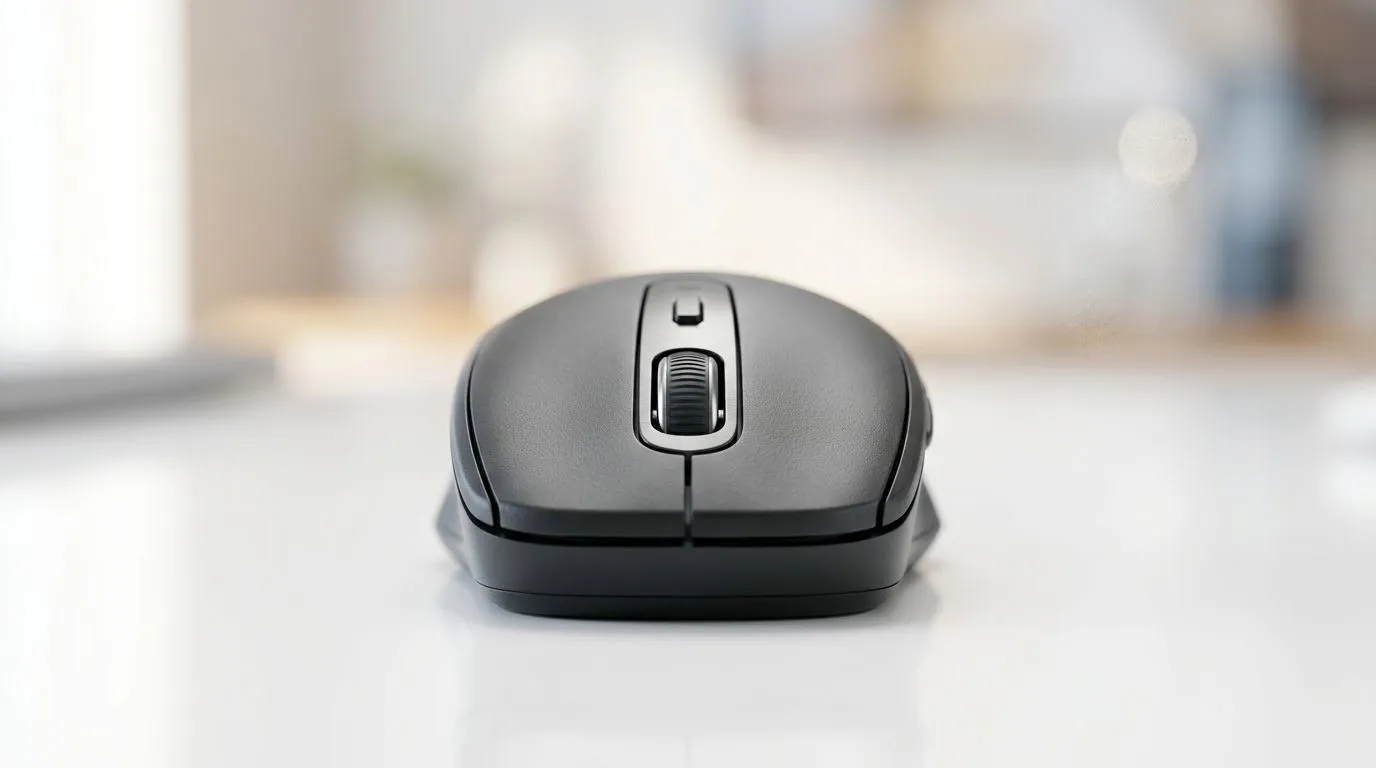
Wireless Mouse Battery Drain Fix (Fast & Practical) 🔧⚡
If your wireless Bluetooth mouse suddenly dies mid-match, you’re not alone. In South Africa, power management quirks, low battery voltage, and Bluetooth interference are common culprits. The good news? Most fixes take less than 10 minutes, and a few tweaks can noticeably extend runtime.
This quick guide is designed to help you Fix Fast Battery Drain on Wireless Bluetooth Mice: Quick Guide with steps you can actually do at home, on Windows or macOS. Ready to stop losing aim to a dying cursor?
Fix Fast Battery Drain on Wireless Bluetooth Mice: Quick Guide (Start Here) 🚀
Before you change anything complicated, do these in order:
1) Confirm the battery type and replace correctly
A “new” battery can still be weak. Use fresh cells, and match the polarity (+/−) exactly. If the mouse uses a rechargeable battery pack, do a full charge first. Partial charging can keep power readings unstable.
2) Check your mouse sleep delay and power settings
On Windows, open Settings → Bluetooth & devices → Devices and remove the mouse, then re-pair it after checking power settings. Also review Power & sleep settings so the PC isn’t aggressively suspending Bluetooth.
3) Reduce Bluetooth congestion
Bluetooth shares the 2.4 GHz band with Wi‑Fi. If you live near heavy Wi‑Fi traffic (apartment life, anyone?), interference can spike power use. Try:
- moving the router or computer,
- keeping the mouse closer to the PC,
- avoiding USB 3.0 hubs near the Bluetooth adapter.
4) Update firmware and drivers (the boring fix that works)
Bluetooth issues and battery reporting errors are often driver-related. Update your Bluetooth drivers and your OS. If you have a gaming PC, keep chipset and Bluetooth firmware current.
Productivity Pro Tip ⚡
To reduce re-pairing stress (and power drops after reconnects), turn the mouse off for 10 seconds, then back on before you reconnect in Bluetooth settings. It forces a clean handshake, especially after updates or battery changes.
Performance Pulse: Choose the Right Mouse to Prevent Repeat Drain ✨
Sometimes the “fix” is really an upgrade. If you’re buying new or swapping models, focus on battery efficiency and proven wireless reliability.
- If you want maximum consistency for FPS and work sessions, consider a wired mouse. It avoids wireless power draw entirely: Browse wired mouse options
- If you prefer wireless but want better endurance, explore the wireless mouse range and compare run-time expectations and connection types: Shop wireless mice
- For gamers who tinker, accessories matter too. The right charging solution or spare batteries can save you during LAN nights: Get mouse accessories here
If you’re budget planning, you’ll find value without guessing. Check the latest pricing and deals in one place: See the best gaming mouse deals
Still shopping? Use a broader reference point while you compare sensors and comfort: Explore gaming mouse models and specs
Quick Troubleshooting Checklist (Do This Tonight) ⚡
Try this sequence and stop when it fixes the problem:
- Replace batteries or fully charge the rechargeable pack.
- Re-pair the mouse and restart the Bluetooth adapter by rebooting.
- Move the PC closer to the mouse for a test.
- Reduce nearby 2.4 GHz noise (router position, USB 3.0 distance).
- Update drivers and OS, then test again.
If the drain is still extreme after those steps, the mouse’s battery health may be failing, or there could be a hardware fault. In that case, replacement is usually the quickest path back to stable performance.
CALLTOACTION (Performance Pulse) 🚀
Ready to Find Your Perfect Match? If you’re tired of Bluetooth surprises and want stable control for work and play, it’s time to match the right mouse to your setup. Find dependable options and current deals in South Africa, then upgrade with confidence. Explore our massive range of laptop specials and get equipped for smoother sessions from day one.











