

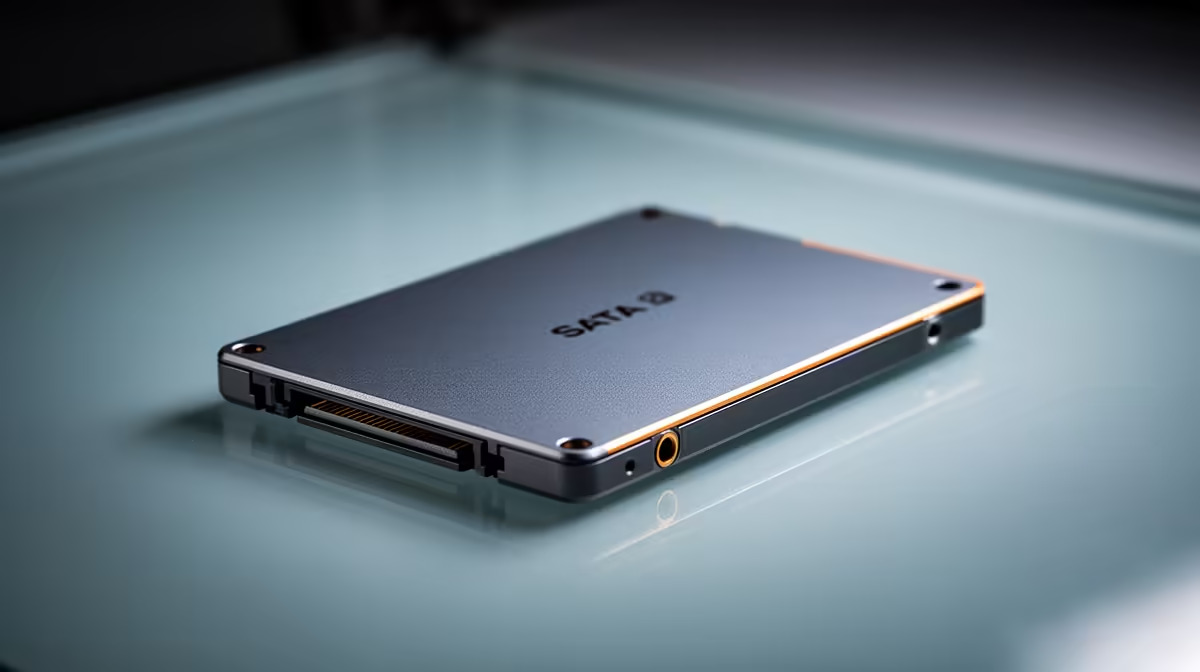
Fix Slow File Transfers on a SATA SSD to Boost Write Speeds: What’s really happening? 🚀
Ever moved a huge game install or a folder of clips to your SATA SSD and watched the speed tank… then blamed the SSD? You’re not alone. In South Africa, a lot of PCs run SATA SSDs behind older chipset settings, power-saving quirks, or mismatched transfer modes. The result is painful: installs crawl, backups take forever, and your spare time vanishes.
Let’s fix slow file transfers on a SATA SSD to boost write speeds the practical way. 🔧
Fix Slow File Transfers on a SATA SSD to Boost Write Speeds: Quick checks first ⚡
Before you buy anything new, confirm the basics that most often cause slow writes:
1) Confirm the SSD is actually SATA (and not stuck at a reduced mode)
Some systems negotiate SATA speeds differently depending on the port and BIOS settings. Start by checking your motherboard ports and SATA mode. If your BIOS allows it, use AHCI (not RAID, not IDE compatibility).
2) Rule out “small file” transfer bottlenecks
Moving thousands of small files can feel slower even when the SSD’s sequential numbers look fine. Windows also adds overhead for file creation, indexing, and security checks. That’s normal… but you can still improve it.
3) Watch for drive temperature throttling
Heat can reduce sustained write performance. If the SSD is buried under a GPU shroud with no airflow, you may see speeds drop over time.
Productivity Pro Tip ⚡
On Windows, check whether your SSD is running with caching enabled. Open Device Manager → Disk drives → your SSD → Properties → Policies, then enable Write-caching if it’s available. Also, avoid transferring while a background backup or antivirus scan is actively crawling the destination folder.
Fix Slow File Transfers on a SATA SSD to Boost Write Speeds: Settings that actually move the needle ✨
Update firmware and drivers
Storage performance issues are often software-related. Update your motherboard chipset drivers, plus your SSD firmware if the manufacturer provides it. (If you’re unsure which model you have, check the SSD label or drive properties first.)
Clean up the destination
If your destination drive is near-full, performance can drop because the SSD has less space to manage wear levelling. For best sustained writes, aim to keep at least 10–20% free.
Test correctly: sequential vs real workload
To diagnose, test with a reliable benchmark and also test a “real” transfer:
- Benchmark for sustained performance (sequential writes)
- Then copy a single large file (5–20GB) and measure again
If large files fly but mixed folders drag, it’s mostly file-count overhead and filesystem behaviour.
Consider upgrading to NVMe for bigger jobs
If your workload is frequent game installs, video editing, or constant asset syncing, NVMe makes a noticeable difference because it cuts latency and supports higher throughput than typical SATA limits.
If you want to shop with confidence, Evetech stocks SATA SSDs and also NVMe drives you can drop into M.2 slots. Start here:
- Browse SSD options from Evetech’s selection: buy solid state drives
- If you’re after budget-friendly value: ADATA SSDs
- Prefer Kingston reliability: Kingston SSDs
- For M.2 2280 compatibility: shop M.2 2280 drives
- If you want to target newer performance classes, explore interface options: [Gen 5 (NVM… drives](https://www.evetech.co.za/PC-Components/buy-solid-state-drives-83?attributes-interface\=Gen+5+%28NVM…
Fix Slow File Transfers on a SATA SSD to Boost Write Speeds: A short “fix it today” playbook 🧩
- Set SATA mode to AHCI in BIOS (if you’re not already).
- Keep 10–20% of the SSD free.
- Enable write caching (if Windows shows it as available).
- Update chipset drivers and SSD firmware.
- Re-test with one large file, then with your real folder.
- If the gap remains painful, consider moving your workload to NVMe.
Most “slow SATA writes” aren’t the SSD failing. They’re settings, space, or transfer patterns. Once you spot the cause, your copy speeds usually jump fast.
Ready to Find Your Perfect Match? The Mac vs Windows debate is complex, but for maximum power, choice, and value in South Africa, Windows is hard to beat. Explore our massive range of laptop specials and find the perfect machine to conquer your world.











