

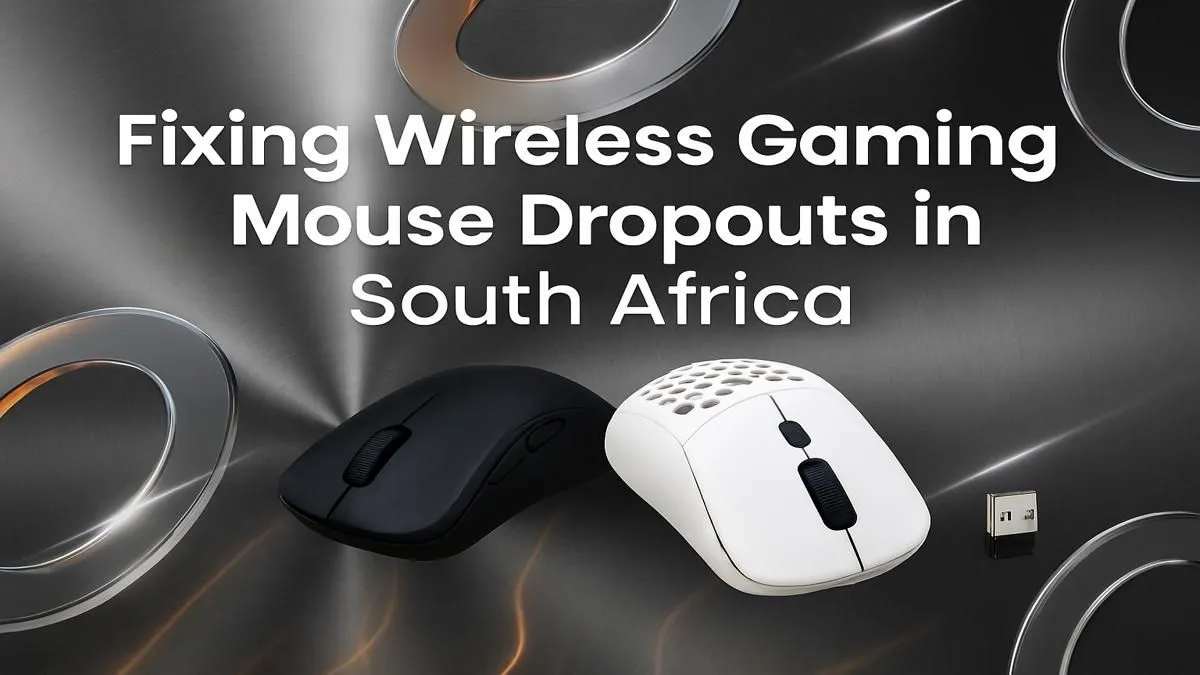
You’re in the final circle, the tension is thick enough to cut with a biltong knife, and you’ve got the perfect shot lined up... then your aim stutters. Your wireless mouse just had a micro-dropout, and now you’re staring at the respawn screen. Sound familiar? It’s a uniquely frustrating issue for South African gamers. But don’t stress, we’ve got the solutions. This guide will help you fix wireless gaming mouse dropouts for good. 🚀
Start with the Simple Fixes for Mouse Dropouts
Before you start diving into complex settings, let's cover the most common culprits behind wireless mouse connection issues. Often, the simplest solution is the right one.
### Check Your Power Levels ⚡
This sounds obvious, but it’s the number one cause. A low battery can cause your mouse’s signal to weaken, leading to stuttering and dropouts long before it dies completely. If your mouse is rechargeable, plug it in. If it uses disposable batteries, swap them for a fresh pair. Don't trust the software's battery indicator alone; it can sometimes be inaccurate.
### Reposition Your Receiver
The 2.4GHz signal used by most wireless mice is powerful, but it hates obstacles. Your PC case, especially if it's metal and tucked under a desk, can be a major source of interference. Try moving the USB receiver from a back port to a front-facing one. Even better, use the USB extender cable that likely came with your mouse to place the receiver on your desk, in a clear line of sight to your mouse.
Tackling Wireless Signal Interference 📡
If the simple fixes don't solve your gaming mouse connection issues, the problem is likely signal interference. Your home is flooded with 2.4GHz signals from Wi-Fi routers, Bluetooth devices, and even microwaves. This "signal traffic" can interrupt your mouse's connection.
To fix wireless gaming mouse dropouts caused by this, you need to clear a path.
- Isolate the Receiver: Keep other wireless devices, especially your router and smartphone, as far from your mouse receiver as possible.
- Change USB Ports: Avoid plugging your receiver into a USB 3.0 port (usually blue) right next to another device, as they can emit interference. Opt for a USB 2.0 port if possible, or leave a space between the receiver and other plugged-in devices.
- Check Your Wi-Fi Channel: If you have access to your router's settings, try changing the Wi-Fi channel. Channels 1, 6, and 11 are the most common and often the most congested. Shifting to a different one can sometimes clear up the airwaves for your mouse.
The USB Extender Trick 🔧
The single most effective way to combat signal interference is using a USB extender cable. Plug your mouse's dongle into the extender and place it on your mousepad, about 15-20cm away from your mouse. This guarantees the strongest, clearest signal, bypassing almost all potential physical and wireless obstructions. It's a must-do for any serious wireless gamer.
Software, Drivers, and Deeper Fixes
If your hardware and environment are optimised, it's time to look at the software. Outdated drivers or incorrect power settings can also cause that dreaded stutter.
### Update Everything
First, head to your mouse manufacturer's website (e.g., Logitech G Hub, Razer Synapse) and ensure you have the latest software and firmware installed for your specific model. These updates often contain crucial bug fixes and performance improvements that can resolve connection stability.
### Windows Power Management
Windows has a power-saving feature that can sometimes be too aggressive, turning off USB ports to save energy... even when you're in the middle of a game.
- Open Device Manager.
- Expand Universal Serial Bus controllers.
- Right-click the USB Root Hub your mouse is connected to and select Properties.
- Go to the Power Management tab.
- Uncheck the box that says "Allow the computer to turn off this device to save power."
- Repeat for all USB Root Hub entries.
Is It Time for a Full Setup Refresh?
Sometimes, persistent dropouts are a sign that your gear is simply getting old or wasn't designed for high-performance gaming. If you've tried everything and still face issues, it might be time to consider an upgrade. A solid foundation ensures every component works together seamlessly. For many, the best solution is starting fresh with a reliable keyboard and mouse combo designed for gaming.
Investing in your setup goes beyond just the mouse. A responsive keyboard can make a world of difference, and you can often find some of our best gaming keyboard deals to pair with your new mouse. Even if you're on a tight budget, upgrading to an affordable gaming keyboard can provide a more stable experience than older, non-gaming peripherals.
For those who love to fine-tune their experience, customisation can be key. Dialling in your comfort and performance with a quality wrist rest reduces fatigue during long sessions. You can even completely change the feel of your keyboard by swapping out your keyboard switches or giving it a new look with a fresh set of keycaps. A stable, comfortable, and responsive setup is your best defence against frustrating tech issues.
Ready for a Lag-Free Experience? Don't let a stuttering mouse ruin another clutch moment. An unstable connection can be a sign that it's time for an upgrade to gear built for performance. Explore our huge range of gaming mice and find the perfect, reliable mouse to dominate the competition.











