

RTX 5060 Ti vs RX 9070: Gaming Performance Compared in South Africa 2026
Head-to-head comparison of RTX 5060 Ti vs RX 9070: Gaming Performance for SA gamers. Performance benchmarks, Rand pricing & which delivers better value.
Read moreFix gaming audio workflow interruptions with dedicated media controls and gaming volume knobs for smoother mix control. Reduce sudden cutoffs and make every audio cue clear. 🎧🎮
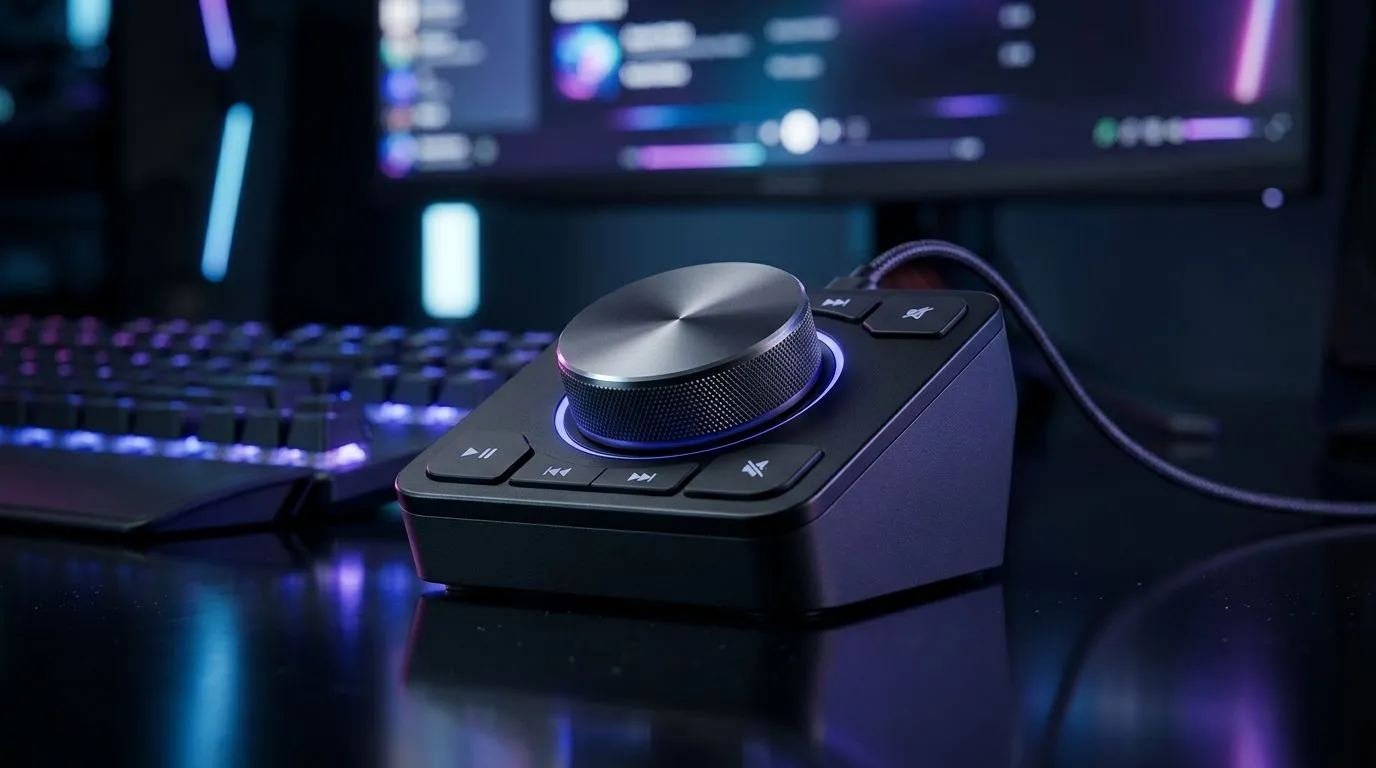
If your game audio keeps “blipping” or your voice chat drops for half a second, it’s frustrating… and it’s usually fixable. In South Africa, where load shedding and Wi‑Fi congestion can already make everything feel unstable, the last thing you need is your headset or speakers acting like they’re possessed. 🎧
A big help is choosing gear with reliable control hardware, like a dedicated gaming audio volume knob controls fix sound interruptions approach: physical volume control that doesn’t glitch when software ramps audio, switches profiles, or re-detects devices.
Sound interruptions during gaming often come from one of these causes:
A volume knob is valuable because it’s usually simple hardware. It adjusts gain without needing a heavy driver or a background app to “sync” every time.
Try these in order. They’re quick, and they work for most setups.
On Windows, temporarily disable spatial audio effects and third‑party EQ tools, then test a 2 minute match. If interruptions stop, re-enable settings one at a time.
In Windows Sound settings, set your headset/speakers as the default playback device. Then, restart the game.
If your audio goes quiet when you touch the cable, the issue is almost always physical contact. Reseat the jack fully, check for bent pins, and avoid adapters where possible.
Wireless headsets can switch modes during power saving. Keep the USB dongle away from USB 3.0 interference, and disable aggressive USB power saving in Device Manager.
On Windows, use Device Manager to disable USB selective suspend for the controller that powers your headset dongle. Then restart your PC and test again, because fewer sleep transitions often means fewer audio re-detections during matches.
Here’s the “buyer’s mindset” part. Audio issues don’t live alone. If your rig is struggling to stay consistent, it affects everything around it, including how smoothly your game runs when you’re alt‑tabbing, switching party chat, or using overlays.
If you’re also upgrading your keyboard (common for South African gamers), consider bundles and wired/wireless options that keep input reliable. That means fewer background distractions, smoother gameplay, and better overall stability while you troubleshoot audio.
Explore some great deals here:
Before you spend money, do this 60-second sanity check:
Get it right once, and your matches feel… calmer. ✨
Ready to Find Your Perfect Match? The Mac vs Windows debate is complex, but for maximum power, choice, and value in South Africa, Windows is hard to beat. Explore our massive range of laptop specials and find the perfect machine to conquer your world.
Gaming audio interruptions often come from software switching, background app volume changes, or unstable output switching. Dedicated media controls and volume knob hardware can reduce these triggers.
Yes. Dedicated media controls let you adjust levels without relying on game overlays or OS app focus, lowering the chance of sudden audio cutoffs during gameplay.
A volume knob provides immediate, tactile control with fewer software steps. That stability helps maintain consistent audio levels during firefights, matches, and streaming.
If you want predictable levels, hardware controls on a USB audio interface help you avoid OS volume jumping and app handoffs that can interrupt your audio workflow.
They can. Using dedicated controls for game audio and chat helps you keep a steady mix and quickly recover from interruptions without opening multiple apps.
Lock your default output device, use dedicated media controls for volume, and avoid per-app volume resets. Hardware knob control makes changes less dependent on app focus.
Not always. Interruptions can be software focus changes, driver behavior, or overlay conflicts. However, dedicated media controls and volume knobs reduce common workflow-caused cutoffs.
Head-to-head comparison of RTX 5060 Ti vs RX 9070: Gaming Performance for SA gamers. Performance benchmarks, Rand pricing & which delivers better value.
Read more
RTX 5090 Star Wars Outlaws at 1440p: FPS. Real-world benchmark data, FPS numbers & performance analysis. What SA gamers can actually expect.
Read more
RTX 5060 Star Wars Outlaws at 4K: FPS Benchmark. Real-world benchmark data, FPS numbers & performance analysis. What SA gamers can actually expect.
Read more
Head-to-head comparison of RTX 5060 vs RX 7700 XT: Price-to-Performance for SA gamers. Performance benchmarks, Rand pricing & which delivers better value.
Read more
RTX 3060 Red Dead Redemption 2 FPS: Performance. Real-world benchmark data, FPS numbers & performance analysis. What SA gamers can actually expect.
Read more
Head-to-head comparison of RTX 5060 Benchmarks vs Real Gaming Performance for SA gamers. Performance benchmarks, Rand pricing & which delivers better value.
Read more
When Will the RTX 6090 Launch in South Africa Detailed answer with SA data, expert analysis & practical recommendations for local buyers.

Top Valorant Settings for RTX 5070: FPS Optimisation picks evaluated on performance, value & SA availability with current Rand pricing from Evetech.

RDNA 3.5 Graphics in Ryzen AI 400? Can You Game. Plain-English explanation of what it means, why it matters & how it affects your buying decisions in SA.

GPU Price Index : December Report. Current stock data & price tracking for SA buyers. See what is available and where prices are heading.

Core i5-14600K + B760 + RTX 5060 Build Under. Full parts list, Rand pricing & expected performance. Build confidently with SA-available components.

RX 7600 Apex Legends at 4K: FPS Benchmark. Real-world benchmark data, FPS numbers & performance analysis. What SA gamers can actually expect.

RX 7900 XTX GTA 6 at 4K: FPS Benchmark & Optimal. Real-world benchmark data, FPS numbers & performance analysis. What SA gamers can actually expect.

Head-to-head comparison of RTX 5070 vs RX 9070 XT: Gaming Performance for SA gamers. Performance benchmarks, Rand pricing & which delivers better value.
GPU Setup Guide Gamers. Clear setup instructions with SA-specific considerations, troubleshooting tips & recommended components.
Top RTX 5090 Under R12000 picks evaluated on performance, value & SA availability with current Rand pricing from Evetech.
Call of Duty Warzone 2 Settings on RX 7600. Real-world benchmark data, FPS numbers & performance analysis. What SA gamers can actually expect.
GTA 6 Settings on RTX 5070 Ti: Performance. Real-world benchmark data, FPS numbers & performance analysis. What SA gamers can actually expect.