

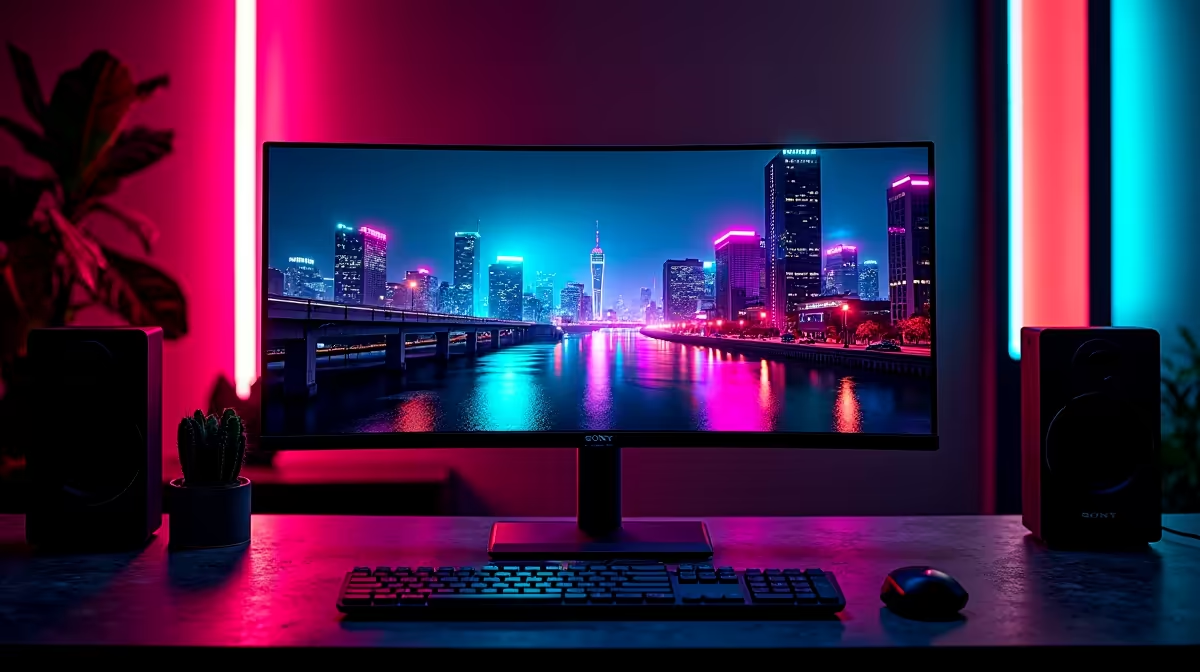
You’ve just unboxed a beast of a monitor, maybe one of the best PC monitor deals you could find online. You plug it in, fire up Baldur's Gate 3, and... something’s not quite right. The shadows are crushed, the colours look washed out, and it just doesn't pop. The secret isn't a faulty panel; it's that your screen needs a proper gaming monitor calibration to unlock its true visual power. 🚀
Why Your "Out-of-the-Box" Settings Aren't Good Enough
Manufacturers tune their displays to look impressive under the harsh fluorescent lights of a retail store, not for the nuanced lighting of your gaming den. This often means brightness is cranked to the max, colours are oversaturated, and the gamma is way off.
For gamers, this is a huge problem. Incorrect calibration can mean:
- Lost Detail: You can't see that enemy lurking in a dark corner because your black levels are crushed.
- Inaccurate Colours: The vibrant world the game developers created looks dull or artificially harsh.
- Eye Strain: An overly bright or poorly contrasted screen can lead to fatigue during long sessions.
Proper gaming monitor calibration ensures you see the game exactly as intended, giving you both a competitive edge and a more immersive experience.
A Step-by-Step Guide to Basic Monitor Calibration
Ready to see the difference? You don't need expensive hardware to get started. A few software-based tweaks can make a massive improvement. This process works for most modern PC monitors, from standard flat-screens to immersive curved monitors.
1. Start with the On-Screen Display (OSD)
Before touching any software, let's get the hardware settings right. Use the buttons on your monitor to access its OSD menu.
- Reset to Factory Defaults: Find an option to reset all settings. This gives you a clean slate.
- Disable "Eco" or "Power-Saving" Modes: These modes dynamically alter brightness and can interfere with calibration.
- Select a "Standard" or "Custom" Picture Mode: Avoid modes like "Gaming," "Cinema," or "Vivid" for now, as they often apply heavy post-processing.
- Set Colour Temperature: Aim for 6500K (sometimes labelled "sRGB" or "Normal").
Windows Calibration 101 🔧
Windows has a built-in tool to get you started. Type "Calibrate display color" into the Start Menu and follow the on-screen wizard. It provides simple test patterns to help you adjust gamma, brightness, and contrast. It's not as precise as a hardware calibrator, but it's a fantastic first step for any gamer looking to improve their display's accuracy.
2. Adjust Brightness and Contrast
Now, let's fine-tune the basics. Use an online tool like the Lagom LCD monitor test pages.
- Brightness (Black Level): Use the "Black level" test page. Lower your monitor's brightness until the first few dark squares are indistinguishable from the black background, then raise it just enough so you can barely see them. This ensures you don't lose detail in shadows.
- Contrast (White Level): Use the "White saturation" test page. Increase the contrast until the brightest shades of grey start blending into the pure white background, then dial it back slightly until they are all distinct.
3. Tweak Your Gamma and Colour Balance
Gamma affects the luminance of mid-tones. A standard gamma of 2.2 is the target for most content. The Windows calibration tool mentioned in our tip box has a great slider for this. For colour balance, the tool also helps you remove any unwanted colour tints from your grey tones, ensuring neutral and accurate colours across the board. The difference this makes on high-resolution displays like crisp 4K and 5K monitors is especially noticeable.
Advanced Calibration and When It's Worth It
While software calibration is a huge step up, true colour perfection comes from hardware calibrators (colorimeters). These devices read the colours your screen produces and automatically create a custom colour profile (an ICC profile) for ultimate accuracy.
Is it for you? If you're a content creator, a streamer who needs consistent colour across multiple screens (including handy portable monitors for your setup), or a competitive esports player where every visual detail counts, investing in one from our monitor accessories section is a solid move. For most casual gamers, the software methods above will deliver a fantastic visual upgrade. ✨
The bottom line? Don't let your hardware's potential go to waste. Taking 15 minutes for a basic gaming monitor calibration can completely transform your visual experience, making every game more vibrant and immersive. Whether you're exploring our range of all our gaming monitors or tuning your current one, this is a step you can't afford to skip.
Ready for a Visual Upgrade? Proper calibration makes a good monitor great, but it can't fix a bad one. If your screen is holding you back, it might be time for an upgrade. Explore our massive range of gaming monitors and find the perfect panel to dominate your world.











