

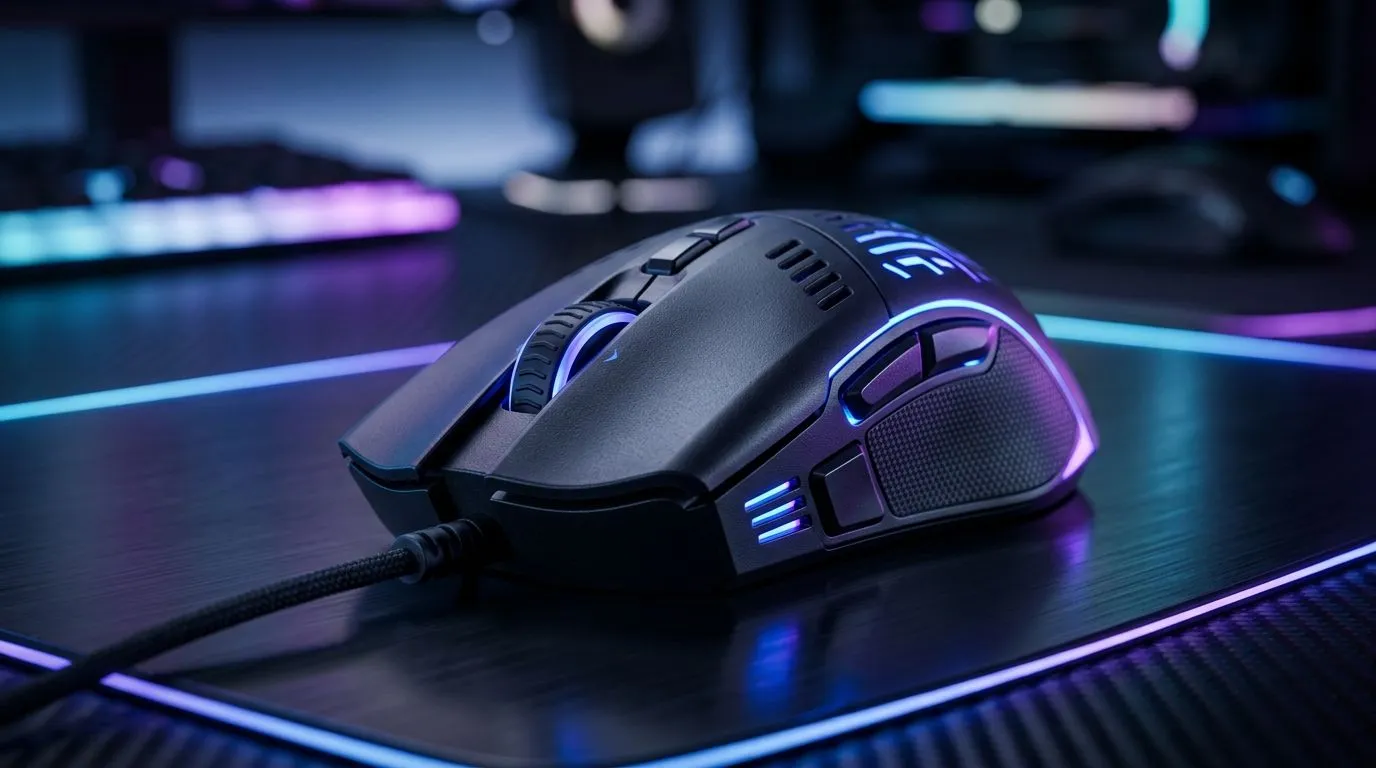
Why Your Gaming Mouse Feels Slow Even with High DPI: the hidden causes 🔍
You crank your DPI to 3200, maybe even higher… and yet your mouse still feels “laggy” or heavy. In South African LAN nights and late-night ranked grinds, that’s a vibe killer. ⚡ The good news? High DPI isn’t the whole story. “Slow” usually comes from tracking, polling, surface, USB settings, or software. Let’s troubleshoot it like a proper performance check.
Fixing “Slow” with high DPI: tracking, polling, and sensor reality 🚀
First, separate feel from speed. DPI is how many counts the sensor turns into pixels. It does not guarantee the sensor will track cleanly at your speed, or that your PC will process input instantly.
Here are the most common culprits:
- Mouse sensor mismatch: Some sensors struggle on glossy desks, cloth with thick texture, or uneven surfaces.
- Polling rate issues: Higher polling (like 1000Hz) can reduce input delay. If your mouse is capable, but your system or cable setup limits performance, you’ll feel it.
- USB power management: Windows can reduce power to USB devices, which can add inconsistency.
- Frame time hitches: If your game stutters, your aim will feel “slow” even with perfect mouse settings.
If you’re shopping or upgrading, start with the basics: wired versus wireless and the sensor choices that match your playstyle. Explore Evetech’s options here:
- Browse gaming mouse accessories to dial in your setup: gaming mouse accessories
- If you want consistent responsiveness, consider a wired build: wired gaming mice
- Prefer cable-free play? Check: wireless gaming mice
Performance Pulse H2: quick tests you can run in 5 minutes ✨
Try these in this order:
- Test on a mouse pad (or swap to one). A lot of “slow mouse” reports are actually surface issues.
- Change USB port: Use a different port, preferably one on the back of your PC.
- Item
- Check your in-game sensitivity: If sensitivity is mismatched between games, muscle memory won’t translate.
- Turn on raw input (if your game supports it): This keeps input more consistent.
Productivity Pro Tip 🔧
On Windows, open your mouse software (if available) and set a fixed polling rate and DPI for testing. Run the same flicks and tracking for 10 minutes on the same surface. If the feel changes after a cable swap, USB port change, or surface swap, you’ve isolated the cause faster than random tweaking.
Choosing the right mouse for responsiveness (not just DPI) ⚡
When buyers ask “What DPI should I get?”, I usually ask a second question… “What will you actually be using the mouse on, and how do you want it connected?”
- Wired: Often the simplest path to stable latency.
- Wireless: Great for comfort, but battery and connection quality matter.
- Sensor and shape: Can change tracking comfort and accuracy more than DPI jumps.
If you’re actively upgrading and want value, keep an eye on current offers. You can compare options and deals here:
- Best gaming mouse deals And if you want to browse specific mouse models built for performance:
- Gaming mouse products
Ready to Find Your Perfect Match? If your mouse feels slow, don’t just chase higher DPI. Choose the right sensor, connection type, and setup for smoother aim and faster reactions. Explore Evetech’s current picks and deals for your next upgrade. Shop the best gaming mouse deals











