

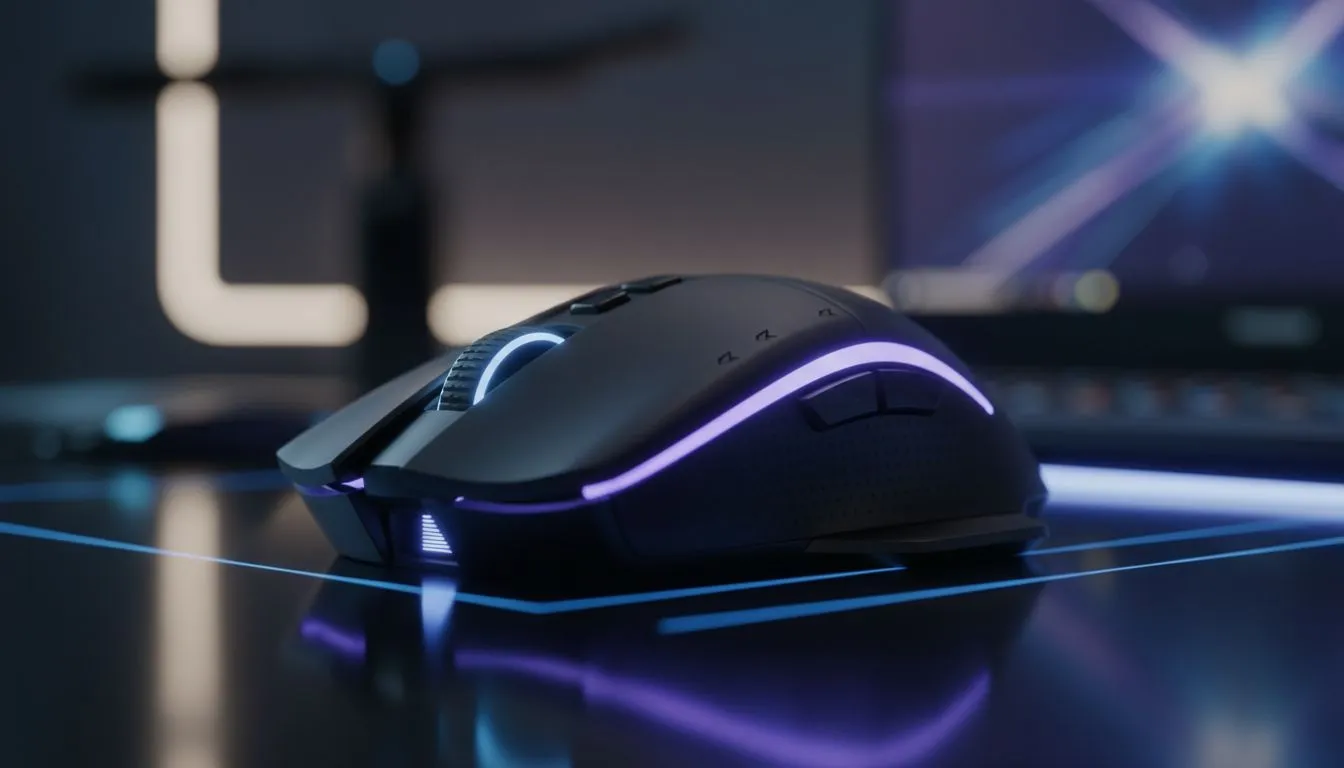
Survival Tactics for Loadshedding Gaming
Loadshedding hits hard. When the grid goes dark, your laptop battery becomes your most precious resource. Optimising your gaming mouse settings for laptop use isn't just about aim... it is about survival. You need to squeeze every minute of playtime before that "Battery Low" warning ends your killstreak. Let's look at how to keep you gaming through the darkness ⚡.
Managing Polling Rates and Battery Life
Most modern gaming mouse options default to a 1000Hz polling rate. This means the mouse talks to your laptop 1000 times per second. While this feels snappy, it puts a heavy load on your CPU and mouse battery. Dropping this to 500Hz or even 250Hz can extend your session significantly. You likely won't feel the difference in casual titles... but your battery certainly will.
Power-Saving Pro Tip ⚡
Create a specific "Loadshedding Profile" in your mouse software. Set the polling rate to 250Hz and disable all RGB. This allows you to toggle between "Performance" and "Survival" modes with a single click as soon as the lights go out.
Lighting and Performance Profiles
RGB looks fantastic, but it is a silent power thief. When hunting for the best gaming mouse deals, look for models with physical "Eco Mode" switches. Turning off all LEDs can save up to 20% of the mouse's power. For laptop users, this also reduces the power drawn through the USB port. Every watt saved is another minute of gameplay during Stage 4 🔧.
Choosing the Right Connection Type
Deciding between a wireless mouse and a wired mouse depends on your specific setup. Wireless offers freedom, but requires its own battery management. Wired mice draw power directly from your laptop. If your laptop battery is healthy, a wired connection is often more reliable during power cuts. Don't forget to keep your mouse accessories like high-quality pads clean to reduce sensor friction and drag 🚀.
Software and Driver Optimisation
Gaming in South Africa requires a bit of strategy. Many mouse drivers stay active in the background and consume resources. When on battery, consider closing heavy software like Razer Synapse or Logitech G Hub once your settings are saved to the on-board memory. This keeps your CPU usage low. Whether you are looking for a budget option under R500 or a high-end sensor... these small tweaks ensure your gaming mouse settings for laptop are perfectly tuned for the South African reality ✨.
Ready to Find Your Perfect Match? Loadshedding is tough, but your gear shouldn't be. For maximum precision, choice, and value in South Africa, our selection is hard to beat. Explore our massive range of gaming mouse specials and find the perfect peripheral to conquer your world.











