

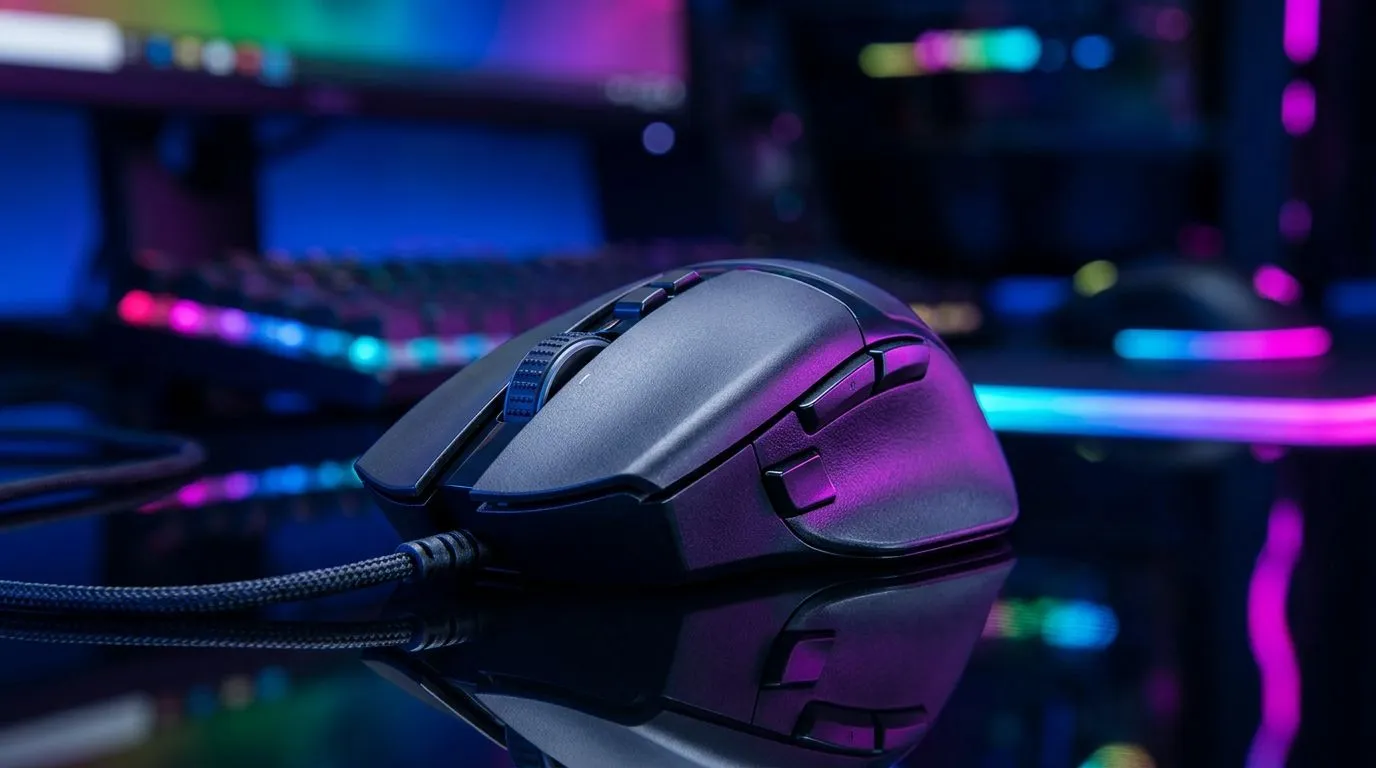
Gaming Mouse Software Configuration: Why It Matters for FPS and Productivity
South African gamers know the feeling… you line up the shot, your aim looks perfect, then your mouse feels “off.” Not broken. Just… not tuned.
Gaming mouse software is where that difference gets made. It helps you control sensitivity, polling rate, lift-off distance, button remapping, and even DPI steps. Get it right and your tracking feels steadier. Get it wrong and you’ll overcorrect all match. 🔧
If you’re also using your mouse for work, the same setup can smooth out everyday tasks. Let’s dial it in properly with a setup guide you can actually follow.
Gaming Mouse Software Configuration: Start With the Basics (Before You Change Anything)
Before you open the software, do two quick things. It’s boring… but it prevents a lot of “why is it worse now?” moments.
Update firmware and set your tracking surface
Check for firmware updates in your mouse software suite. While the exact steps vary by brand, the concept is the same: firmware can fix tracking behaviour and button polling logic.
Also, set your expectations based on your surface. A clean mousepad helps optical and laser tracking behave consistently. If you can, wipe both sensor and pad before you test.
Pick ONE performance profile for gaming
Most software lets you save multiple profiles. Use one for gaming. Use another for desktop productivity. That way, your DPI and button behaviour do not drift between sessions.
Confirm the mouse is running at the right polling rate
Polling rate affects how often your computer receives input. If your system supports higher polling rates, you’ll usually benefit in responsiveness. For best results, make sure your PC settings and the mouse software agree.
If you’re building or upgrading around these choices, start by browsing the mouse selection that fits your style:
- wired options: https://www.evetech.co.za/buy-wired-mouse/x/1596.aspx
- wireless options: https://www.evetech.co.za/buy-wireless-mouse/x/1597.aspx
Gaming Mouse Software Configuration: Sensitivity That Doesn’t Fight Your Hands
Here’s the big truth: “high sensitivity” isn’t a strategy. It’s a gamble. It only works if your mouse control settings match your playstyle.
Use a DPI that feels controllable, not impressive
Try this starting point:
- Set DPI low enough for accurate flicks and micro-adjustments.
- Then raise it in small steps rather than jumping across the entire range.
In-game sensitivity still matters, but the first win is getting consistent movement from your mouse sensor to your reticle.
Set DPI steps intentionally
A common mistake is leaving default DPI steps that don’t match your targets. Instead:
- Pick a low DPI for precision
- Pick one medium DPI for general play
- Optionally add one high DPI for fast repositioning
Then map DPI shift to a button you can hit without looking.
Calibrate acceleration (and avoid it unless you truly need it)
Mouse acceleration can feel “smooth” at first… and then inconsistent under pressure. If your goal is predictable aim, disable acceleration in Windows unless you have a reason to use it.
Gaming Mouse Software Configuration: Polling Rate, Lift-Off Distance, and Real Testing ⚡
This is where configuration becomes skill.
Polling rate: choose what your system can sustain
Higher polling rates are great when your PC handles them comfortably. If you notice stutter, drop to a sensible value and test again.
Lift-off distance: reduce unwanted movement
Lift-off distance controls how the sensor behaves when the mouse is lifted. If you lift your mouse mid-game and the cursor “slides,” your lift-off distance is likely too high for your movement style.
Micro-test method for South African households (time-efficient)
Do not test by aiming at a wall for 10 minutes. Test like this:
- Pick one target in the range or practice mode.
- Do 5 slow tracking passes.
- Do 5 fast flicks to the target.
- Change only one setting.
- Repeat.
Within 15 minutes you’ll know if the change helped.
Productivity Pro Tip 🔧
On Windows, use built-in pointer settings to keep acceleration consistent across applications. Then save your mouse software to a dedicated “Gaming” profile so DPI, polling, and button mappings do not reset when you switch games or alt-tab. This prevents the subtle cursor drift that makes aim feel off.
Gaming Mouse Software Configuration: Button Remapping That Gives You Control
Remappable buttons are your advantage… if you use them deliberately.
Map to actions you repeat every match
Think reload, interact, weapon slots, push-to-talk, or ability usage. If you keep mapping buttons to “nice to have” actions, your muscle memory never locks in.
Avoid “too many features” on one profile
If every button does something different, you’ll overthink. For shooters, keep the gaming profile clean:
- primary left/right behaviour stays default
- one or two side buttons for core abilities
- DPI shift for precision control
- optionally scroll behaviour if your mouse supports it
Use a mouse that matches your grip
Grip style changes how you use buttons. If you’re unsure what to buy before configuration even starts, start here:
- gaming mouse overview: https://www.evetech.co.za/components/gaming-mouse-117.aspx
Then compare wired vs wireless based on your priorities:
- wireless mouse deals: https://www.evetech.co.za/best-gaming-mouse-deals/x/054.aspx
- accessories for tuning comfort: https://www.evetech.co.za/buy-mouse-accessories/x/1595.aspx
Gaming Mouse Software Configuration: Profiles for CS2, Valorant, and Daily Work
One of the easiest ways to avoid aim problems is separating your needs.
Create three profiles if you juggle work and play
- Gaming: your competitive sensitivity, fixed DPI steps, and remapped buttons
- Desktop: a higher DPI for web scrolling and navigation comfort
- Creative or editing: adjust only what helps your workflow
Keep one setting consistent across profiles
The one thing you should keep consistent is button layout for core actions. Your brain hates switching. Keep “confirm” and “ability” style mappings stable where possible.
Save configuration after every testing session
After you tweak polling rate, lift-off distance, and DPI steps… save the profile. Then don’t touch anything else until you test again. 🚀
Gaming Mouse Software Configuration: Quick Troubleshooting Checklist
If your aim feels weird after configuring, use this order:
- Cursor speed in Windows: confirm it isn’t altering your behaviour unexpectedly.
- Acceleration: disable it if you want consistent raw movement.
- Lift-off distance: lower it until “lift and reposition” stops sliding.
- Surface mismatch: clean your sensor and pad.
- Profile switching: make sure the correct profile loads for the game.
If you’re still stuck, it’s usually either an unintended Windows setting or a profile mismatch inside the mouse software.
Ready to dial it in and actually feel the difference?
If you’ve followed the steps, you should notice better tracking and fewer “why did my aim jump?” moments. That’s the whole point of gaming mouse software configuration… to turn your hardware into muscle memory.
Ready to Find Your Perfect Match? The Mac vs Windows debate is complex, but for maximum power, choice, and value in South Africa, Windows is hard to beat. Explore our massive range of laptop specials and find the perfect machine to conquer your world.











