

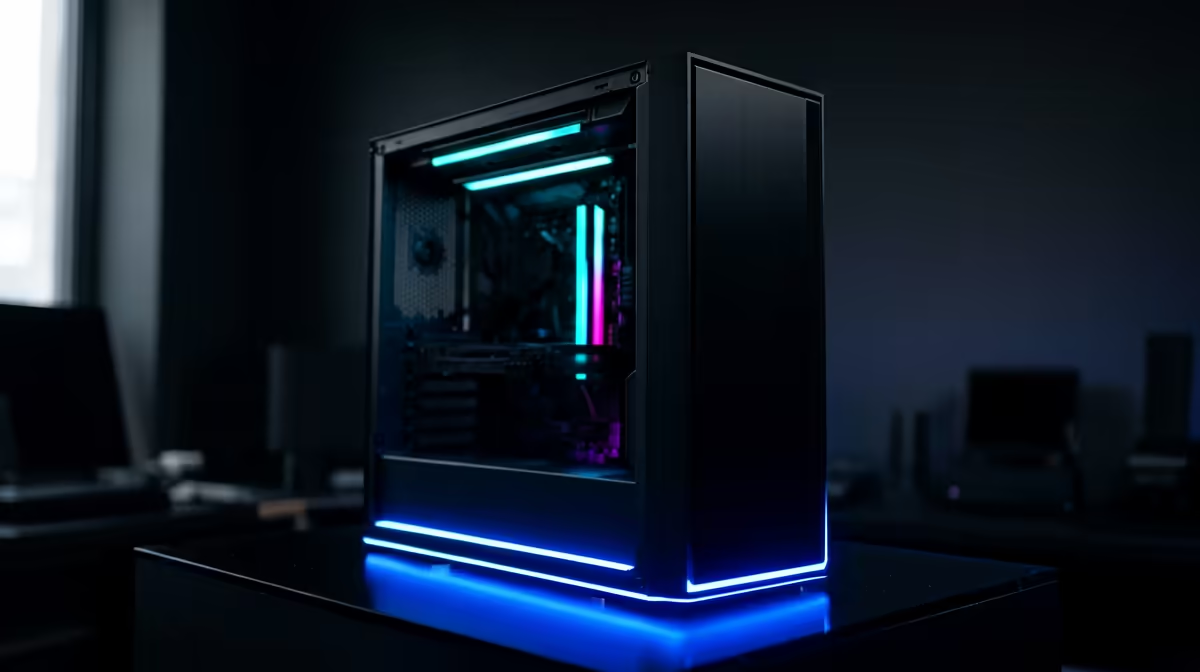
You’re in the final circle. It’s a 1v1. You line up the perfect shot... and your frames drop to a stuttering mess. Your PC fans are screaming like a jet engine, and you can feel the heat radiating from your case. A gaming PC overheating at a critical moment is more than just frustrating; it’s a match-losing disaster. Before you start pricing new hardware, let's run through the essential checks to cool your rig down.
Why is My Gaming PC Overheating? The Usual Suspects
At its core, a PC is a powerful heater. Every component, from your CPU to your GPU, generates heat as it works. The cooling system's job is to move that heat away. When your computer is overheating while gaming, it's usually because one of three things has gone wrong: dust is blocking airflow, the airflow path itself is poor, or the heat transfer from the components has become inefficient. This leads to thermal throttling, where your PC intentionally slows itself down to prevent damage.
Your Step-by-Step Troubleshooting Guide 🔧
Before you panic, let's work through the most common causes of a gaming PC overheating. These simple steps can often solve the problem without you having to spend a cent.
Step 1: The Deep Clean (Dust is Your Enemy)
Dust is the number one enemy of a cool PC. It clogs up fan blades, insulates heatsinks, and blocks mesh filters, effectively suffocating your components.
- Power Down: Completely shut down and unplug your PC.
- Get Outside: If possible, take your PC outside or to a well-ventilated area.
- Use Compressed Air: Use short, controlled bursts of canned air to blow dust out of your fans, GPU heatsink, CPU cooler, and case filters. Never use a vacuum cleaner directly on components!
- Wipe Down: Use a microfibre cloth to wipe down fan blades and flat surfaces.
Regularly cleaning your rig is crucial, especially after long sessions in demanding titles. A system that runs smoothly in PUBG for hours on end is likely a clean one.
Step 2: Optimise Your Airflow
Even a dust-free PC can overheat if the air isn’t moving correctly. Your case fans should create a clear path for air to travel through.
- Check Fan Direction: Typically, front fans should be intake (pulling cool air in), and rear/top fans should be exhaust (pushing hot air out).
- Cable Management: Messy cables can block the airflow path. Tuck them away as neatly as possible to create an open channel for air.
- Give it Space: Ensure your PC has at least a few inches of clear space around it, especially at the back and top, to breathe properly.
A well-configured airflow setup is vital for fast-paced games where thermal throttling can ruin your K/D ratio, making it a key factor for any dedicated Overwatch 2 PC.
Cooling Pro Tip 💨
Most modern motherboards let you control fan speeds in the BIOS UEFI. Set up a custom "fan curve" that ramps up the speed based on CPU temperature. This keeps your PC quiet during light tasks but ensures maximum cooling when you're pushing it hard in a game. It's a simple tweak for a much cooler experience.
Step 3: Re-evaluate Your Thermal Paste
Between your CPU and its cooler is a thin layer of thermal paste. This substance fills microscopic gaps to ensure efficient heat transfer. Over years, it can dry out and become useless. If your PC is more than 3-4 years old and has never had it replaced, this could be your culprit. Replacing it is a bit more hands-on but is often the magic fix for an overheating CPU, especially when running intense simulations like those in a Microsoft Flight Simulator gaming rig.
When Software and Settings are the Problem
Sometimes, the issue isn't hardware but how you're using it. Pushing your system to its absolute limit will naturally generate more heat.
- Ambitious Settings: Running a visually stunning game like Cyberpunk 2077 with all settings, including ray tracing, cranked to ultra will turn your GPU into a small furnace. Try lowering a few non-essential settings.
- Background Processes: Check Task Manager (Ctrl+Shift+Esc) for unnecessary apps eating up your CPU or GPU resources while you game.
- Driver Updates: Ensure your graphics card drivers are up to date. Sometimes, optimisations in new drivers can reduce a game's load on your hardware.
Even a game that seems simple on the surface, like a heavily modded version of Minecraft, can put a surprising amount of strain on a system if not properly optimised. For competitive players, stable thermals are non-negotiable for the consistent performance needed in Counter-Strike 2 or when building and battling in Fortnite.
Knowing When It's Time for an Upgrade ✨
You've cleaned, you've tweaked, you've repasted... but your PC still sounds like it's about to take off when you drop into Verdansk. If your hardware is several years old, it might just be struggling to keep up with the demands of modern games. The intense firefights in Call of Duty: Warzone 2.0 or the sprawling world of GTA V can push older components past their thermal limits, no matter how well-maintained they are.
Sometimes, the best PC overheating fix is a modern chassis with superior airflow, a more powerful CPU cooler, or simply a more efficient new-generation graphics card.
Ready for a Cooler Gaming Experience? If you're tired of battling high temps, it might be time for a rig built for modern gaming. A PC that runs cool isn't a luxury... it's a competitive advantage. Explore our range of expertly cooled gaming PCs and find the perfect machine to dominate the lobby, not your thermostat.











