

Master the Light: GTA 6 HDR Settings for PC
We have all seen the neon-soaked trailers... the humid Florida heat practically radiates off the screen. To truly experience the vibrant world of Leonida, you need to master your GTA 6 HDR settings: prepare your PC for realism before the first pixel even drops. High Dynamic Range is not just a toggle... it is the difference between a flat image and a world that feels alive.
Why HDR is Non-Negotiable for Leonida
Rockstar Games has always pushed lighting boundaries. In GTA 6, the contrast between the dark Everglades and the blinding sun of Vice City will be extreme. Proper HDR calibration ensures that you do not lose detail in the shadows while keeping the highlights from "clipping" or becoming a white blob. To get this right, your hardware needs to be up to the task.
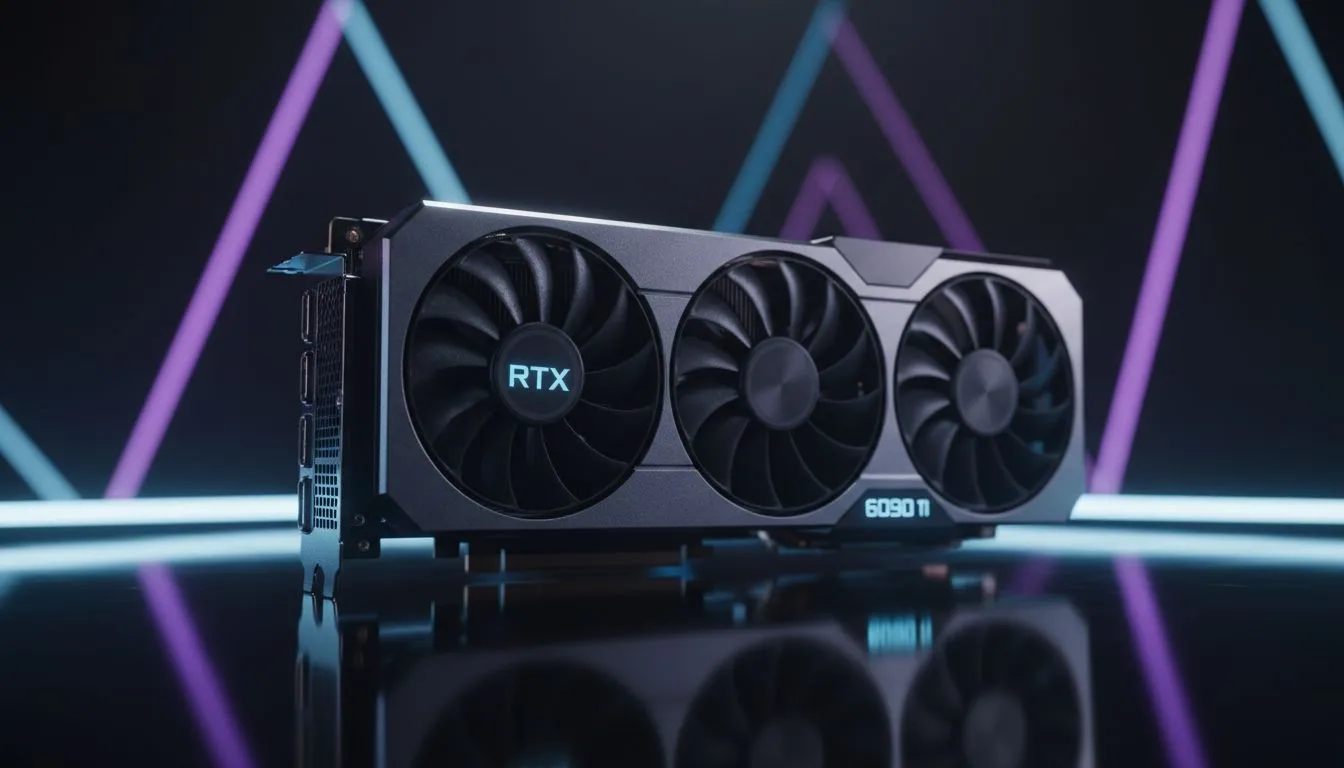
If you are currently running an older rig, you might want to browse the latest NVIDIA and ATI graphics cards to find a GPU with the necessary bandwidth for 10-bit colour depth.
Choosing the Right Hardware for the Job
Not all GPUs handle HDR metadata the same way. For those who want a reliable experience with top-tier cooling, MSI graphics cards are a fantastic choice for maintaining stable clock speeds during intense rendering sessions. The better your GPU, the more accurately it can map those high-nit values to your display.
If you are building a budget-conscious rig for the next generation of gaming, Intel Arc graphics cards provide a modern entry point with solid AV1 support and HDR capabilities. Alternatively, if you are a professional who also needs to render high-resolution video, high-end workstation graphics cards can handle the massive texture loads expected in such a vast open world.
HDR Calibration Pro Tip ⚡
Before launching GTA 6, download the Windows HDR Calibration tool from the Microsoft Store. It helps you set the exact peak brightness of your monitor... this ensures you do not lose detail in the bright Florida-inspired skies or the dark neon alleys.
Optimising for Peak Realism
To get the most out of your GTA 6 HDR settings, you need to understand "Peak Brightness" and "Paper White" levels. Peak Brightness should match your monitor’s actual nit rating... usually 400, 600, or 1000. Setting this too high will wash out the image. Setting it too low makes the world look dull.
For those who prefer raw power and plenty of VRAM to handle those high-resolution HDR textures, AMD Radeon graphics cards offer incredible value in the South African market. Having that extra memory buffer is vital when you are pushing 4K resolution with HDR enabled.
Preparing Your Setup for Launch
Preparing for the biggest release of the decade means more than just a software update. It is about ensuring your entire pipeline... from the GPU to the HDMI 2.1 cable... can handle the data. In South Africa, where high-end displays can cost upwards of R10,000, you owe it to your eyes to ensure the settings are perfect.
Keep your drivers updated and make sure "Auto HDR" is configured correctly in your Windows settings. When GTA 6 finally arrives, you will be ready to see Vice City in a whole new light. 🚀
Ready to Find Your Perfect Match? The quest for realism starts with the right hardware. For maximum power, choice, and value in South Africa, upgrading your GPU is the best way to prepare for the future. Explore our massive range of graphics card specials and find the perfect machine to conquer Leonida.











