Stuttering frame rates in the final circle? A sudden lag spike during a boss fight? We’ve all been there. Before you start pricing new GPUs, take a breath. That beast of a machine might just need a good clean. This guide will show you how to clean your PC for performance, get rid of frustrating lag, and get you back in the game… fast. 🚀
This process has two parts: the physical dust-out and the digital declutter. Let's get to it.
The Physical Clean: Banish Dust & Lower Temps
Dust is more than just ugly; it’s a performance killer. It clogs fans and insulates components, trapping heat. When your CPU or GPU gets too hot, it automatically slows down (throttles) to protect itself. The result? Stuttering, frame drops, and lag.
A simple clean can seriously boost your PC's cooling and restore its speed.
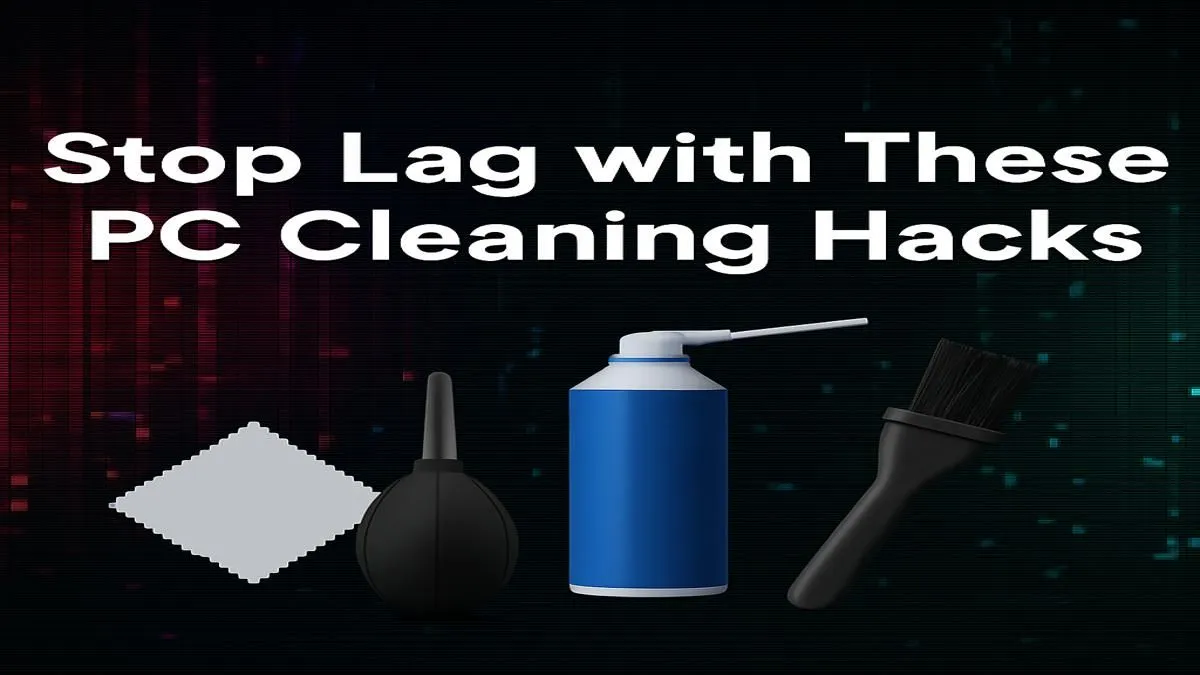
What You'll Need
- A can of compressed air
- A microfibre cloth
- A Phillips-head screwdriver
- An anti-static wrist strap (optional, but recommended)
Step-by-Step Guide 🔧
- Power Down & Unplug: Shut down your PC completely. Unplug the power cable and all peripherals. Move it to a well-ventilated area—doing this outside is even better.
- Open the Case: Remove the side panel. For most PCs, this is held on by two screws at the back.
- Blast the Dust: Using short bursts of compressed air, blow dust out of the case, starting from the top and working your way down. Pay special attention to fan blades (on the case, CPU, and GPU) and heat sinks. Important: Hold the fan blades with your finger to stop them from spinning too fast, which can damage them.
- Wipe Down: Use the microfibre cloth to gently wipe down surfaces and cables.
- Close Up: Put the side panel back on, plug everything in, and you're done.
If your rig is a few years old, the amount of dust can be daunting. Sometimes starting fresh is the best way to guarantee performance, and you don't have to break the bank. There are some excellent budget gaming PCs that offer a massive leap in performance for a fair price.
The Digital Declutter: Optimise Your Software for Speed
A clean PC on the inside is just as important. Over time, your system gets bogged down with old files, unnecessary programs, and background processes that eat up resources.
Uninstall What You Don't Use
Go to Settings > Apps > Apps & features on Windows. Sort by "Install date" and look for old games or software you no longer touch. Click the three dots and select "Uninstall". Every program you remove is one less thing that could be slowing you down. This is especially vital on high-performance machines, where you want every bit of power directed to your game, not bloatware. The best powerful gaming PCs over R20k deserve clean software to run at their peak.
Pro Tip: Windows Storage Sense ⚡
Windows has a built-in tool called Storage Sense that automatically frees up space by deleting temporary files and emptying your Recycle Bin. Go to Settings > System > Storage and toggle it on. It’s a simple, set-and-forget way to keep your main drive from getting clogged up, which is crucial for fast loading times.
Tame Your Startup Programs
Many apps launch themselves when you start your PC, slowing down boot times and hogging memory.
- Press
Ctrl + Shift + Esc to open Task Manager. - Click the "Startup" tab.
- Right-click and "Disable" any non-essential programs (e.g., Spotify, Discord) from launching on startup. You can still open them manually when you need them!
Update Your Drivers
Outdated graphics drivers are a common cause of poor gaming performance. Both NVIDIA (GeForce Experience) and AMD (Adrenalin Software) have apps that make updating your GPU drivers a one-click process. This simple step can deliver a noticeable FPS boost in new games. Whether you're running one of our great-value PCs under R20k or a custom-built monster, updated drivers are non-negotiable.
Final Tweaks to Stop Lag Fast ✨
Once the big cleaning tasks are done, a few final software tweaks can squeeze out extra performance.
- Set Power Plan to High Performance: Go to
Control Panel > Hardware and Sound > Power Options and select "High Performance" or "Ultimate Performance". This tells Windows to prioritise speed over energy saving. - Enable Game Mode: In Windows Settings, go to
Gaming > Game Mode and make sure it's turned on. This helps Windows optimise your PC for gaming by managing background processes.
Getting these settings right from the get-go is one of the perks of a professionally assembled machine. If you'd rather spend your time gaming than tweaking, you can check out our latest pre-built PC deals that are optimised right out of the box.
By following these steps, you can significantly improve your PC's performance and stop lag fast. A little maintenance goes a long way to keeping your gaming experience smooth and enjoyable.
Ready for a Lag-Free Experience?
A clean PC is a fast PC. But if you've decluttered, dusted, and still aren't hitting the frames you want, it might be time for an upgrade. Stop fighting lag and start dominating the lobby. Explore our best gaming PC deals and find the perfect machine to conquer your world.