Is your sleek, lightweight laptop hot enough to fry an egg on? You’re not alone. Here in South Africa, our warm climate combined with demanding tasks like gaming or video editing can push thin laptops to their thermal limits. Before you resign yourself to laggy performance and the roar of tiny fans, know this: you can take control. This guide will show you exactly how to stop laptop overheating and get your machine running cool and quiet again.
Understanding Why Your Laptop is Overheating
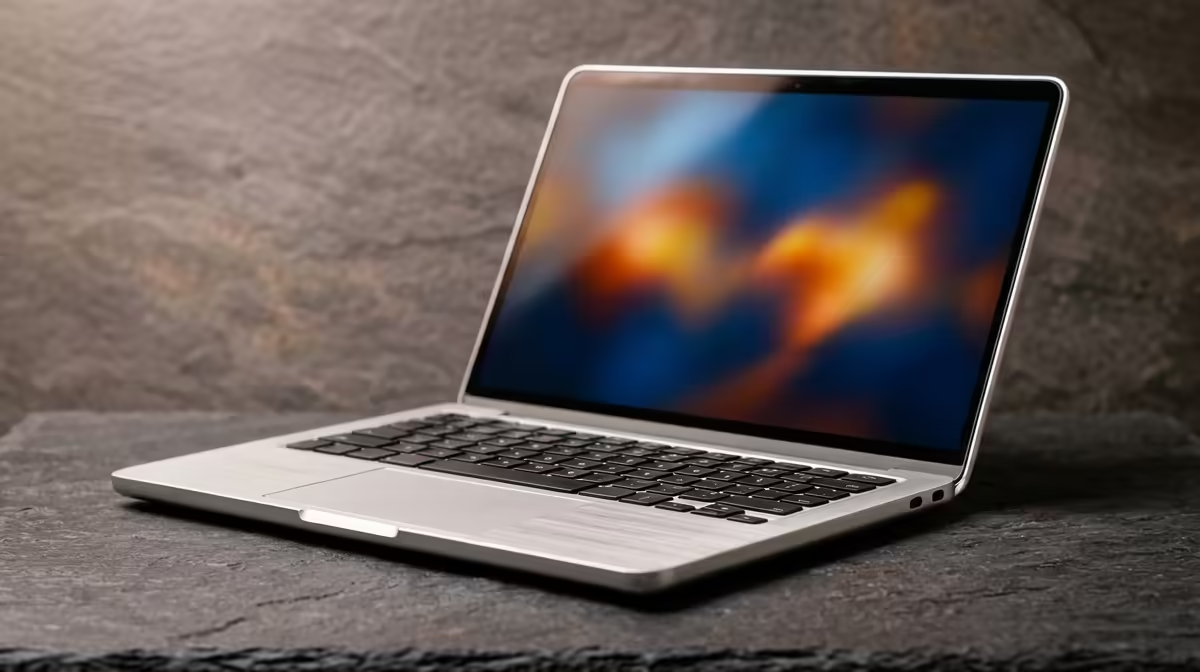
Lightweight laptops are marvels of engineering, but their slim design creates a fundamental challenge: heat dissipation. There's simply less space for large fans and chunky heatsinks. When you're pushing the CPU or GPU with games, intensive software, or even just too many browser tabs, the heat builds up faster than the small cooling system can remove it.
Common culprits include:
- Blocked Vents: Dust is the number one enemy of a cool laptop.
- Poor Airflow: Using your laptop on a soft surface like a bed or couch is a surefire way to suffocate its air intakes.
- Demanding Software: Modern games and applications can max out your components, generating serious heat.
- Ageing Hardware: Older components are often less efficient and their thermal paste may have dried out, hindering heat transfer.
Quick Fixes to Stop Laptop Overheating 🌬️
Before you consider anything drastic, let's cover the essential, easy steps that solve most overheating issues. These methods are all about improving airflow and reducing unnecessary system load.
Optimise Your Environment
Where you use your laptop matters... a lot. The simplest way to help prevent laptop overheating is to give it space to breathe.
- Use a Hard, Flat Surface: Always place your laptop on a desk or table. This ensures the rubber feet raise it just enough for air to circulate underneath.
- Avoid Soft Furnishings: Beds, couches, and carpets block the intake vents, trapping hot air and causing temperatures to skyrocket.
- Consider a Laptop Stand: A stand elevates your device, dramatically improving airflow all around the chassis. Some even come with built-in fans for active cooling.
If your machine is still struggling after these basic fixes, it might be showing its age. Often, the most effective long-term solution is upgrading to a machine with a more modern, efficient cooling design. You can browse a wide variety of current laptop specials for sale in South Africa to see what's available.
Windows Power Plan Pro Tip ⚡
Your laptop's power plan has a huge impact on heat. Navigate to 'Power Options' in the Control Panel. Instead of 'High Performance', select 'Balanced'. This allows your CPU to scale its speed down when idle, significantly reducing heat output and saving battery life without sacrificing performance when you actually need it.
Clean Your Vents & Fans 🔧
Over time, dust, lint, and pet hair get sucked into your laptop and clog the heatsink fins. This acts like a blanket, trapping heat inside. Cleaning it out can make a massive difference.
Disclaimer: Proceed with caution. If you're not comfortable, seek professional help.
- Power Down Completely: Shut down your laptop and unplug it from the charger.
- Locate the Vents: Find the exhaust and intake vents, usually on the sides, back, or bottom.
- Use Compressed Air: Use short, controlled bursts of compressed air to blow the dust out of the vents. Don't blow it deeper inside. Hold the can upright to avoid spraying liquid propellant.
Advanced Solutions for Better Thermals
If the basic fixes aren't enough, it's time to look at the software and hardware. Modern processors are incredibly good at managing their own temperatures. For example, many of the latest AMD laptops on special feature intelligent power-shifting technologies that optimise performance per watt, keeping things cooler under load.
Similarly, the architecture in today's Intel laptops on special often includes a mix of powerful performance-cores and efficient e-cores, which helps the system run cooler during everyday tasks by using less power. If your current laptop is a few generations old, you might be fighting a losing battle against less efficient hardware.
For older machines out of warranty, replacing the thermal paste between the CPU/GPU and the heatsink can restore its original cooling capability. However, this is an advanced procedure that requires careful disassembly.
Ultimately, preventing laptop overheating comes down to a combination of good habits and capable hardware. Keep it clean, give it air, and when the time comes, invest in a machine built for the demands of modern computing. ✨
Ready for a Cooler, Faster Experience? While these tips can help you manage laptop overheating, sometimes the best solution is an upgrade. Modern laptops are designed with far superior cooling. Explore our massive range of laptop specials and find a machine that stays cool under pressure.