

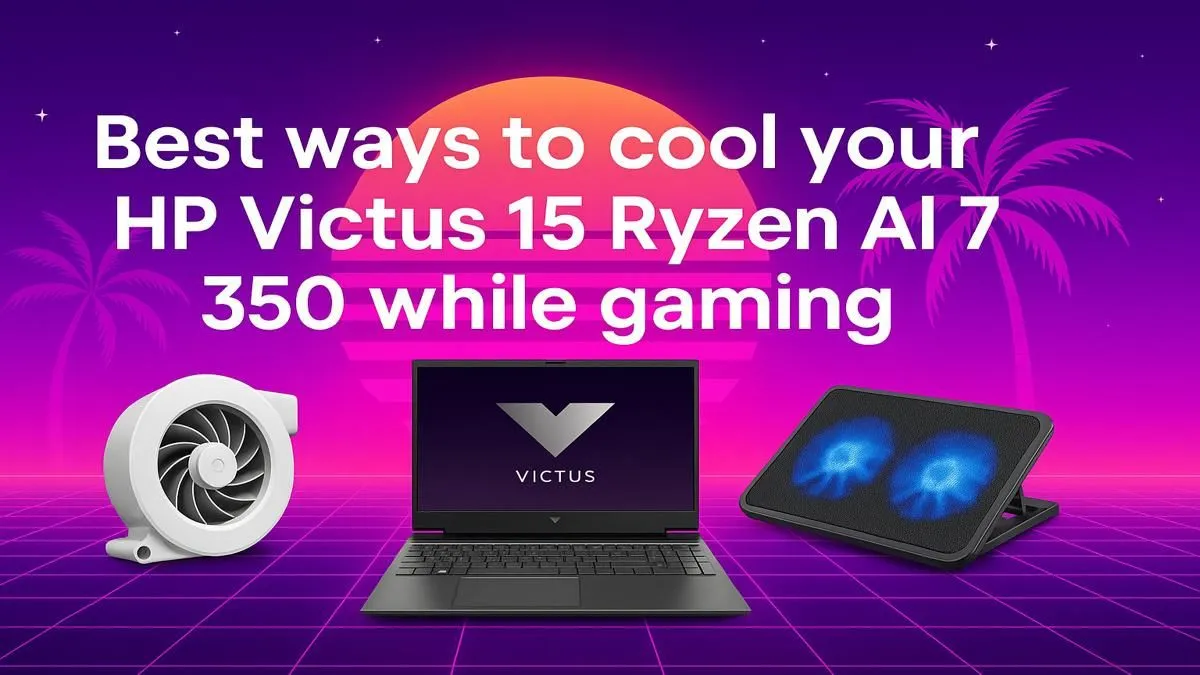
You’re in the final circle in Warzone, the tension is thick, and victory is just one clean headshot away. Suddenly, your frames per second plummet. Your screen stutters. It’s not your internet… it’s your laptop gasping for air. The HP Victus 15 is a fantastic machine for South African gamers, but push it hard and you'll encounter its biggest challenge: heat. This guide provides pro tips on improving your HP Victus 15 cooling to stop overheating and keep you in the fight.
Understanding Your HP Victus 15's Cooling System
Before we dive into the fixes, let's quickly understand the problem. Gaming laptops pack immense power into a slim chassis. Your CPU and GPU work overtime, generating a serious amount of heat. The HP Victus 15 cooling system, with its fans and heat pipes, is designed to expel this heat. However, when the heat builds up faster than it can be removed, your laptop engages a safety feature called "thermal throttling."
Essentially, it slows itself down to prevent damage. That's the frustrating lag you feel mid-game. The key to consistent performance is managing those thermals effectively.
Pro Tips for Better HP Victus 15 Cooling
You don't need to be a tech wizard to solve most HP Victus 15 overheating issues. These practical, easy-to-implement tips will make a massive difference to your gaming sessions. 🚀
Tip 1: Elevate and Ventilate 🌬️
This is the simplest and most effective first step. Your laptop's air intake vents are on the bottom. Placing it on a soft surface like a bed, couch, or even your lap completely suffocates them.
Always game on a hard, flat surface like a desk. For an instant cooling boost, elevate the back of the laptop with a book or a proper stand. This allows cool air to circulate freely underneath, drastically improving the cooling system's efficiency. Even a small elevation can lower temperatures by several degrees. This simple trick applies to all makes and models, so it's a great habit to get into whether you're browsing for general laptop specials for sale in South Africa or optimising your current machine.
Tip 2: Keep It Clean
Dust is the arch-nemesis of any PC component. Over time, dust bunnies and grime build up on your fan blades and clog the heatsink fins, trapping heat inside. If your laptop is running hotter than it used to, a good clean is probably in order.
You can clean the vents using short, controlled bursts of compressed air. This will dislodge the worst of the dust and improve airflow.
Safety First! 🔧
Before using compressed air, make sure your laptop is completely turned off and unplugged. To prevent damage, hold the can upright and use a finger or a paperclip to gently stop the fan blades from spinning freely while you spray. Over-spinning a fan with compressed air can damage its motor.
Tip 3: Optimise Your Software Settings
Your software can be a powerful tool for managing thermals. The HP Victus typically comes with the OMEN Gaming Hub pre-installed. Open it and look for performance control settings. Setting the fan mode to "Performance" or creating a custom, more aggressive fan curve will make the fans spin faster and sooner, keeping temperatures in check.
This is crucial for getting the most out of your hardware, especially if you're running one of the latest powerful Intel laptops on special that can generate significant heat under load. Also, don't be afraid to slightly lower in-game settings like shadows or anti-aliasing; you often won't notice the visual difference but your GPU will thank you with lower temps.
Tip 4: Invest in a Laptop Cooling Pad
If you've tried the tips above and still need better cooling for long gaming marathons, a cooling pad is a brilliant investment. These pads sit under your laptop and use additional fans to force cool air directly into the intake vents. They are an external solution that actively assists your laptop's built-in system.
This accessory is a must-have for serious gamers, providing an extra layer of thermal security for any high-performance machine, including the latest efficient AMD laptops on special that are known for their great performance-per-watt.
Is Overheating a Sign You Need a New Laptop?
Following these steps will significantly improve your HP Victus 15 cooling performance. However, there comes a point where an older machine simply can't keep up with the demands of new games, no matter how cool it runs. If you've cleaned your laptop, optimised your settings, and it's still struggling to deliver playable frame rates, the hardware itself might be the bottleneck.
If you find yourself constantly battling low FPS and thermal throttling, it might be time to explore some of the best gaming laptop deals and upgrade to a machine with a more robust, modern cooling solution. ✨
Ready for a Performance Upgrade? If your current rig is holding you back, don't let overheating ruin another game. Explore our massive range of high-performance gaming laptops and find the perfect machine to conquer your world, lag-free. Browse the Best Gaming Laptop Deals in SA











