

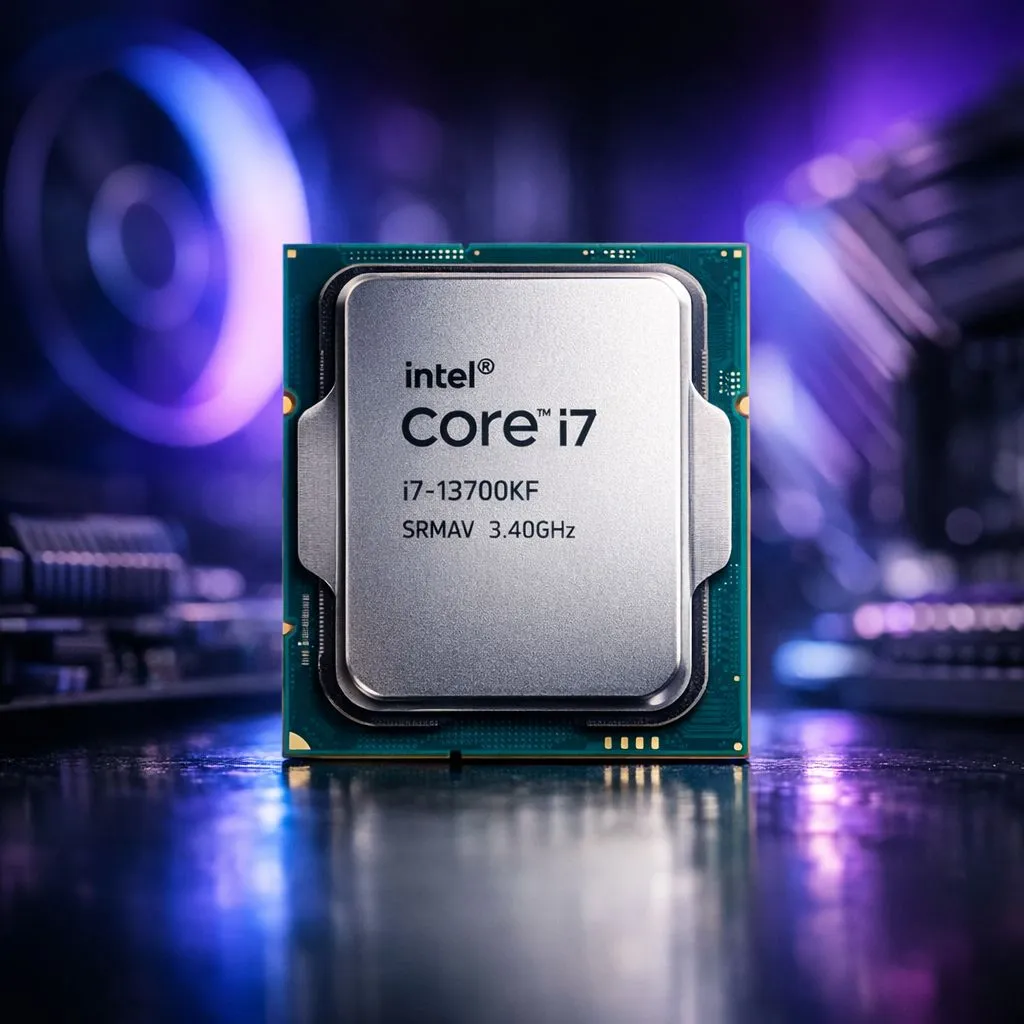
So, you’ve snagged the powerhouse Intel Core i7-13700KF for your rig. Lekker! But here’s a hard truth: out of the box, you’re likely leaving a chunk of its performance on the table. Motherboard manufacturers often ship with "safe" default settings. This guide will walk you through the essential i7 13700KF BIOS settings to unlock the raw power you paid for, giving you higher frame rates and a much snappier system.
Why Default BIOS Settings Hold Your i7-13700KF Back
Think of your motherboard's default BIOS as a speed limiter. It's designed for maximum stability across a huge range of components, not for maximum performance. For a high-end chip like the 13700KF, these conservative settings can create a bottleneck.
The main culprits are often restrictive power limits (known as PL1 and PL2) and standard memory profiles. These defaults prevent the CPU from boosting as high or as long as it's capable of, especially during intense gaming sessions or heavy workloads like video rendering. By making a few targeted adjustments, we can tell the system to take the brakes off and let the processor really stretch its legs. ⚡
Essential i7 13700KF BIOS Settings to Change First 🔧
Before we dive in, remember that every BIOS interface looks a bit different (ASUS, MSI, Gigabyte, etc.), but the names for these core settings are usually very similar. Reboot your PC and tap the 'DEL' or 'F2' key to enter the BIOS.
1. Enable XMP (Extreme Memory Profile)
This is the single most important setting to change. Your fast DDR5 RAM will run at a slow, standard speed until you enable its XMP profile. Enabling it is like telling your RAM to run at the speed advertised on the box.
- What it does: It automatically applies the correct voltage, frequency, and timings for your memory kit.
- Why it matters: A fast CPU needs fast memory. Running slow RAM cripples the 13700KF, leading to lower FPS in games. Getting this right is fundamental, which is why pairing the right components from the start is so crucial when browsing for Intel CPUs.
2. Unleash the Power Limits (PL1/PL2)
Intel CPUs have two power states: PL1 (long-term boost) and PL2 (short-term boost). By default, your motherboard might limit these to prevent high temperatures. If you have a decent cooling solution, you can safely increase them.
- What to do: Look for "CPU Power Management" or a similar menu. You can often set PL1 and PL2 to the same high value, effectively allowing the CPU to maintain its maximum boost clock indefinitely under load. Many motherboards have a simple "Unlock" or "Max Performance" option that does this for you.
- The benefit: This is key for optimising the i7-13700KF for tasks that last more than a few seconds, like gaming or compiling code. While Intel is known for raw speed, it's always worth seeing how the competition handles multi-core loads; checking the specs on modern AMD Ryzen CPUs can offer a valuable perspective on the market.
3. Understand Multi-Core Enhancement (MCE)
This is an aggressive, all-in-one auto-overclocking feature found on many motherboards. When enabled, it forces all processor cores to run at the maximum single-core boost frequency.
- The Trade-off: MCE gives you a noticeable performance bump, but it also massively increases heat output and power consumption. If you don't have a high-end AIO cooler or a massive air cooler, enabling MCE can lead to thermal throttling, which reduces performance.
- Our advice: If you have amazing cooling, feel free to enable it. If you're using a mid-range cooler, it's often better to leave it disabled and rely on unlocking the power limits for a more balanced performance uplift.
Advanced i7-13700KF Performance Tuning 🚀
Once you've handled the basics, these finer adjustments can help you lower temperatures without sacrificing much performance. This level of fine-tuning is what separates a good build from a great one, especially when you're working with high-performance multi-core chips. Whether it's the 16 cores in your 13700KF or the chips in the popular 14-Cores Intel CPU bracket, managing thermals is key.
CPU Lite Load Control (MSI Motherboards)
If you have an MSI motherboard, this setting is fantastic. It controls the voltage curve applied to your CPU. The default "Auto" setting is often too generous with voltage, creating unnecessary heat.
- How to use it: Try setting CPU Lite Load to a lower mode, like "Mode 9" or "Mode 7". This acts as a slight undervolt, often dropping CPU temperatures by 5-10°C under load with little to no performance loss. You'll need to test for stability, but the thermal benefits are well worth it.
Keep an Eye on Your Vitals 👀
Use software like HWiNFO64 and Cinebench R23 to monitor your temps and test stability after each BIOS change. Don't just "set and forget." A 10-minute Cinebench run will quickly reveal if your cooling can handle the new settings. This is a crucial step for safe performance tuning.
Adjust Your Fan Curves
With the CPU now running hotter, your default fan curves might not be aggressive enough. Dive into the BIOS fan control section (often called 'Fan-Tastic' or 'Smart Fan') and set a more responsive curve for your CPU cooler's fan. Aim to have the fans ramp up to 80-100% speed once the CPU hits around 75°C. Managing heat is a universal challenge, whether you're optimising an Intel chip or a powerful AMD Ryzen 7 series CPU, making a good cooling solution non-negotiable.
By applying these i7 13700KF BIOS settings, you're not just overclocking... you're ensuring the processor delivers the full performance it was designed for. Happy tweaking! ✨
Ready to Unleash True Power? Getting your BIOS settings right is the final step after choosing great hardware. If you're looking to build a new rig or upgrade your core components, having the right CPU is where it all starts. Explore our incredible range of Intel CPUs and build a PC that leaves compromise in the dust.











