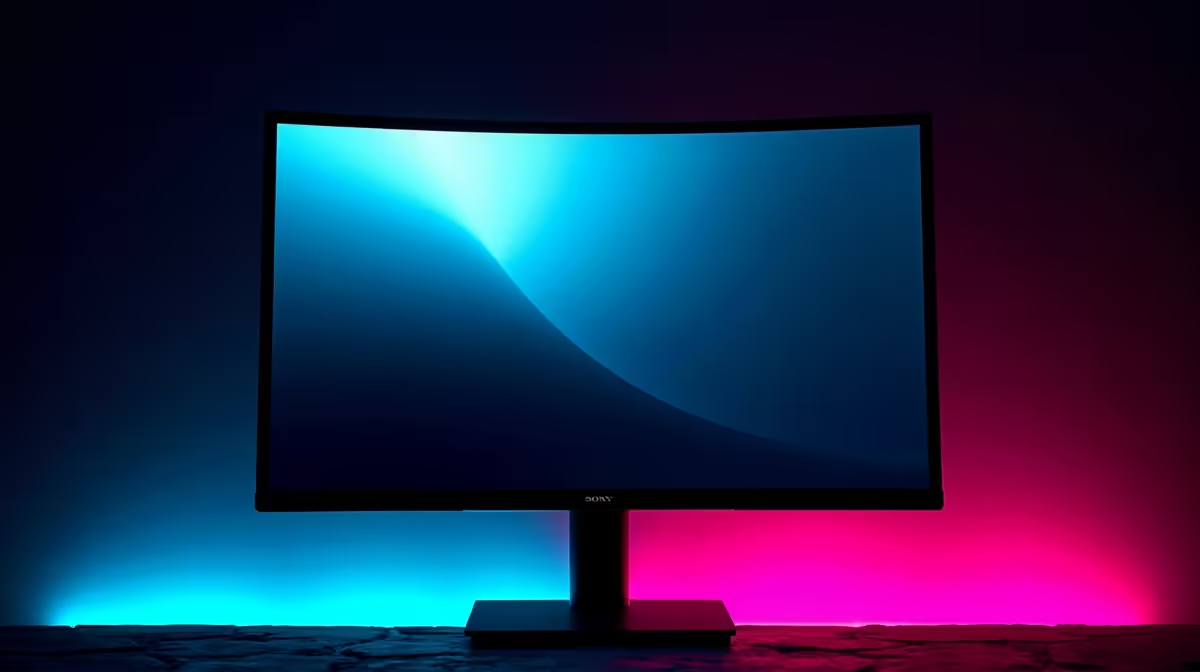
You’ve just unboxed your shiny new gaming monitor, boasting Full Array Local Dimming (FALD) for those promised, inky, OLED-like blacks. You fire up a dark scene in Cyberpunk 2077 or a space epic on Netflix... but what’s this? A ghostly halo of light is bleeding around your crosshair and the subtitles. That, my friend, is local dimming blooming, a common side effect of an otherwise brilliant technology. Let's break down what it is and how to manage it.
Understanding Local Dimming and the Blooming Effect
At its core, local dimming is a clever trick. Instead of a single backlight, FALD monitors use a grid of individual LED zones that can brighten or dim independently. When a part of the screen is black, the zones behind it switch off, creating incredible contrast. This technology is a key feature in many of the best PC monitors available today.
The problem arises from a mismatch in precision. The LED zones are much larger than the individual pixels they illuminate. Local dimming blooming occurs when a bright object on screen forces an entire zone to light up, causing its light to spill over and illuminate adjacent dark pixels, creating a visible "halo" or "bloom". 🌃
The Main Culprits Behind Monitor Blooming
So, why do some screens show more distracting blooming than others? It usually comes down to a few key factors. Understanding them is vital, whether you're browsing through all gaming monitors or just trying to optimise your current setup.
Zone Count and Algorithm
The number of dimming zones is the biggest factor. A monitor with only 32 zones will have much larger, blockier areas of light control than a premium Mini-LED display with over 1,000 zones. More zones mean finer control and less noticeable blooming. The monitor's processing algorithm also plays a huge role; a smarter algorithm can manage the transitions between zones more gracefully, reducing the harshness of the effect, which is especially important on high-resolution 5K and 4K monitors where detail is paramount.
Content and Contrast
You won't notice blooming while browsing a bright webpage. It's most aggressive in high-contrast scenes:
- White text on a black background (subtitles, credits).
- A bright moon in a dark night sky.
- Loading icons or cursors on a black screen.
- Explosions and UI elements in dark game environments.
Essentially, any small, bright object isolated in darkness will expose the limitations of the local dimming zones.
Spotting and Testing Blooming Yourself ✨
The blooming effect can be subtle or jarring depending on the display technology and even the shape of the screen. For instance, the viewing angles on some curved monitors can sometimes accentuate blooming when viewed off-centre. Even some high-end portable monitors are now adopting local dimming, making it a factor across different form factors.
Want to see how your own monitor handles it? It’s easy to test.
DIY Blooming Test 💡
Pull up a "local dimming test" video on YouTube on a completely dark screen. These videos often feature a small white object moving against a pure black background. In a dark room, move the object around and watch the edges closely. You'll quickly see the backlight zones trying to keep up and spot any noticeable halo effect or light bleed.
Tips to Minimise Blooming on Your Display
While you can't completely eliminate the local dimming blooming inherent to an LCD's design, you can absolutely reduce its impact. A few simple tweaks can make a world of difference. 🔧
First, dive into your monitor's OSD (On-Screen Display). Many models have a "Local Dimming" setting with options like Low, Medium, and High. Setting it to "High" is the most aggressive and often produces the most bloom. Try knocking it down a step.
Second, consider bias lighting. Placing a simple LED strip behind your monitor creates a soft, ambient glow on the wall. This clever trick reduces eye strain and makes your brain perceive on-screen blacks as deeper, making the blooming effect far less distracting. Simple additions from our monitor accessories section can make a huge difference.
Ultimately, the best way to manage blooming is to choose a monitor that fits your tolerance for it. For many, the incredible contrast is worth the minor trade-off. For others, a display with a higher zone count is the answer. Finding a display that balances performance and price is key, and our best PC monitor deals are the perfect place to start your search.
Ready to Find Your Perfect Display?
While local dimming blooming is a reality for many LCDs, understanding it helps you choose the right screen for your needs. From budget-friendly workhorses to elite Mini-LED and OLED panels, the perfect visual experience is waiting. Explore Evetech's massive range of PC monitors and find the perfect match to conquer your world.