

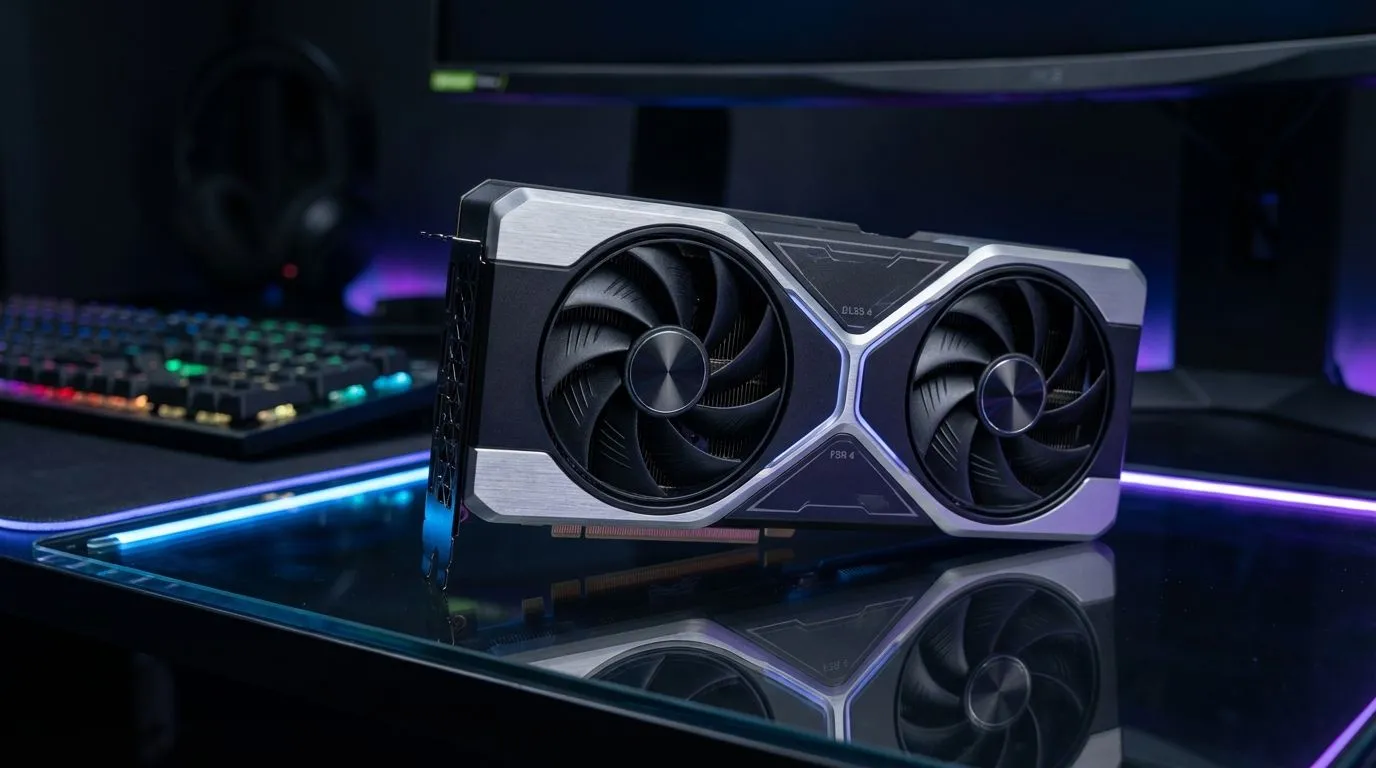
Marvel Rivals is taking South Africa by storm, but many local players are reporting a frustrating smudge on their screens. If your heroic brawls look more like a water-colour painting than a high-octane shooter, you are not alone. Achieving a Marvel Rivals Blurry Graphics Fix requires understanding how modern upscalers interact with the game’s fast-paced engine... especially when comparing the latest DLSS 4 vs FSR 4 technologies.
Why Marvel Rivals Looks Blurry on PC
The primary culprit for visual fuzziness in Marvel Rivals is often the implementation of Temporal Anti-Aliasing (TAA) combined with aggressive upscaling. While these technologies help maintain high frame rates during chaotic team fights, they can introduce a "ghosting" effect. To sharpen your image, you need to find the sweet spot between resolution scale and sharpening filters ⚡.
If you are looking to brute-force your way to clarity, browsing the latest NVIDIA or AMD graphics cards is the most reliable way to ensure you can run the game at native resolution without compromises.
DLSS 4 vs FSR 4: The Battle for Clarity
NVIDIA’s DLSS 4 and AMD’s FSR 4 represent the next frontier in AI-driven upscaling. While previous versions focused heavily on frame generation, these newer iterations prioritise image reconstruction to eliminate the shimmer seen in fast-moving objects. For South African gamers running high-refresh monitors, the choice of hardware dictates which "fix" is available.
Those who swear by the reliability of MSI graphics cards will likely benefit from NVIDIA’s proprietary AI tensors, which handle the Marvel Rivals Blurry Graphics Fix better than standard spatial upscalers. However, Team Red fans shouldn't feel left out. The newest AMD Radeon graphics cards use FSR 4 to provide a cleaner image that rivals native 4K... even on mid-range hardware.
Performance Pro Tip ⚡
If the game still looks blurry after adjusting upscaling, try disabling 'Motion Blur' and 'Depth of Field' in the video settings. These post-processing effects often clash with DLSS or FSR, creating a muddy look during fast camera movements. Setting your 'Sharpening' slider to roughly 30% usually provides the crispest edge without adding digital noise.
Choosing the Right Hardware for Marvel Rivals
Not every GPU is built the same when it comes to handling modern AI upscaling. While many enthusiasts focus on gaming-specific chips, even Intel Arc graphics cards have entered the fray with impressive XeSS support that helps mitigate blur in competitive titles.
Interestingly, while workstation graphics cards are designed for rendering and CAD, their massive VRAM pools show how important memory bandwidth is for maintaining texture clarity at high resolutions. For the average gamer in Jozi or Cape Town, sticking to the latest consumer architectures is the best way to ensure your Marvel Rivals experience is pixel-perfect 🚀.
Quick Fixes for Immediate Results
- Set Upscaling to 'Quality' or 'Ultra Quality'... never 'Performance' at 1080p.
- Ensure your Windows Display Scale is set to 100%.
- Update to the latest Game Ready drivers from your manufacturer. ✨
Ready to Find Your Perfect Match? The DLSS vs FSR debate is complex, but for maximum power, choice, and value in South Africa, a hardware upgrade is hard to beat. Explore our massive range of graphics card specials and find the perfect machine to conquer Marvel Rivals.





