

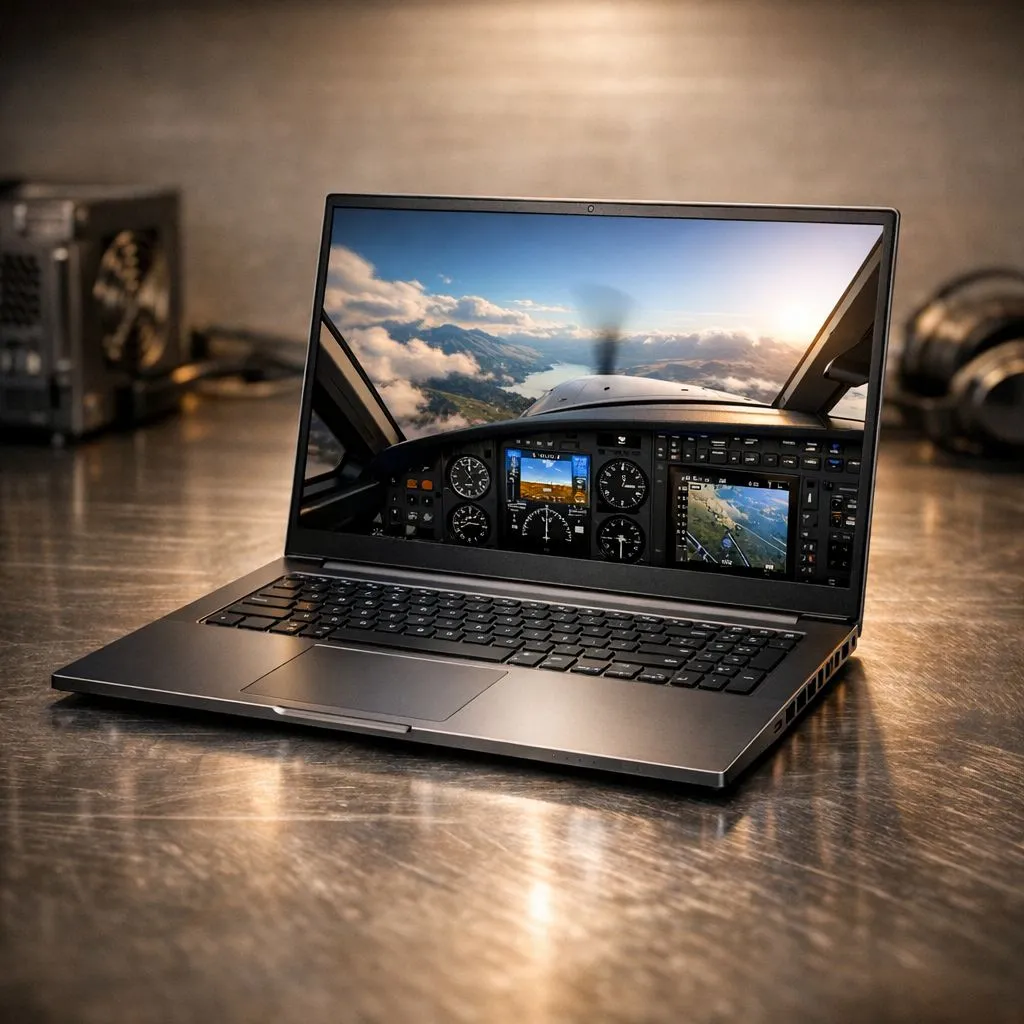
Optimising MSFS laptop settings for performance
Flying over the Drakensberg in Microsoft Flight Simulator is a visual treat. However... it is less fun when your laptop sounds like a jet engine. Finding the right MSFS laptop settings is a delicate dance. You want smooth frames without the deafening fan noise. Let's look at how to optimise your portable rig for the best flight experience in South Africa 🚀.
Visuals versus volume
The first step to a quiet flight is managing your resolution. While 4K looks stunning... it puts massive strain on your GPU. If you are browsing GeForce RTX gaming laptops on special, you should use DLSS. This technology upscales the image. It allows you to render at a lower resolution while maintaining sharp visuals. This significantly reduces heat and fan noise ✨.
Flight Deck Pro Tip ⚡
Always cap your frame rate to 30 or 60 FPS within the MSFS settings menu. Uncapped frames force your GPU to work at 100% constantly. This triggers aggressive fan curves. Capping the frame rate keeps the temperature stable and the noise levels predictable during long hauls across the Karoo.
Balancing CPU load and thermal acoustics
Microsoft Flight Simulator is notoriously heavy on the processor. Using Intel laptops on special? Choose the "Balanced" power profile instead of "Turbo". Turbo modes often push clocks to the limit for a tiny gain... but they result in a massive increase in fan noise. Lowering "Terrain Vector Data" and "Trees" also takes the weight off your CPU.
Hardware-specific tweaks
For those who prefer Team Red, checking out Ryzen laptop deals is a smart move. These chips are known for efficiency. By tweaking your MSFS laptop settings to "Medium" for shadows... you can keep the machine cool. This ensures your flight remains immersive without the constant drone of cooling fans in the background.
High-end visuals on a budget
You do not need to spend a fortune to enjoy the virtual skies. There are many capable gaming laptops under R20k that handle the sim beautifully. Stick to 1080p and use the "High" preset as a baseline. Turn off "Motion Blur" and "Bloom" to save a few extra frames. This reduces the processing load and keeps your lap cool 🔧.
If you are ready for an upgrade, keep an eye on the best gaming laptop deals available at Evetech. Modern cooling solutions in newer chassis are much better at handling heat. Remember to keep your laptop on a hard, flat surface. This allows for maximum airflow. This simple trick can drop temperatures by several degrees.
Ready to Find Your Perfect Match? Balancing flight performance and acoustics is easier with the right hardware. For the best value and performance in South Africa, our curated selection is ready for takeoff. Explore our massive range of laptop specials and find the perfect machine to conquer your world.











