

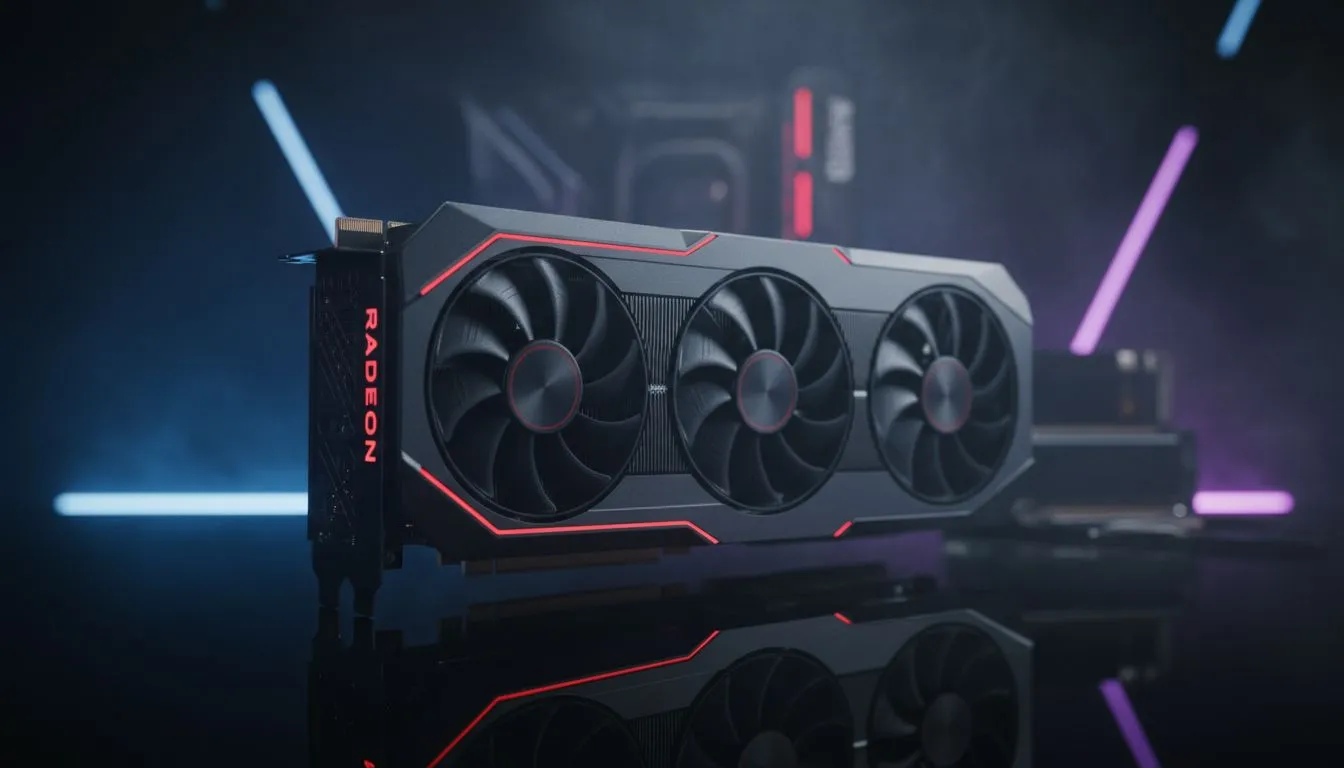
Tired of your frame rate dipping just as you’re about to clutch a 1v3 in Apex Legends? For South African gamers, every frame counts when the ping is already against us. Learning how to optimise AMD Radeon settings for maximum FPS in popular games is the quickest way to boost performance. You do not need a degree in engineering... just a few clicks in the Adrenalin software. ⚡
Fine-Tuning the Adrenalin Software for Speed
The first step to better performance is ensuring your software environment is clean. AMD’s Adrenalin Edition is a powerful tool, but many users leave it on default settings. To truly optimise AMD Radeon settings for maximum FPS in popular games, you should start by navigating to the 'Gaming' tab.
Ensure you are running the latest drivers. If you are looking to upgrade your current rig, checking out the latest Radeon Graphics Cards is a great place to start. Within the software, toggle 'Radeon Anti-Lag' to 'On'. This feature reduces input lag by controlling the pace of the CPU work... ensuring it does not get too far ahead of the GPU.
Key Graphics Features to Toggle
Under the 'Graphics' sub-tab, you will find several toggles that impact your visuals and speed. Turn off 'Radeon Chill' and 'Radeon Boost' unless you are on a very low-end system. For most gamers using modern MSI components, these can sometimes cause inconsistent frame pacing.
Instead, focus on 'Radeon Image Sharpening'. Set this to around 80%. It provides a crisp look with almost zero performance cost. This allows you to lower your in-game render scale slightly while maintaining visual clarity. Many users find this combination provides a smoother experience than even some high-end GeForce Graphics Cards without similar tweaks.
Performance Pro Tip ⚡
Always disable 'Wait for Vertical Refresh' (V-Sync) in your driver settings and in-game menus if you have a FreeSync monitor. V-Sync introduces noticeable input lag. Use a frame rate cap slightly below your monitor's refresh rate instead to keep things buttery smooth without the delay.
Leveraging FSR for Heavy Titles
If you are playing demanding titles like Starfield or Cyberpunk 2077, FidelityFX Super Resolution (FSR) is essential. This upscaling technology can turn a stuttering 40 FPS into a fluid 75 FPS. It is the most effective way to optimise AMD Radeon settings for maximum FPS in popular games without sacrificing too much detail. 🔧
Sometimes, even the best software tweaks cannot hide aging hardware. If you find your current card struggling despite these changes, it might be time to browse our full range of graphics cards. You can often find entry-level upgrades starting around R4,500 that will significantly outperform older flagship models. 🚀
Ready to Boost Your Frame Rate? Software tweaks are only half the battle. To truly dominate the leaderboards in South Africa, you need the right hardware backing you up. Explore our massive range of graphics card specials and find the perfect GPU to power your ultimate gaming setup.











