


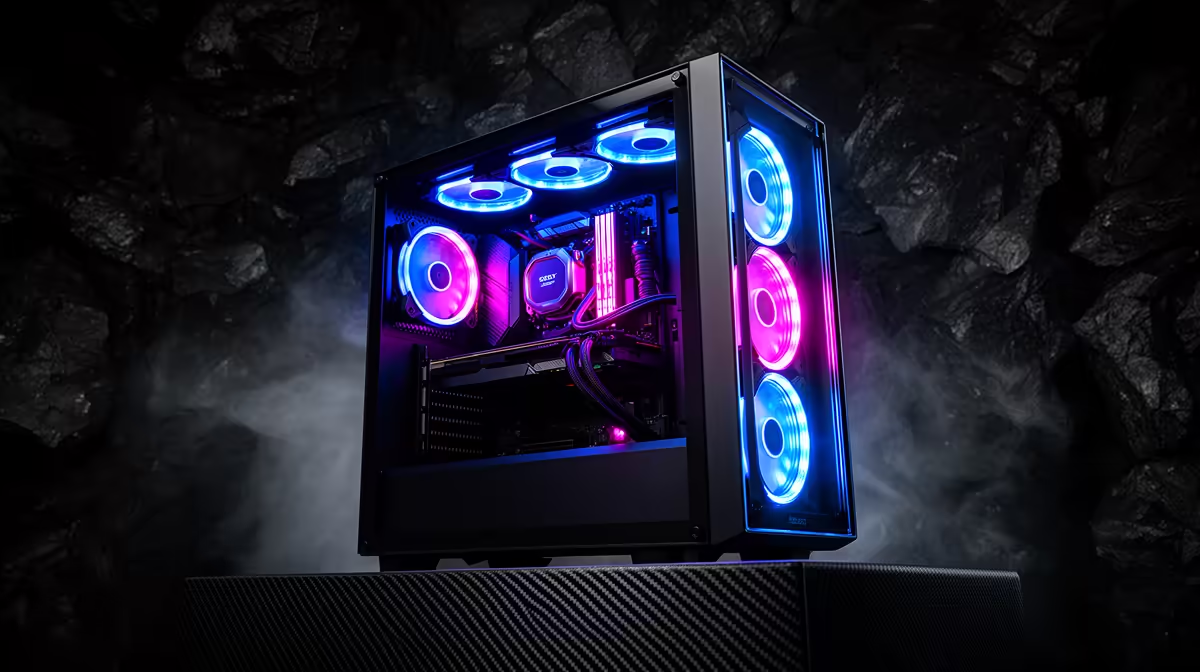
You're in a 1v3 clutch on Anubis. The bomb is planted. Your heart is pounding. You peek, line up the perfect shot... and your frames drop. The screen stutters for a split second, but that's all it takes. You're spectating again. Sound familiar? For many South African gamers, this is a frustrating reality. But you don't always need a beastly rig to compete. Let's show you how to optimise your budget gaming PC for the smooth, responsive gameplay you need.
The Free FPS Boost: Software & System Tweaks 🔧
Before you even think about opening your wallet, the biggest performance gains are hiding in your system's settings. Achieving peak esports performance often starts with cutting out the digital clutter and telling your PC to focus on one thing: the game. These tweaks are essential for any rig, especially the fantastic value-for-money budget gaming PCs that form the backbone of our local competitive scene.
Fine-Tune Your Windows Setup
Your operating system is busy doing a thousand things in the background. It's time to tell it to chill.
- Enable Game Mode: Search for "Game Mode settings" in Windows and flick it on. This simple toggle helps Windows prioritise your game, dedicating more resources to it when it's running.
- Disable Startup Apps: Press
Ctrl + Shift + Escto open Task Manager, go to the "Startup" tab, and disable anything you don't need running the moment your PC boots up (e.g., Spotify, Discord, Steam). You can always open them manually later. - Adjust Power Plan: Go to "Power & sleep settings" > "Additional power settings" and select the "High performance" plan. This ensures your CPU isn't throttling itself to save a bit of power.
Master Your Graphics Drivers
Both NVIDIA and AMD provide powerful control panels to fine-tune your GPU. Dive into your NVIDIA Control Panel or AMD Software: Adrenalin Edition and look for global settings. Prioritise "Performance" over "Quality" and turn on features like "Low Latency Mode." This reduces the delay between your mouse click and the action appearing on screen—absolutely critical in esports.
Pro Tip: Upscaling for the Win 🚀
Both AMD (FidelityFX Super Resolution - FSR) and NVIDIA (NVIDIA Image Scaling - NIS) offer driver-level upscaling. You can enable this to run your game at a lower internal resolution (like 900p) and have the driver intelligently scale it up to your monitor's native resolution (like 1080p). It's a fantastic way to gain a significant FPS boost with a minimal loss in visual quality.
Beyond the Settings: Smart Hardware Housekeeping
Software tweaks can only go so far if your hardware is struggling. A little physical maintenance can make a surprising difference, especially on systems that have been running for a while. This applies to all machines, but it's particularly important for getting the most out of popular builds like our gaming PCs under R20k, where every component is working hard.
First, clean your PC! Dust is the enemy of performance. It clogs fans and insulates components, causing them to overheat and throttle (slow down). A can of compressed air and a few minutes of your time can literally lower your temperatures and increase your average FPS.
Second, if you're still running your games from a traditional hard disk drive (HDD), an upgrade to a Solid-State Drive (SSD) is one of the most noticeable improvements you can make. It won't necessarily give you more frames, but it will drastically cut down loading times and reduce in-game stuttering.
Knowing When to Upgrade for Peak Esports Performance
You've tweaked, you've cleaned, you've optimised... but you're still not hitting that consistent 144 FPS. This is the point where you've reached the limits of your current hardware. No amount of software magic can make a 4-core CPU perform like an 8-core beast.
If your PC is starting to show its age, it might be time to consider the next step. Moving up to a more powerful platform, like the expertly crafted gaming rigs above the R20k mark, unlocks a new level of performance and future-proofing. Or, if you'd rather skip the hassle of building and tweaking altogether, exploring the latest pre-built PC deals ensures you get a balanced, optimised machine right out of the box.
Ultimately, optimising your budget gaming PC is a powerful skill. It teaches you about your hardware and empowers you to get the most value for your money. But remember, the goal is to enjoy your games, not fight with your settings.
Ready to Dominate the Leaderboard? Squeezing performance from your current rig is smart, but sometimes a fresh start is the ultimate upgrade. Explore our best gaming PC deals and find a machine built for victory.









