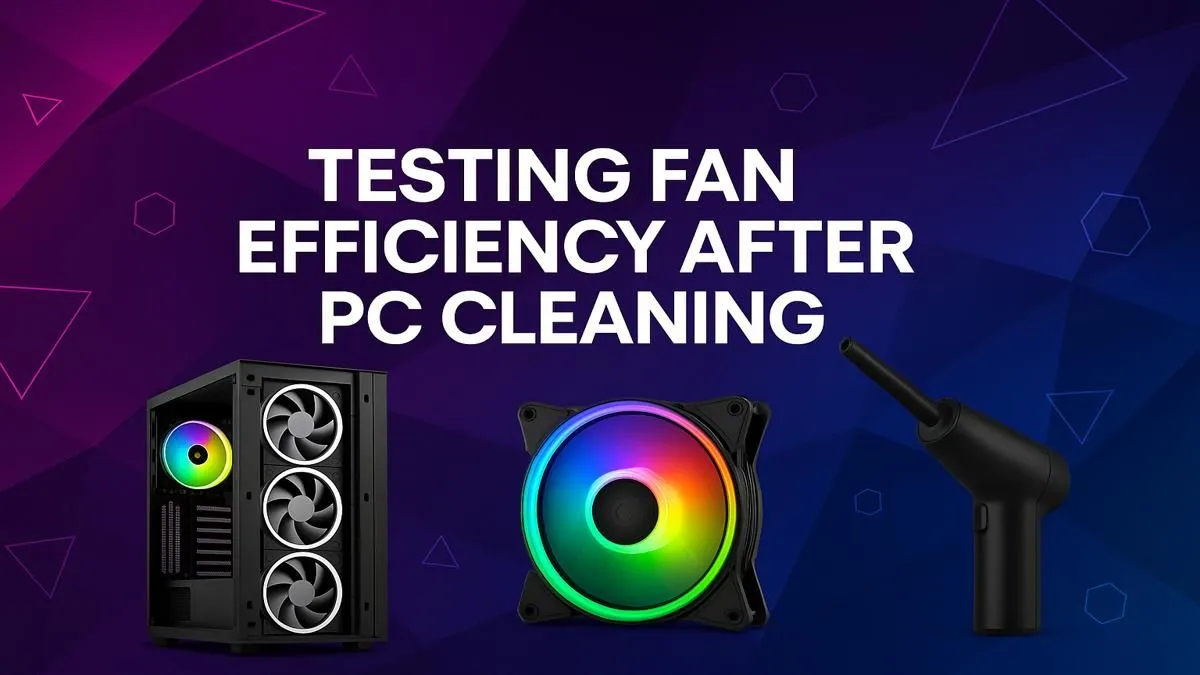
You’ve just blasted the last dust bunny out of your rig. It looks pristine, but how do you know it’s running cooler? A proper PC fan speed test is the only way to confirm your hard work paid off. It’s the difference between a quiet, cool gaming beast and a jet engine struggling to breathe. Let’s check those Revolutions Per Minute (RPMs) and ensure your machine is running at peak efficiency after that deep clean. 💨
Why a PC Fan Speed Test is Crucial After Cleaning
Giving your PC a good clean is one of the most satisfying parts of maintenance. But looks can be deceiving. Dust doesn't just look bad; it insulates components and forces your fans to work harder to keep temperatures down. Over time, this can lead to thermal throttling—where your CPU and GPU slow down to avoid overheating, robbing you of precious frames in the middle of a match.
Performing a fan efficiency test after cleaning gives you hard data. It confirms that:
- Your fans are actually working: You might have accidentally unplugged a header.
- They are responding to load: The speed should increase as the PC heats up.
- Your cooling is effective: Lower temperatures at similar fan speeds mean your cleaning worked.
This is vital for any rig, from entry-level budget gaming PCs to high-end custom builds.
How to Check Your PC Fan Speed: Two Easy Methods
You don’t need fancy lab equipment to conduct a meaningful PC fan speed test. You can get all the info you need from your computer's built-in systems or with free, trusted software.
Method 1: Checking Fan Speed in the BIOS/UEFI
Your PC’s BIOS (Basic Input/Output System) or the more modern UEFI (Unified Extensible Firmware Interface) is the first place to look. It gives you a direct reading from the motherboard.
- Restart your computer.
- As it boots up, press the designated key to enter the setup. This is usually
DEL,F2,F10, orF12. Your motherboard's splash screen will tell you which one. - Navigate to a section called "Hardware Monitor," "PC Health Status," or "System Information."
- Here, you'll see a list of your connected fans (CPU_FAN, CHA_FAN, etc.) and their current speed in RPM.
This method is great for a quick, baseline check to ensure everything is connected and spinning.
Method 2: Using Software in Windows 🔧
For real-time monitoring while you game or work, software is the way to go. This allows you to see how your fans react under stress, which is the most important part of any fan performance check. Many modern PCs under R20,000 have components that benefit greatly from this kind of detailed monitoring.
Popular Free Tools:
- HWMonitor: A lightweight and straightforward tool that shows a massive list of system stats, including temperatures, power usage, and fan speeds.
- MSI Afterburner: A must-have for gamers. While famous for overclocking, its on-screen display can show you fan speed and temps right inside your game.
- SpeedFan: An older but still powerful tool that gives you more control over fan speeds, though it can be a bit more complex to set up.
Simply download, install, and run one of these applications to see your fan speeds listed in RPM.
Custom Fan Curve Pro Tip ⚡
Use software like MSI Afterburner or your motherboard's utility to set a custom fan curve. This lets you define how fast your fans should spin at specific temperatures. You can create a profile that's whisper-quiet for browsing and ramps up aggressively for intense gaming, giving you the perfect balance of noise and cooling performance.
What Are Good Fan Speeds? Understanding Your Results 🌡️
So, you have the numbers... but what do they mean? There is no single "perfect" RPM. A good fan speed is one that is appropriate for the task at hand.
- At Idle (browsing, desktop): Fans should be spinning relatively slowly and quietly, perhaps between 500-1000 RPM.
- Under Load (gaming, rendering): As your components heat up, fan speeds should increase significantly, potentially reaching 2000 RPM or more, depending on the fan model.
The key takeaway from your PC fan speed test is responsiveness. If your fans are screaming at full speed while you're just on the desktop, or if they fail to speed up when you launch a game, you have a problem. Well-configured systems, like many of the pre-built PC deals available, are optimised to have these responsive cooling profiles straight out of the box.
When Cleaning Isn't Enough: Is It Time for an Upgrade? ✨
What if you’ve cleaned your PC and the fan test shows they're spinning like crazy, but your temperatures are still high? This could point to a few issues: dried-out thermal paste, a failing fan motor, or simply a PC case with poor airflow design.
For powerful components found in many PCs above R20,000, an inadequate cooling solution can be a major performance bottleneck. If your current setup just can't keep up anymore, it might be a sign that an upgrade is the most effective long-term solution. A new chassis with better airflow or a full system upgrade can make a world of difference. Checking out the best gaming PC deals can give you an idea of what modern cooling standards look like.
Ready for an Ice-Cold Upgrade? A clean PC is a happy PC, but if your fans are still struggling, it might be time for a new rig with superior airflow. Explore our massive range of Gaming PCs and find a machine built to stay cool under pressure.