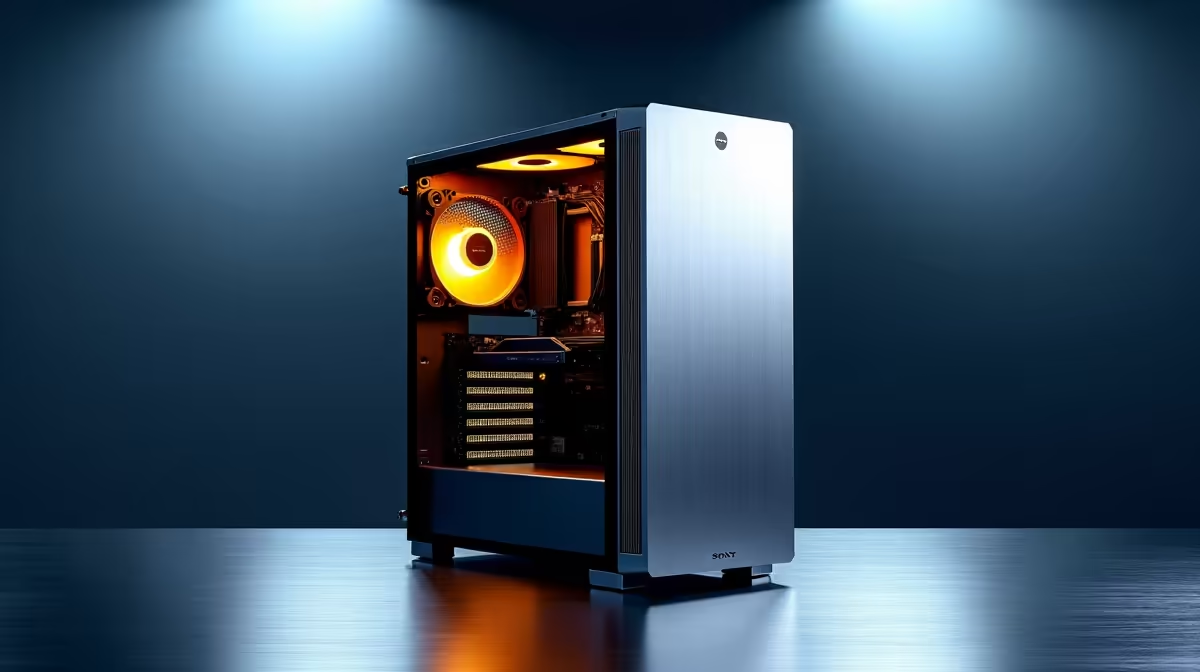
You’ve invested in a powerful DeepSeek PC, a beast built to crush the latest titles and handle demanding workloads. But are you protecting that investment? In South Africa's often warm climate, keeping your components cool and running smoothly isn't just a good idea… it's essential for performance and longevity. Using the right PC health monitoring tools is the key to unlocking your rig's full potential and preventing costly damage before it happens. 🔧
Why You Need to Monitor Your PC's Health
Think of it as a dashboard for your high-performance machine. Without proper monitoring, you're essentially flying blind. High temperatures can cause "thermal throttling," where your CPU or GPU automatically slows down to prevent overheating. This means you're leaving performance on the table, experiencing frustrating stutters in-game, or suffering from longer render times.
Regularly checking your PC's vitals helps you:
- Prevent Overheating: Catch rising temperatures before they cause permanent damage.
- Diagnose Bottlenecks: Figure out exactly which component is holding your system back.
- Optimise Performance: Tweak fan speeds and settings for the perfect balance of cooling and noise.
- Ensure Stability: Avoid random crashes during a critical boss fight or when exporting a massive project.
Whether you're running one of the latest AMD Radeon gaming PCs or a powerhouse from another team, these principles are universal.
Top PC Health Monitoring Tools for SA Gamers
Getting started with system monitoring is easier than you think. Most of the best tools are free and incredibly powerful. Here are a few essentials every PC owner in South Africa should have installed.
1. HWMonitor: The Classic Vitals Checker
For a straightforward, no-nonsense look at your system's core stats, HWMonitor is perfect. It gives you a detailed list of temperatures, fan speeds, voltages, and clock speeds for all your main components in one clean interface. It’s lightweight, reliable, and the first tool you should grab to get a baseline reading of your PC's health.
2. MSI Afterburner: The In-Game Essential
Don't let the name fool you. While it's famous for overclocking, its real magic for most gamers is the RivaTuner Statistics Server that comes with it. This lets you display a customisable on-screen display (OSD) while you play. You can see your GPU temperature, CPU usage, frame rates (FPS), and more in real-time. It’s the single best way to see how your hardware, especially in top-tier NVIDIA GeForce gaming PCs, performs under pressure. ✨
Cooling Pro Tip ⚡
Use the fan control curve in MSI Afterburner to create a custom cooling profile. You can set your GPU fans to spin up more aggressively once the temperature hits a certain point, like 60°C. This keeps your card cooler during intense gaming sessions in the South African summer, giving you more consistent performance without the fans running at full blast all the time.
3. CrystalDiskInfo: Your Storage Guardian
Your SSD or hard drive holds all your precious data, from your operating system to your game saves. CrystalDiskInfo reads the S.M.A.R.T. (Self-Monitoring, Analysis, and Reporting Technology) data from your drives to give you a clear health status. It can warn you of potential drive failure long before it happens, giving you time to back everything up. It’s a simple tool that can save you from a massive headache. 🚀
Interpreting the Data: A Quick Guide
Seeing a bunch of numbers is one thing; understanding them is another. While every component is different, here are some general guidelines:
- CPU Temperature: Idle temps around 30-45°C are great. Under heavy gaming or workload, anything up to 85°C is generally safe for modern CPUs. If you're consistently hitting 90°C or more, it's time to check your cooling solution.
- GPU Temperature: Similar to CPUs, idle temps should be low. Under load, most GPUs are designed to operate safely up to around 85°C. Again, consistently higher temps suggest you may need to improve your case's airflow or adjust your fan curve.
These thresholds can be even more critical for the high-end components found in powerful workstation PCs, where sustained performance is everything. Using these PC health monitoring tools empowers you to keep your rig in peak condition, ensuring you get the performance you paid for, every single day.
Is Your PC Keeping Up?
Monitoring your PC's health is the first step to peak performance. If your components are constantly running hot or struggling to keep up, it might be time for an upgrade. Explore our range of powerful gaming PCs and build a machine that's ready for any challenge.