


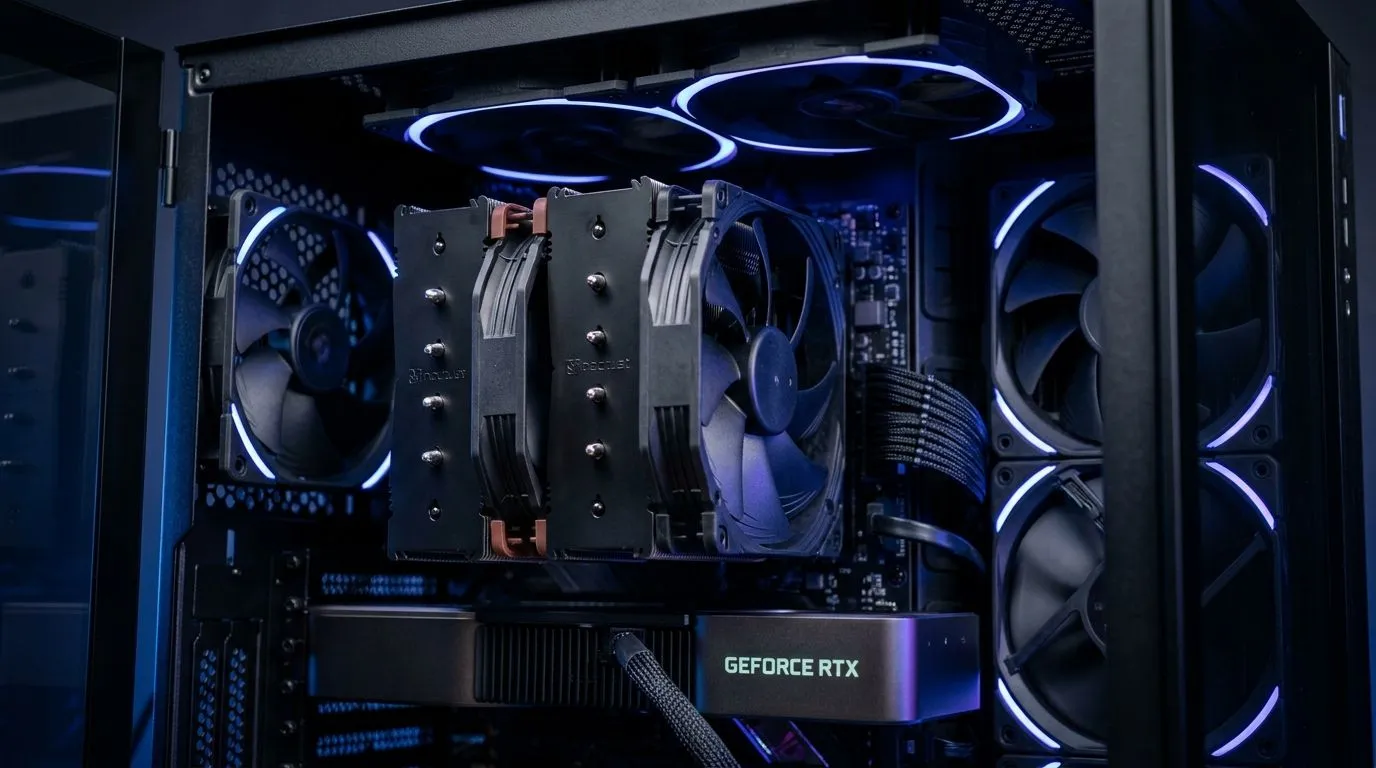
PC Still Overheating: Why It Happens and How to Fix It (and keep your FPS steady) 🔥
If your gaming PC suddenly sounds like a hairdryer and your frames dip… don’t ignore it. Overheating can throttle performance, crash games, and even shorten component life. In South Africa’s warm rooms and dusty game zones, this problem shows up fast. The good news? Most overheating causes are fixable with a few smart checks. Let’s go through the likely reasons a PC still overheats, then dial in cooling properly. 🔧
PC Still Overheating: Common causes you can spot in 10 minutes ⚠️
Start with the simplest clues.
- Dust build-up: Filters, heatsinks, and fans clog over time. Less airflow means higher temperatures.
- Fan curve not ramping: Some systems keep fans low until it’s too late.
- Bad thermal paste or poor contact: If temps climbed after a CPU cooler reseat, it can be paste-related.
- Blocked vents: A PC wedged against a wall or under a desk can choke airflow.
- Case airflow mismatch: You might have fans, but not the right setup (front intake, rear/top exhaust).
Quick diagnostic: run a game or benchmark for 10 minutes, then check temps in your monitoring software. If CPU spikes quickly while GPU stays fine, focus on the CPU cooler first. If both climb together, airflow or ambient conditions are usually the culprit.
PC Still Overheating: Fix it with airflow, then refine cooling 🔧✨
Think of cooling like getting fresh air through your PC, not just adding fans. Most cases need front intake and rear or top exhaust to establish a path.
Choose fans that match your case and your room conditions
Fan size matters. A 140mm fan often moves more air at lower noise than a smaller one, while 120mm fans can be easier to fit depending on your chassis.
- If your case supports 120mm, pick fans designed for smooth static pressure or balanced airflow. Link: Explore 120mm case fans
- If you can fit 140mm, consider that option for quieter cooling. Link: Shop 140mm case fans
Consider brand and features, including RGB (if you want it)
RGB isn’t about cooling, but it can make your setup look intentional while you improve airflow.
- If you want a broad selection first: Link: browse case fans from Evetech
- For CORSAIR options: Link: CORSAIR case fans
- For Deepcool options: Link: Deepcool case fans
- If RGB matters to your build: Link: RGB case fans with lighting effects
- If you want a cleaner look: Link: non-RGB case fans
Set the fan curve like a pro ⚡
Even the best fans won’t help if your curve stays too low. In BIOS or your motherboard software, set a gentler ramp:
- CPU should start rising earlier under load.
- GPU fans should also respond smoothly, but avoid sudden spikes that can increase noise.
Productivity Pro Tip ⚡
On Windows, set your monitoring overlay up before you game. Use a reliable temperature readout so you know what changed after cleaning or reseating a cooler. Then adjust fan curves in small steps, testing after each change for 10–15 minutes to avoid guesswork.
PC Still Overheating: When to stop troubleshooting and get it checked 🚀
If you’ve cleaned the PC, adjusted airflow, and updated fan curves, and temps still look extreme, it may be hardware contact or a failing cooler. Signs include:
- CPU temps jump instantly in short bursts.
- Cooler mounting looks loose or uneven.
- You hear grinding or irregular fan behaviour.
For a real-world example… I’ve seen PCs in Johannesburg where dust filters were packed solid. Cleaning dropped CPU temps quickly. In Durban heat waves, the same PC ran fine after fan adjustments but not before. Environment matters.
PC Still Overheating: Lock in better temps without wasting money ✨
Don’t throw parts at the problem. Start with airflow, then confirm with temps. If you’re upgrading, choose fans that fit your case and match your preferred look and noise level. It’s a small spend compared to replacing a throttled CPU or crashed session mid-match.
Ready to Find Your Perfect Match? The Mac vs Windows debate is complex, but for maximum power, choice, and value in South Africa, Windows is hard to beat. Explore our massive range of laptop specials and find the perfect machine to conquer your world.











